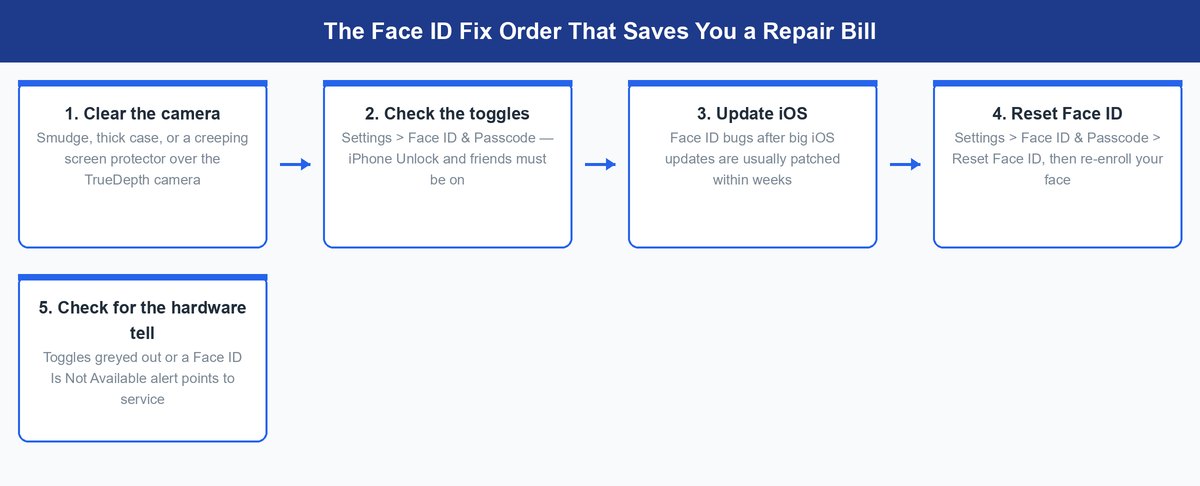
Typing your passcode forty times a day gets old fast. And the scary story sits in the back of your mind: the camera is dead, and this ends in a repair bill. Take a breath. In almost every case, Face ID not working comes down to a smudge, a case, a setting, or a software bug. Not broken hardware. Plenty of “dead” Face IDs come back with a cloth wipe and a two-minute settings check. True failure is rare. Better yet, your iPhone tells you when that is the case. This guide runs the fixes in the order that finds the problem, cheapest first.
- Most Face ID failures come from a dirty camera, a case or screen protector creeping over it, or a switched-off toggle. Dead hardware is the rare exception.
- Distance matters more than people think. Apple says 10 to 20 inches from your face. The flat-on-the-desk glance fails because the camera sees your chin.
- Broke right after an iOS update? Do not factory reset. Install the next patch and use Reset Face ID as the bridge fix.
- Reset Face ID takes under a minute and clears most stubborn software cases. A full factory reset is almost never the answer.
- The real hardware tell lives in Settings. Greyed-out Face ID toggles or a “Face ID Is Not Available” alert mean the camera itself failed. That is when you book service.
Why Face ID Fails and Why It Is Rarely Dead Hardware
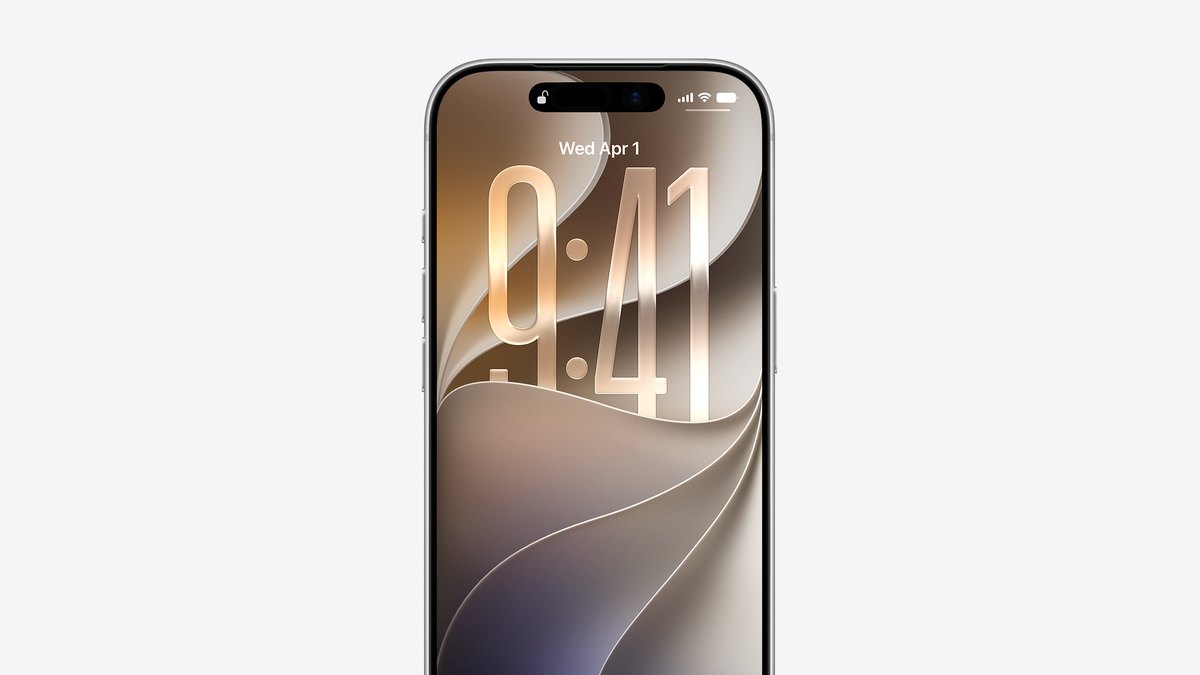
Face ID is a camera system doing a hard job in a tenth of a second. The TrueDepth camera — the sensor cluster in the notch — sprays thousands of invisible infrared dots on your face. Then it matches the pattern against the face map stored on your iPhone. Three things can break that chain. The camera cannot see you. The software is blocked or buggy. Or the hardware has failed. That order matters. The first two causes are free to fix, and they cover nearly every case that walks into a repair shop.
Here is the part most people miss: Face ID is built to fail safe. When anything looks wrong, the phone quietly falls back to your passcode instead of guessing. Good security — but it means a smudged lens and a dead camera feel identical from the outside. So work the list from cheap to expensive, and let the phone tell you when it is genuinely sick.
Clear the TrueDepth Camera and Fix Your Distance
Apple’s own Face ID troubleshooting page puts it plainly: remove anything covering the TrueDepth camera, like a smudge, a case, or a screen protector. That one line fixes a huge share of these failures.
Wipe the Camera Area, Not Just the Screen
The sensors live in the notch or the Dynamic Island. Pocket lint, sunscreen, and finger grease build a haze over that strip. Your eyes ignore it; an infrared camera cannot. Wipe the top of the screen with a clean microfiber cloth. Not your shirt — that just moves the grease around. If you use a spray, pick one safe for lens coatings, and spray the cloth, never the phone.
Check Your Case and Screen Protector
A thick case with a raised lip can shade the sensors at certain angles. Screen protectors are sneakier. One installed a hair too high, or holding a bubble near the camera, scatters the dots before they reach your face. Peel the protector off and test bare. If Face ID comes back, the protector was your whole problem. The fix is a better-aligned replacement, not a repair.
Hold It at the Right Distance and Angle
Apple’s range is an arm’s length or closer — 10 to 20 inches. The classic bad habit is glancing at a phone lying flat on a desk. From there, the camera mostly sees chin and ceiling. Lift the phone so it faces you straight on, with eyes, nose, and mouth in view. Wearing a mask? Apple says keep your eyes unblocked and hold the phone a little higher.
Worth knowing: Face ID with a mask needs an iPhone 12 or newer on iOS 15.4 or later, and Apple says it is not built to work with sunglasses. On an iPhone 11 or X, masked unlock never existed — that is a feature line, not a fault.
Check the Settings That Quietly Turn Face ID Off
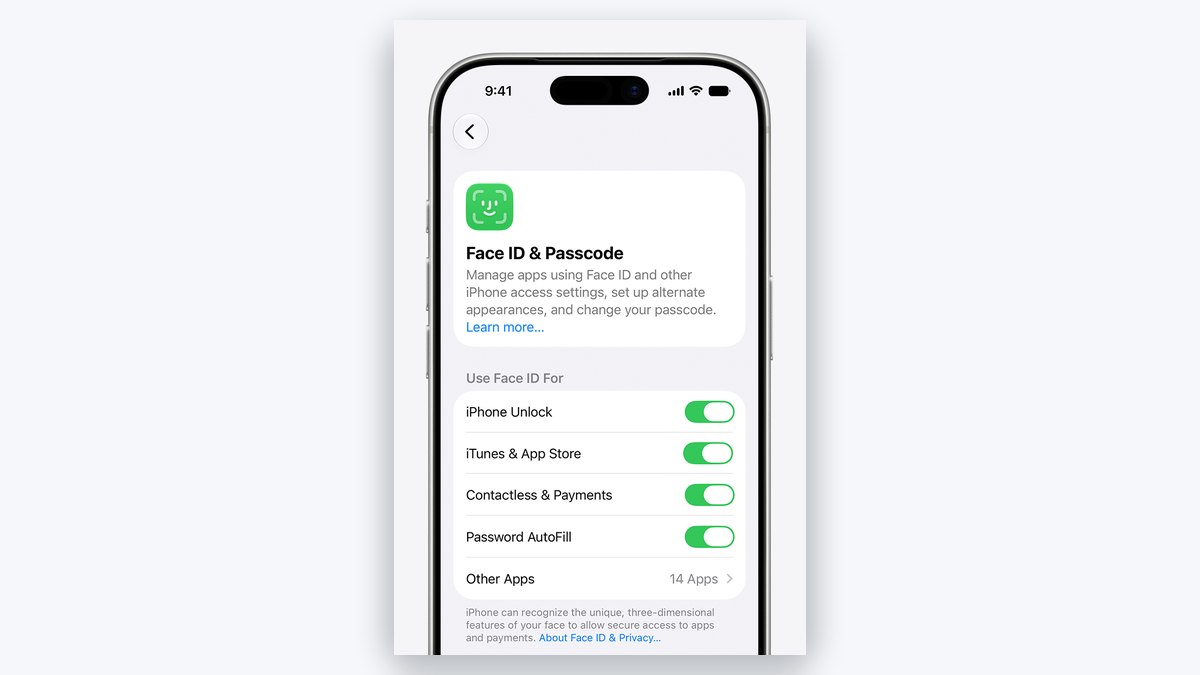
Open Settings, tap Face ID & Passcode, and enter your passcode. This screen shows whether Face ID is even allowed to run. Check these switches:
- iPhone Unlock — off means Face ID never fires at the lock screen, no matter how clean the camera is.
- iTunes & App Store, Contactless & Payments, Password AutoFill — each area has its own switch. Works at the lock screen but not in one app? The answer is here.
- Require Attention for Face ID — with this on, the phone wants your eyes open and looking at it. Dark sunglasses and sideways glances are why it keeps missing.
- Set Up an Alternate Appearance — fails only with glasses or stage makeup? Enroll a second look instead of fighting the first one.
Two minutes here beats an hour of random restarting. Note how this screen behaves while you are in it. That detail matters in the hardware section below.
What to Do When Face ID Breaks After an iOS Update
If Face ID died the same week you installed a big iOS update, you are in a bug wave, not a hardware queue. Major iOS releases have a long history of shaking Face ID loose for a slice of users. Apple’s community forums fill with near-identical reports in the days after a big version lands. Then the complaints fade once the next small update ships.
The play is patience plus one cheap move. Check Settings, then General, then Software Update. Getting current is Apple’s first troubleshooting step, and the small release after a major update often carries the fix. Restart and enter your passcode once. Still failing? Run Reset Face ID, described next — re-enrolling on the new iOS clears most update cases. What you should not do is factory reset the phone over this. You would spend an evening restoring a backup to fix what a patch was about to fix anyway.
Reset Face ID Before You Even Consider a Factory Reset
Reset Face ID is the targeted tool. It deletes only your stored face map. Go to Settings, tap Face ID & Passcode, then tap Reset Face ID, and set it up again facing the phone straight on. The whole thing takes under a minute. It fixes the cases where the stored map drifted too far from reality — a new beard, a big glasses change, or a map that was enrolled badly the first time.
One warning: Reset Face ID wipes your alternate appearance too. You will re-enroll both looks from scratch, so avoid resetting right before a day you rely on the second face.
A factory reset, by contrast, erases the entire phone to fix a feature that has its own reset button. It earns a place in exactly one scenario: the final software test when you already suspect hardware.
Don’t skip this: follow Apple’s order — restart, enter your passcode, try Face ID, and only then reset. Apple puts Reset Face ID last on its own list because everything above it is faster and keeps your enrolled face.
How to Tell When Face ID Is a Real Hardware Failure
Everything above is free. Before you spend money, make the phone show you real evidence. It gives two clear signals.
The Greyed-Out Settings Tell
Open Settings, then Face ID & Passcode. Are the Face ID options greyed out and untappable? Does setup fail instantly with an alert like “Face ID Is Not Available”? Then the phone has failed its own check on the TrueDepth camera. Apple’s support page does not spell this tell out — its list simply ends with “you might need service.” But repair techs treat the greyed-out screen as the classic sign the camera module itself is the problem. No cleaning, reset, or reinstall saves a phone showing this screen. One caveat: restart once and update iOS first, because a rare software hang can grey the menu for a while. If it stays grey, it is hardware.
Screen Replacements and the Face ID Risk
Did the trouble start after a screen repair? That timing is your answer. The TrueDepth parts sit packed against the top edge of the display. A repair that nicks that sensor cable can take Face ID down for good. Apple’s page on nongenuine iPhone displays warns that aftermarket panels can degrade touch response, the light sensor, and True Tone. And a shop working around the sensor area is where Face ID most often dies for good. A careful repair with genuine parts keeps Face ID. A rushed one is the most common way a healthy unit gets killed.
The catch: damaged TrueDepth parts are not something a corner shop can swap — Face ID repairs route through Apple’s own process. A bargain screen quote that breaks Face ID can cost more than the Apple repair you were avoiding.
If the verdict is hardware, get a quote from Apple Support before deciding anything. Out of warranty, this class of repair usually runs a few hundred dollars depending on model. AppleCare+ shrinks it to a modest service fee. On an older iPhone, weigh that number honestly. If the quote lands near the phone’s resale value, putting the money toward a refurbished iPhone is often the smarter spend.
Disclosure: TechDaily earns affiliate commissions from qualifying purchases made through links on this page.
What keeps tripping your Face ID?
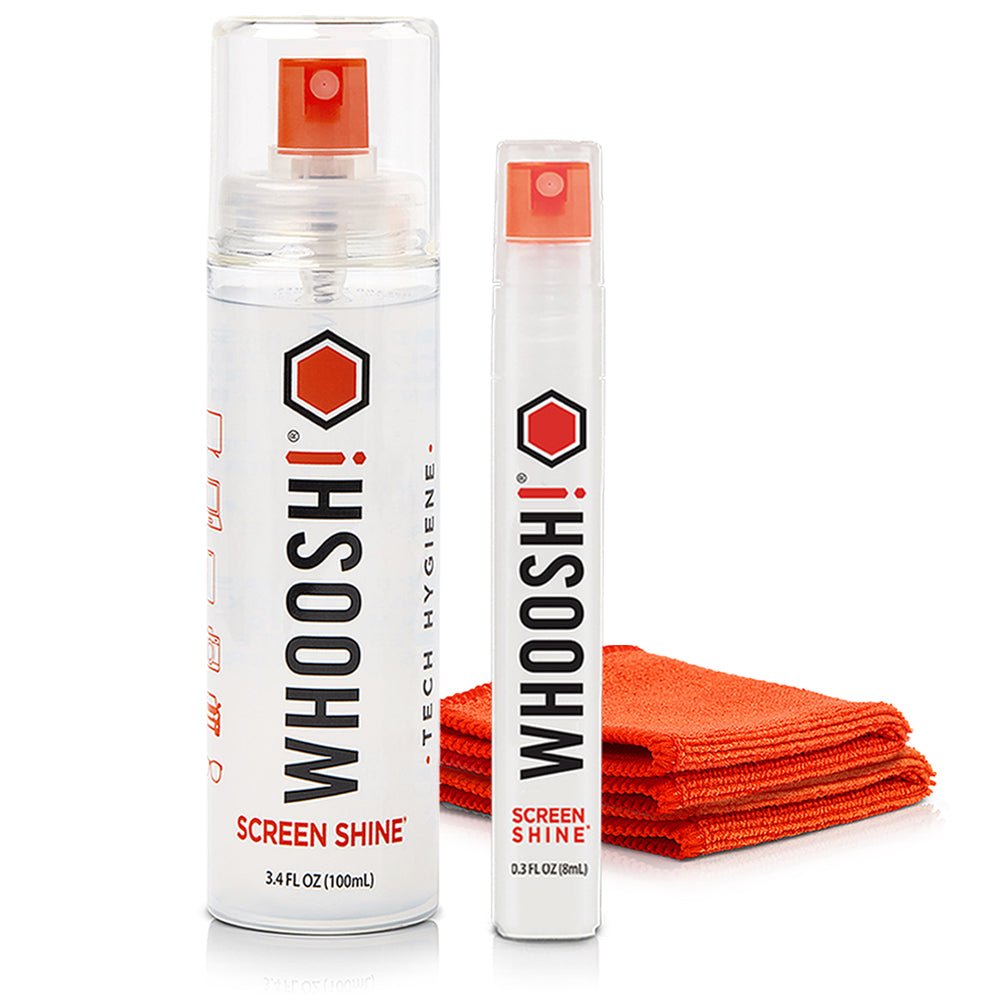
★ Your pick: WHOOSH! Screen Shine Duo
Alcohol-free spray plus proper microfiber cloths, safe on camera and screen coatings
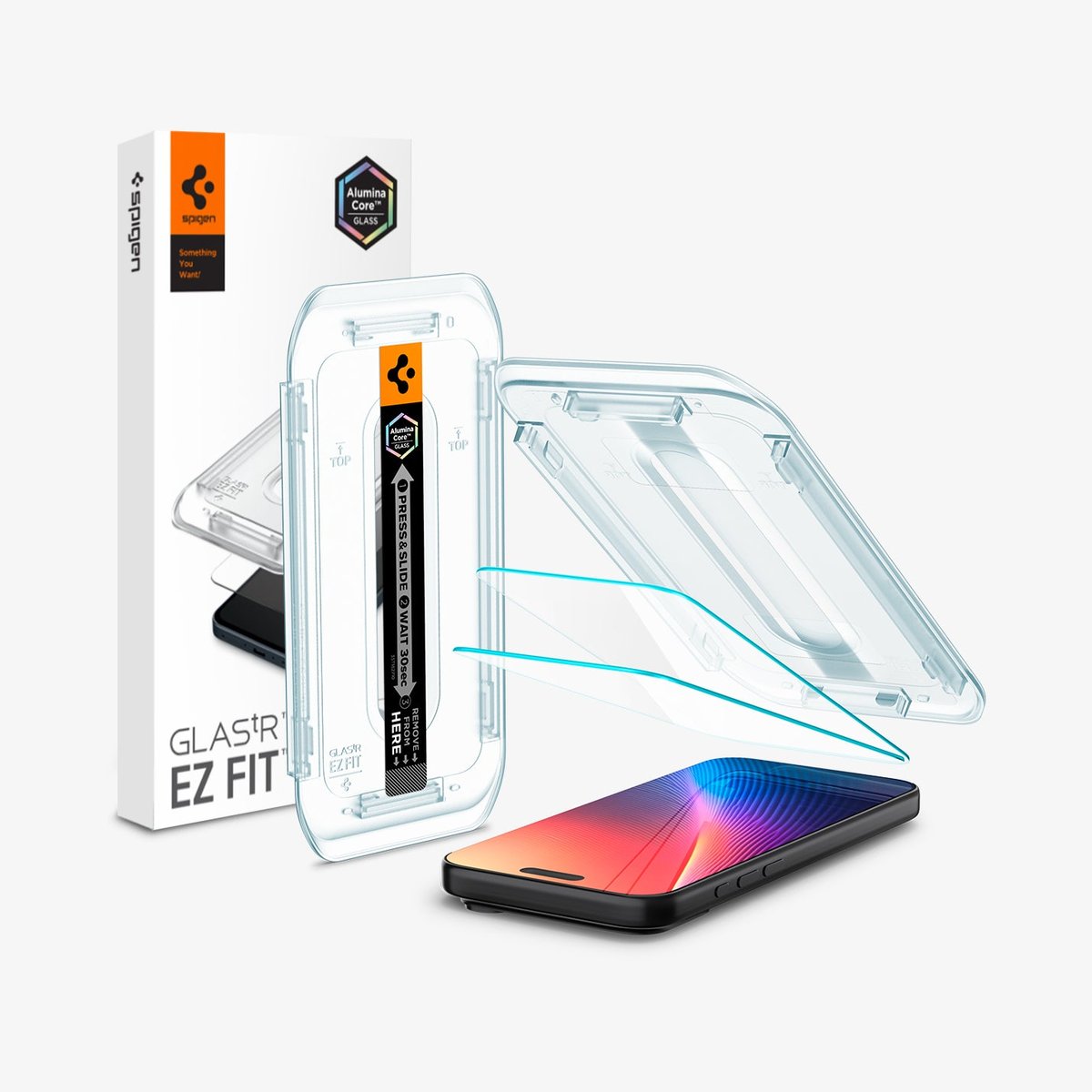
★ Your pick: Spigen GlasTR EZ Fit
Tempered glass with an alignment tray, so the install lands straight and clear of the camera
👑 Our Top Pick — Best Overall Value
WHOOSH! Screen Shine Duo
A hazy TrueDepth camera is the most common cause of all, and this cleans it without harming lens coatings
Opens on our Top Pick. Tap an option to see the best match for you.
Keep Face ID Working Once You Have It Back
If a smudge or a crooked protector caused this round, the same thing will cause the next one. Two cheap pieces of kit close the loop for good.
1. WHOOSH! Screen Shine Duo
Under $20Alcohol and ammonia free100 mL + 8 mL spraysTwo 6-inch microfiber clothsSafe on lens coatings
It pairs a 3.4-ounce (100 mL) bottle for home with a 0.3-ounce (8 mL) pen-sized sprayer for a bag or pocket, plus two 6-by-6-inch microfiber cloths. You spray the cloth, wipe the top strip of the screen where the TrueDepth camera lives, and the haze that was scattering Face ID’s dots is gone in ten seconds.
The formula is the reason to pick it over glass cleaner from under the sink. It is alcohol-free and ammonia-free. That matters because household sprays strip the grease-resistant coating off a phone screen and can fog lens coatings — the exact coatings over the front camera. The included cloths are treated to resist the bacteria and odor a shirt-tail wipe rubs in.
Against the Spigen pick below, this one solves the everyday cause instead of the install cause. Grease comes back weekly; a protector is a one-time event. If you buy one thing after fixing Face ID, buy this and make the top-of-screen wipe a Sunday habit. Skip it only if you already own a good microfiber cloth and actually use it — a dry quality cloth handles light grease, just more slowly.
Pros
- Alcohol-free and ammonia-free, so it will not strip screen or lens coatings
- Two bottle sizes cover the desk drawer and the jacket pocket
- Includes two 6-by-6-inch treated microfiber cloths
- Works on every screen in the house — laptop, TV, tablet, glasses
- Ten-second wipe targets the most common Face ID failure cause
Cons
- Costs more than a plain microfiber cloth doing most of the job
- The 8 mL pocket bottle empties quickly with daily use
- Spray the cloth, not the phone; misting the phone can push liquid toward openings
2. Spigen GlasTR EZ Fit
$10–$20 rangeTempered glass 2-packAlignment tray includedCase friendlyFits current iPhones
A crooked or creeping screen protector is the sneakiest Face ID killer in this guide. The kit ships as a two-pack of tempered glass with a plastic alignment tray. Seat the tray on the phone, press, slide the tab, and the glass drops exactly where Spigen designed it to sit — including the cutout region up top. No eyeballing, no nudging a half-stuck sheet toward straight. That nudging is exactly how film protectors end up shading a sensor.
The glass is high alumina silicate tempered glass, Spigen’s harder AluminaCore recipe, with full light transmission. Your front camera and sensors are not peering through a tinted layer. It is cut to stay case-friendly, and Spigen sells versions across current and recent iPhones, including a sensor-protected variant for the newest models. Pick your exact model on the product page.
Compared with the WHOOSH! kit above, this is the buy when your trouble began after fitting a cheap protector, or when peeling one off was the fix. A bare screen is one drop away from a repair bill that dwarfs this whole list. The honest play is protection that installs straight, not no protection at all. Pair the two: glass on straight once, cloth wipe weekly, and both cheap causes of Face ID failure are retired.
Pros
- Alignment tray makes a straight, camera-clear install nearly foolproof
- Two protectors per pack, so a botched first try costs nothing
- Hard alumina-silicate tempered glass rather than soft film
- Full light transmission keeps the front camera and sensors clear
- Built to work with cases instead of peeling at the edges
Cons
- Costs more than bargain-bin film protectors
- Model-specific — buy the exact version for your iPhone or the cutouts will not line up
- Glass adds slight thickness some case lips press against
Frequently Asked Questions
Why did Face ID suddenly stop working on my iPhone?
Sudden failure is usually physical, not fatal. A grease haze over the TrueDepth camera, a new case with a taller lip, or a shifted screen protector are the leading causes. Wipe the top strip of the screen, pull the case and protector, and test bare. If Face ID returns, you found it — for free.
Why is Face ID not working after an update?
Big iOS updates sometimes break Face ID for a slice of users, and the reports cluster right after each major release. Install the next small update as soon as it appears, restart, and run Reset Face ID to re-enroll on the new version. Do not factory reset over an update bug — the patch usually beats you to the fix.
Does Face ID work with a mask or sunglasses?
Face ID with a mask works on an iPhone 12 or newer running iOS 15.4 or later, and it wants your eyes clearly visible. Apple says to hold the phone a bit higher, and that it is not built for sunglasses. On an iPhone 11 or older there is no masked unlock at all, so a mask failure there is normal.
Should I use Reset Face ID or factory reset my iPhone?
Reset Face ID first, nearly every time. It deletes only the stored face map, takes under a minute, and fixes most software-side failures. A factory reset erases the whole phone. It is only worth it as a final test when you already suspect hardware and want certainty before booking service.
How do I know my Face ID problem is hardware?
Open Settings, then Face ID & Passcode. Greyed-out, untappable Face ID options — or an instant “Face ID Is Not Available” alert during setup — mean the phone failed its own camera check. Restart once and update iOS to rule out a rare software hang. If the screen stays grey, it is hardware.
Does replacing an iPhone screen break Face ID?
It can, and third-party repairs are where it happens most. The TrueDepth sensors sit against the top of the display, and a repair that damages that cable kills Face ID for good. Apple also warns nongenuine displays can degrade other sensors. If Face ID died right after a screen swap, go back to the shop first — then get an Apple quote.
The Bottom Line on a Face ID That Will Not Work
Run the cheap list in order: wipe the TrueDepth camera, pull the case and protector, check the toggles, update iOS, restart, then Reset Face ID. That sequence fixes the vast majority of failures without costing a cent. Save the worry for the one signal that earns it — greyed-out toggles or the “Face ID Is Not Available” alert — and let an Apple quote, not panic, decide between repair and replacement. Your face did not stop working. Odds are, neither did the camera.