Here is what years of “my phone is dead” panics all have in common: the battery almost never did it. An iPhone not charging is usually a cheaper problem wearing a scary costume. Think pocket lint packed into the port. A cable frayed inside its jacket. A safety feature doing exactly what Apple built it to do. The battery is the last suspect on the list, not the first. So before you book a repair or start pricing a new phone, work through the symptoms below. Each one points at a different part, and most of the fixes cost nothing but ten minutes.
Disclosure: TechDaily earns affiliate commissions from qualifying purchases made through links on this page.
- Match the symptom first. A black screen, a liquid alert, and a phone that stops at 80 percent are three different problems with three different fixes.
- A dead-looking iPhone gets 30 minutes on a wall charger and a force restart before you are allowed to worry. Apple’s own service steps start there.
- The liquid-detected alert is protection, not a glitch. Overriding it can corrode the charging pins for good, and rice does not help. Air and time do.
- Never put metal in the charging port. A paperclip or SIM tool can turn free lint removal into a board-level repair.
- The battery is only guilty when Settings says so. Check Battery Health before you spend anything, and price the fix against the phone’s real value.
Match the Symptom Before You Spend a Single Dollar
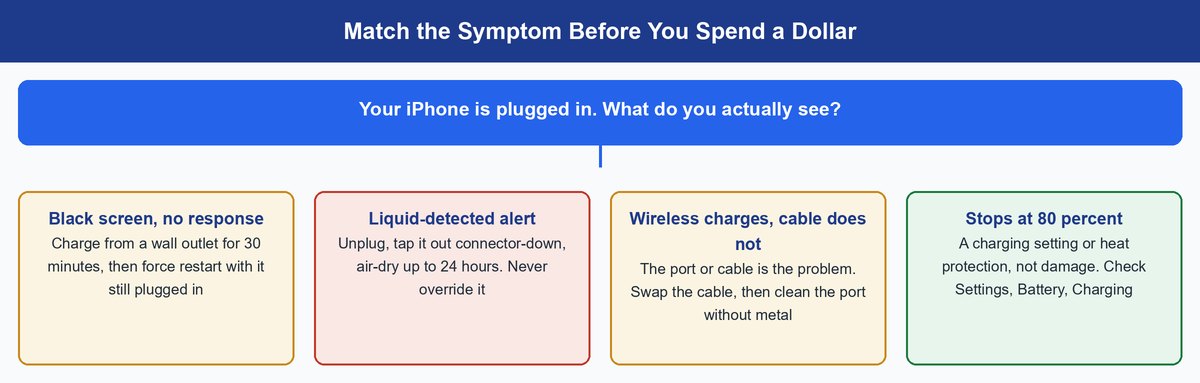
Generic fix lists make you restart, reset, and update in a row and hope something sticks. That order wastes your time. A charging failure announces its cause if you read the symptom. A phone that charges wirelessly but ignores every cable has just told you its port or cable is bad. A phone that parks at 80 percent has told you nothing is broken at all. A liquid alert has told you to put the phone down and wait.
That is why this guide runs symptom-first. Find the branch that matches what you actually see, jump to that section, and skip the rest. The only rule that applies to everyone: test with a wall outlet, a known-good cable, and a known-good adapter before you blame the phone. Three cheap parts sit between the wall and your battery, and any one of them can fake a dead iPhone.
A Dead Black Screen Usually Needs 30 Minutes, Not a Battery
A completely black, silent iPhone feels like the worst case. It is usually the easiest one. When a battery runs all the way down, the phone does not have enough power to light the screen right away. It needs time on a charger before it can even show you it is alive.
Apple’s service steps for a phone that will not power on are simple: plug it into a wall outlet and let it charge for half an hour. If nothing happens, force restart it while it stays plugged in — on an iPhone 8 or later, press and release volume up, press and release volume down, then hold the side button until the Apple logo appears. Then give it another half hour on power. Only after that double round does Apple’s own guidance say the word “service.”
Worth knowing: run this test from a wall outlet, not a laptop. An old-style USB-A port on a computer can deliver as little as 2.5 watts, and a deeply drained battery may barely respond at that trickle. A proper wall adapter delivers several times more and wakes the phone far sooner.
The reason for the 30-minute rule is chemistry, not bureaucracy. A lithium battery below its safe voltage gets charged very gently at first, on purpose. The phone will not boot until the battery climbs back into safe territory. So the screen can stay black for many minutes while real progress happens out of sight. People give up at minute five, declare the phone dead, and start shopping. Minute twenty-five would have saved them the trip.
Plugged in and Nothing Happens? Swap the Cheap Parts First
If the phone is awake but shrugs at the charger — no bolt icon, no charging sound, battery slowly falling — the fault is probably in the chain, not the phone. Work through the chain from the wall inward.
Test the Outlet and Adapter Before You Blame the Phone
Move to a different wall outlet first. Then inspect the adapter and cable ends the way Apple tells its own support staff to: look for breakage, bent prongs, and fraying where the cable meets the connector. A cable can fail invisibly, too — the wires break inside the jacket while the outside looks fine. That is why the real test is substitution: borrow a cable and adapter you have watched charge another device, and see if the behavior changes. If a borrowed cable fixes it, you just diagnosed the problem for free.
Take the Accessory Warning Seriously
If your iPhone pops up an alert saying the accessory is not supported or certified, believe it. Apple says the alert fires when the accessory is defective, damaged, or not built to charge phones. Bargain-bin cables are the classic trigger. On Lightning iPhones — the 14 family and older — the fix is a cable with Apple’s MFi badge. That badge means the cable has the ID chip the phone checks for. iPhone 15 and later use USB-C instead, and any well-made cable from a real brand does the job.
Rule Out a Software Freeze
Sometimes the phone is charging and the screen simply is not telling you, because iOS hung. A force restart — the same volume-up, volume-down, hold-the-side-button sequence from the section above — clears a frozen state without touching your data. It costs thirty seconds and removes software from the suspect list entirely.
The Liquid Detected Alert Is Protecting You, so Never Override It
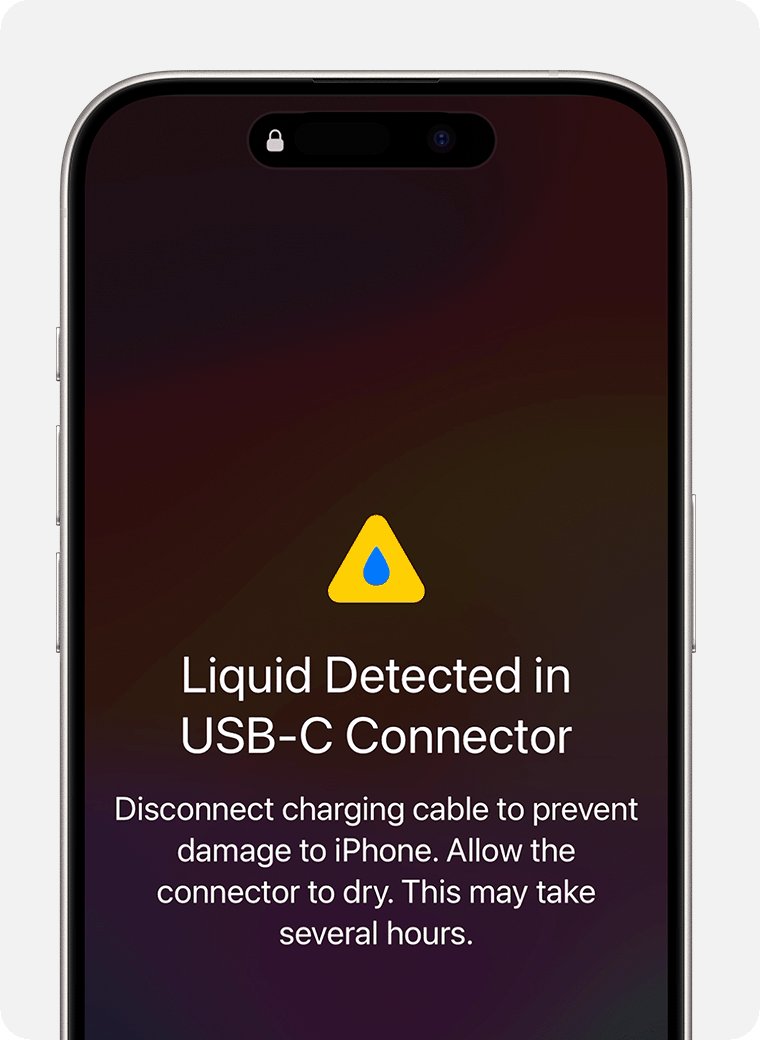
If your screen says “Charging Not Available” or “Liquid Detected,” your iPhone found moisture on the charging pins and cut the power on purpose. Water plus live electrical contacts equals corrosion, and corroded pins do not come back. The alert is not the problem. The alert is the phone saving its own port.
Apple’s playbook here is specific. Unplug everything. Tap the phone gently against your palm, connector facing down, so gravity shakes the drops out. Then leave it somewhere dry with airflow for at least 30 minutes before trying again. Still see the alert? The port can need up to 24 hours to dry completely. That feels like forever on a low battery. This is where wireless charging earns its keep. A wet port does not stop a MagSafe or Qi pad, so you can charge through the wait.
Just as important is Apple’s do-not list, because folk remedies cause real damage. No rice — Apple calls that one out by name, and the starch dust it sheds makes things worse. No cotton swabs or paper towels in the connector. No compressed air, and no external heat like a hair dryer.
One warning: when you reconnect a cable, iOS offers an Emergency Override button that charges anyway. Apple’s own page warns that charging with liquid present risks permanent corrosion of the pins. Treat the override as what its name says — for emergencies where a working phone right now matters more than the port’s long-term health — and not as a shortcut past a 30-minute wait.
Clean the Charging Port Without Wrecking the Pins
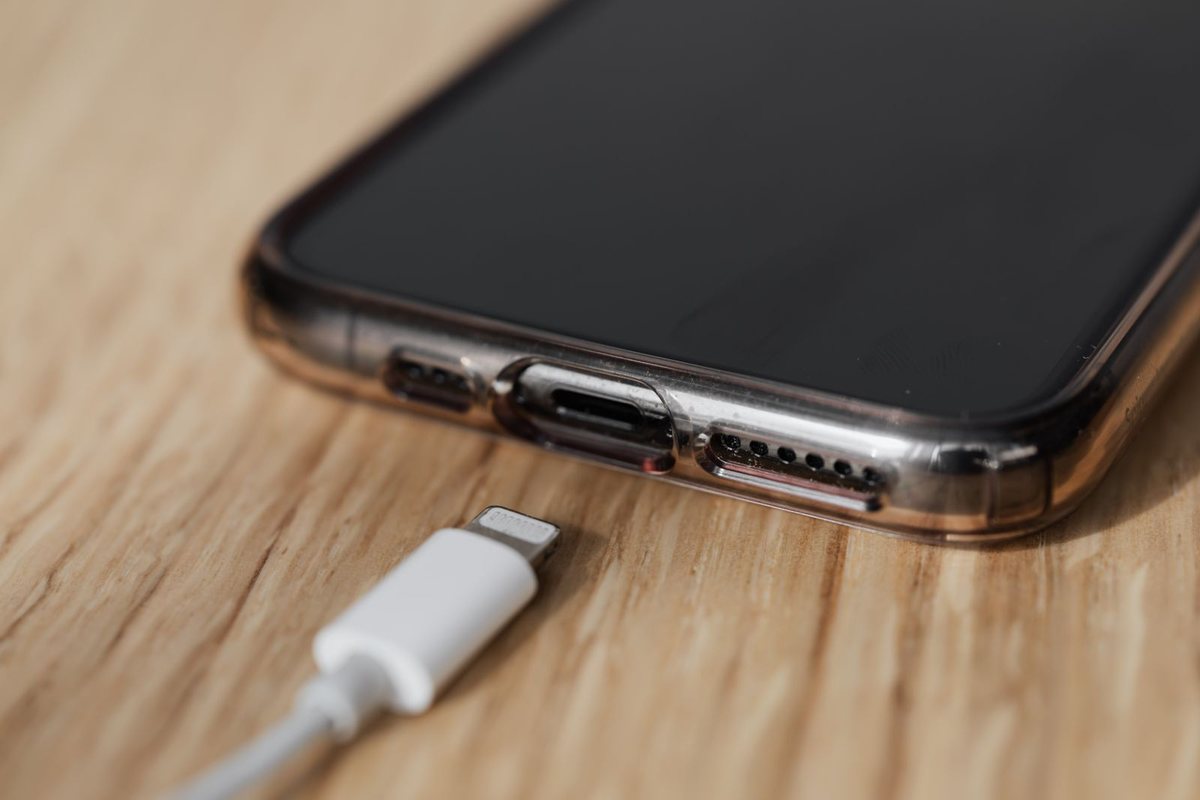
Here is the unglamorous truth behind a huge share of charging complaints: the port is full of pocket lint. Every plug-in presses the debris deeper. Over time a felt pad forms at the bottom of the port, and the cable no longer clicks in fully. The tell is a cable that feels loose, needs a certain angle, or works only when you press it upward.
Shine a light into the port and look. If you see gray fuzz where there should be a clean slot, that is your fault right there — and the fix costs nothing if you respect one rule.
Real talk: never put metal in the charging port. Not a paperclip, not a needle, not the SIM-eject tool that seems so perfectly sized. The pins inside are small, close together, and unforgiving; scrape the wrong one and your free lint problem becomes a paid repair. Soft and non-conductive only — a dry soft-bristle brush, a wooden or plastic toothpick used gently along the back wall, and patience. Skip compressed air, too; Apple’s guidance keeps it away from the connector.
Work in gentle scoops from the bottom of the port, and be prepared to be amazed at how much felt comes out of a two-year-old phone. When the connector clicks in with a firm, straight seat again, you are done. This five-minute cleaning has “fixed” more iPhones than any accessory on this page.
Stopping at 80 Percent Is a Feature Doing Its Job
An iPhone that charges happily to 80 percent and then stops is not broken. It is almost always one of two designed behaviors — and knowing which one takes ten seconds.
The first is Optimized Battery Charging, which Apple turns on by default when you set up the phone. It studies your routine on the phone itself. Then it holds the charge at 80 percent until shortly before you normally unplug. Overnight chargers see this constantly: the phone sits at 80 all night and sprints to 100 before the alarm. That is battery care, not battery failure — time spent full is what ages lithium cells fastest. On an iPhone 15 or later there is a second, stricter version: a Charge Limit you can set anywhere from 80 to 100 percent in five-percent steps. Both live under Settings, then Battery, then Charging. If someone set an 80 percent limit, the phone is obeying orders.
The second behavior is heat protection. Apple says software may limit charging above 80 percent when the phone gets too warm, and it resumes when the temperature drops. A phone charging on a sunny dashboard or under a pillow will hit this ceiling all day. Move it somewhere cooler and the “problem” evaporates.
Weird Charging Patterns and What Each One Tells You
Partial failures are actually good news. Each strange pattern narrows the suspect list for you.
It Charges Wirelessly but Not With a Cable
This is the clearest diagnostic freebie an iPhone can give you. Wireless charging and cable charging share the same battery but enter through different doors. If the wireless door works, the battery and charging circuits are fine. The fault is the port, the cable, or the adapter. Clean the port as described above and swap in a known-good cable. If cable charging still fails after that, the port itself likely needs service. Meanwhile, wireless keeps you alive.
It Charges Only in the Car
Flip the logic around. The car setup working means the phone, its port, and that cable are all healthy. The broken link is whatever is different at home — usually the wall adapter, sometimes the outlet or a worn second cable. People replace phones over this one, when the actual culprit was a dollar-store adapter that quietly died.
It Charges Only at a Certain Angle
A cable that needs to be propped, wedged, or held is telling you the connection is mechanically loose. Nine times the cause is the lint pad at the bottom of the port keeping the connector from seating; the tenth time it is a worn cable tip. Clean the port first, then retire the cable if the wiggle persists. Do not live with the wedge trick — a hot, half-seated connector is bad for the pins.
How to Tell When It Really Is the Battery
Sometimes it really is the battery. Your iPhone will tell you, in plain numbers, for free. Open Settings, then Battery, then Battery Health & Charging, and read Maximum Capacity. That number compares the battery today with the day it was new. Around 80 percent is Apple’s own line for a battery that has aged hard. The same screen shows a service note when the phone flags the battery.
Now do the honest math before spending. A battery swap through Apple typically lands in the roughly $70–$120 range out of warranty, depending on the model. Real money, but a fraction of any new iPhone. A worn port is usually a similar-scale repair. Liquid damage that has reached the board is a different animal and can climb past what an older phone is worth. That is the decision point: on a phone under three years old, a battery or port fix almost always wins. On an aging phone with a cracked screen and a tired battery, put the repair money toward a refurbished iPhone instead and get warranty coverage back in the bargain.
The one thing you should not do is buy a battery because a dead phone scared you. Every branch above — the 30-minute rule, the cable swap, the port cleaning, the 80 percent settings — costs less than a battery and fixes the majority of cases. Diagnosis first, wallet second. The same logic applies to other iPhone gremlins, by the way — our Face ID fix guide runs on the identical cheapest-cause-first order.
Which part of your charging chain failed the test?
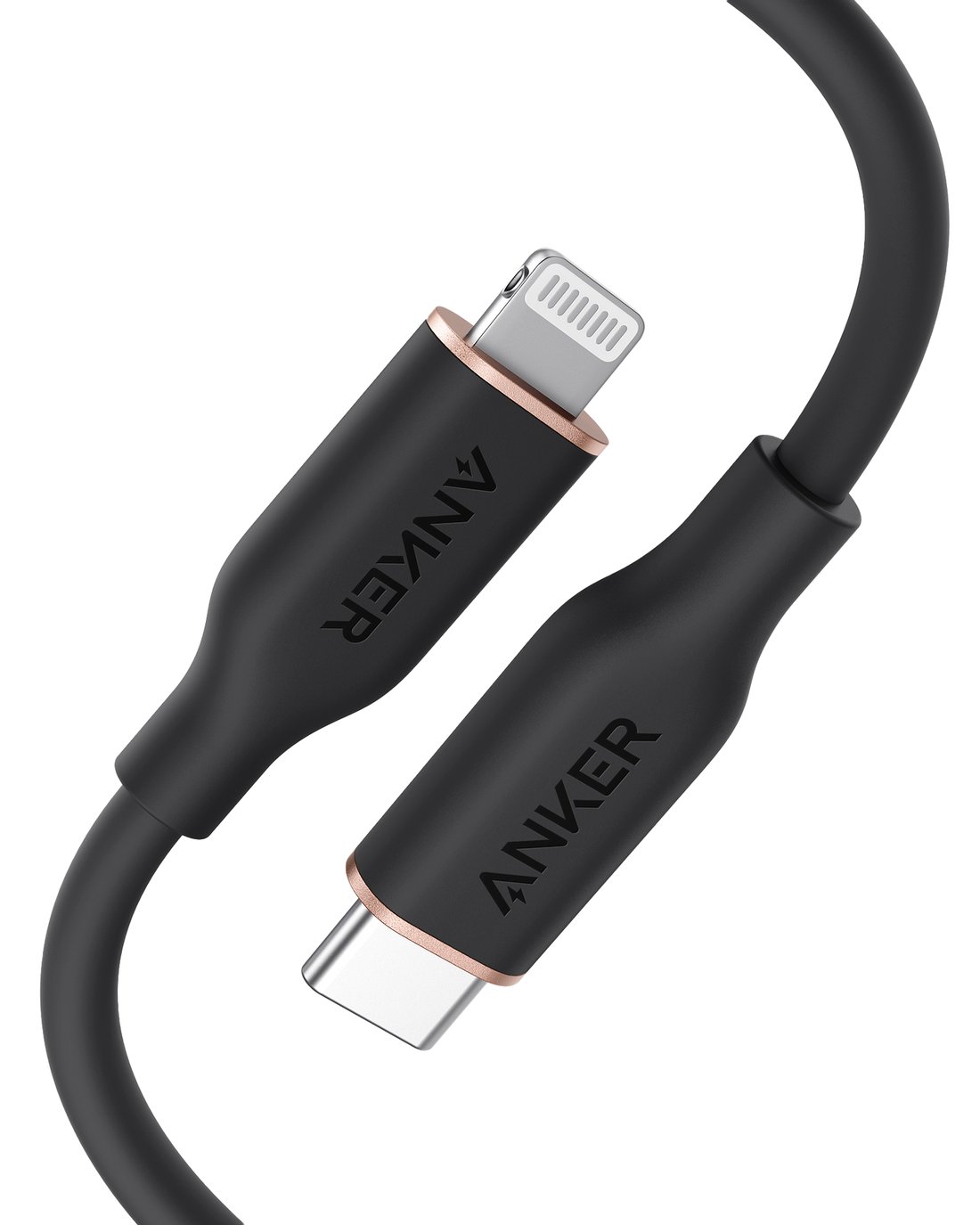
★ Your pick: Anker 641 USB-C to Lightning Cable
Rated for 25,000 bends with a 220-pound tensile strength, so it outlives the cable it replaces
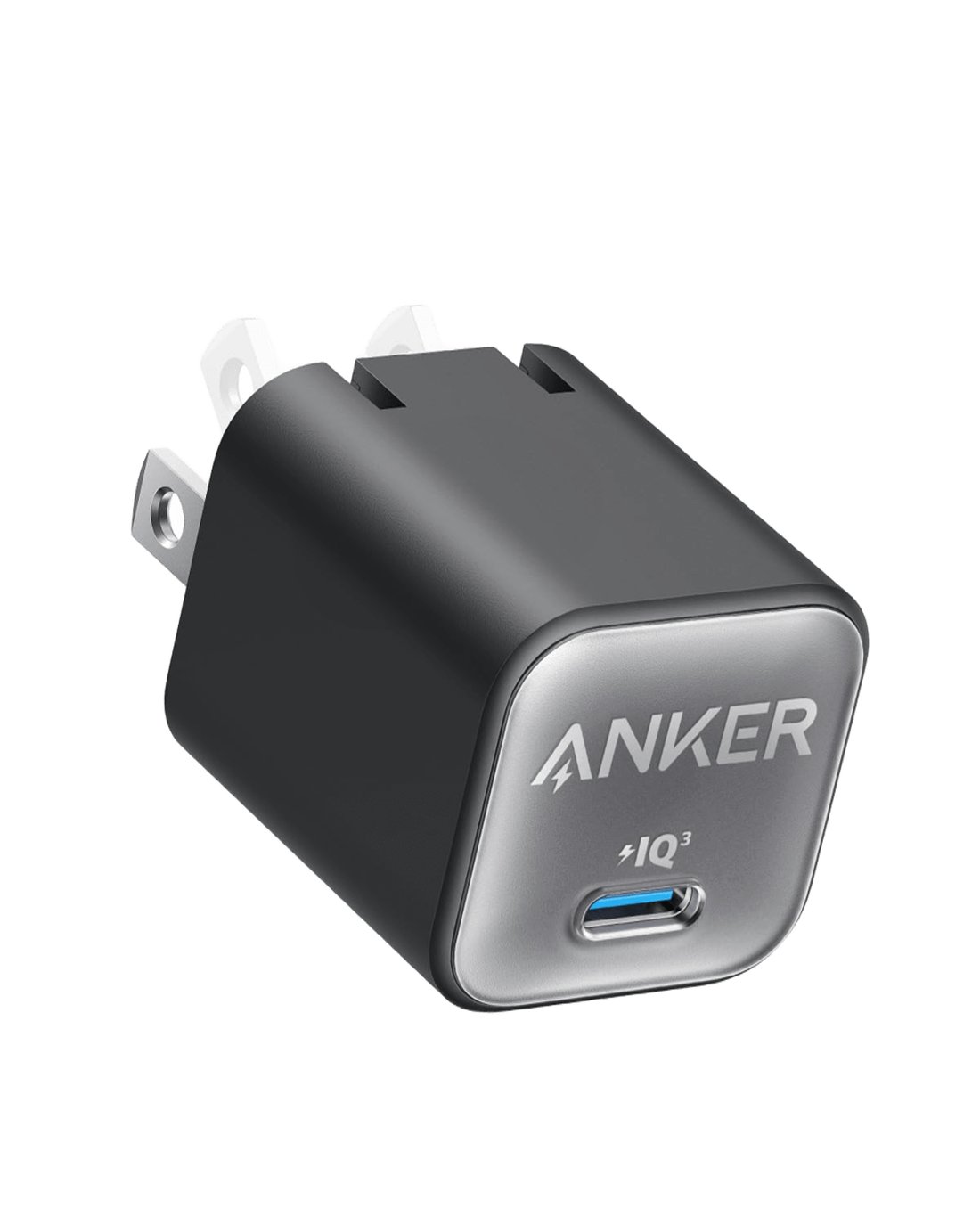
★ Your pick: Anker Nano Charger 30W
A modern GaN wall adapter with headroom past what an iPhone draws, small enough to live in a bag
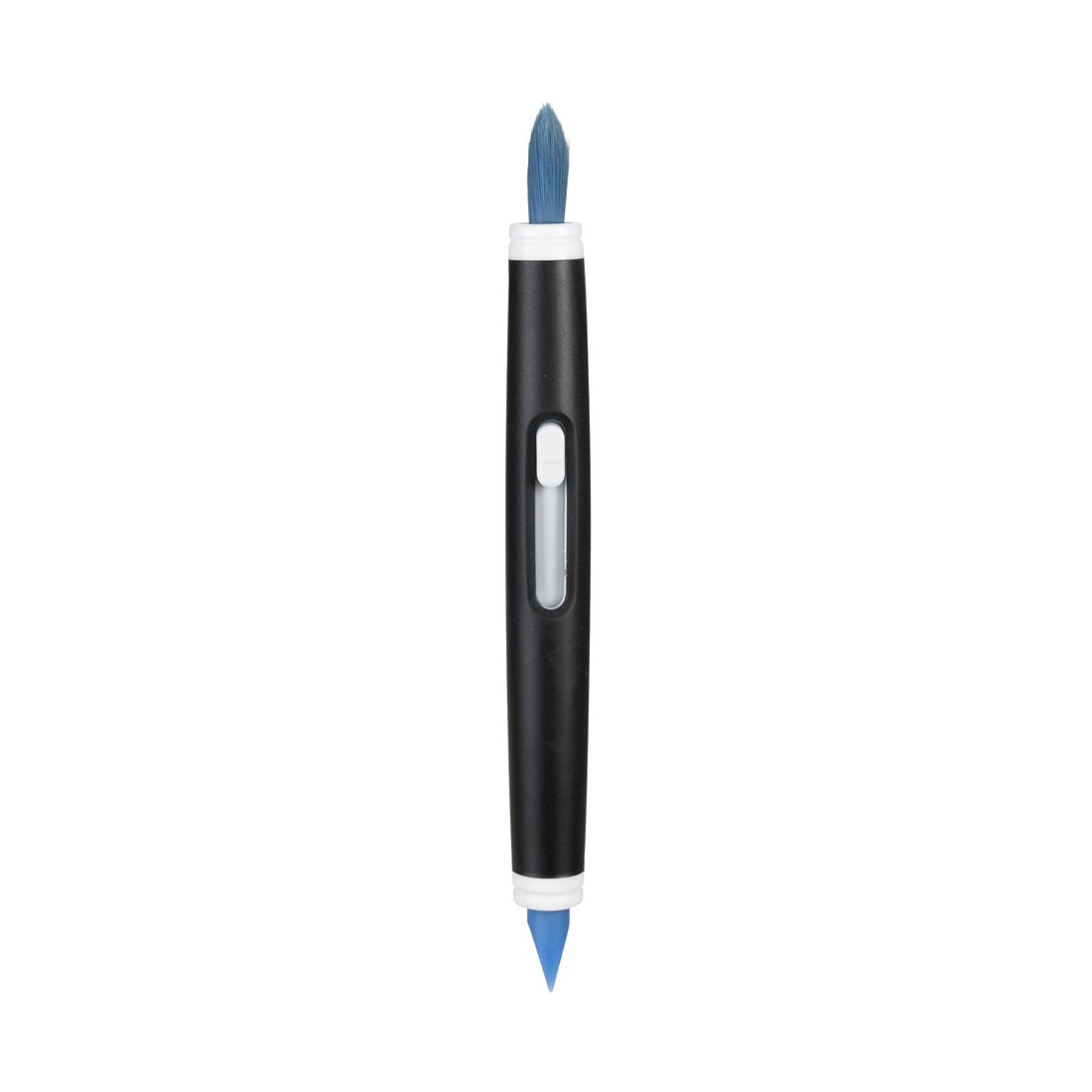
★ Your pick: OXO Good Grips Electronics Cleaning Brush
Soft bristles and a slim silicone wiper — the two safe tools for a charging port, in one pen
👑 Our Top Pick — Best Overall Value
Anker 641 USB-C to Lightning Cable
A worn cable is the most common broken link of all, and this silicone one is rated for 25,000 bends
Opens on our Top Pick. Tap an option to see the best match for you.
Three Cheap Fixes Worth Keeping in the Drawer
If the tests above pointed at a part, replace the part — not the phone. These three cover the chain: a certified cable, a modern wall adapter, and the one tool that cleans a port safely.
1. Anker 641 USB-C to Lightning Cable
$15–$25 range25,000-bend rated220 lb tensile strengthSilicone jacket3 ft and 6 ft
A cable gets bent, yanked, and slammed in doors every day. That is why Anker’s numbers matter. The 641 is rated for 25,000 bends and a pull strength of 220 pounds. The jacket is soft silicone, not hard plastic, so it drapes instead of kinking. Kinking at the connector neck is how most cables die.
This is a USB-C to Lightning cable with Power Delivery fast charging. Pair it with a modern USB-C wall adapter, like the Anker Nano below, and a Lightning iPhone charges at full cable speed. That combo retires the old USB-A brick most flaky home setups still run. It comes in three-foot and six-foot lengths. Get the six-footer for the nightstand. A short cable under tension slowly wrecks both ports and connectors.
One honest scope note. This cable fits Lightning iPhones — the iPhone 14 family and older. An iPhone 15 or later is USB-C, so pick the USB-C to USB-C cable from the same Flow line instead. Either way, one well-built cable beats four gas-station cables a year. That is the budget most people are on without noticing.
Pros
- Rated for 25,000 bends where cables fray at the neck
- 220-pound pull strength shrugs off yanks and door slams
- Soft silicone jacket resists kinking and tangling
- Supports Power Delivery fast charging with a USB-C adapter
- Two lengths, so the nightstand cable is not under tension
Cons
- Fits iPhone 14 and older; USB-C iPhones need the sibling cable
- Costs more than bargain multi-packs
- Silicone jackets pick up dust and pocket grit more than nylon braids
2. Anker Nano Charger 30W
$20–$30 range30 wattsGaN designFoldable plug1.1 x 1.1 x 1.4 in
This is a gallium nitride (GaN) design — the newer charger tech that runs cooler and packs more power into less plastic. Anker says it is up to 70 percent smaller than comparable chargers. At about 1.1 by 1.1 by 1.4 inches with a foldable plug, it vanishes into a bag pocket.
Thirty watts is the sweet size for an iPhone. It clears the 20-watt class where iPhone fast charging lives, with headroom to spare. The same brick also charges AirPods, a Kindle, or an iPad. One adapter, one USB-C port, most of a nightstand’s devices handled. Pair it with the Anker 641 above and a Lightning iPhone charges as fast as its hardware allows; pair it with a USB-C cable and an iPhone 15 or later does the same.
Buy this one when the car-charges-fine test pointed at your home adapter. Or when the accessory warning blamed a no-name brick. A failing adapter can also fade quietly. The phone still charges, just slowly and in fits, and people misread that as a dying battery. A modern GaN brick removes that whole doubt from your setup.
Pros
- 30 watts covers iPhone fast charging with headroom for tablets and earbuds
- GaN design runs cooler than old-style adapters
- Foldable plug and roughly 1.1-inch footprint travel well
- One USB-C port standardizes the whole nightstand
- Replaces the quietly-failing no-name brick for good
Cons
- Single port — charging two devices still means two bricks
- No cable included; budget for the 641 or a USB-C lead
- Overkill if you only ever slow-charge overnight anyway
3. OXO Good Grips Electronics Cleaning Brush
Under $15Soft retractable bristlesSlim silicone wiperWiper cap includedPen-sized
It is a pen-sized, double-ended tool: one end holds soft retractable bristles, the other a slim silicone wiper with its own cap. Both ends are exactly what the port-cleaning section ordered — soft and non-conductive — so the lint comes out and the pins stay untouched.
The bristle end is the everyday tool. OXO makes it soft enough for camera lenses. That means it is gentle enough for the charging port, the speaker grilles, and the earpiece mesh where the same lint builds up. The silicone wiper is the precision end. OXO aims it at the nooks around keyboard keys and screen edges, and that slim tip scoops packed felt out of a port’s corners without scratching. The bristles retract and the wiper has a cap, so the tool stays clean in a drawer or bag.
Next to the two Anker picks, this is the buy when the port was the culprit. It is also the cheapest insurance on this page. Clean the port every couple of months and the loose-cable, odd-angle symptoms stop showing up. It will not fix a truly worn port or a bad cable. But it prevents the most common cause of an iPhone that stops charging, and preventing beats curing.
Pros
- Soft bristles safe for lenses, ports, and speaker grilles
- Slim silicone wiper reaches compacted lint in port corners
- Both ends non-conductive — no metal near the pins, ever
- Retractable bristles and wiper cap keep the tool itself clean
- Costs pocket change and prevents the most common charging fault
Cons
- Will not revive a truly worn port or a broken cable
- Small enough to lose in a junk drawer
- A dry wooden toothpick does part of the job for free, just less gently
Frequently Asked Questions
Why is my iPhone not charging when it is plugged in?
Usually one of four things. A damaged cable or adapter. Lint packed into the port. Moisture that tripped the liquid cutoff. Or a charging setting holding the phone at 80 percent. Test with a known-good cable and adapter from a wall outlet, look in the port with a light, and check the screen for alerts. The battery itself is the least likely cause.
How do I fix an iPhone that will not charge after getting wet?
Unplug the cable, tap the phone gently against your hand with the connector facing down, and leave it in a dry spot with airflow for at least 30 minutes. Apple says drying can take up to 24 hours. Do not use rice, cotton swabs, paper towels, compressed air, or a hair dryer. Wireless charging still works while the port dries, so use a Qi or MagSafe pad in the meantime.
Why does my iPhone stop charging at 80 percent?
Because it was told to. Optimized Battery Charging, on by default, delays charging past 80 percent until just before you normally unplug. iPhone 15 and later models can also have a Charge Limit set between 80 and 100 percent. Heat does it too — Apple limits charging above 80 percent when the phone gets too warm. Check Settings, then Battery, then Charging, and move the phone somewhere cooler.
Can I clean my iPhone charging port with a paperclip or SIM tool?
No — never put metal in the port. The pins inside are easy to bend or scrape, and pin damage turns a free cleaning into a paid repair. Use a dry soft-bristle brush or a wooden or plastic toothpick, work gently along the back wall of the port, and skip compressed air. If careful cleaning does not restore a firm cable fit, have the port looked at professionally.
Why does my iPhone charge wirelessly but not with a cable?
Because the two charging paths enter the phone separately. Working wireless charging proves the battery and charging circuits are healthy, so the fault sits in the cable path: the cable itself, the adapter, or a dirty or worn port. Swap in a known-good cable, clean the port safely, and if cable charging still fails, the port likely needs service. Wireless keeps the phone usable in the meantime.
How do I know if my iPhone battery actually needs replacing?
Let the phone tell you. Open Settings, then Battery, then Battery Health & Charging. A Maximum Capacity reading around 80 percent or below means real aging, and the same screen shows a service note when Apple’s diagnostics flag the battery. If capacity is healthy and the phone still will not charge, the battery is not your problem — recheck the cable, adapter, and port instead.
The Bottom Line on an iPhone That Will Not Charge
Read the symptom, then fix the part the symptom convicts. A black screen earns 30 minutes on a wall charger and a force restart. A liquid alert earns patience and airflow, never an override. A loose or angle-sensitive cable earns a port cleaning with something soft. An 80 percent ceiling earns a trip to Settings, not a repair shop. Only when Battery Health itself says the battery aged out does your money belong near a replacement. Even then, price the fix against the phone honestly. That order costs almost nothing to run, and it is exactly why the repair counter sends so many “dead” iPhones home alive.