You plug in. The screen ignores you. Now you are driving with the phone in your lap like it is 2012. Here is the thing about Apple CarPlay not working: the head unit almost never died. CarPlay rides on a fragile little chain. A cable with the right wires inside. A USB port that carries data. Three iPhone settings that all have to agree. A pairing that has not gone stale. Any one link fails, and the screen goes dark. Every link costs less to fix than one hour at the dealership. So before you price a new stereo, run the suspects in order. The cheapest one did it. It usually does.
Disclosure: TechDaily earns affiliate commissions from qualifying purchases made through links on this page.
- Charge-only cables look just like real data cables, and CarPlay refuses to run without data wires. Swap the cable before you touch anything else.
- Apple’s own first move is a different cable in a different USB port. Many cars run CarPlay on exactly one port — the one with the little phone icon.
- Wired and wireless CarPlay break in different places. Wired failures live in the USB chain. Wireless failures live in Bluetooth and Wi-Fi.
- Siri off, Allow CarPlay While Locked off, a Screen Time block, or a VPN can each keep the screen dark while every part is healthy.
- Forget This Car on the phone, delete the phone from the car’s own menu, then re-pair fresh. A half-forgotten pairing fails just like broken hardware.
The Charge-Only Cable Is the First Suspect, Every Time
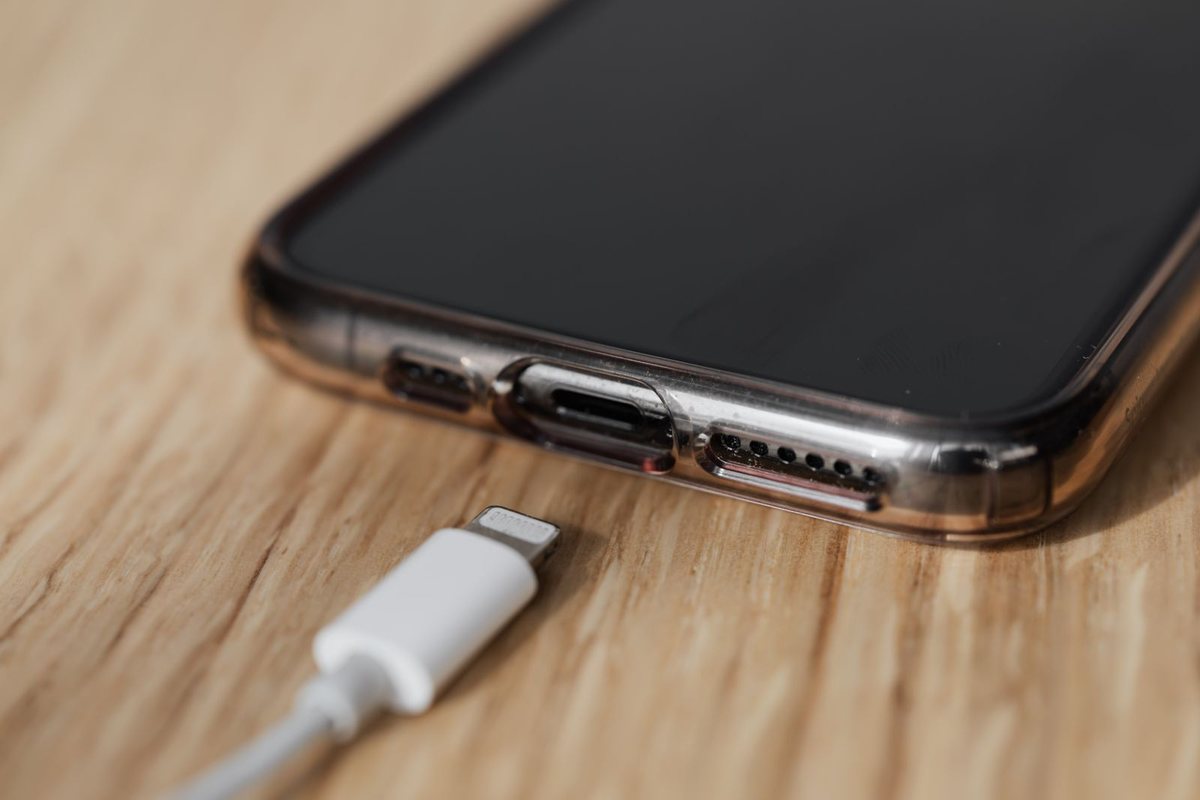
Here is the trap that catches more drivers than everything else on this page combined. Plenty of USB cables carry power and nothing else. They come bundled with power banks, toys, and gas-station racks. From the outside, they look just like the cable Apple shipped with your phone. Your iPhone charges from them fine, so the cable seems healthy. But CarPlay is a data connection. No data wires means no CarPlay — and no error message either. The phone sips power while the car screen stares back, blank.
That is why Apple’s own troubleshooting steps start with the least glamorous advice in tech support. Try a different USB cable in a different USB port. Not restart, not reset. Swap the cable. A frayed cable fails the same way, and it usually shows itself first with flaky charging at home. If your phone has been fussy on the nightstand too, one suspect explains two crimes. Our iPhone charging guide runs the same cheapest-cause-first order on that problem.
Before you buy: you can convict a charge-only cable at home. Plug your iPhone into a computer with the suspect cable. If the phone charges but the computer never reacts — no chime, no Trust This Computer prompt, nothing in Finder — that cable has no data wires. It was never going to run CarPlay.
Wired and Wireless CarPlay Break in Different Places
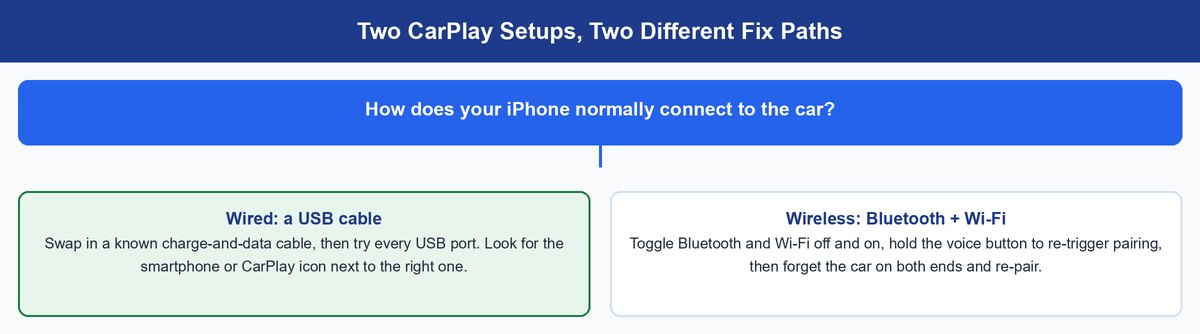
Before you touch another setting, answer one question. Does your iPhone connect with a cord, or does CarPlay just appear when you start the car? The two setups fail in different places. Half the bad advice online comes from mixing up their fix lists.
Wired CarPlay Lives and Dies by the USB Chain
A wired connection has three physical links: the cable, the port on the phone, and the port in the car. Swap the cable first, as above. Then move to a different USB port if your car has more than one. In many cars, only one port carries data. The rest are pure chargers. Clean pocket lint out of the iPhone’s port while you are at it. Then restart both the phone and the car — a full engine-off restart, not just the screen.
Wireless CarPlay Lives and Dies by Bluetooth and Wi-Fi
Wireless CarPlay uses Bluetooth only for the handshake. The actual session runs over a Wi-Fi link between phone and head unit. So both radios must be on. Wi-Fi off is the classic silent killer, because everything else on the phone still works without it. Toggle Bluetooth and Wi-Fi off and on. Then open Settings, tap Wi-Fi, tap your car’s network, and make sure Auto-Join is on. On many cars, holding the voice button on the steering wheel restarts pairing when the car stops offering it on its own.
Four iPhone Settings That Quietly Kill CarPlay
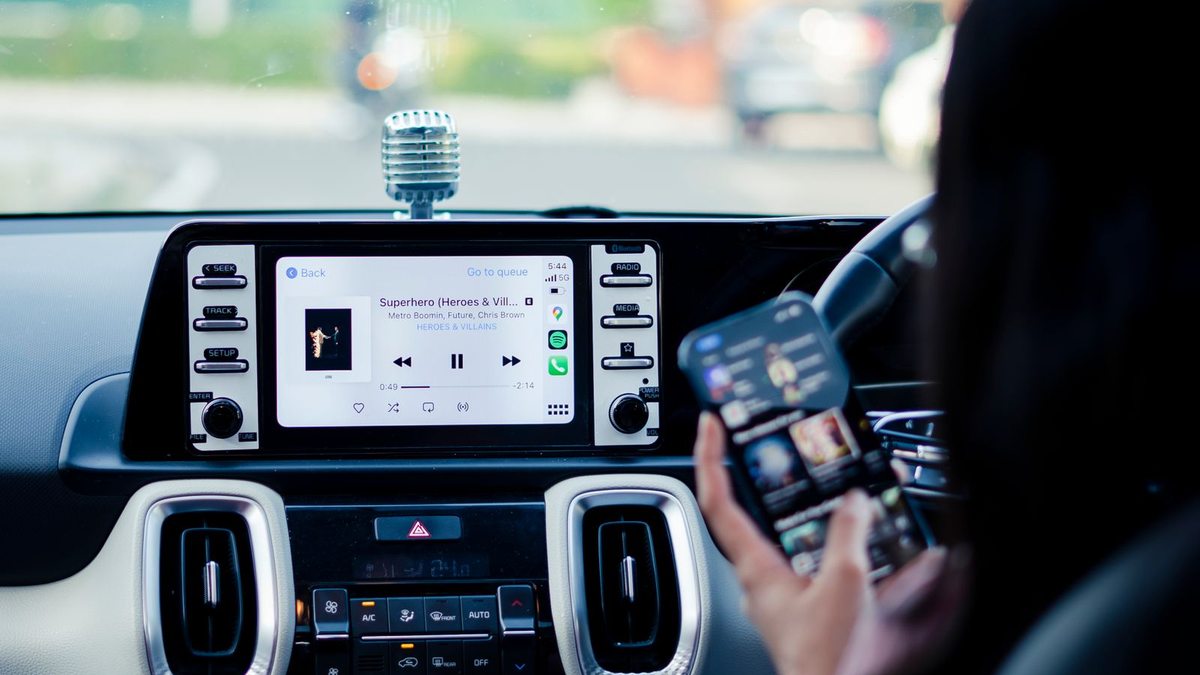
If the connection type checks out and the screen is still dark, the problem has probably moved into the phone. These four settings each shut CarPlay down without a single error message. At least one of them gets flipped by accident every day.
Siri Has to Be On, No Exceptions
CarPlay is built around Siri, and iOS treats that as a hard rule. Siri disabled means CarPlay disabled. Full stop. Open Settings, go to Siri, and make sure Siri is turned on. People switch Siri off for privacy and never connect it to the car screen going dark two days later. Turn it back on, reconnect, and CarPlay often returns on the spot.
Allow CarPlay While Locked Is the Sneaky One
Your phone rides in a pocket or a bag, locked. If Allow While Locked is off, CarPlay waits for you to unlock the phone. You never do, because you are driving. Go to Settings, then General, then CarPlay. Tap your car and switch Allow CarPlay While Locked on. This one explains the maddening pattern where CarPlay works when you fiddle with the phone and dies when you just get in and drive.
Screen Time Can Block CarPlay Entirely
Apple’s checklist includes a step most people skip because it sounds odd. Restrictions. Open Settings, then Screen Time, then Content & Privacy Restrictions, then Allowed Apps. Confirm CarPlay is allowed. This block shows up after Family Sharing setups, hand-me-down phones, and work profiles. Someone locked the phone down months ago, and nobody remembers.
A VPN Can Get in the Way of Wireless CarPlay
Wireless CarPlay depends on local traffic between the phone and the car. Some VPN setups try to route or filter that traffic. If you run a VPN and wireless CarPlay drops or refuses to start, disconnect the VPN once and test. If CarPlay comes back, you have your answer. Most VPN apps let you exempt local networks so the two can get along.
Forget This Car and Re-Pair Like It Is Day One
Pairings rot. The phone and the head unit each store a profile of the other. When those profiles drift out of sync — most often right after an iOS update — the connection fails in strange, on-and-off ways. The fix is to burn the pairing down and rebuild it.
On the iPhone: Settings, then General, then CarPlay. Tap your car, then tap Forget This Car. Now the half everyone skips. Go into the car’s own settings menu and delete the iPhone from its Bluetooth and paired-devices list too. Restart the phone. Restart the car. Pair again from scratch, like the first day you owned it.
Don’t skip this: forget the pairing on both ends. The car’s menu remembers your iPhone even after the phone forgot the car. That one-sided leftover pairing causes the exact symptoms people blame on a dead head unit — endless connecting spinners, one-second connections that drop, a phone that pairs for calls but never launches CarPlay.
While you are rebuilding, update both sides. Install any pending iOS update. Then check whether your car maker offers a firmware update for the head unit — Apple’s checklist ends on that step for a reason. A pairing built between two freshly updated devices is the most stable one you can make.
Toyota, Subaru, and BYD Each Have Their Own Trap
Some CarPlay failures are not generic at all. They are baked into how a specific brand wired its dashboard. Three brands come up constantly, and each teaches a different lesson.
Toyota Hides the Data Port in a Row of Chargers
Many Toyota models carry several USB ports, and only one talks to the screen. The rest are charge-only power taps. The data port is usually marked with a small phone or media icon, often near the screen rather than in the console bin. Plug into the wrong one and you get the full charge-only experience with a perfectly good cable. Some models also want CarPlay switched on once in the head unit’s own settings menu before it will appear at all.
Subaru Starlink Wants Its Firmware Current
Subaru’s Starlink head units have a long owner-reported history of CarPlay dropouts and failed handshakes. The cause usually traces to head-unit software, not the phone. If your Subaru connects and then drops, or works one week and not the next, ask the dealer to check for a Starlink update before you replace a single accessory. The data-port rule applies here too. Use the USB port the manual assigns to smartphone connectivity, not just the nearest one that fits.
BYD May Need CarPlay Switched On First
BYD rolled CarPlay out slowly, market by market and model by model, mostly through software updates. On a BYD, a missing CarPlay icon often means the car’s software does not have the feature enabled yet. That is a firmware question, not a cable question. Check for a pending system update on the car. If none appears, ask the dealer whether CarPlay is active for your model and market before spending anything on accessories.
Which side of the connection failed your tests?
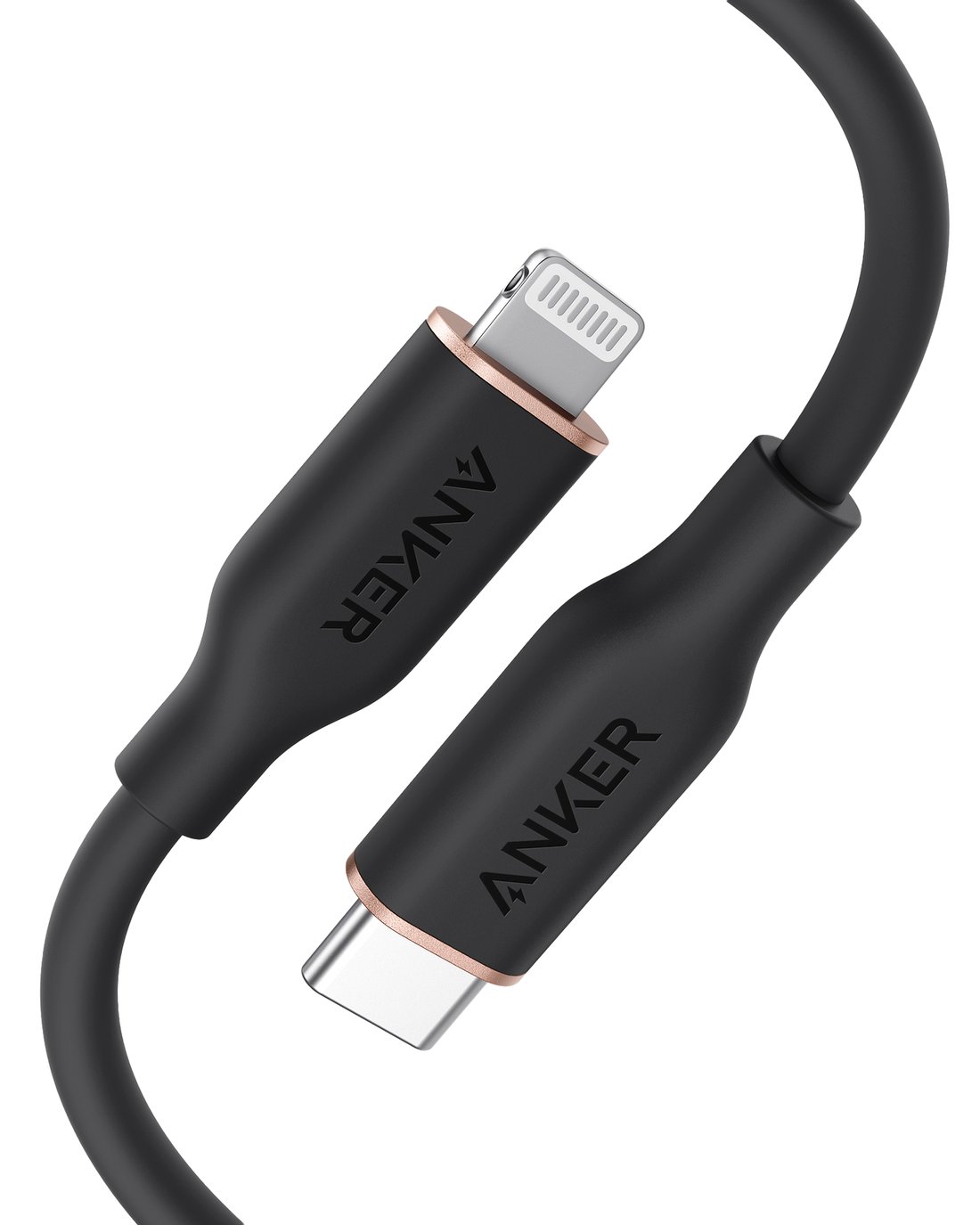
★ Your pick: Anker 641 USB-C to Lightning Cable
MFi certified with real data wires and a 25,000-bend rating, so it ends the cable argument for years
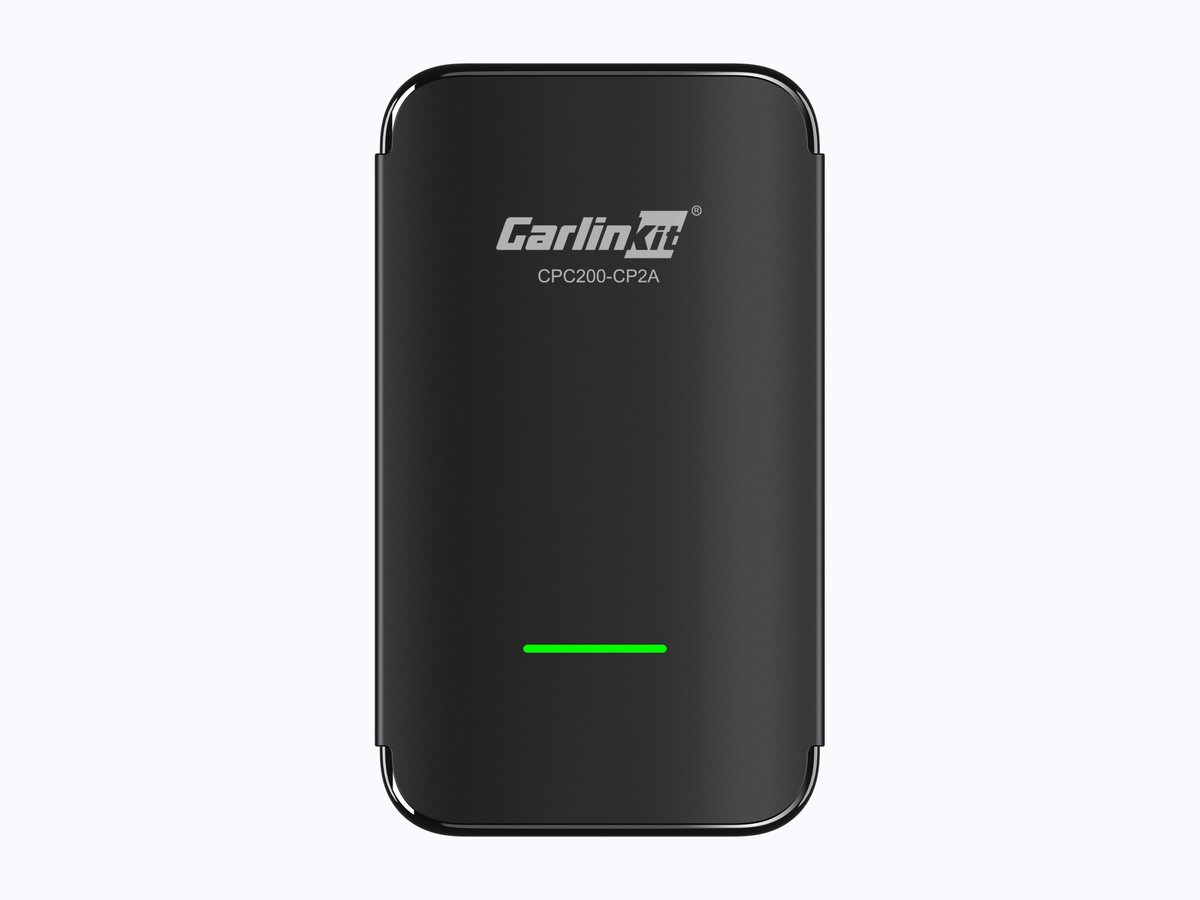
★ Your pick: CarlinKit CP2A Pro Wireless CarPlay Adapter
Converts a factory wired CarPlay port into wireless CarPlay, removing the cable as a failure point
👑 Our Top Pick — Best Overall Value
Anker 641 USB-C to Lightning Cable
A charge-only or fraying cable is the single most common CarPlay killer, and this is a certified charge-and-data replacement
Opens on our Top Pick. Tap an option to see the best match for you.
Two Cheap Fixes That End the Guessing
If the tests above convicted a part, replace the part. These two cover both outcomes. A certified data cable for the wired crowd, and an adapter that removes the cable from the story entirely.
1. Anker 641 USB-C to Lightning Cable
$15–$25 rangeMFi certified25,000-bend ratedCharge and data3 ft and 6 ft
You swap it in to convict the old cable, and then you just keep it. It is MFi certified. That means it carries Apple’s ID chip and full data wiring — the exact spec CarPlay cannot live without, and the spec charge-only cables silently lack. Plug this in and the cable is off your suspect list for good.
It is also built for the way car cables die. A CarPlay cable gets bent at a hard angle out of the console, yanked when someone grabs the phone, and slammed in doors. Anker rates the 641 for 25,000 bends. The jacket is soft silicone rather than hard plastic, so it drapes around the shifter instead of kinking at the connector neck. That neck is where car cables fray first. It comes in three-foot and six-foot lengths. In a car, shorter is better — slack cable is what gets caught and yanked.
Next to the CarlinKit below, this is the fix for a wired setup that stopped working. Match the ends to your gear. This cable fits a USB-C car port and a Lightning iPhone, so iPhone 14-and-older owners with modern ports are covered. If your car only has USB-A, pick an MFi-badged USB-A to Lightning data cable from a real brand instead. iPhone 15 or later owners want the USB-C to USB-C version of the same line. The rule is the certification and the data wires, not the connector shape.
Pros
- MFi certified with full data wiring, the one spec wired CarPlay requires
- Rated for 25,000 bends at the necks where car cables fray
- Soft silicone jacket drapes around consoles instead of kinking
- Doubles as the known-good tester for every USB check in this guide
- Two lengths, so you can keep slack out of the cabin
Cons
- Fits USB-C car ports and Lightning iPhones; other port combos need a different variant
- Costs more than the bargain-bin cables that caused the problem
- Silicone picks up dust and pocket grit more than braided nylon
2. CarlinKit CP2A Pro Wireless CarPlay Adapter
$50–$70 rangeWireless CarPlay and Android Auto5 GHz Wi-Fi link35 gPlug and play
Instead of buying a better cable, it removes the cable ritual from your daily drive. It plugs into the USB port of a car that already has factory wired CarPlay, then bridges to your iPhone wirelessly. You get in, the car starts, CarPlay appears. No plugging, no port roulette, no cable slowly fraying in the console.
The hardware is a 35-gram box small enough to hide in the console. It runs a quad-core chip with dual-band Wi-Fi and carries the CarPlay session over a 5 GHz link — the same fast local connection factory wireless CarPlay uses. It ships with both USB-C to USB-C and USB-C to USB-A leads, so it fits either style of car port out of the box. CarlinKit lists support back to the iPhone 6 on iOS 10. The Pro’s party trick sits on top: it runs its own onboard Android system, so while parked it can play video files straight from a USB drive on the car screen.
Be clear-eyed about who this is for. It needs a car that already has factory wired CarPlay. It upgrades an existing connection; it cannot add CarPlay to a car that never had it. And physics still applies. A wireless bridge adds a beat of lag next to a cord, and it depends on the same clean Bluetooth and Wi-Fi the wireless section above describes. If your wired CarPlay works but you hate the cable, this is the buy. If wired CarPlay is broken, fix it with the cable first. An adapter cannot bridge a dead port.
Pros
- Converts factory wired CarPlay to wireless with nothing to install beyond plugging in
- 5 GHz Wi-Fi link keeps maps and audio responsive
- Ships with USB-C and USB-A leads, so it fits either car port style
- Adds wireless Android Auto too, useful in mixed-phone households
- Onboard system plays video from a USB drive while parked
Cons
- Only works in cars that already have factory wired CarPlay
- A wireless bridge adds slight lag compared to a cord
- Depends on clean Bluetooth and Wi-Fi, so radio-level problems still apply
Frequently Asked Questions
Why did Apple CarPlay stop working after an iOS update?
Because updates can leave the stored pairing between phone and car out of sync, and can sometimes reset settings CarPlay depends on. Rebuild the pairing. Forget This Car on the phone, delete the phone from the car’s Bluetooth menu, restart both, and pair again. Then re-check Siri and Allow CarPlay While Locked, and install any head-unit firmware update your car maker offers.
Does CarPlay need a special cable?
It needs a data cable, and that is the whole trick. Many cables carry only power. The phone charges, but CarPlay never starts, and no error shows. For a Lightning iPhone, use an MFi-certified cable. For an iPhone 15 or later, any well-made data cable from a real brand works. Test a suspect cable on a computer: if no Trust This Computer prompt appears, it has no data wires.
Which USB port in my car runs CarPlay?
Usually exactly one. Many cars — Toyotas are the famous case — mix one data port with several charge-only ports. The CarPlay port typically carries a small phone or media icon and sits near the screen. If CarPlay ignores a known-good cable, move the plug to every port in the cabin before blaming anything else. The manual’s smartphone page names the right one.
How do I completely reset CarPlay?
Burn the pairing down on both ends. On the iPhone: Settings, then General, then CarPlay, tap the car, tap Forget This Car. In the car: delete the iPhone from the Bluetooth and paired-device menus. Restart the phone and the car, then pair from scratch. Doing only the phone side leaves a one-sided pairing that keeps failing. That is why this reset has a reputation for not working when done halfway.
Why does wireless CarPlay keep disconnecting?
Wireless CarPlay runs over a Wi-Fi link after a Bluetooth handshake, so anything that disturbs those radios drops the session. The usual suspects: Wi-Fi toggled off, the car’s network missing Auto-Join, a VPN touching local traffic, or stale pairings on either side. Toggle both radios, re-enable Auto-Join, test once with the VPN off, and re-pair both ends if drops continue.
How do I know if the car’s head unit is actually broken?
Isolate it. Borrow another iPhone and connect it to your car with a known data cable. Try your iPhone in a friend’s CarPlay car. If every phone fails in your car but yours works elsewhere, the car side is the problem. Even then, start with a head-unit firmware update from the dealer, not a replacement. Head units that truly die are the rarest outcome on this whole page.
Run the Cheap Suspects Before You Pay for the Expensive One
CarPlay failures feel like hardware because the screen just goes dark. The evidence points the other way. The cable, the port choice, four quiet iPhone settings, and a stale pairing cause the overwhelming run of cases. Every one of those fixes costs minutes or pocket change. So work the order — cable, port, settings, re-pair, firmware — and only interrogate the head unit after every phone fails in your car. It is the same cheapest-cause-first logic that rescues most “broken” phones, and it is exactly how our Face ID repair guide sends readers home without a repair bill. Your car is probably fine. Your cable probably is not.