I have watched a lot of “dead” Chromebooks come back to life with a two-key press, usually an hour before the class that needed them. So hold onto this when your Chromebook won’t turn on. The machine has a hardware reset that fixes most of these scares. The charge light names the culprit. And a published expiration date decides whether a repair is even worth paying for. Work through those three in order. Within half an hour you will know if this is a free fix or a real goodbye. Almost every time, it is the free fix.
Disclosure: TechDaily earns affiliate commissions from qualifying purchases made through links on this page.
Featured photo: pestoverde, CC BY 2.0, via Flickr.
- The charge light talks first. Orange or amber means charging. Blue or white means the battery is fine. No light at all means the charger or outlet is the suspect, not the laptop.
- A battery drained to zero can sit dark for a while after you plug in. Give it a full 30 minutes on a wall charger before you judge anything.
- The hard reset is Refresh and Power held together. It restarts the hardware itself. Google’s own support steps lean on it before anything else.
- A Chromebook that broke right after an update usually needs ChromeOS recovery from a USB stick. Recovery is free. A motherboard is not.
- Before you pay for any repair, check the machine’s AUE date in settings. A Chromebook near the end of its update life is not worth a new battery.
What the Charge Light Color Is Telling You
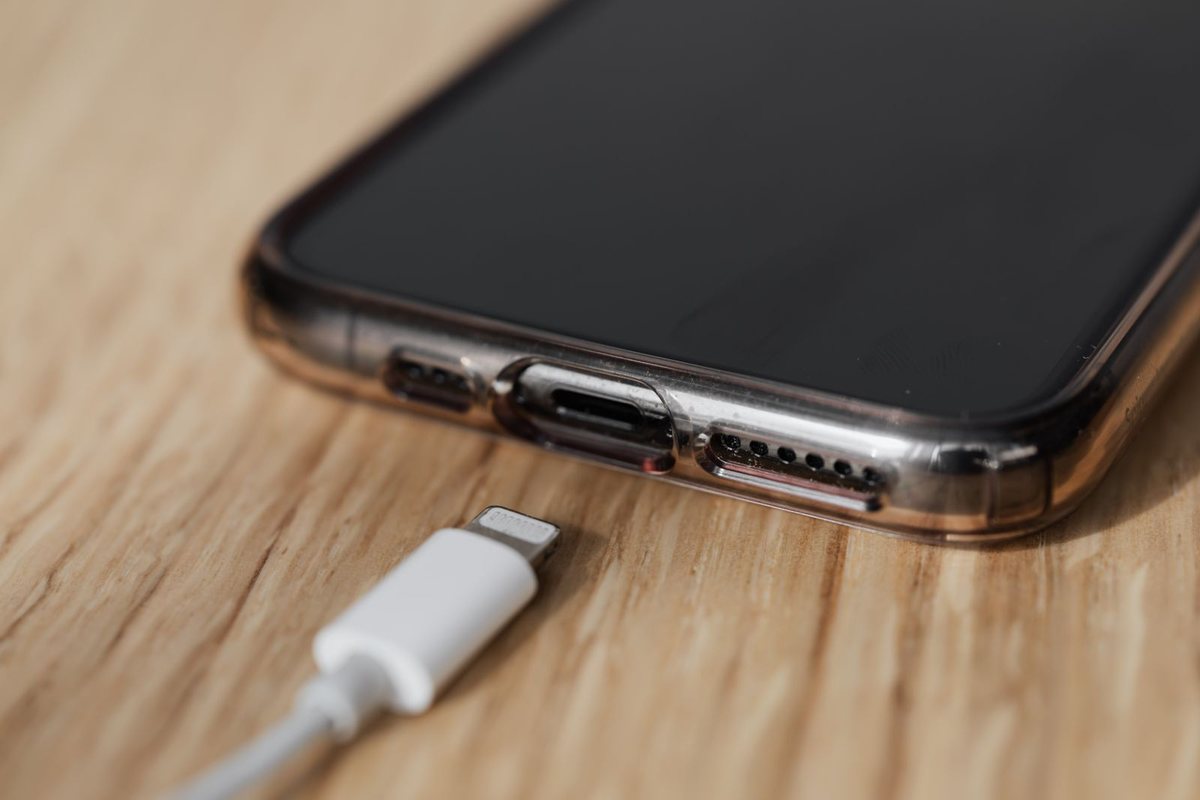
Plug the charger in and look at the little LED near the charging port before you touch anything else. That light splits the whole problem in half. If it comes on, power is reaching the laptop and the wall side is innocent. If it stays dark, stop blaming the Chromebook, because the electricity is not even arriving.
| What the light does | What it usually means | Your move |
|---|---|---|
| Solid orange or amber | Charging normally from a low battery | Wait 30 minutes, then try the power button |
| Solid blue or white | Battery is full or nearly full | Skip to the reset ladder below |
| No light at all | No power is reaching the machine | Test another outlet, another charger, and the second USB-C port |
| Blinking or flashing | Varies by brand, often a battery or charger fault | Swap to a known-good charger before assuming the worst |
The colors shift slightly by brand. Acer leans on blue for a full battery, HP and ASUS lean on white, and orange or amber means “still filling” on nearly everything. The exact shade matters less than the split. Light on, go work the reset ladder. Light off, try another outlet, another USB-C charger, and the port on the other side of the machine, because most Chromebooks charge from either side and one port can fail alone.
Worth knowing: the charger itself has a minimum. A Chromebook wants a laptop-class USB-C charger in the 45W to 65W range, and ChromeOS will even flag a weak phone brick with a low-power charger warning. If the only charger you can find tonight came with a phone, it may trickle-charge the battery but it is not a fair test of a dead machine.
The Reset Ladder That Wakes Up Most Chromebooks
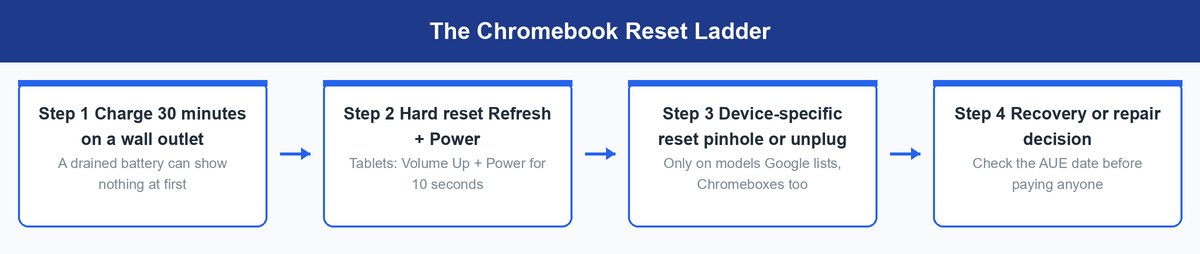
There is no battery to pop out on a modern Chromebook, but there is a built-in hardware reset that restarts the low-level electronics, the keyboard, and the touchpad. This ladder runs the steps in the cheapest order. It is the same whether the lid says ASUS, HP, Lenovo, or Acer. That is exactly why it beats hunting through four brand support sites at midnight.
Give a Drained Battery 30 Minutes of Wall Power First
A lithium battery that ran to zero gets refilled very gently at first, on purpose, and the laptop refuses to boot until the cell climbs back to a safe level. So a genuinely fine Chromebook can ignore the power button for many minutes while real progress happens invisibly. Plug it into a wall outlet with a 45W-or-better USB-C charger, confirm the charge light is on, and walk away for half an hour. People give up at minute five and start shopping. Minute twenty-five would have saved them the money.
Hold Refresh and Tap Power for the Standard Hard Reset
This is the move that resurrects most of these machines, straight from Google’s own reset steps. Turn the Chromebook off. Press and hold the Refresh key, the circular arrow in the top row, and while holding it, tap the Power button. When the machine starts up, release Refresh. Google also lists a stronger variant, holding Back, Refresh, and Power together for at least 10 seconds. This is a hardware reset, not a wipe, so your Google account and files stay put.
Watch out: Google’s fine print says a hard reset can delete some files sitting in the Downloads folder. Anything saved to Drive is untouched. It is a small price for a working laptop, but if the Downloads folder is where a half-finished essay lives, know that before you press.
Use Volume Up and Power When There Is No Refresh Key
Chromebook tablets and some detachables have no Refresh key to hold. For those, Google’s combo is pressing and holding Volume Up and Power together for at least 10 seconds, then releasing both. Same effect, different fingers. If your device is a tablet with a detachable keyboard, ignore the keyboard entirely and use the buttons on the tablet body itself.
Try the Pinhole or Power-Pull Reset on the Devices That Have One
A short list of devices resets differently, and Google publishes that list on the same support page. Chromeboxes and Chromebases from Acer, ASUS, LG, and Samsung reset by unplugging the power cable and plugging it back in. A few older models hide a reset pinhole you press with a paperclip while reconnecting power, and some early Chromebooks reset by reseating the removable battery. If your machine is one of these, the pinhole is not a mystery button, it is the reset. Check Google’s list rather than jabbing at holes on the bottom of the case.
Fully Charged but Still Nothing on the Screen
A power light that is on while the screen stays black changes the question. The machine may be running fine behind a dead-looking display, and “screen shows nothing” and “computer is off” are different problems that cost very different amounts.
Turn the Brightness All the Way Up Before You Panic
It sounds insulting, and it recovers real laptops every week. The brightness-down key can ride to zero, which turns the backlight off entirely, and a backpack pressing on the keyboard can do it without anyone noticing. Tap the brightness-up key, the larger sun icon in the top row, a dozen times. Then hold the power button a few seconds to force a full shutdown and start it fresh, which also clears a hung sleep state that never wakes the display.
Plug Into a TV or Monitor to Test the Screen Itself
If brightness did nothing, connect the Chromebook to any TV or monitor over HDMI or USB-C. Picture on the external screen means the laptop is alive and its display or display cable failed, a repairable, quotable part problem rather than a dead computer. No picture anywhere, after a hard reset, pushes you toward recovery or a real repair verdict.
A Failed Update Needs Recovery, Not a New Laptop
A Chromebook that went down right after an update is usually a software casualty. So is one that boots to a “ChromeOS is missing or damaged” message. Google built a free path back. ChromeOS recovery uses a USB stick to reinstall the operating system from scratch. You enter recovery mode by holding Esc and Refresh, then tapping Power. Recovery erases the local storage, so anything not synced to Drive goes with it, which is the honest cost of the free fix.
Handy shortcut: you do not need a second Chromebook to build the recovery stick. The Chromebook Recovery Utility runs inside the Chrome browser on any Windows PC or Mac in the house, and it needs a USB drive of 8 GB or more.
School Chromebooks Follow the District’s Rules, Not Yours
Here is the part almost nobody covers. A school-issued Chromebook is enrolled in the district’s management system. The admin’s rules survive everything you can do at home. Google’s own docs note that admins can block low-level recovery key presses entirely. Powerwashing or recovering a managed device does not free it either. It re-enrolls itself back into school management the moment it touches the internet.
So on a school Chromebook you get the gentle rungs only: the wall charger, the 30-minute wait, the Refresh and Power reset, and the brightness check. None of those touch management. The moment they fail, stop and email the school’s IT desk, because districts image and swap student machines constantly. A loaner usually appears faster than any repair you could arrange, and you will not be the parent explaining why the district’s device is in pieces.
Worth Fixing or Time to Replace the Whole Machine
If the ladder failed, the machine has a real fault, probably the battery, the charging board, or the motherboard. Now the decision becomes financial, and Chromebooks give you a number regular laptops never do. Every ChromeOS device has an AUE date, the Auto Update Expiration, after which Google stops sending it updates. Google’s update policy runs 10 years from the platform’s release date on current devices, and your machine’s exact date sits under Settings, About ChromeOS, Additional details.
That date is your verdict. A Chromebook with five or more years of updates left is worth a battery or a charging-port repair. You are buying years of remaining life for a fraction of a new machine. A Chromebook within a year or two of its AUE date is not worth real repair money, full stop. You would be paying to fix a laptop that is about to stop getting security updates anyway. And if you are deciding what to replace it with, our breakdown of what a Chromebook actually is and is not is the ten-minute read that stops the next wrong purchase.
Two Cheap Fixes Worth Trying Before a New Laptop
Two purchases cover the two most common real verdicts. A dead or weak charger is the cheapest fault a Chromebook can have. A machine at the end of its update life deserves a replacement that resets the 10-year clock, not a repair bill.
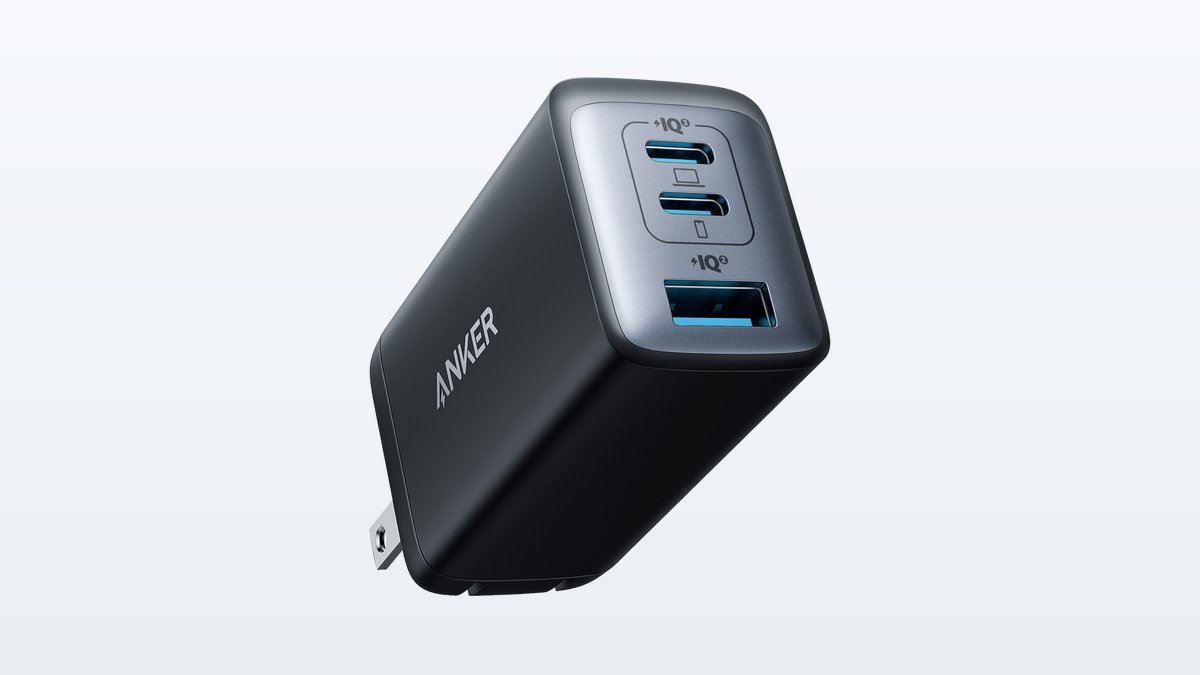
1. Anker 735 Charger (Nano II 65W)
$30–$50 range65W USB-C outputTwo USB-C plus one USB-AGaN design, foldable plug
It delivers a full 65 watts from either USB-C port when used alone, which covers every USB-C Chromebook ever sold with headroom to spare. That is the laptop-class power a Chromebook actually wants, the level where the low-power charger warning never appears and a drained battery refills at full speed.
The build is the newer gallium nitride design. It packs laptop wattage into a wall plug barely bigger than an old phone cube, with prongs that fold flat for a backpack pocket. The three ports matter more than they sound. Use one USB-C for the Chromebook, and the second USB-C and the USB-A port charge a phone and earbuds from the same outlet. When two ports run at once the charger splits its output, 45 watts on the main port and 20 on the second. That still charges a Chromebook comfortably while a phone drinks beside it.
Compared with the ASUS pick below, this is the bet that your Chromebook is fine and its power source failed. That is exactly what the no-light row of the charge-light table says. Buy this one first when the machine shows no light, when it only charges from one port, or when the family charger drawer is full of anonymous phone bricks. Skip it only if a known-good 45W-or-better charger already failed the test, because then the fault is inside the laptop.
Pros
- 65W from a single USB-C port covers any USB-C Chromebook at full speed.
- Charges three devices at once from one wall outlet.
- GaN design keeps it small and cool for its wattage.
- Foldable prongs survive backpacks and pencil cases.
- Also fast-charges phones, tablets, and earbuds.
Cons
- No cable in the box, so budget for a USB-C cable if yours is frayed.
- Output splits when several ports run at once.
- Overkill if you only ever charge a phone with it.
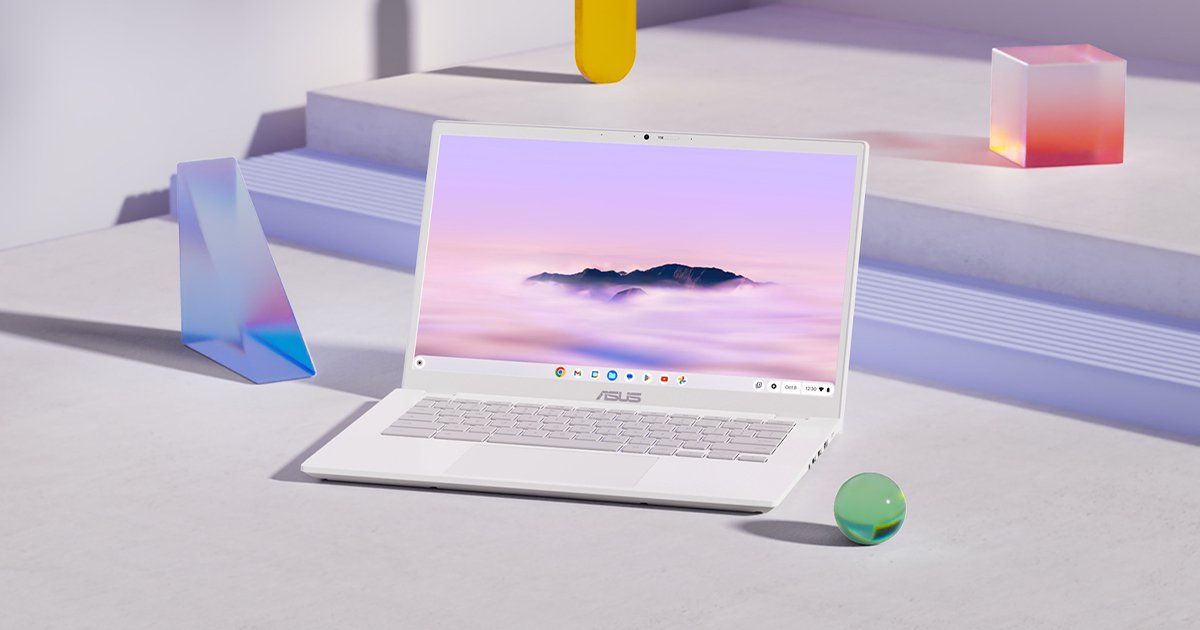
2. ASUS Chromebook Plus CX34
$250–$400 range depending on config14-inch Full HD screen1080p webcam with shutterMIL-STD-810H testedWiFi 6E
It carries Google’s Chromebook Plus badge, which means it clears a guaranteed spec floor instead of the bargain-bin internals that made older cheap Chromebooks feel slow on day one. The common configuration pairs a 12th Gen Intel Core i3 with 8 GB of RAM, which is roughly double the muscle of the typical worn-out machine it replaces.
The daily-life details are the real sell for a student. The 14-inch screen is Full HD on a thin three-sided bezel. The webcam is a proper 1080p unit with a physical privacy shutter. ASUS rates the battery for up to 10 hours, a full school day with margin. It is tested to the MIL-STD-810H durability standard, ASUS’s hinge folds 180 degrees flat, and it charges over USB-C, so the Anker above doubles as its travel charger. WiFi 6E on board means it will not be the bottleneck on a modern home network either.
Against the Anker pick, this is the other verdict. The charger fixes a healthy laptop with a starved battery, and the CX34 replaces a laptop whose update clock ran out. Buy it when your dead machine was already near its AUE date, because a brand-new Chromebook Plus platform restarts the 10-year update countdown from a recent release. Skip it if your current Chromebook still has years of updates left, since a battery or charger fix is the smarter spend there.
Pros
- Chromebook Plus spec floor means real performance, not bargain-bin internals.
- 1080p webcam with a physical privacy shutter.
- Up to 10 hours of rated battery covers a school day.
- MIL-STD-810H durability testing for backpack life.
- Fresh platform restarts the 10-year update clock.
Cons
- Heavier than 11-inch student Chromebooks.
- Storage on base configs is modest, so Drive does the heavy lifting.
- Touchscreen only on some configurations.
What did the tests actually convict?
★ Your pick: Anker 735 Charger (Nano II 65W)
65W from one USB-C port is a fair test and a permanent upgrade over any phone brick.
★ Your pick: ASUS Chromebook Plus CX34
A dead machine near its AUE date gets replaced, and this resets the 10-year update clock.
👑 Our Top Pick — Best Overall Value
Anker 735 Charger (Nano II 65W)
No charge light and no boot points at the charger, and this is the cheapest fix on the page.
Opens on our Top Pick. Tap an option to see the best match for you.
Frequently Asked Questions
Why won’t my Chromebook turn on even though it is fully charged?
Hold Refresh and tap Power for the hardware reset first, because a frozen power controller ignores the power button even with a full battery. If the power light is on but the screen stays dark, raise the brightness a dozen taps and try an external monitor. Those three moves recover most fully-charged black-screen Chromebooks without a repair.
How do I hard reset a Chromebook that won’t turn on?
Turn it off, press and hold the Refresh key, tap the Power button, and release Refresh when the machine starts. On tablets, hold Volume Up and Power together for about 10 seconds instead. This restarts the hardware without touching your Google account, though Google warns some files in the Downloads folder can be lost.
What does the orange light mean when a Chromebook is charging?
Orange or amber means the battery is actively charging from a low state, and that is good news because power is flowing. Let it drink for a full 30 minutes before trying the power button. The light usually shifts to blue or white when the battery is full, with the exact colors varying a little by brand.
Why won’t my Chromebook turn on after an update?
An update that failed partway can leave ChromeOS unable to boot, and the fix is recovery rather than repair. Build a recovery USB stick with the Chromebook Recovery Utility in Chrome on any computer, then hold Esc and Refresh and tap Power on the Chromebook to enter recovery mode. It reinstalls ChromeOS but erases local files, so expect to lean on Drive.
How long should I charge a dead Chromebook before giving up?
Thirty minutes on a wall outlet with a 45W or better USB-C charger is the fair test. A battery drained to zero refills very gently at first. The laptop will not boot until the cell is back in safe territory, so the screen can stay black while real charging happens. If half an hour and a hard reset both fail, move to the deeper steps.
Is a Chromebook that won’t turn on worth repairing?
Check its AUE date under Settings, About ChromeOS, Additional details before spending anything. With five or more years of updates left, a battery or charging repair buys cheap extra life. Within a year or two of that date, put the repair money toward a replacement instead, because updates stop soon regardless of the fix.
The Bottom Line on a Chromebook That Won’t Start
Read the light, run the ladder, then do the math. The charge light says whether the wall side or the laptop side failed. The ladder brings back the overwhelming majority of these machines for free, and recovery rescues the update casualties. When the hardware really did fail, the AUE date turns a gut call into ten seconds of math. A school machine goes back to the IT desk. A young Chromebook earns its repair. An old one earns a proper replacement. What no Chromebook deserves is a panic purchase at full price the night before class, and now you know why.