Let me guess. The printer is sitting right there, power light on, no error, maybe even warm from the last job. Your document is queued. And Windows or your Mac is staring back at you with one smug little word: printer offline. You unplug it, you plug it back in, you swear at it a bit. Nothing.
Here’s the part nobody at the store tells you, and I’ve fixed this on hundreds of machines: “offline” almost never means the printer is actually dead. It means your computer thinks it can’t reach the printer and has quietly stopped trying. The printer is fine. The connection between them dropped, or a piece of software got confused, and now the two just aren’t talking. Your whole job is to make them shake hands again.
So let’s walk it exactly the way a help-desk tech does — cheapest, most likely fix first, “nuke the driver” dead last. Windows and Mac, USB and Wi-Fi, all of it. Most of you will be printing again in under five minutes.
- “Offline” almost never means a dead printer. Nine times out of ten your computer is showing a stale status — an old guess about the printer that stopped matching reality.
- Start dumb before you start clever: power-cycle the printer and clear whatever’s jammed in the print queue. This alone fixes most cases.
- On Windows, one sneaky checkbox — “Use Printer Offline” — flips your printer into offline mode and pins it there. Unticking it rescues a huge share of people.
- Wi-Fi printers keep going offline because your router hands them a new IP address after every reboot. Lock the printer to one fixed address and it stops vanishing.
- Reinstalling the driver is the fire extinguisher, not the first move. Almost everyone gets back online without ever touching it.
What “Printer Offline” Really Means Before You Fix Anything
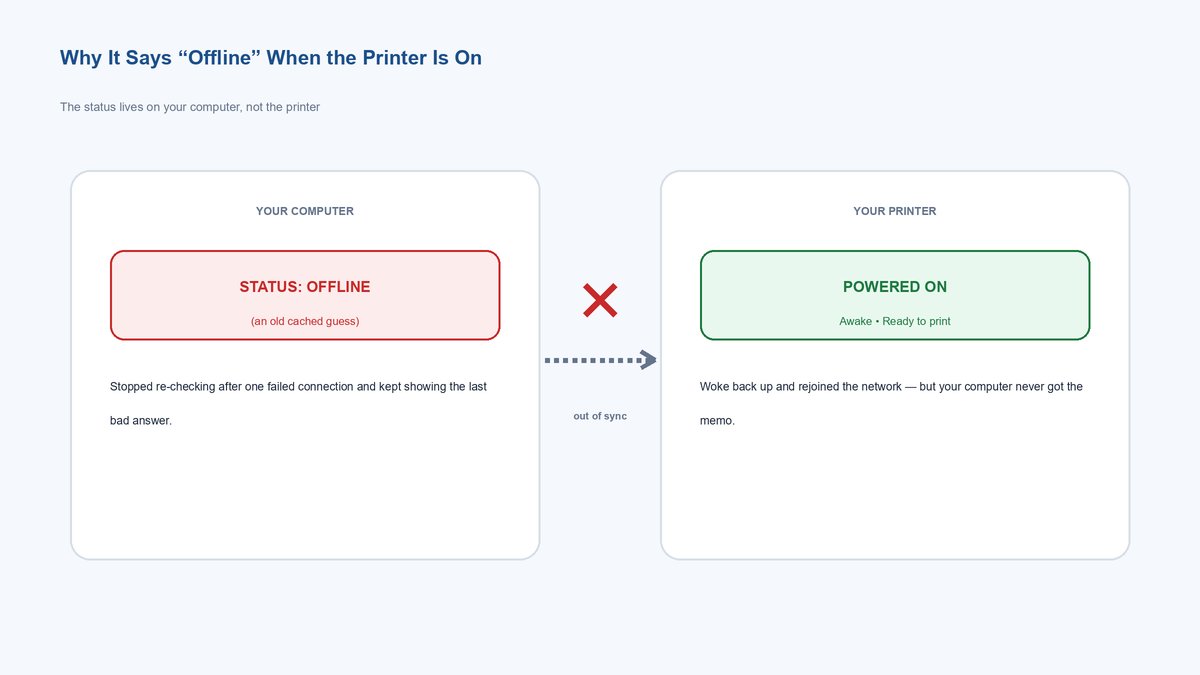
The word “offline” is doing you dirty. Your printer doesn’t have a little switch that says online or offline in the way you’d think. That status lives on your computer, not the printer. Windows keeps a running note that basically says “last time I checked, I could reach this printer.” When a check fails — the Wi-Fi hiccuped, the USB handshake dropped, the printer went to sleep — Windows flips that note to “offline” and, crucially, gets lazy. It stops actively re-checking and just keeps showing you the last bad answer.
That’s why the classic move — printer clearly on, computer insisting it’s offline — happens constantly. The two are out of sync. The printer woke back up; your computer never got the memo. Everything below is really just different ways of forcing your computer to look again and update that stale note.
This is also why “it worked yesterday” is so common. Nothing broke overnight — your printer went to sleep to save power, dropped off the network, and your computer cached the “offline” verdict instead of re-checking when you hit print.
Once you get that the status is a guess your computer cached, the whole problem stops feeling random. You’re not repairing a printer. You’re clearing a bad guess.
The 60-Second Power Reset That Fixes It Most Often
Do not skip this because it sounds too simple. A power cycle clears the printer’s own internal memory, drops any half-finished network connection, and forces a clean reconnect — and it genuinely resolves the biggest slice of offline cases. Techs do it first for a reason.
Here’s the order that matters. Turn the printer fully off with its own power button, then pull the power cable from the wall — not just the button, the actual plug. Wait a full 30 seconds. That pause isn’t superstition; it lets the printer’s capacitors drain so its network chip actually resets instead of resuming its confused state. Plug it back in, power it on, and give it a minute to fully wake and rejoin Wi-Fi.
While it’s booting, reboot your computer too. Yes, really. A restart clears the print spooler’s cached status (more on that monster below) and makes Windows or macOS re-scan for the printer from scratch. When both sides come back up fresh, they usually find each other immediately.
Tip: If it’s a USB printer, this is also your moment to swap the cable to a different port — ideally one directly on the computer, not on a hub or monitor. A flaky USB hub or a marginal cable will drop the handshake and read as “offline” every single time, and people chase software fixes for hours before checking the $3 cable.
If you came back online here, great — you’re done. If not, we start ruling out the specific culprits.
How to Turn Off “Use Printer Offline” in Windows
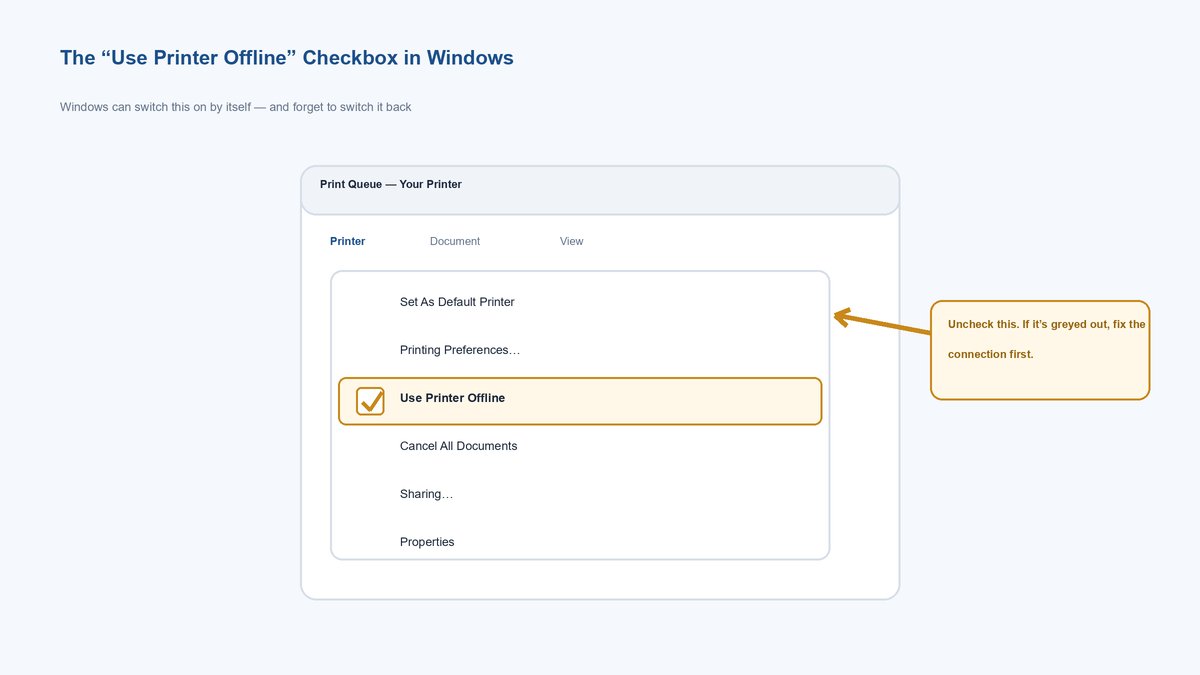
This one is Microsoft’s own booby trap, and it’s the single most missed fix on the whole list. Windows has an actual setting called Use Printer Offline. It’s meant to let you queue jobs when you’re genuinely away from the printer. The problem: Windows sometimes flips it on automatically after a failed connection and then never flips it back. Your printer is reachable again, but Windows is still holding this switch down, so it refuses to send anything.
Here’s how to find and kill it on Windows 11: open Settings > Bluetooth & devices > Printers & scanners, click your printer, then click Open print queue. In the queue window, click the Printer menu at the top. If Use Printer Offline has a checkmark next to it, click it once to turn it off. On Windows 10 it’s nearly identical — Control Panel > Devices and Printers > right-click the printer > See what’s printing > Printer menu > uncheck Use Printer Offline.
The second that checkmark disappears, the status usually snaps from “Offline” to “Ready” on its own. If it doesn’t, it’s because there’s a stuck job holding the door — which is the next section.
Watch out: If the “Use Printer Offline” option is greyed out and won’t let you click it, that means Windows genuinely can’t reach the printer right now — so the checkbox is the symptom, not the cause. Fix the connection (power reset above, or the static-IP section below) and it’ll become clickable again.
Clear the Print Queue and Restart the Print Spooler
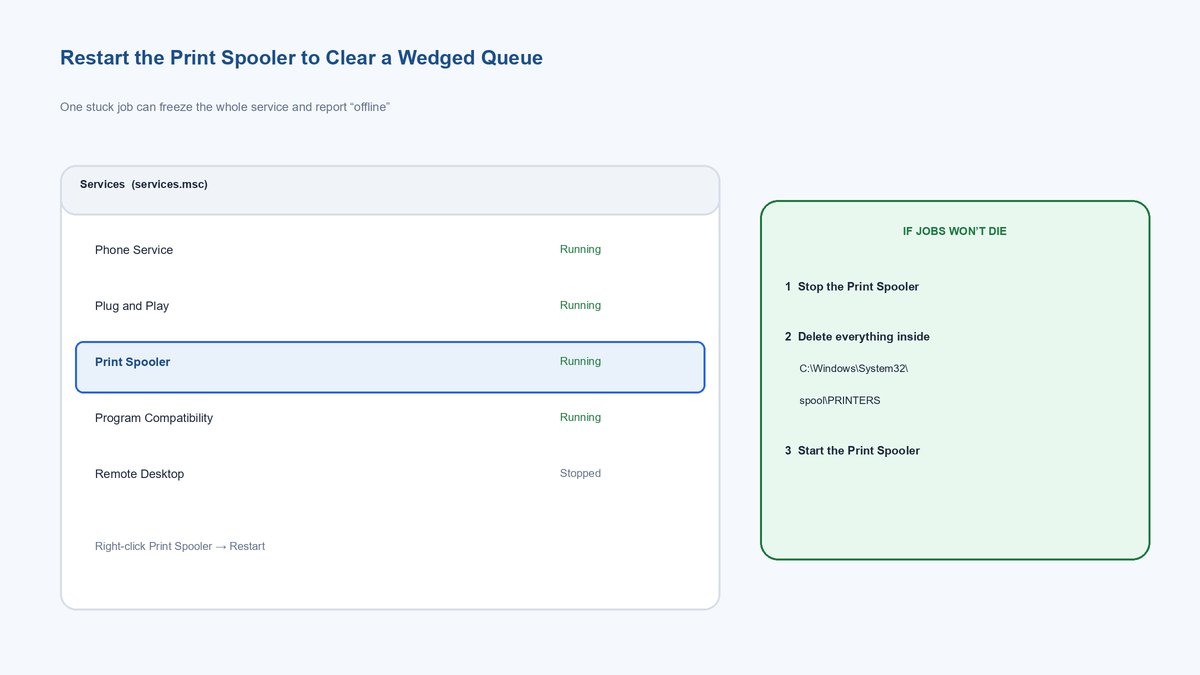
The Print Spooler is the background service that manages everything you send to a printer — it lines up jobs and feeds them over one at a time. When a single job jams (a huge PDF, a job sent while the printer was asleep, a corrupted file), it can wedge the whole spooler. A wedged spooler reports the printer as offline even when the hardware is perfectly fine, and every new job just stacks up behind the stuck one.
The fix is two moves: dump the stuck jobs, then restart the service so it starts clean.
Cancel Every Stuck Job in the Queue
First, cancel everything in the queue — in that same print-queue window, click Printer > Cancel All Documents. Sometimes a job is so stuck it won’t cancel, and that’s your signal to restart the spooler service itself, which force-clears whatever the queue can’t.
Restart the Print Spooler Service
To restart the spooler, press Windows + R, type services.msc, and press Enter. Scroll to Print Spooler, right-click it, and choose Restart. That force-clears the service’s cached state — including any lingering “offline” status — and re-queries the printer.
Fix: If jobs still won’t clear, do the nuclear queue-purge. In services.msc, right-click Print Spooler and Stop it. Then open File Explorer to C:\Windows\System32\spool\PRINTERS and delete every file inside that folder (the folder stays, the files go — those files are your stuck jobs). Go back and Start the Print Spooler again. The queue is now truly empty and the offline flag clears with it.
Give a Network Printer a Static IP So It Stops Vanishing
This is the fix the manufacturer help pages skip, and it’s the real answer for anyone whose Wi-Fi printer goes offline over and over. If you fix it once here, you may never see “offline” again.
Here’s what’s actually happening. Your router hands out IP addresses using something called DHCP — think of it as the router assigning temporary parking spots to every device. Your computer finds the printer by remembering its spot, say 192.168.1.50. But those spots are leased, not owned. When your printer sleeps for a while, or your router reboots after a power blip, DHCP can hand the printer a different spot — now it’s at 192.168.1.72. Your computer is still driving to .50, finds nobody there, and declares the printer offline. The printer never moved in the real world; its address did.
The permanent fix is to give the printer a static IP — a parking spot reserved for it alone that never changes. You’ve got two clean ways to do it.
Reserve the Address on Your Router the Best Way
Log into your router’s admin page (usually 192.168.1.1 in a browser), find the DHCP or LAN settings, and look for “Address Reservation” or “DHCP Reservation.” Pick your printer from the device list and bind it to a fixed IP. Now the router always parks the printer in the same spot. This is cleaner than the printer-side method because the router stays in charge of the whole address list, so nothing collides with anything else on your network.
Set a Static IP on the Printer Itself
On the printer’s own touchscreen, go to the network or Wi-Fi settings, find the TCP/IP or IPv4 config, switch it from Automatic/DHCP to Manual, and type in an address that sits outside your router’s DHCP range. Check that range on the router first, so you don’t hand the printer a spot the router might later try to give something else — an address clash puts you right back at “offline.”
After you set a static IP either way, you may need to remove and re-add the printer on your computer once, so it learns the new fixed address instead of chasing the old one. After that, it’s locked in for good. If your Wi-Fi itself is the flaky part, our guide on why your Wi-Fi keeps dropping and how to fix it tackles the layer underneath this.
How to Fix an Offline Printer on a Mac
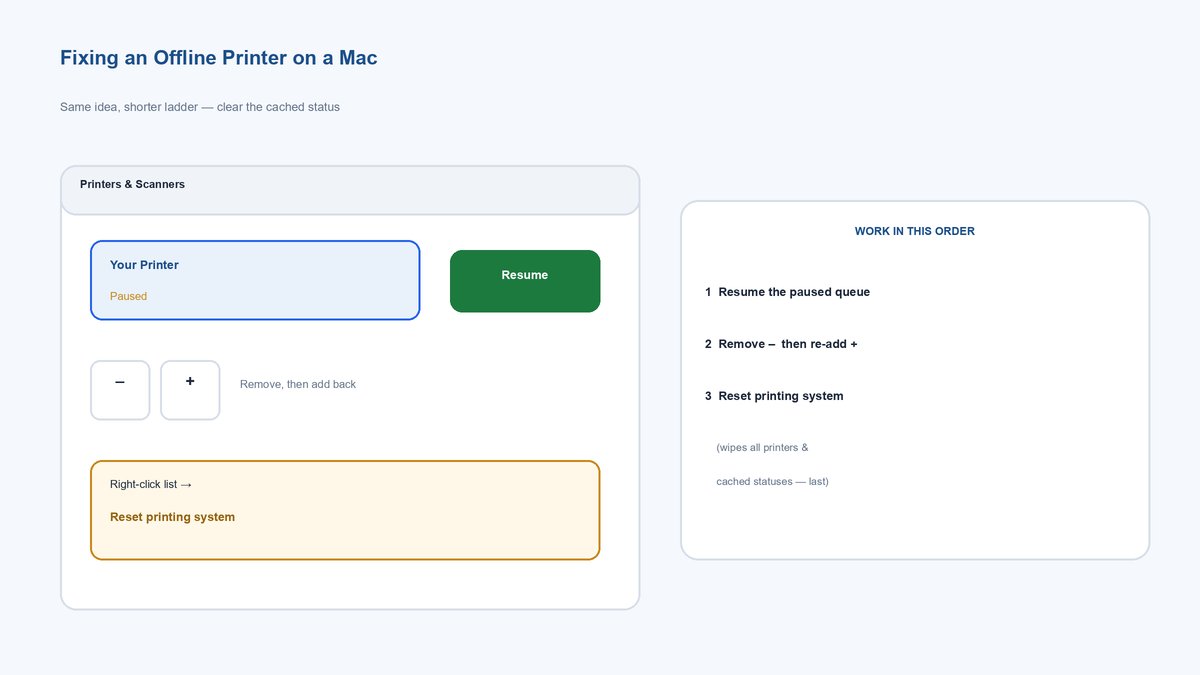
Macs show the same “offline” or a “Paused” / “Not connected” status, and the fix ladder is shorter but a little different. Start with the same power reset above, then work these.
First, check for a paused printer, because macOS pauses aggressively after a failed job and people mistake it for offline. Go to System Settings > Printers & Scanners, click your printer, and open the queue — if there’s a Resume button, click it. That alone brings a lot of “offline” Macs back.
If it’s still stuck, remove and re-add the printer. In that same Printers & Scanners screen, select the printer, click the minus (–) button to remove it, then click the plus (+) button and add it back from the list. This forces macOS to build a fresh connection and grab the printer’s current address — the Mac version of clearing that stale note.
Fix: When nothing else works, reset the entire printing system. In Printers & Scanners, right-click (or Control-click) anywhere in the printer list and choose Reset printing system. This wipes every printer, every queue, and every cached status on the Mac — a total clean slate. You’ll re-add your printer afterward, but it clears the deepest, most stubborn offline states that individual fixes can’t reach.
Reinstall the Printer Driver as a Last Resort
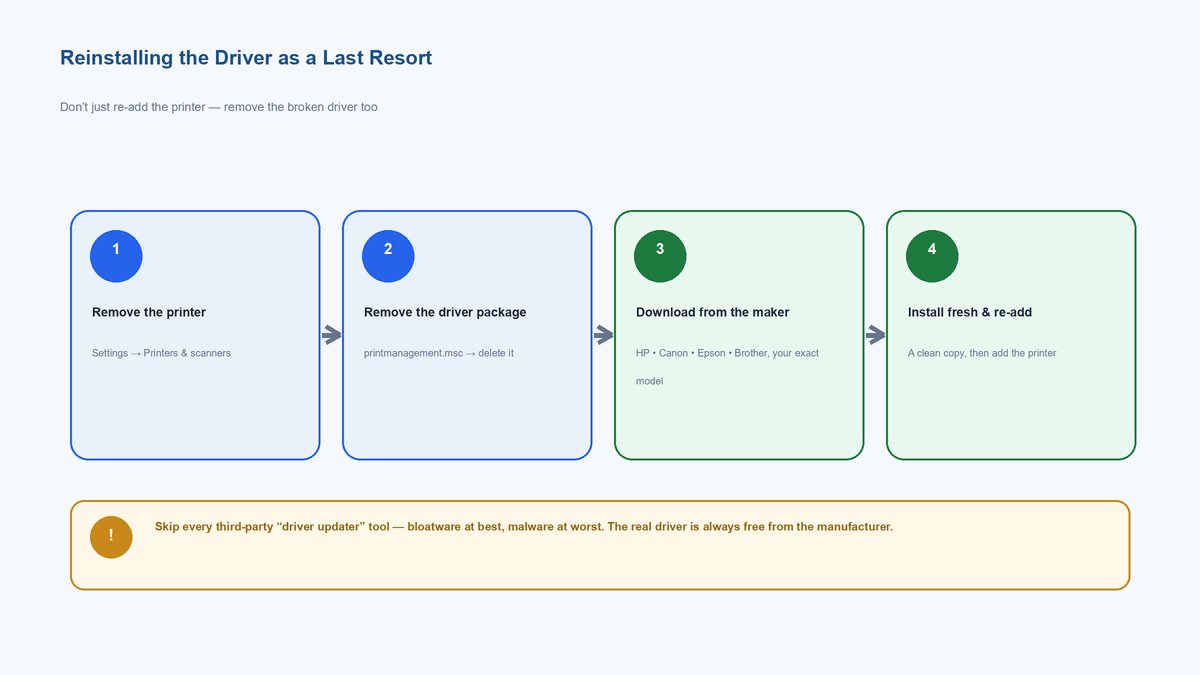
If you’re here, the connection is proven good and the software is still lying — so the driver itself (the translator between your computer and the printer) is probably corrupted. This is genuinely the last resort, because it’s the most work and the least often necessary, but a clean reinstall fixes the offline cases nothing else will.
Don’t just delete the printer and re-add it — that often reuses the same broken driver. Do it properly. On Windows, remove the printer under Settings > Bluetooth & devices > Printers & scanners, then also remove the driver package itself: press Windows + R, type printmanagement.msc (or open Print Server Properties > Drivers), and delete your printer’s driver from the list. Then go to the maker’s site — HP, Canon, Epson, or Brother — and download the current driver for your exact model and your Windows version. Install that fresh copy and re-add the printer.
Watch out: Skip any third-party “driver updater” tool that promises to fix your printer. They’re bloatware at best and malware at worst. Every driver you actually need is free, straight from your printer maker’s official support page — never anywhere else. For a stubborn Windows connection, Microsoft’s own troubleshooting offline printer problems in Windows guide is a solid second reference.
The Whole Printer Offline Fix Ladder in One Place
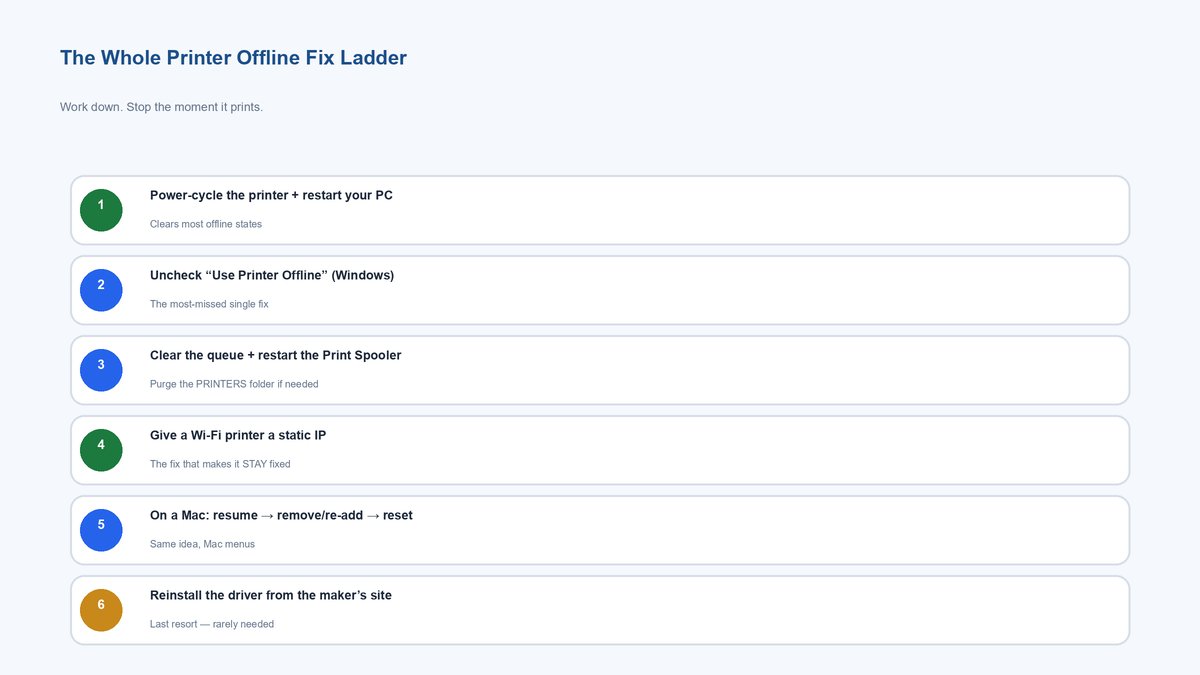
Don’t do all of this at once — work down it in order and stop the moment you’re printing. First, power-cycle the printer and restart your computer; this alone clears most offline states. Second, on Windows, uncheck Use Printer Offline and cancel any stuck jobs. Third, restart the Print Spooler (and purge the PRINTERS folder if jobs won’t die). Fourth, if it’s a Wi-Fi printer that goes offline repeatedly, give it a static IP — that’s the fix that makes it stay fixed. On a Mac, resume the queue, then remove-and-re-add, then reset the printing system. Only after all of that, reinstall the driver from the maker’s site.
The honest bottom line: a printer that says offline is almost never a printer that needs replacing. It’s two devices that stopped talking, and everything above is just a different way of reintroducing them. Nine times out of ten, that’s a five-minute job, not a shopping trip.
Frequently Asked Questions
Why does my printer say offline when it’s on and clearly connected?
Because “offline” is your computer’s cached opinion, not the printer’s real state. When a connection check fails even briefly — the printer napped, Wi-Fi blipped, USB dropped — Windows or macOS flips the status to offline and stops re-checking, so it keeps showing that stale answer even after the printer is reachable again. Power-cycling the printer and restarting your computer forces both sides to look again, which is why that simple reset fixes most cases.
How do I get my printer back online in Windows 11?
Open Settings > Bluetooth & devices > Printers & scanners, click your printer, and choose Open print queue. Click the Printer menu and make sure “Use Printer Offline” is unchecked, then cancel any stuck jobs. If it’s still offline, restart the Print Spooler service (Windows + R, type services.msc, right-click Print Spooler, Restart). Those two moves clear the large majority of Windows offline problems without touching the driver.
Why does my wireless printer keep going offline over and over?
Almost always because your router keeps changing the printer’s IP address. Routers lease addresses temporarily with DHCP, so after the printer sleeps or the router reboots, the printer can get a new address — and your computer, still looking for the old one, calls it offline. The permanent fix is to give the printer a static IP, either as a DHCP reservation in your router or set manually on the printer. Do that once and the recurring offline problem usually stops for good.
Does “Use Printer Offline” turn itself off automatically?
Not reliably, and that’s the whole trap. Windows will sometimes switch “Use Printer Offline” on by itself after a failed connection, but it often fails to switch it back once the printer is reachable again, leaving your printer stuck in offline mode. You usually have to uncheck it manually in the print queue’s Printer menu. If the option is greyed out, it means Windows still can’t reach the printer, so fix the connection first and the checkbox becomes clickable.
How do I fix an offline printer on a Mac?
Go to System Settings > Printers & Scanners and check whether the printer is paused — if there’s a Resume button, click it. If it’s still offline, select the printer, remove it with the minus button, and add it back with the plus button to force a fresh connection. For the most stubborn cases, right-click the printer list and choose “Reset printing system,” which wipes all printers and cached statuses so you can start clean.
Should I reinstall my printer to fix an offline error?
Only as a last resort, after you’ve power-cycled, unchecked Use Printer Offline, cleared the queue, and (for Wi-Fi printers) set a static IP. If none of that works, remove both the printer and its driver package, then download and install the current driver from your printer maker’s official site — HP, Canon, Epson, or Brother — for your exact model. Never use a third-party “driver updater”; the real driver is always free from the manufacturer.