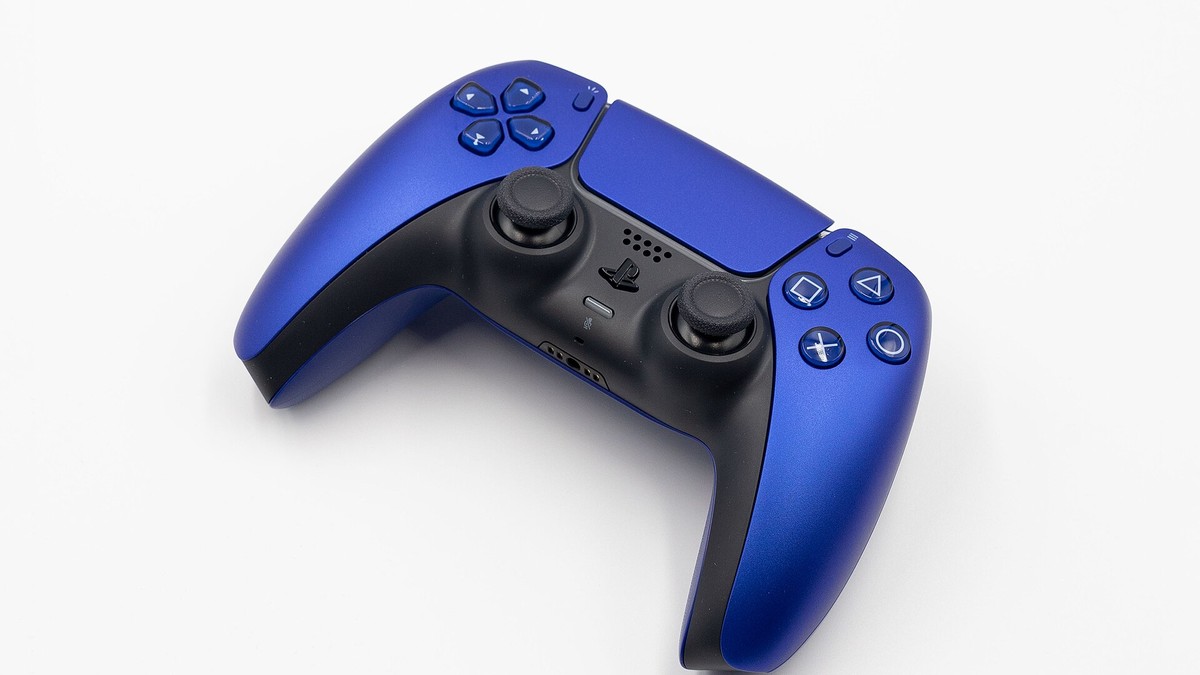
You press the PlayStation button, the light bar does nothing, and your game sits on the home screen taunting you. A PS5 controller not connecting is one of the most common headaches on the console. The good news is that it almost never means your DualSense is dead. Nine times out of ten it is a pairing mix-up, a tired battery, or the wrong cable. Every one of those is free to fix.
Published 17 July 2026 · Updated 27 August 2026. Pairing, charging and firmware steps re-verified against Sony’s current support pages.
The trick is to stop guessing and work through the causes in the right order. Start with the cheapest and most likely fixes, and save the rare hardware failure for last. That is exactly what this guide does. We start with the one step most people skip, move to the tiny reset button Sony hides on the back, and only reach for a warranty claim at the very end.
- A DualSense on current firmware keeps up to four pairings in memory slots. When all four fill up, the slot you have not used longest gets replaced, and that is often your PS5.
- The fix almost nobody tries first: plug the controller into the PS5 with a USB-C cable and press the PS button. A wired link forces a fresh pairing on the console you actually want.
- If wired pairing fails, use the recessed reset button on the back near the SONY logo. A pin and five seconds wipes the controller’s pairing memory completely.
- Charge-only cables and worn batteries fake a “won’t connect” problem. A slow orange pulse means it is charging in rest mode. No pulse overnight usually means a rest-mode power setting, not a dead pad.
- The PS5 holds four wireless controllers at once, and a full power-off (not rest mode) clears the glitches that rest mode quietly keeps alive. Stale controller firmware causes flaky pairing too, and it takes two minutes to update.
Why a PS5 Controller Suddenly Stops Connecting
A DualSense is a Bluetooth device, and it keeps a short memory of who it belongs to. On current firmware, the pad holds up to four pairings at once, each in its own slot, the same kind of bond your wireless headphones use to link to your phone. Here is the trap: Sony’s pairing guide says that when all four slots are in use, the slot you have not connected to for the longest time gets replaced. Pair the pad to a friend’s PS5, a Windows PC, and a phone, and your own console can get bumped out of memory. On older firmware it is even stricter, because the pad remembers only one device at a time.
That single fact explains most “it worked yesterday” mysteries. A controller that stops connecting after a sleepover, a Steam session, or a phone-mapping experiment is not broken. It is simply loyal to the devices it touched most recently. The other causes are more ordinary. The battery drained past the point where it can even light up. The console firmware hiccupped. The four-controller limit is full. Or a cable that only carries power is pretending to be a data cable.
Keep in mind: a controller that never leaves your living room can still lose its pairing after a console system update, or after the battery goes completely flat. You do not need a “reason” for it to happen. You just need the fix ladder below.
Start With a Wired USB-C Link and the PS Button
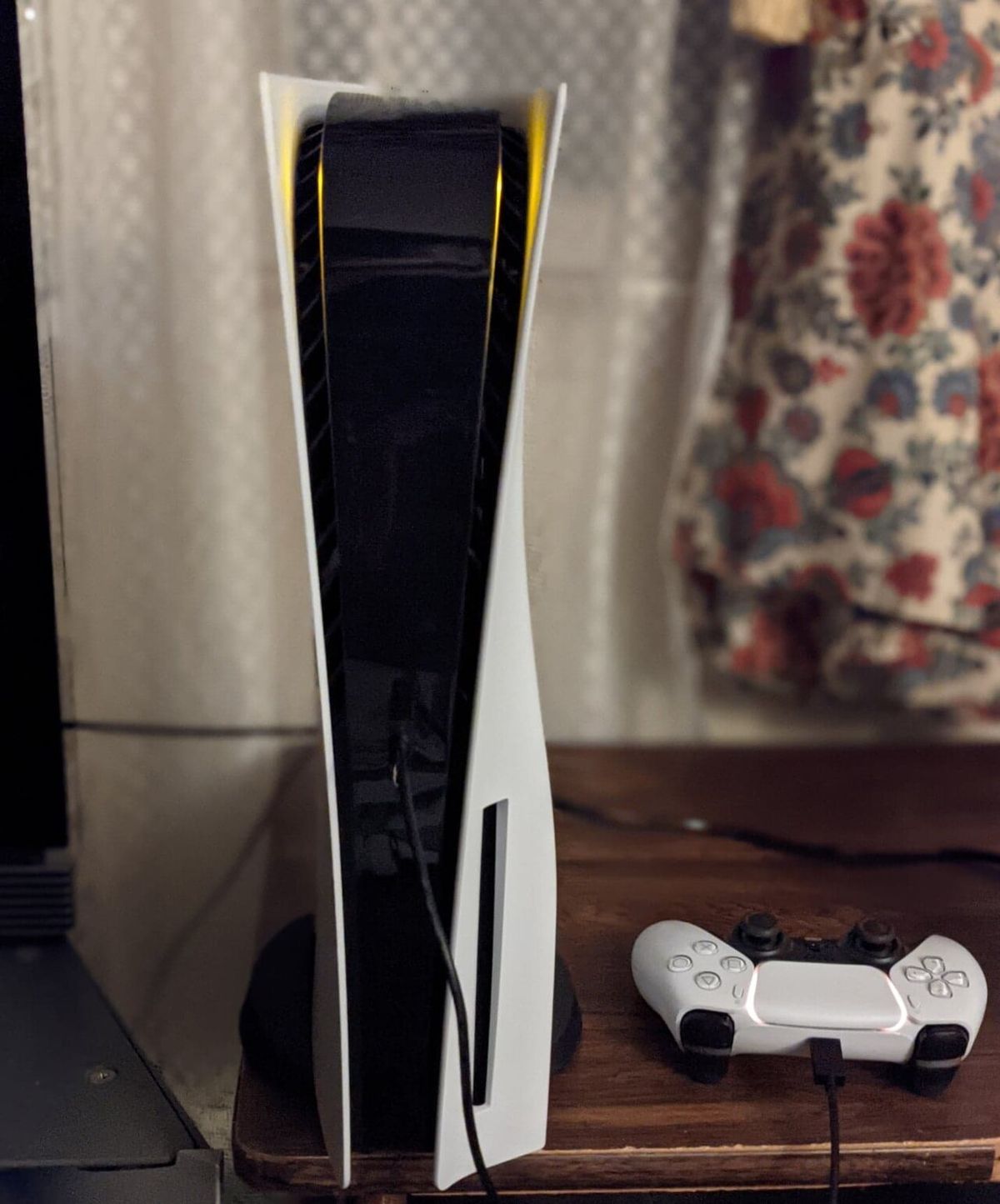
This is the step that solves the most cases, and the one almost everyone skips because it feels too simple. Grab a USB-C cable and plug the controller straight into one of the PS5’s USB ports. Press the PS button once. A wired connection forces the DualSense to pair with the console it is physically plugged into, which re-marries it to your PS5 on the spot. Sony’s own pairing instructions start here for exactly this reason.
Two things trip people up. First, use a USB port on the console itself, not a hub, a TV, or a wall charger, because only the console can claim the pairing. Second, give it a moment. Press PS once and wait a few seconds for the light bar to glow before you start mashing buttons. One more Sony quirk worth knowing: while the cable is attached, the pad cannot switch its wireless pairing to a different console. Unplug it first if you are moving between machines.
Tip: if the light bar flashes blue a couple of times and then goes dark, the controller is trying to pair wirelessly and failing. Keep it plugged in with the cable while you press PS, so the wired link does the pairing instead of Bluetooth. Once it connects wired, you can usually unplug and it stays paired.
The Hidden Reset Button on the Back of the Controller
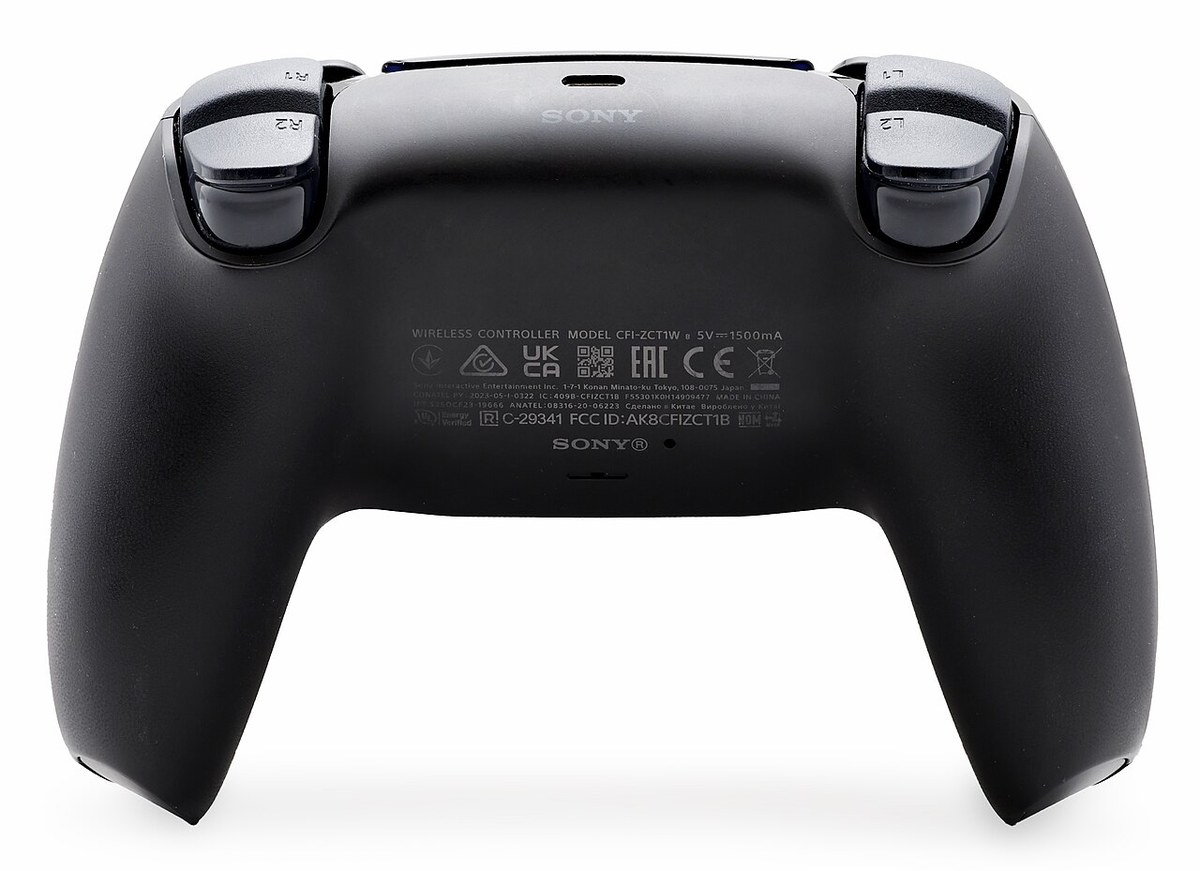
When a wired re-pair does not take, the real fix is a full hardware reset. Sony buried the button so well that most owners never know it is there. Flip the controller over. Near the top, just beside the SONY logo, there is a tiny pinhole. That is the reset switch. Pressing it wipes the controller’s entire pairing memory so it can start clean. Sony’s troubleshooting steps say to turn the console off and unplug the cable before you press it.
Straighten a paperclip or grab a SIM-eject pin. Push it gently into the hole and hold for about five seconds. There is no click and no light, so trust the timer rather than a sensation. When you let go, plug the controller into the console with your USB-C cable and press PS. It will pair as if it were brand new out of the box.
If you have reset the controller and it still will not pair wired, borrow a second USB-C cable before you assume the controller is faulty. A “failed” reset almost always turns out to be a bad cable, which is the next culprit on the list.
When a Dead Battery or the Wrong Cable Is the Culprit
Before you blame the controller, rule out the two most common reasons a DualSense refuses to wake up. Either it has no charge, or the cable you are using cannot actually talk to it. Both fake the exact same symptom, a controller that seems totally dead. Both cost nothing to check.
A Charge-Only Cable That Carries Power but No Data
Not every USB-C cable is equal. Cheap cables, and the ones bundled with power banks and some accessories, are wired for charging only. The data pins are left out entirely. A charge-only cable will happily top up your battery, but it can never pass the pairing signal the console needs. The controller charges yet never connects. Sony’s charging guide tells you to use a cable that complies with USB standards, and the cable that shipped in your PS5 box is a proper data cable. Start there.
The catch: a charge-only cable is the single most misleading failure on this whole list. The light bar lights up while charging and convinces you the cable is fine. If a controller charges but will not pair over the wire, the cable is the suspect, not the port. Test with the original PS5 cable or any cable you know syncs a phone to a computer.
A Battery That Has Quietly Worn Out
A DualSense holds roughly a 1,560 mAh battery. Healthy, that is good for about eight to twelve hours of play. After a couple of years of daily use, that capacity fades. A badly worn cell can drain so completely that the controller cannot even power its pairing chip. If your controller sat unused for weeks, or it is a few years old and play time has collapsed, leave it charging for a solid ten to fifteen minutes before you try anything else. Sometimes it just needs enough juice to wake up.
PS5 Controller Not Charging? Work Through These Checks
Half of the “not connecting” complaints are really charging complaints in disguise. The pad went on the cable overnight, nothing happened, and now it will not turn on at all. The fix is rarely a new controller. It is usually the port, the cable, a rest-mode power setting, or a battery so flat it needs a slow revival. Work through these four checks in order.
Check the Charging Port and Swap the Cable
Look inside the controller’s USB-C socket under a bright light. Pocket lint and dust pack into that port and physically block the pins, and a soft brush or a gentle puff of air clears it. Then swap the cable for the one that shipped with your PS5, plugged into the console’s own USB port rather than a hub or a TV. Sony’s charging guide warns that cables which do not meet USB standards may not charge the controller at all. Cheap charge-only leads are the usual offenders.
Read the Orange Pulse Correctly
The light bar is your charging gauge, so learn its two signals. A slow orange pulse means the controller is charging in rest mode. The light turning off means charging is complete. With the console on, press the PS button and select Accessories in the Control Center. Sony’s guide says a battery icon with a lightning bolt animates while the pad charges, and a full battery shows three steady bars. If you see the orange pulse, the hardware is fine. Give it time to finish.
Make Rest Mode Actually Charge It
“It sat on the charger all night and it is still dead” is usually a settings problem. In rest mode, the PS5 only feeds its USB ports if you tell it to. Go to Settings, then System, then Power Saving, then Features Available in Rest Mode, and set Supply Power to USB Ports to Always or 3 Hours. On the slim CFI-2000 model group there is also an Adaptive option, which matches the charging window to the battery level. Two gotchas hide here. If the setting is Off, rest mode charges nothing. And on 3 Hours, power stops three hours after the console enters rest mode, so a pad plugged in later never charges.
Revive a Completely Flat Battery
A battery drained to zero can play dead, with no light at all when you plug in. Do not panic yet. Connect the pad to the console’s own USB port with the official cable, leave the console on, and walk away for fifteen to thirty minutes without touching anything. Then press PS. If the light bar stays dark after that soak, do the pinhole reset from earlier and try the wired pair again. Still nothing on a second known-good cable? At that point Sony points you to its PlayStation Repairs tool, because a cell that will not take any charge is a hardware case.
The PS5 Only Pairs Four Controllers at Once
The PS5 supports up to four wireless controllers connected at the same time. Once those four slots are full, a fifth simply will not connect, no matter how many times you press PS. This bites households with a stack of controllers. Spare DualSense units, a DualShock 4 for media apps, maybe an arcade stick, all quietly registered.
The console does not always drop old pairings on its own. The phantom controllers keep their slots even when they are switched off in a drawer. The fix is to clear them out. On a working controller go to Settings, then Accessories, then General, then Bluetooth Accessories, and delete the ones you are not using. With a slot freed up, the controller that would not connect finally has somewhere to go.
Power-Cycle the Console, Not Just Rest Mode
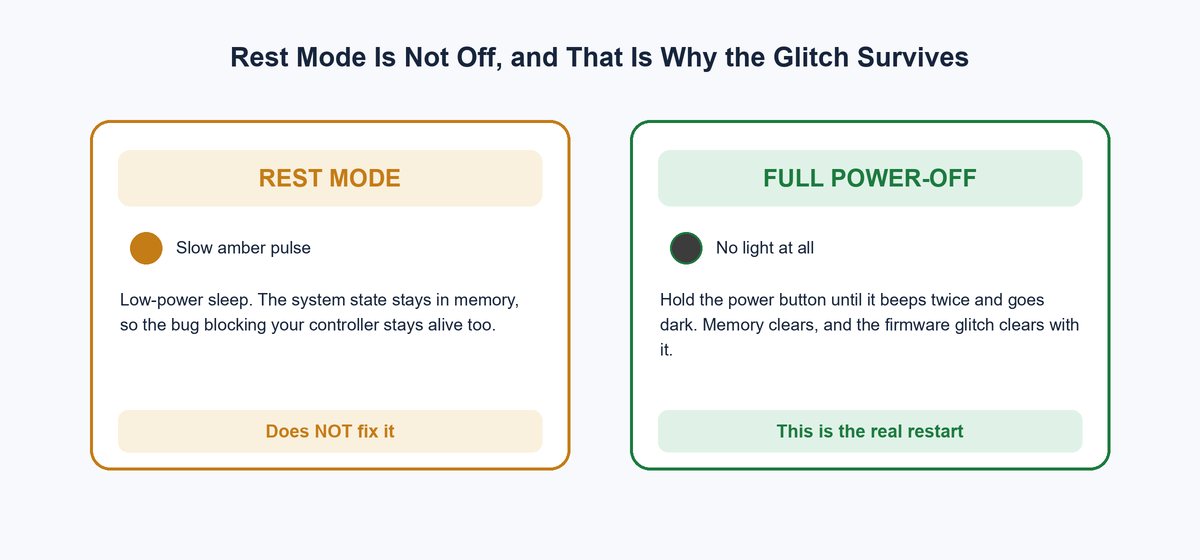
When the controller checks out but the console still ignores it, the problem has moved to the PS5’s software. The cure is a genuine full power-off. This is where people go wrong, because the PS5’s default “off” is rest mode. Rest mode is a low-power sleep that keeps the system state alive in memory, including whatever glitch is blocking your controller.
A true restart clears it. Hold the physical power button on the console until it beeps twice and the light goes fully dark. Wait about thirty seconds, then power it back on. Rest mode shows a slow amber pulse. A real shutdown shows no light at all. That difference is the whole point, and it is why “I turned it off and on” so often fails when people only dipped into rest mode.
Warning: never yank the power cord to force a shutdown while the white light is still on or blinking. Pulling power mid-write can corrupt the system storage. Use the power button and wait for the two beeps and the dark light before you unplug anything.
A Firmware Update Fixes the Weird Connection Bugs
Your DualSense runs its own device software, and stale firmware is a quietly common cause of flaky pairing on a modern console. Updates normally ride along with PS5 system updates, so a pad that lives in a drawer, or one you bought secondhand, can fall behind. To update it manually, Sony’s controller guide says to go to Settings, then Accessories, then Controller (General), and select DualSense Wireless Controller Device Software. Plug the pad in over USB and follow the prompts. Sony’s troubleshooting page also tells you to update the PS5 system software itself while you are at it.
Firmware matters more than it sounds. The four pairing slots this guide leans on arrived through a controller update, so a pad on old firmware still lives in the one-device world and forgets your console far more easily. And if no console will talk to the controller at all, there is a back door: Sony’s PlayStation Accessories app for Windows updates DualSense firmware over a USB cable from any PC. Two minutes there has rescued plenty of “broken” pads.
How to Connect a PS5 Controller to a PC or Steam
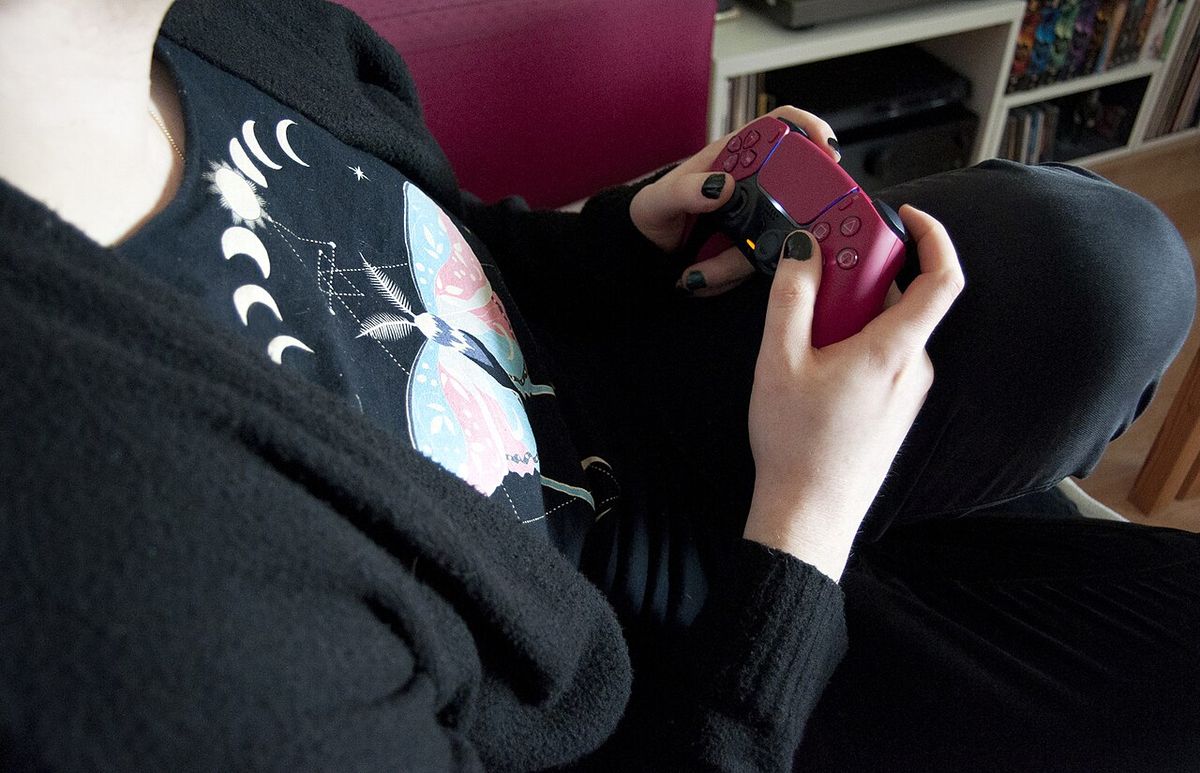
If the console side is a lost cause, or you simply want to game at your desk, the same DualSense pairs to a PC easily. This is also the fastest way to confirm the controller itself is healthy. Steam has supported the DualSense natively since 2020, including the light bar and, in supported games, the adaptive triggers.
Wired is instant. Plug the controller into the PC with a data USB-C cable and Steam recognizes it right away. For wireless, hold the PS button and the Create button (the small button to the upper-left of the touchpad) together until the light bar flashes in a fast double-pulse. That flashing means the controller has dropped into pairing mode and is broadcasting. Open your PC’s Bluetooth menu, pick “Wireless Controller,” and connect. That same Create-plus-PS pairing mode, by the way, is the identical re-pair routine you would use to reset any Bluetooth device.
Won’t Connect, Won’t Charge, and Stick Drift Are Different Problems
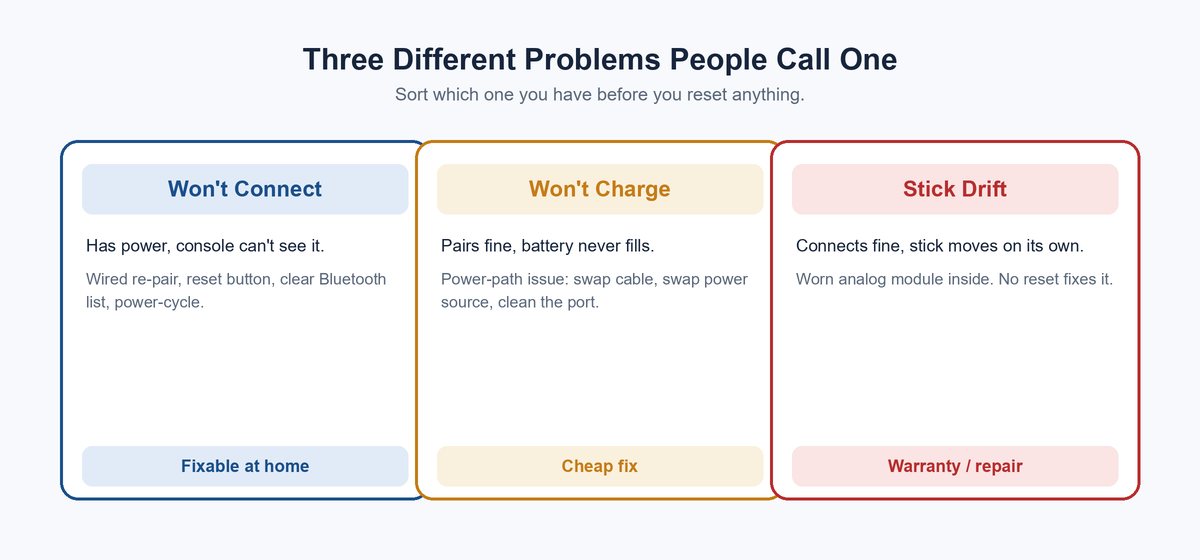
People lump every controller complaint under “my PS5 controller is broken,” but the three big ones have completely different causes and fixes. Sorting which one you actually have saves you from resetting a controller that only needed a new cable, or replacing a stick when the real issue was pairing.
It Won’t Connect at All
This is the pairing problem this whole guide solves. The controller has power but the console will not see it. The path is wired re-pair, then the back-of-controller reset, then clearing the four-slot Bluetooth list, then a full console power-cycle, then a firmware update. It is fixable at home and rarely a hardware fault.
It Connects but Won’t Charge
A controller that pairs fine but the battery never fills is a power-path problem, not a pairing one. The usual suspects are a charge-only cable, a weak USB port, a rest-mode power setting, or lint packed into the controller’s own USB-C socket. This is the same family of failure as a phone that plugs in but refuses to charge. Diagnose it the same way, using the charging checks above: swap the cable, swap the power source, fix the rest-mode setting, then inspect the port.
It Connects Fine but the Stick Drifts
Stick drift, where your character walks or the camera pans with no thumb on the stick, is a genuine hardware wear problem inside the analog module. No amount of pairing or resetting fixes it. A controller that connects perfectly but drifts is a warranty or repair case, not a connection case, which is exactly why telling the three apart matters.
When It’s a Hardware Fault and Warranty Time
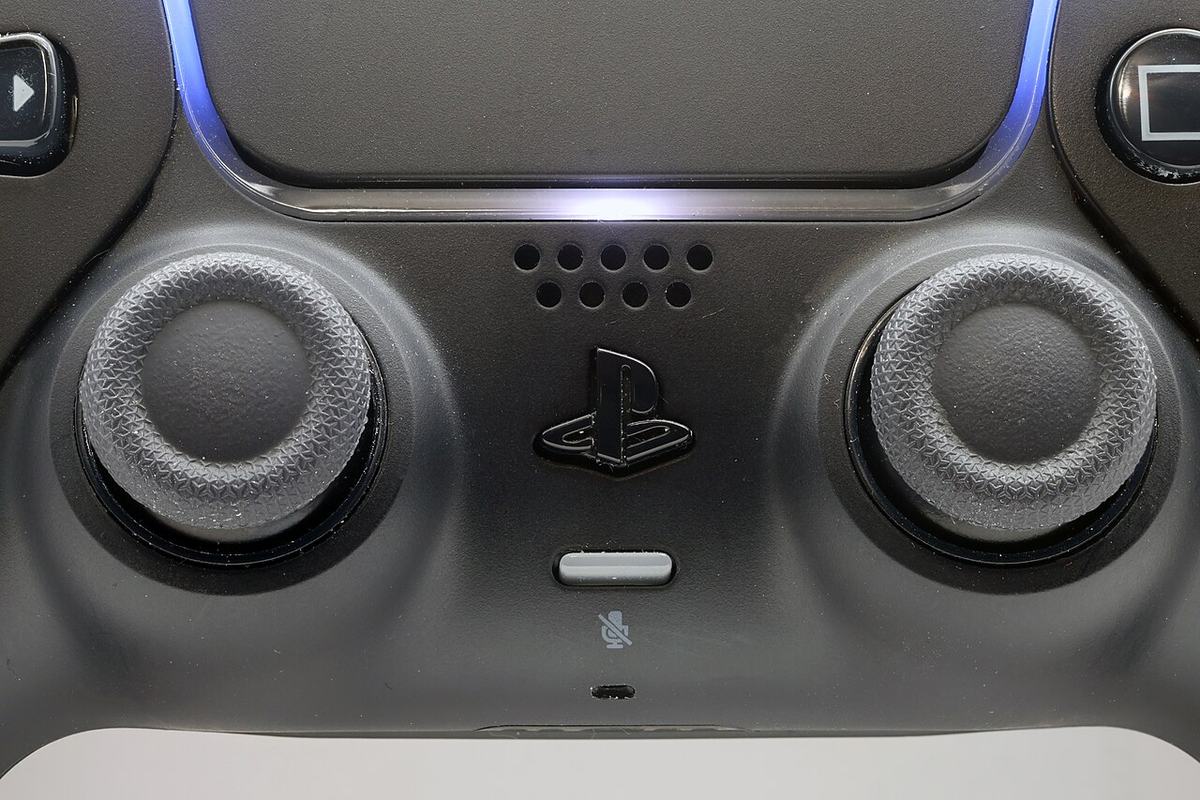
If you have gone wired, reset the controller, tested a second cable, run the charging checks, cleared the Bluetooth list, updated the firmware, and full-power-cycled the console, you are now in the small minority where the hardware really has failed. A cracked USB-C port, a swollen battery, or a fried Bluetooth radio all look like a stubborn connection problem. None of them is a home fix.
At that point, check your warranty before you spend a cent. A DualSense carries a one-year limited warranty from Sony. Controllers bundled with a console are often covered under the console’s warranty window. If you are inside it, a connection fault is exactly the kind of defect that qualifies for a free replacement.
Don’t skip this: if the controller’s shell is bulging, the touchpad is lifting, or the grips no longer sit flush, stop using it. That is a swollen lithium battery, and a swollen cell is a fire and burn risk. Do not charge it, do not puncture it, and take it out of circulation until you can dispose of it safely.
The Bottom Line
A PS5 controller that will not connect is a nuisance, not a death sentence. The pattern behind nearly every case is simple. The DualSense bumped your console out of its pairing slots, ran out of charge, got fed the wrong cable, or hit the four-controller wall, and rest mode kept a glitch alive. Work the ladder in order: wired re-pair, back-button reset, cable and charging checks, Bluetooth slots, full power-cycle, firmware update. You will land your fix long before you reach the warranty line. Save the replacement money for a game instead.
Frequently Asked Questions
Why is my PS5 controller not connecting even with a cable?
If a wired connection does not pair the controller, the cable is usually the reason. Many USB-C cables are charge-only and carry no data, so the light bar lights up but no pairing signal reaches the console. Swap to the cable that came with your PS5 or another known data cable. If it still fails, use the reset button on the back of the controller before you assume it is broken.
Where is the reset button on a PS5 controller?
It is a tiny recessed pinhole on the back of the DualSense, near the top, just beside the SONY logo. Push a straightened paperclip or a SIM-eject pin into the hole and hold for about five seconds. There is no click or light, so count the seconds, then reconnect the controller to the console with a USB-C cable and press the PS button.
How many controllers can connect to a PS5 at once?
A PS5 supports up to four wireless controllers connected at the same time. If four are already registered, even ones switched off in a drawer, a fifth will not connect. Go to Settings, Accessories, General, then Bluetooth Accessories on a working controller and delete the ones you are not using to free up a slot.
Does resetting my PS5 controller delete my game data?
No. Resetting the controller only wipes its Bluetooth pairing memory so it can pair fresh. It does not touch your PS5, your account, your saves, or any game data. The only thing you lose is the controller’s memory of past devices, which is exactly what you want when it will not connect.
Why does my PS5 controller connect to my phone but not my PS5?
A DualSense on current firmware keeps up to four pairings. When every slot is full, the device you have not used longest gets replaced. Pair it around enough and your PS5 falls off the list. On older firmware the pad remembers only one device, so pairing to a phone erases the console immediately. Plug it into the console with a USB-C cable and press PS to force the pairing back to the PS5.
Should I replace my PS5 controller or repair it?
Work through the wired re-pair, the reset button, the cable and charging checks, a firmware update, and a full console power-cycle first. Still no luck? Check your warranty before you spend, since a one-year Sony warranty or the console bundle may cover a free replacement. Out of warranty, a new DualSense often costs about the same as a professional repair. That makes replacement the better value unless the controller is a special edition worth saving.