You are mid-sentence on a call, the picture freezes, the globe icon appears, and by the time you have said “sorry, I dropped,” you are back online as if nothing happened. No error, no evidence, just you looking unreliable.
Most fix-it lists handle this backwards. They hand you twenty things to try, which is gambling, not troubleshooting. When your wifi keeps disconnecting there are only a handful of real suspects, and one observation tells you which to arrest: the side that broadcasts (router, modem, ISP line), the side that receives (the device in your hand), or the line into your house. One boundary: this is the drop-and-return cycle, where the link genuinely dies. A connection that stays up and merely crawls is a different fault, covered in why your internet is so slow.
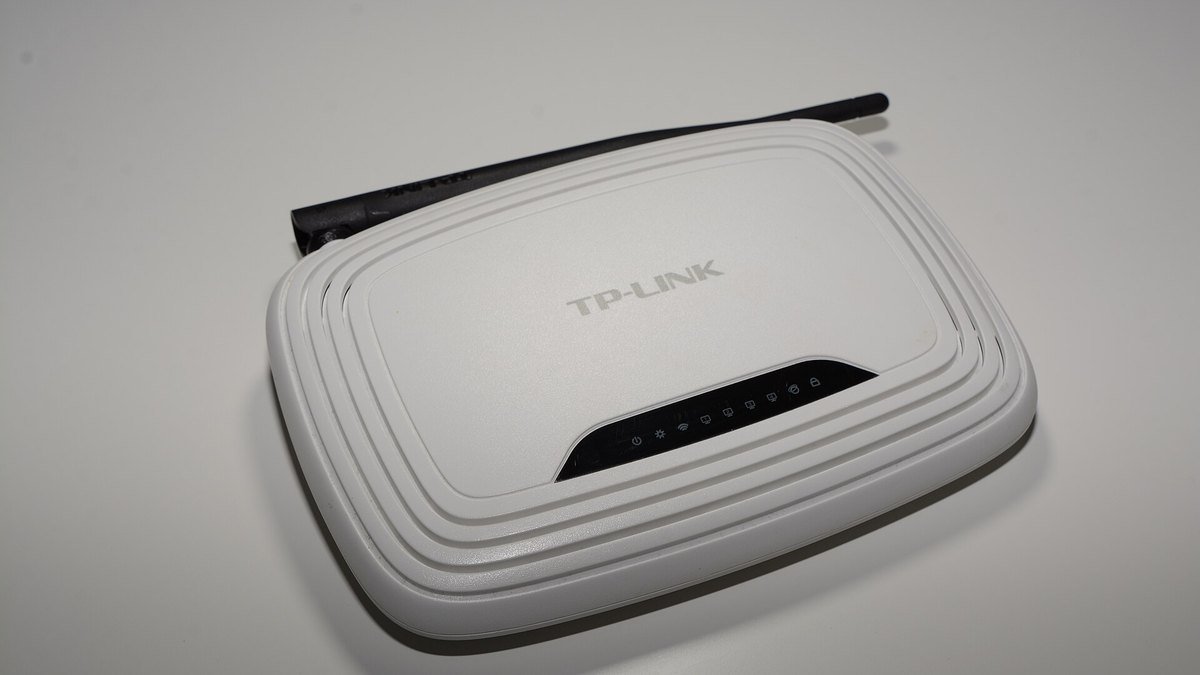
Featured photo: Hayden Schiff, CC BY 4.0.
- Everything drops together? Put the laptop down — the fault is broadcast-side and no driver update touches it.
- One device drops while the rest hold? On Windows, one Power Management checkbox causes more of these than anything else.
- Drops that keep a clock are addressing, not radio. DHCP renews at half the lease.
- A 5 GHz network gone for roughly half an hour is obeying FCC radar rules, not failing.
- Never phone the ISP without a wired log. A drop that survives an Ethernet cable is theirs.
Start by Isolating the Scope of the Drop
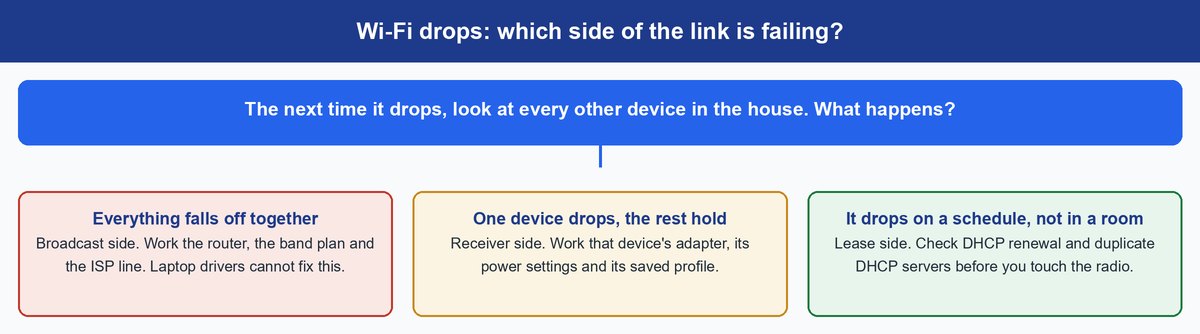
The next time the connection dies, touch nothing and look at the other devices. What they do at that moment splits the problem into halves that share almost no fixes.
Every Device Falls Off at the Same Moment
Phone, laptop, TV and kitchen speaker gone together and back together. That is the broadcast source failing: the router stopped serving, its radio reset, or the line behind it went away. Reinstalling a network driver here is motion without progress. Work the router, the band plan and the ISP line, in that order.
Only One Device Drops While the Rest Hold
Someone else streams happily while your laptop is on its fourth reconnect. The router is fine, full stop. The receiver is quitting: a power-saving setting switching the radio off mid-session, a corrupted profile, a driver that mishandles roaming, or a loose antenna lead inside the chassis.
The Drops Arrive on a Schedule, Not in a Place
The signature everyone misses. If drops arrive at regular intervals no matter where you sit, distance and interference are ruled out — neither keeps time. Something on a timer is expiring, and it is almost always the DHCP lease.
The Wi-Fi Never Dropped and the Internet Did
One pattern looks identical from the sofa and is not a Wi-Fi fault at all. If your devices stay connected the whole time but nothing loads, the radio never dropped — the line behind it did. Look at the router’s internet LED. A steady Wi-Fi light beside a dark or amber internet light puts the fault on the WAN side, between your modem and your ISP. Nothing you change in your wireless settings will touch it, so stop here and skip to proving it is your ISP.
How to Tell a Radio Drop From a DHCP Lease Drop
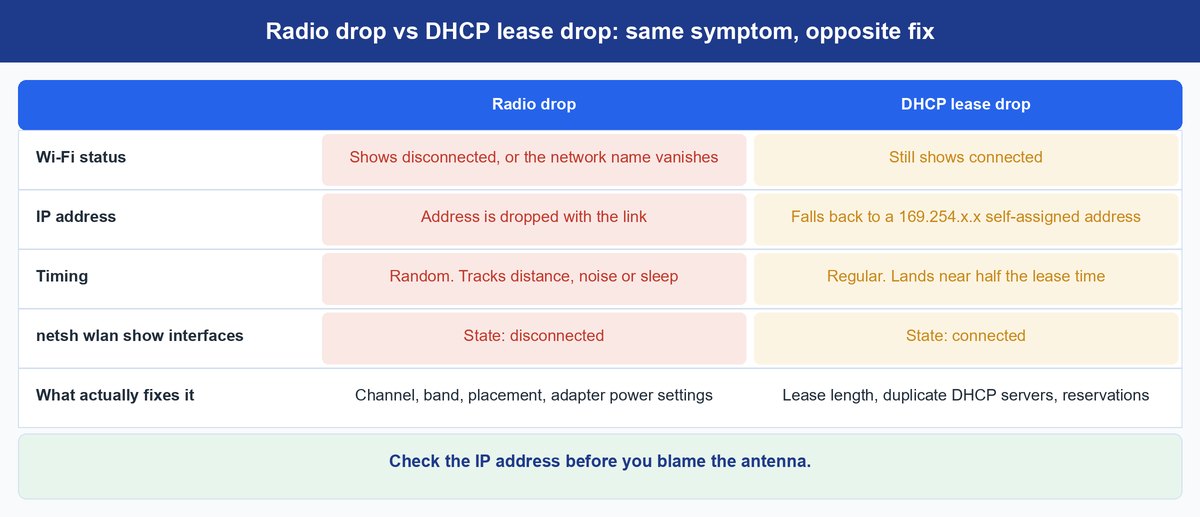
Your router lends each device an IP address for a fixed period, and the device has to ask for a renewal before that period runs out. When the renewal fails, your laptop stays perfectly attached to the router and is completely offline at the same time. That is why the Wi-Fi icon lies to you.
Read the Lease Clock Before You Blame the Antenna
Run ipconfig /all and read Lease Obtained and Lease Expires on your Wi-Fi adapter. Then do the arithmetic that matters: under RFC 2131, the standard defining DHCP, a client first renews at T1, which defaults to half the lease. A two-hour lease therefore renews every hour, and drops clustering near the hour mark point straight at that handshake. The confirming tell is an address starting 169.254 — the device giving up and self-assigning, which never happens on a radio failure.
Watch the Adapter State Rather Than the Browser Tab
Run netsh wlan show interfaces while it misbehaves. State: connected while nothing loads means addressing or the WAN; State: disconnected means the link died. Then run netsh wlan show wlanreport from an admin prompt: Windows writes a wireless network report covering three days, listing every session and why it ended. On a Mac, hold Option, click the Wi-Fi menu and open Wireless Diagnostics.
Tip: That WLAN report is the closest thing consumer Windows has to a black box recorder, stamping every disconnect with a reason code. Pull it before changing a single setting — it turns “it drops sometimes” into events you can match against microwave use or the hour of the day.
What to Fix When Every Device Drops at Once
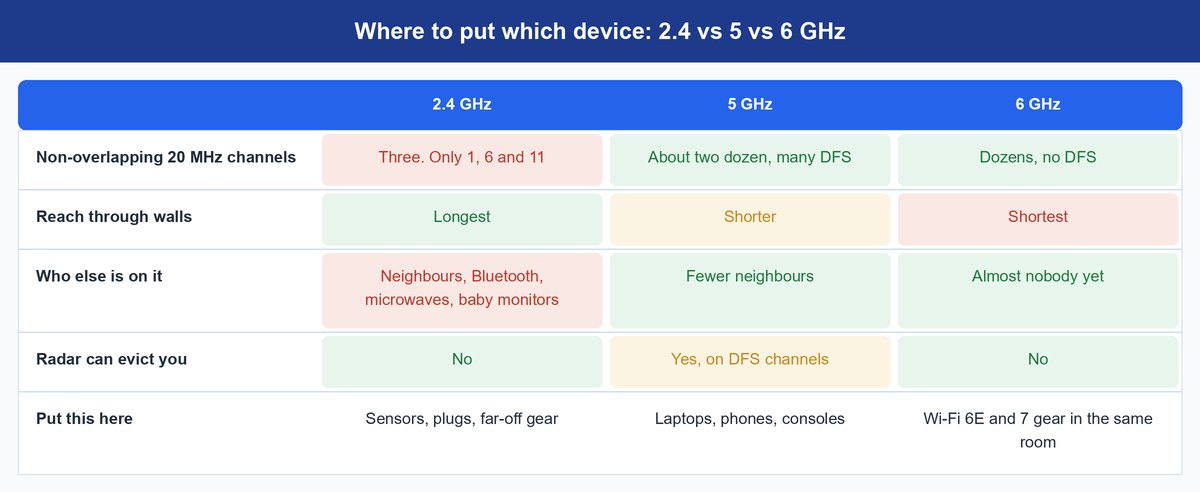
If the whole house drops together, you have three suspects: crowded air, a router quietly falling over, or a rule you have never heard of throwing you off your own channel. Work them in that order.
Read the Channel Congestion Instead of Guessing at It
“Change your channel” is the most repeated advice on the internet and nobody ever tells you how to pick one. On Windows, netsh wlan show networks mode=bssid lists every access point in range with its channel and signal; on a Mac, Wireless Diagnostics has a Scan window. Count two things: how many networks share your channel, and how strong they are. Wi-Fi is polite. Devices take turns instead of talking over each other, so a crowded channel never corrupts your data — it just makes your device queue. Queue long enough and your video call gives up on you.
Overlap is nastier. On 2.4 GHz only channels 1, 6 and 11 avoid stepping on each other, and a neighbor on channel 3 hurts you more than one on your own channel, because partial overlap arrives as raw noise instead of a signal to wait for. Pick 1, 6 or 11, keep 2.4 GHz at 20 MHz width, and remember Bluetooth shares the band — if headphones stutter at the same moments, our guide on Bluetooth dropouts covers that side.
Check Whether Radar Is Quietly Evicting You From 5 GHz
A large slice of 5 GHz is shared with weather and aviation radar, so routers using it must run Dynamic Frequency Selection. When your router hears radar it is legally required to get off that channel within seconds and stay off it for about half an hour. The symptom is unmistakable: 5 GHz disappears, 2.4 GHz stays up, and it returns roughly half an hour later — common near airports, coastlines and weather radar. Pin the router to a non-DFS channel, in the US 36 to 48 or 149 to 165, instead of leaving it on auto.
The catch: Most consumer routers never label DFS channels as DFS anywhere in the interface, and “auto” will park you back on one after the next reboot. Set the channel manually, then check again a week later.
Cool the Router and Update It Before You Buy Anything
A router is a small fanless computer expected to run for years without a reboot. Heat and a filling connection table produce the classic failure where the box is powered on but has quietly stopped routing. Pull it out of the cabinet and set the weekly reboot most firmware includes. Then update that firmware — the only update here with a real track record, since vendors ship “stability improvements” constantly and the phrase almost always means the radio used to drop. Rank the rest honestly: firmware and adapter drivers earn their place, DNS changes do nothing for drops, and an extender does not fix noise, it adds a second noisy device to the same air.
Why a Single Network Name Creates Sticky Client Drops
Most routers now broadcast 2.4 GHz and 5 GHz under a single name and quietly decide which one you get. When that decision goes wrong, you get a drop that follows you from room to room and shrugs off every fix above — because nothing is actually broken. The handoff is.
How Band Steering Decides Where You Land
Here is the part that surprises people: the router can suggest, but your device decides. Standards exist to make that choice smarter: 802.11k gives your device a list of neighboring access points, 802.11v lets the router suggest a better one, 802.11r speeds the switch. Older laptops and cheap smart-home gear support none of them, so they cling to a distant 5 GHz signal at one bar and eventually drop rather than step down to the 2.4 GHz radio sitting right there.
The Split Network Test That Proves It
Give the bands separate names for a week — “Home” and “Home-5” — and connect the problem device to each in turn. Rock solid on either alone but dropping when they share a name means steering, not radio. Many routers also offer a minimum signal threshold that boots weak clients so they reconnect properly instead of hanging on; enabling it turns drops into clean handoffs.
What to Fix When Only One Device Drops
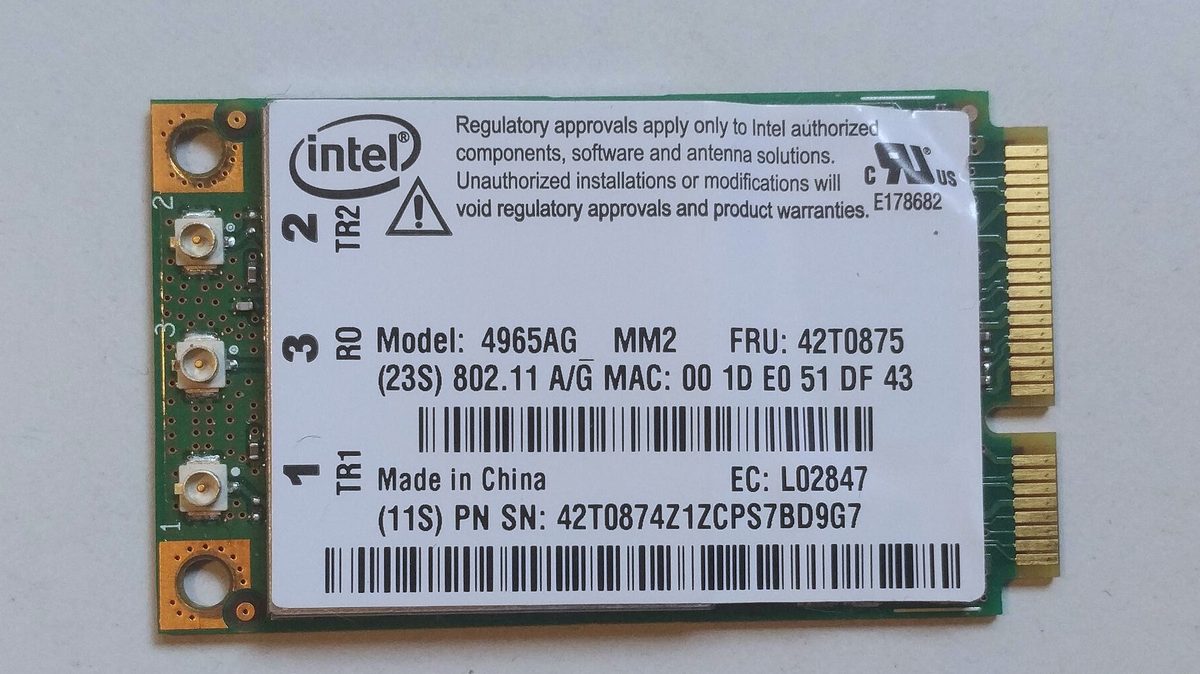
If the rest of the house is stable, everything you change inside the router is wasted effort. On Windows the reason is usually a power-saving feature switching your radio off while you are still using it.
Turn Off the Adapter Power Management Checkbox
The highest-yield fix on the device side. Right-click Start, open Device Manager, expand Network adapters, right-click your Wi-Fi card, choose Properties, open the Power Management tab, and clear “Allow the computer to turn off this device to save power.” Then open Power Options, go to the advanced settings for your active plan, and set Wireless Adapter Settings to Maximum Performance.
Keep in mind: Some vendor driver updates re-tick that checkbox during installation. A laptop that was stable for months and started dropping right after an update is telling you to look there first.
Find the Same Switch on macOS and Android
Neither system exposes an identical checkbox, but both have equivalents. On a Mac, open Battery settings, check Options for “Wake for network access”, and see whether Low Power Mode is throttling the radio. On Android the usual culprit is the automatic data switch, which moves you to mobile data whenever Wi-Fi looks weak and reads on screen as a Wi-Fi drop; it sits in Wi-Fi network preferences as “Switch to mobile data automatically” or adaptive connectivity. Check battery optimization is not sleeping the connection either.
Forget the Network Before Reinstalling Anything
A saved profile stores the security type and key alongside the name, and after a firmware update or password change it can hold parameters that no longer exist. The device then fails an invisible negotiation and drops. On Windows, open Wi-Fi settings, go to Manage known networks, forget the network and reconnect from scratch.
Reset the Network Stack Only as a Last Resort
If drivers are current and the profile is clean, the TCP/IP stack itself may be damaged, usually after a failed update or malware removal. Windows has a Network reset under advanced network settings that rebuilds every adapter from defaults.
Caveat: Network reset wipes every saved Wi-Fi password on the machine and removes VPN and virtual adapters, which can break work software that quietly depends on them. Have your Wi-Fi password to hand and know what your employer’s VPN needs first.
Why Mesh Nodes and Extenders Drop More Than One Router Does
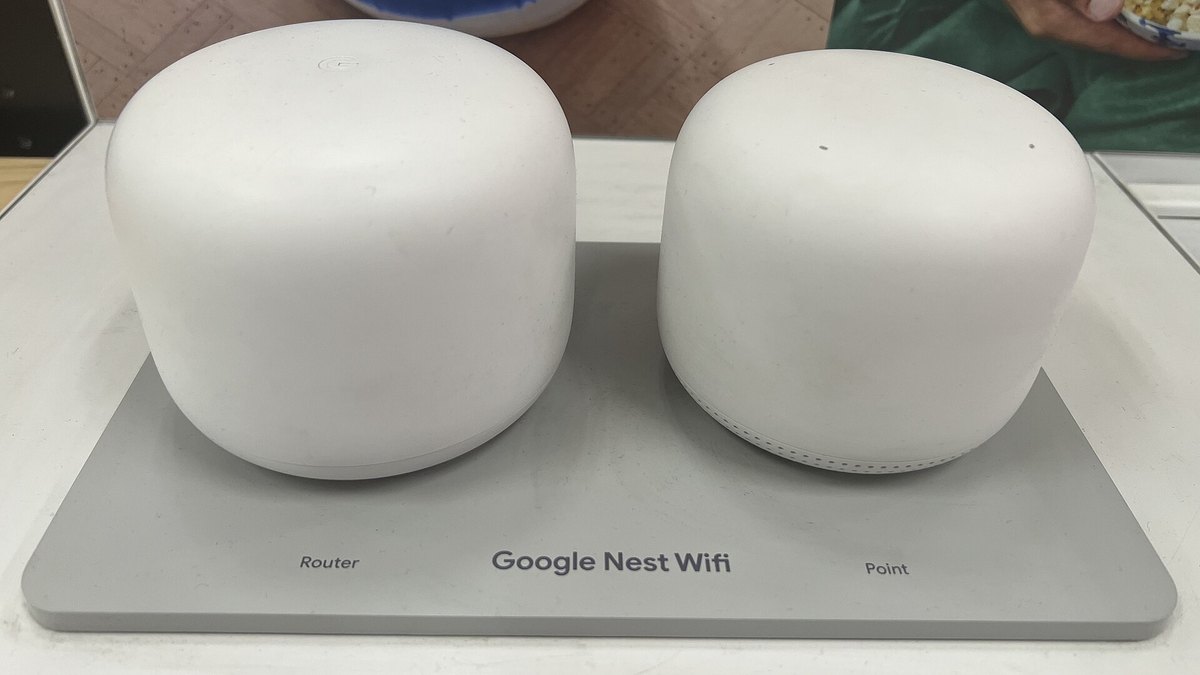
A mesh node has two jobs at once — talk to your devices, and talk back to the main router. How it manages that second job decides whether you bought a bigger network or a more fragile one.
Wireless Backhaul Splits the Airtime You Have
On a two-band node, the link back to your router shares a radio with everything connected to that node, so every packet you send crosses the same air twice. Throughput drops sharply and the link turns fragile: anything disturbing the node-to-router hop takes down everything behind it. Some tri-band systems reserve a third radio purely for that hop, which is the thing worth looking for on the box — but check the spec, because on many Wi-Fi 6E and 7 systems the third radio serves clients too.
Place the Node Where It Can Still Hear the Router
The most common mesh mistake is the most intuitive one: you put the node in the dead zone. A node can only rebroadcast what it receives cleanly, so parking it where signal is already terrible guarantees an unstable hop. Put it roughly halfway between router and dead zone, in the open rather than behind a TV, and run the vendor app’s placement check.
Wire the Backhaul Whenever You Possibly Can
If there is any Ethernet cable already running between the two spots, use it. A wired backhaul removes the shared-airtime problem entirely and turns the node into a second access point. Powerline and MoCA adapters are imperfect but still beat a marginal wireless hop, and this fixes more “my mesh keeps dropping” complaints than any setting in the app.
How to Prove It Is Your ISP Before You Call Them
Support scripts send you in circles unless you arrive with evidence.
Move the Test Onto a Cable
Plug one computer into the router with Ethernet and leave it there through a normal day. If it drops at the same moments as the wireless ones, wireless was never the problem and the fault is the router, the modem or the line. If it never drops while everything else does, no engineer visit will help.
Log the Drops With Timestamps
Run a continuous ping outside your network — ping -t 8.8.8.8 on Windows — and leave it running. Each timeout is a timestamped outage in a form support staff take seriously. On cable connections, add the modem’s own diagnostics: most answer at 192.168.100.1 even without a router login, and their event log records the ranging and timing errors that indicate a line fault. If the wired test drops too and that log shows repeated timing failures, ask for a line technician rather than a remote reset — that request, backed by timestamps, moves a ticket from the script to a truck.
Frequently Asked Questions
Why does my Wi-Fi disconnect every few minutes?
Regular intervals point at a timer, not a radio. The usual causes are a DHCP lease failing to renew and two devices both handing out addresses, which happens whenever an ISP gateway is left in router mode behind a separate mesh system. Put the ISP box in bridge mode, or disable DHCP on the second device, so only one thing assigns addresses.
Can a microwave really knock my Wi-Fi offline?
Yes, and it is easy to prove. Microwaves leak energy in the 2.4 GHz band, so if drops line up with someone reheating lunch, that is your answer. Move the affected devices to 5 GHz.
Why does only my laptop drop when everything else stays connected?
Because the router is fine and the laptop’s radio is quitting. Start with the Power Management checkbox in Device Manager, then forget and rejoin the network to clear a stale profile. If both fail, run the WLAN report for the reason Windows recorded.
Why does my 5 GHz network vanish and return half an hour later?
That is Dynamic Frequency Selection. Your router detected something it believes is radar, and FCC rules require it to leave that channel within 10 seconds and stay off at least 30 minutes. Set a non-DFS channel — 36 to 48 or 149 to 165 in the US — and it stops.
Does changing my DNS server stop Wi-Fi from dropping?
No. DNS translates names into addresses, so a different provider can make pages feel snappier, but it has nothing to do with whether your device stays associated with the access point.
Is it finally time to replace the router?
Consider it when every device drops, firmware is current, the channel is clean, and the box is several generations old. Newer standards handle crowded households far better. Confirm the drops are broadcast-side first — a new router fixes nothing if the fault was one laptop’s power settings.
The Bottom Line
Random disconnects feel like chaos, but they are one of the most orderly problems in home networking. Watch what the rest of the house does when the link dies, and each half has maybe four real fixes, most costing nothing.
Hardware is genuinely the answer sometimes: a router running since Wi-Fi 5 was new, in a house that has since added twenty connected devices, is doing a job it was never built for. Just reach that conclusion with evidence rather than buying first; our router buying guide covers what matters at each price.