Your Android phone is acting strange. Pop-ups are everywhere. The battery drains fast. Apps you never installed appear overnight. You do not need to pay for antivirus software. Google already built everything you need into your phone. This guide walks you through the complete malware removal process using only free built-in Android features. We give you exact steps for your specific phone model.
Rule of thumb: The vast majority of Android “virus” problems are actually trojans you installed yourself — usually via sideloaded APKs or deceptive notification permissions. Built-in tools handle 99% of cases.
- Safe Mode is your first line of defense — it boots your phone with only system apps running so you can uninstall malicious apps that normally block removal.
- Google Play Protect catches 27+ million malicious sideloaded apps per year (2025 Google data) — run a manual scan and enable “Improve harmful app detection” for cloud-based analysis of unknown APKs.
- Device Admin access is how malware blocks its own uninstall — you must revoke this permission in Settings before the uninstall button works.
- Factory reset is rarely needed — only 1 percent of cases require it (pre-installed firmware malware or backup-restored infections). A decision flowchart helps you decide.
- Post-removal hardening matters — Android 16 Advanced Protection Mode and VirusTotal APK checks prevent reinfection.
How Android Malware Works (ELI5 Version)
Malware is any app designed to harm, spy, or steal. Unlike computer viruses, Android malware is usually a trojan. A trojan is an app that pretends to be useful. It might be a flashlight, a game, or a PDF reader. But secretly it does bad things in the background.
Sideloading means installing an app from outside the Google Play Store. Think of it like downloading an EXE installer from a random website on Windows instead of the Microsoft Store. Google scans Play Store apps automatically. Sideloaded apps? You are on your own.
The most common Android malware types in 2025:
- Adware — floods your screen with ads, often via browser notification spam (not true malware, but feels like it)
- Spyware — steals contacts, SMS, location, call logs
- Banking trojans — overlay fake login screens on banking apps, intercept SMS and OTP codes (up 56 percent year-over-year per industry reports)
- Ransomware — locks your screen or encrypts files, demands payment
Enter Safe Mode (Stops Malware From Running)
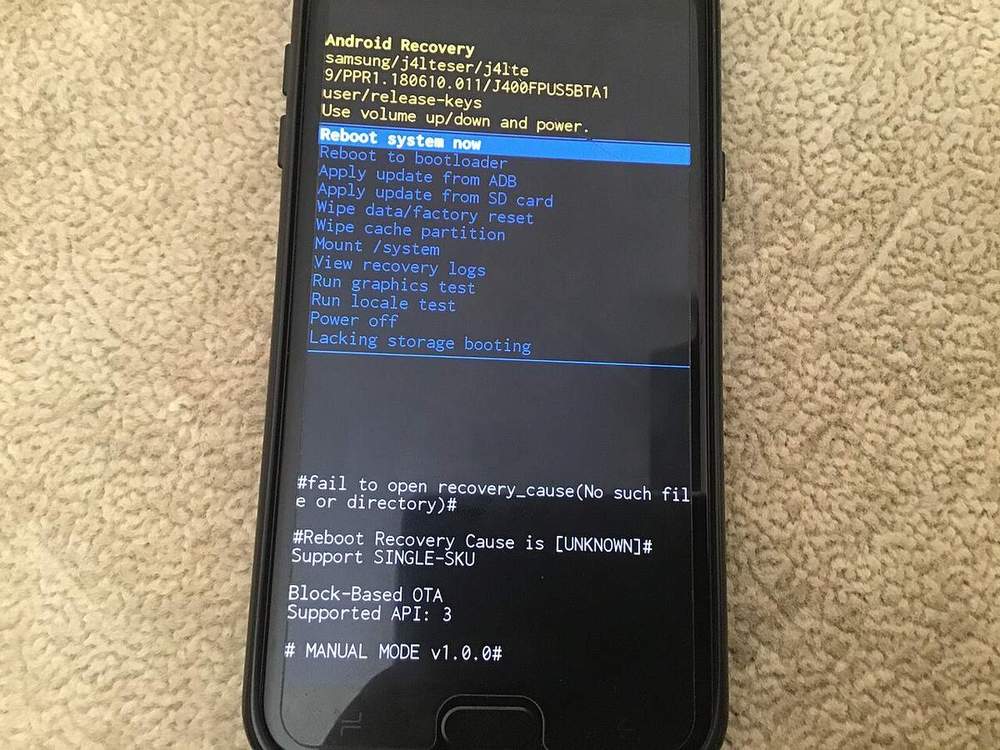
What Safe Mode does: Boots Android with only system apps. No third-party apps load. Malware cannot run, cannot block uninstall, cannot show pop-ups. This is your clean workspace.
How to enter Safe Mode on your specific phone:
| Brand | Button Combination | Screen Confirmation |
|---|---|---|
| Google Pixel | Hold Power, hold “Power off” on screen, tap “OK” when “Reboot to safe mode” appears | “Safe mode” watermark at bottom-left corner |
| Samsung Galaxy | Power off completely, hold Power + Volume Down until Samsung logo, release Power, keep holding Volume Down until home screen | “Safe mode” badge at bottom-left |
| OnePlus | Hold Power, hold “Power off”, tap “OK” | “Safe mode” text in corner |
| Xiaomi / Redmi / POCO | Power off, hold Power + Volume Up until MIUI logo, release | “Safe mode” indicator |
| Motorola | Hold Power, hold “Power off”, tap “OK” | “Safe mode” watermark |
| Nothing Phone | Hold Power, hold “Power off”, tap “OK” | “Safe mode” badge |
| Generic / Other | Hold Power, long-press “Power off” on screen, confirm | “Safe mode” text visible |
Pro tip: If your phone does not match above, search “[your model] safe mode entry”. The pattern is almost always “long-press the on-screen power off button.”
What to do once in Safe Mode:
- Open Settings, Apps, See all apps
- Look for apps you do not recognize, recently installed, or with generic names like “System Update,” “Cleaner,” “PDF Viewer”
- Tap the suspicious app, then Uninstall
- If Uninstall is grayed out, go to Revoke Device Admin Access first
- Restart normally (hold Power, Restart) to exit Safe Mode
Expected outcome: Malicious app gone. Pop-ups stop. Battery life normalizes. If symptoms persist, continue to Revoke Device Admin Access.
Revoke Device Admin Access (Unlocks Uninstall)

Why malware uses Device Admin: This permission lets an app lock your screen, wipe your data, change your password, and critically block its own uninstall. Malware requests it during install (“This app needs admin access to secure your phone”). You tap Allow. Now you cannot remove it.
How to revoke on Stock Android, Pixel, OnePlus, Nothing, Motorola:
- Settings, Security and privacy, More security settings, Device admin apps
- Find the malicious app in the list
- Tap it, Deactivate this device admin app, confirm
- Now go back to Settings, Apps. The Uninstall button works.
Samsung Galaxy (different path):
- Settings, Biometrics and security, Other security settings, Device admin apps
- Same steps: tap malicious app, Deactivate, confirm
- Then uninstall from Apps list
After revocation, reboot once. This clears any cached admin tokens. Then uninstall.
Run Google Play Protect Manual Scan
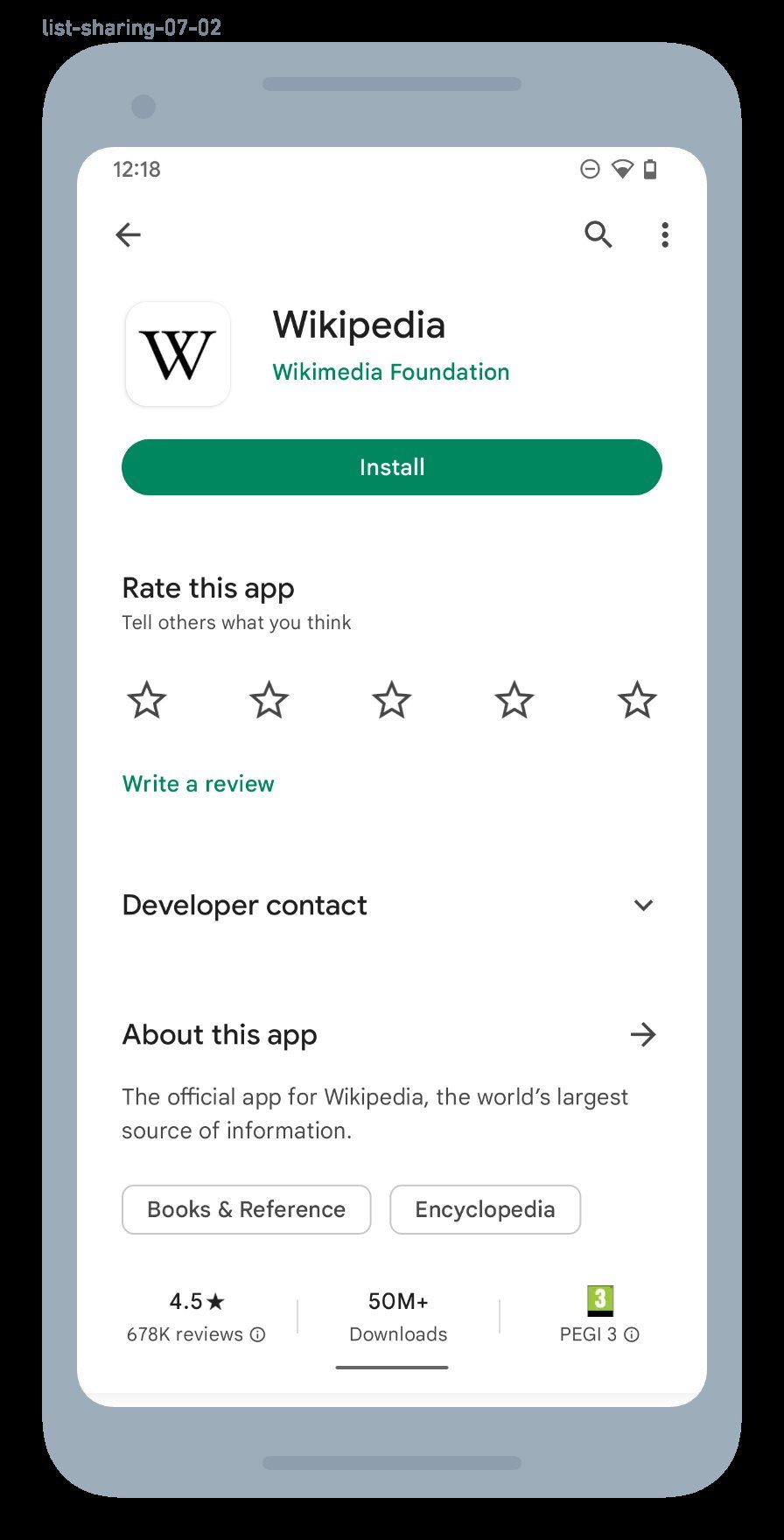
What Play Protect does: Google’s built-in malware scanner. Runs automatically daily, but a manual scan catches anything that slipped through. In 2025, Play Protect caught 27+ million malicious sideloaded apps (Google Android Security Year in Review).
How to run a manual scan:
- Open Google Play Store
- Tap your profile icon (top right)
- Tap Play Protect
- Tap Scan. Takes 30 seconds to 2 minutes.
- Review results: “No harmful apps found” equals clean. “X harmful apps found” tap Remove on each.
Critical setting: Enable “Improve harmful app detection”
- In Play Protect screen, tap Settings (gear icon top right)
- Turn BOTH toggles ON:
- Scan apps with Play Protect (on by default)
- Improve harmful app detection (OFF by default, turn it ON)
What “Improve harmful app detection” actually does: When you install a sideloaded APK (from outside Play Store), this sends the unknown APK to Google’s cloud for deep analysis. Privacy trade-off: Google sees the APK file. Benefit: Catches brand-new malware not yet in the on-device database. For most users, the protection outweighs the privacy cost.
Clean Browser Notification Spam (Often Mistaken for Malware)
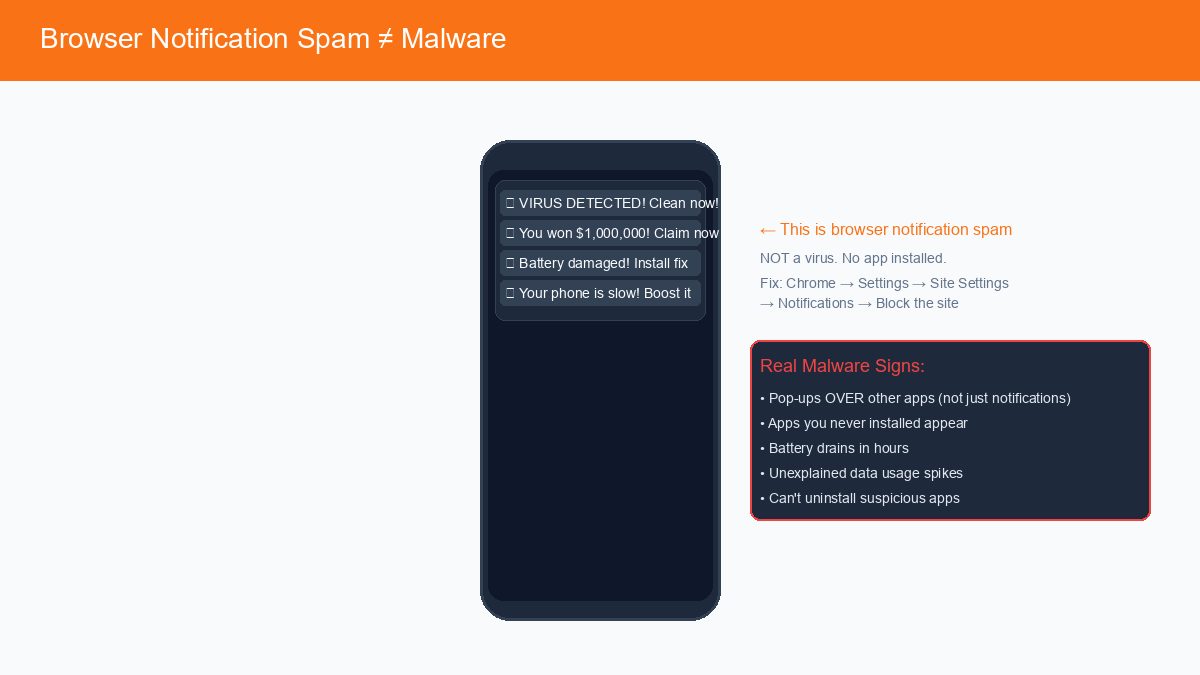
Browser notification spam is not malware. A shady website tricked you into tapping Allow on a notification prompt. Now it pushes fake virus alerts, gambling ads, or “your battery is damaged” scams to your notification shade. No app installed. No system infection. Just a website permission.
How to tell the difference:
| Symptom | Likely Cause | Fix |
|---|---|---|
| Pop-ups appear only in Chrome or notifications | Browser notification spam | Revoke site permission (below) |
| Pop-ups appear on home screen, lock screen, over other apps | Installed malware app | Steps 1 to 3 above |
| Both | Both | Do both fixes |
Revoke notification permission (Chrome):
- Open Chrome, three-dot menu, Settings, Site settings, Notifications
- Find the spammy site, tap it, Block or Remove
- Or: long-press the spam notification, Turn off notifications for that site
Firefox, Edge, Samsung Internet: Similar path. Settings, Site permissions, Notifications, Block offending sites.
Clear Browser Cache and Data (Removes Persistent Scripts)
Malicious websites can store service workers, local storage, and cached scripts that re-inject pop-ups even after you block notifications.
Chrome:
- Settings, Privacy and security, Delete browsing data
- Time range: All time
- Check: Cookies and site data, Cached images and files
- Tap Delete data
Samsung Internet: Settings, Privacy, Delete browsing data, same checkboxes.
Check App Permissions (Spot Overreaching Apps)
Malware often asks for permissions it does not need. A flashlight app does not need Contacts, SMS, Location, Microphone, or Camera.
Audit permissions:
- Settings, Apps, See all apps
- Tap each suspicious or unknown app, Permissions
- Revoke anything unnecessary, especially:
- SMS (lets malware read OTP codes)
- Contacts (harvests your address book)
- Location (tracks you)
- Microphone and Camera (spying)
- Files and media (steals photos and docs)
- Appearance on top or Display over other apps (used for overlay attacks)
Rule of thumb: If you do not know why an app needs a permission, deny it. You can always grant it later if the app breaks.
Factory Reset — The Nuclear Option (Decision Tree)
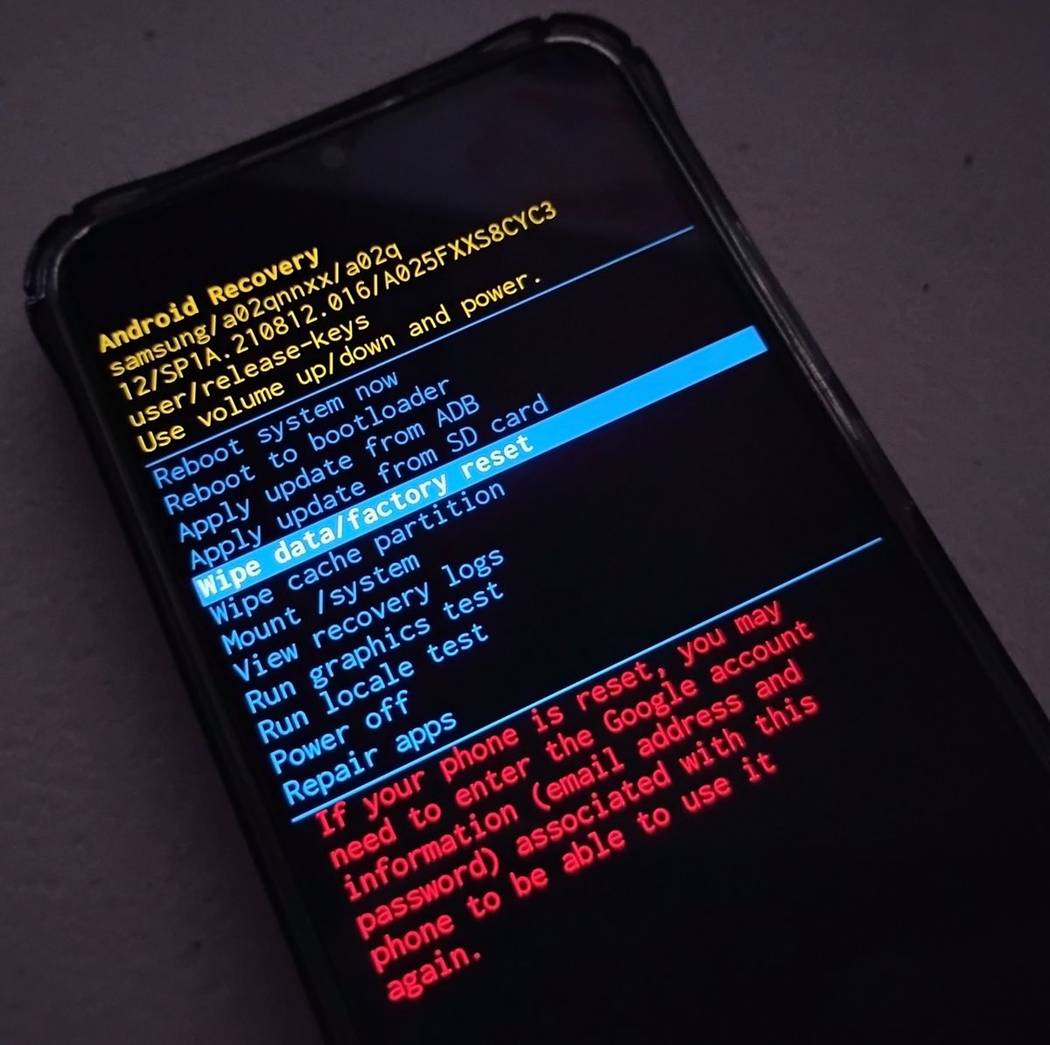
When you actually need a factory reset:
- Symptoms persist after Steps 1 through 6
- Malware is pre-installed or firmware-level (cheap off-brand devices, xHelper-style infections)
- You restored from a Google Backup that reintroduced the malware (xHelper survives this way)
Factory Reset Decision Tree:
START: Symptoms remain after Safe Mode uninstall, Play Protect scan, Admin revoke, cache clear, OS update?
  NO → You are clean. Harden (Step 8).
  YES → Is it a cheap or off-brand phone (pre-installed malware risk)?
        YES → Factory reset may not work. Contact OEM or consider custom ROM.
        NO → Did you restore from Google Backup recently?
              YES → Factory reset WITHOUT restoring apps (selective restore: Photos, Contacts, SMS only)
              NO → Factory reset. Then harden (Step 8).
What gets wiped vs. what survives a factory reset:
| Data Type | Wiped? | Notes |
|---|---|---|
| Installed apps and their data | Yes | Gone completely |
| Accounts (Google, Samsung, etc.) | Yes | You will sign in again |
| Photos and Videos | Yes* | Unless backed up to Google Photos or cloud |
| Contacts, SMS, Call logs | Yes* | Unless synced to Google or Samsung account |
| Downloaded files | Yes | Includes APKs, documents |
| System updates and OS version | No | Stays on current Android version |
| Pre-installed system apps | No | Cannot remove without root |
| Firmware-level malware | No | Survives reset. Rare, but real. |
How to factory reset (Stock Android):
- Settings, System, Reset options, Erase all data (factory reset)
- Read the warning screen carefully, Erase all data
- Enter PIN or password, confirm
- Phone reboots, shows “Erasing”, setup wizard appears
Samsung: Settings, General management, Reset, Factory data reset, Reset, Delete all.
Selective Google One backup (avoid restoring malware):
- During setup after reset, choose Copy apps and data, Next
- Sign in to Google, Restore from backup
- Uncheck “Apps” (this is where malware hides)
- Keep Photos, Contacts, SMS, Call history, Device settings checked
- Continue setup
Post-Removal Hardening (Prevent Reinfection)
Cleaning is half the battle. Hardening keeps you clean.
Android 16 Advanced Protection Mode
New in Android 16 (2025 and 2026): Stricter security for high-risk users.
- Settings, Security and privacy, Advanced Protection
- Turn ON. This enables:
- Blocks sideloaded apps entirely (Play Store only)
- Requires biometric or PIN for sensitive settings changes
- Enhanced Play Protect scanning
- Stricter certificate validation
Trade-off: You cannot install APKs from websites. If you need sideloading (developer, beta tester), leave this OFF and use VirusTotal instead.
VirusTotal APK Check (Before You Sideload)
VirusTotal scans any file against 70+ antivirus engines. Free, no account needed.
How to use:
- Download the APK to your phone or computer
- Go to virustotal.com (mobile browser works)
- Tap Choose file, select the APK
- Wait for scan (10 to 30 seconds)
- Result interpretation:
- 0/70 detections: Likely clean (but not guaranteed. New malware evades engines)
- 1 to 5/70: Suspicious. Could be false positive, but research the app name.
- 6+/70: Malicious. Do not install.
Essential Ongoing Habits
- Update Android monthly. March 2026 patch fixed 129 vulnerabilities. Do not delay.
- Only install from Play Store. “Improve harmful app detection” ON catches most sideload threats.
- Audit permissions quarterly. Apps update and request new permissions silently.
- Do not tap Allow on notification prompts from unknown sites. Default to Block.
Play Protect vs Paid Antivirus (2025 Reality)
| Feature | Google Play Protect (Free, Built-In) | Paid Antivirus (Norton, Bitdefender, Malwarebytes) |
|---|---|---|
| On-device scan | Daily auto + manual | Real-time + scheduled |
| Cloud analysis of unknown APKs | With “Improve detection” ON | Usually more engines |
| Phishing and scam site blocking | Via Chrome Safe Browsing | Often broader (email, SMS) |
| Wi-Fi network security scan | No | Yes (most suites) |
| App privacy audit | Basic permissions only | Deep behavior analysis |
| Anti-theft (locate, lock, wipe) | Find My Device (free) | Often more features |
| Cost | $0 | $15 to $40 per year |
| Detection rate (AV-TEST 2025) | 99.8% widespread malware | 99.9%+ including targeted and zero-day |
Verdict: For 95 percent of users, Play Protect plus Chrome Safe Browsing plus the habits above equals sufficient. Paid AV adds Wi-Fi scanning, deeper privacy audits, and marginally better zero-day catch. Worth it if you sideload frequently, use public Wi-Fi heavily, or handle sensitive work data on your phone. See how to secure your router against malware for network-level protection.
Frequently Asked Questions
Can Android get viruses?
Technically no. Android gets malware (trojans, spyware, adware, ransomware), not self-replicating viruses. But colloquially “virus” means any malicious app. The distinction matters: viruses spread automatically. Android malware requires you to install an app (usually via sideloading or a deceptive Play Store listing).
Does factory reset remove all malware?
Yes for 99 percent of cases. No for pre-installed firmware malware (on cheap or off-brand devices) or malware that survives via Google Backup restore (xHelper family). If you reset, do NOT restore apps from backup. Selective restore Photos, Contacts, SMS only.
Is Google Play Protect enough?
For most users, yes. It catches 99.8 percent of widespread malware (AV-TEST 2025) and runs free, built-in, with zero battery drain. Paid antivirus adds Wi-Fi scanning, deeper privacy audits, and slightly better zero-day detection. Valuable if you sideload APKs often or use public Wi-Fi daily.
How do I know if an app is malware?
Five red flags:
- Excessive permissions — flashlight asking for SMS, Contacts, Location
- Unknown source — not on Play Store, or developer name looks fake
- Bad reviews — many 1-star “destroyed my phone” or “can’t uninstall”
- Duplicate icons — two “Settings” or “Chrome” apps (one is malware)
- Poor design — typos, mismatched fonts, generic icons, crashes often
What is Safe Mode on Android?
Think of it like booting your phone with only the bare essentials. No third-party apps load at all. Malware cannot run, cannot block uninstall, cannot show pop-ups. You enter it by long-pressing the on-screen “Power off” button (most phones) or Power + Volume Down (Samsung). “Safe mode” watermark appears at bottom-left when active.
Can malware steal my bank info?
Yes. Banking trojans do exactly this. They overlay fake login screens on your real banking app, intercept SMS and OTP codes, and steal credentials. Android banking trojans increased 56 percent year-over-year in 2025 (industry reports). If you bank on your phone, enable Advanced Protection Mode (Android 16+) and never sideload financial apps.
Educational, not security advice. This guide teaches you how Android’s built-in protections work. For persistent infections, enterprise devices, or high-value targets, consult a licensed cybersecurity professional.
You are clean. Stay that way. Keep Play Protect scanning, update monthly, and think before you sideload. Your phone’s security is literally in your hands.
Next: Want to harden your whole network? See our guide on securing your router against malware — compromised routers can reinfect clean phones.
Learn more about Android security best practices from Google’s official help center.