If you’re stuck on the iPhone Unavailable screen and searching how to unlock iPhone without passcode, there is one way back in that keeps your data. Your old passcode still works if you changed it in the last 72 hours. That route only works on iOS 17 or later. Otherwise, every route Apple supports erases the iPhone, and your backup decides what you get back.
We went through Apple’s support pages for each route, and the steps below use Apple’s own button names. Before you tap anything, think about when you last changed your passcode and whether you know your Apple Account password.
- Changed your passcode in the last 72 hours? If your iPhone runs iOS 17 or later, try the old one from the lock screen first.
- Past that window, the lock-screen reset, a computer restore and a Find My erase all wipe the iPhone.
- To reset from the lock screen, you need Wi-Fi or cellular, Find My turned on and your Apple Account password.
- Only what was backed up or synced comes back, and iCloud Photos returns when you sign in.
- Be careful with paid unlock tools that promise to keep your data.
How to Unlock iPhone Without Passcode and Keep Your Data
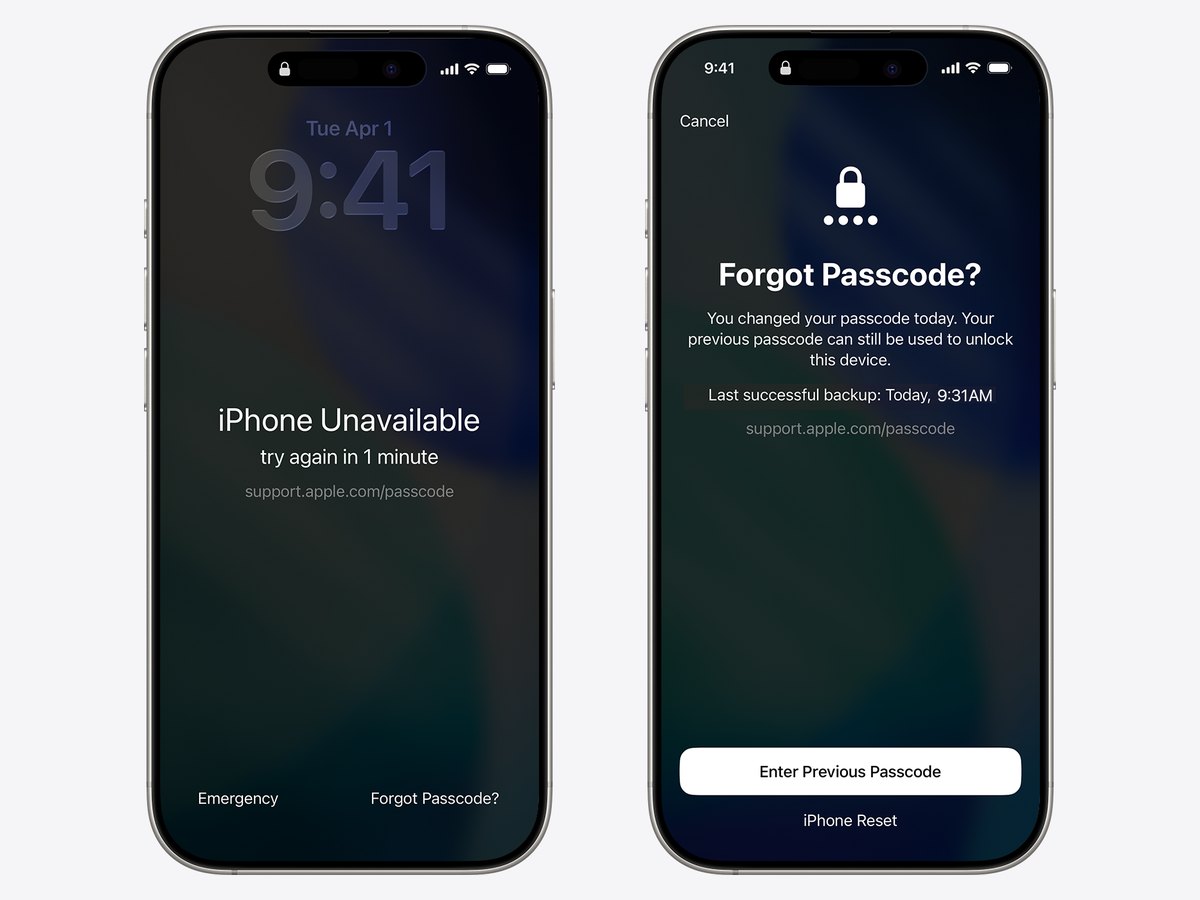
Apple calls this feature Passcode Reset. When you change your passcode, the previous one keeps working for 72 hours. After five wrong tries, the iPhone Unavailable screen appears, and you can follow Apple’s steps from there:
- Tap Forgot Passcode? in the bottom corner of the screen.
- Tap Enter Previous Passcode.
- Type your old passcode, then follow the prompts to set a new one.
Your iPhone will ask you to change the passcode again right away, so pick one you can remember this time.
The Forgot Passcode? option only shows up when the iPhone is on Wi-Fi or cellular, signed in to your Apple Account, and has Find My turned on. If any of these is missing, you won’t see it, and a computer reset is your next step. On iOS 15.2 through iOS 16, there’s no old-passcode option.
If the code you can’t recall is the one that limits apps and screen time, that’s a different code. We explain what to do if you forgot your Screen Time passcode.
Which Erase Route Fits Your Situation
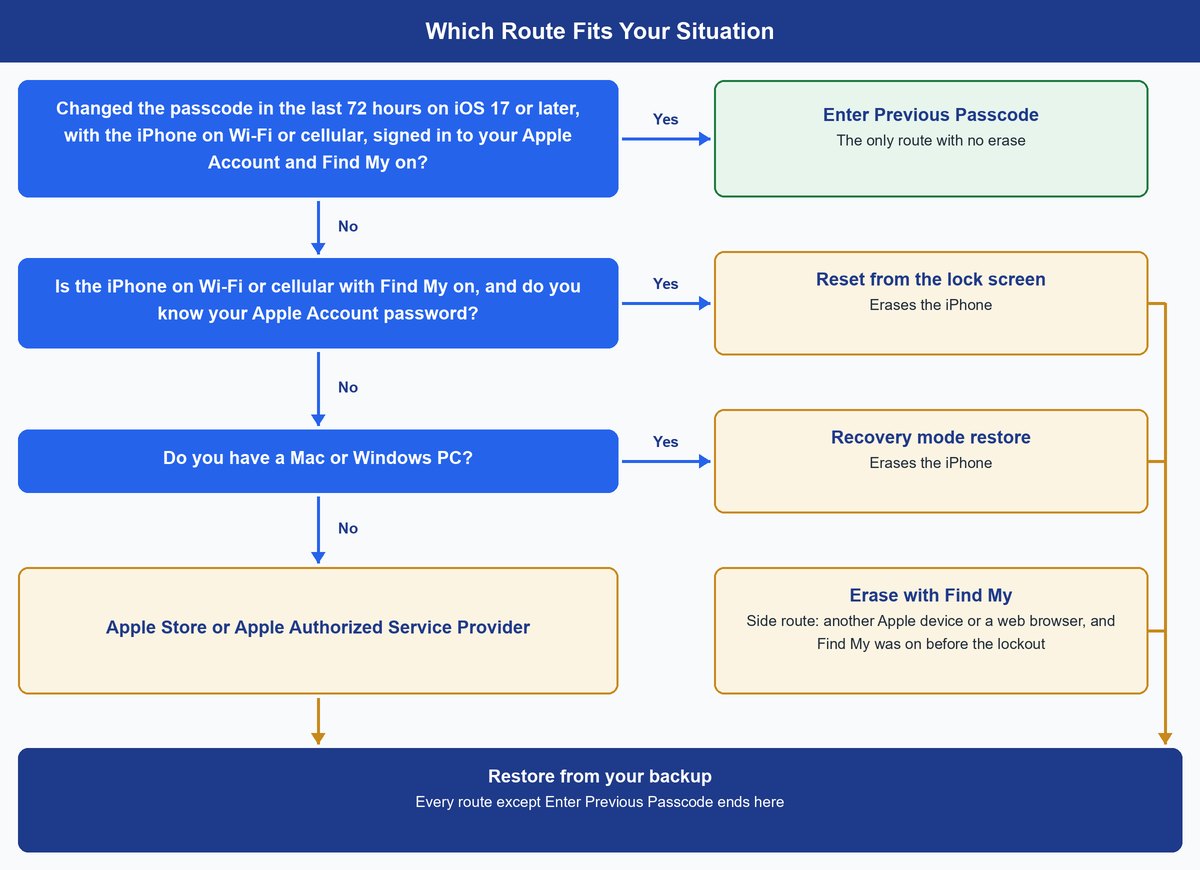
Once the 72-hour window has passed, every route Apple supports erases the phone. Apple suggests trying the reset on the iPhone first and a computer second. Find My is an extra choice if you have another Apple device or a web browser.
Reset It From the Lock Screen Without a Computer
This route needs iOS 15.2 or later and your Apple Account password. In Apple’s words, “The Forgot Passcode? button only appears if you have an active cellular or Wi-Fi connection and have Find My turned on.”
On iOS 17 or later, the steps are:
- Enter the wrong passcode until the iPhone Unavailable screen appears.
- Tap Forgot Passcode?.
- On the Security Lockout screen, tap Start iPhone Reset.
- Enter your Apple Account password to sign out, then tap Erase iPhone.
When the erase finishes, set the iPhone up again, restore from a backup if you have one, and choose a new passcode. On iOS 15.2 through iOS 16, tap the Erase iPhone option on the lock screen instead.
Tip: An eSIM is a digital SIM card built into the phone. On iOS 17 or later, you can keep it or delete it during the erase. On iOS 16 or earlier, call your carrier first and ask for a QR code to set the eSIM up again.
Use a Mac or Windows PC When the Button Is Missing
Pick this route if the Forgot Passcode? button never appears. You’ll need a Mac or Windows PC, a cable that can charge the phone, and an internet connection. Apple says to allow up to 60 minutes. A Mac uses Finder, and a Windows PC uses the Apple Devices app from the Microsoft Store. Apple is plain about the cost: “This process erases the data currently on your iPhone.”
Erase It From Another Device With Find My
A Find My erase only works if Find My was already turned on before you got locked out. On the web, go to icloud.com/find, sign in, select the iPhone and choose Erase This Device. In the Find My app on another Apple device, open Devices, pick the iPhone and tap Erase. Then follow the prompts and enter your Apple Account password.
If the iPhone is offline, the erase starts the next time it connects. If you remember the code before then, cancel with Stop Erase Request on iCloud.com, or with Cancel Erase in the app.
How to Unlock iPhone Without Passcode Using Recovery Mode
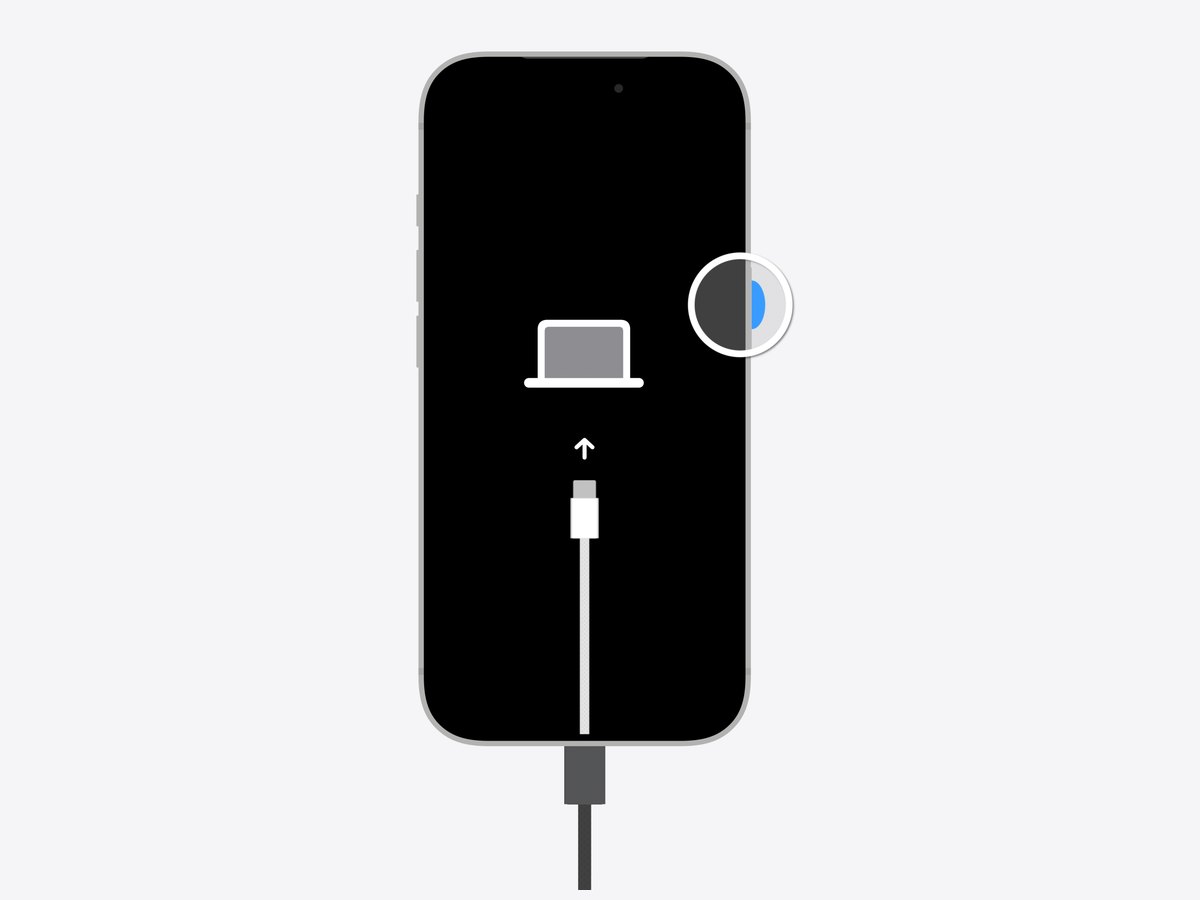
Recovery mode is a special startup screen that lets your computer restore the iPhone. Apple lays out the steps in this order:
- Turn off the iPhone.
- Plug the cable into the computer, then into the iPhone, and quickly hold the right button for your model:
- Side button on Face ID models, iPhone 8, iPhone 8 Plus and iPhone SE (2nd and 3rd generation)
- Volume down button on iPhone 7 and iPhone 7 Plus
- Home button on iPhone 6s and earlier, and iPhone SE (1st generation)
- Keep holding through the Apple logo until a computer-and-cable image appears.
- Find the iPhone in Finder or the Apple Devices app, and choose Restore.
Choosing Restore starts a download. If it takes more than 15 minutes and the iPhone leaves the recovery screen, let the download finish. Then turn the iPhone off and start recovery mode again. When the restore is done, the Hello screen appears, and you can unplug the iPhone and set it up.
What You Get Back After the Reset
After an erase, only what was backed up or synced comes back.
Restore From an iCloud Backup
During setup, on the Transfer Your Apps & Data screen, tap From iCloud Backup and sign in. Pick the most recent backup by its date and size, and keep the iPhone on Wi-Fi and power until it finishes. Your photos, music and apps keep downloading for a while after setup.
Restore From a Computer Backup
On a Mac, Finder handles this on macOS Catalina 10.15 or later. A Windows PC uses the Apple Devices app, as long as it runs Windows 10 or later. Select Restore Backup, pick the most recent one, and enter its password if you encrypted it.
Worth knowing: If iCloud Photos is on, your photos and videos are already stored in iCloud, so they aren’t part of the backup. They come back when you sign in to your Apple Account.
With no backup and nothing synced to iCloud, the data on the phone won’t come back after the erase.
Watch out: Apple warns that setting up the iPhone as new creates fresh iCloud backups that replace your saved ones. If you want your old backup, restore it during setup instead.
Your Apple Account Password Matters More Than the Passcode
Activation Lock is a Find My feature designed to stop anyone else from using your iPhone if it’s lost or stolen. Erasing the iPhone doesn’t remove Activation Lock. After the reset, you’ll still need your Apple Account password to set it up again.
Forgot that password too? Try a trusted device first, meaning an Apple device you’re already signed in to, since you may not need account recovery at all. If you can’t use one, start account recovery at iforgot.apple.com. Apple warns it “could take a while — several days or more”. Calling Apple Support won’t make the wait any shorter.
Before you buy: For a used iPhone, Apple says, “Don’t take ownership of any used iPhone or iPad until it has been removed from the previous owner’s account.” The seller has to remove it, either in person with their password or from their account in a web browser.
When it’s your turn to pass a phone on, our guide shows how to turn off Find My before you sell or hand on an iPhone.
A Plain Warning About Paid Unlock Tools
Apple’s only supported routes for a forgotten passcode erase the iPhone, unless the 72-hour old-passcode option works for you. Be wary of any app or service that promises to unlock any iPhone with no data loss.
Apple’s own safety advice is to download software only from sources you can trust. It also says never to share your Apple Account password or verification codes with anyone. If a surprise caller claims to be Apple, hang up.
Frequently Asked Questions
Can you unlock an iPhone without the passcode and keep your data?
Only if you changed the passcode in the last 72 hours and can enter the old one. That option needs iOS 17 or later, plus Wi-Fi or cellular, your Apple Account signed in and Find My turned on. Every other route Apple supports erases the iPhone.
Will I lose my photos when I reset my iPhone?
Not if iCloud Photos was on, since those photos and videos return when you sign in. Photos kept only on the phone come back only if a backup included them.
What if I don’t have a computer?
First, check whether the lock-screen reset works for you, since it runs on the iPhone itself. If it doesn’t and you can’t borrow a computer, Apple says an Apple Store or Apple Authorized Service Provider can help.
Is there a way to unlock an iPhone on iOS 16 without the passcode?
On iOS 15.2 through iOS 16, the lock screen offers to erase the iPhone, with no old-passcode option. On those versions, how to unlock iPhone without passcode comes down to erasing it and restoring your backup.