Updated August 3, 2026
A drawer of identical USB-C cables sits in every home. One is why your dock “doesn’t work” — a cheap wire nobody will blame.
USB-C is the plug; Thunderbolt is one protocol it carries — most USB-C ports aren’t Thunderbolt, so identical ports run 480Mb/s to 120Gb/s.
That is USB-C vs Thunderbolt in one line: the port shows the shape of the hole, not what comes out.
| Tier | Max data rate | Video over the same cable | Charging | Where you meet it |
|---|---|---|---|---|
| USB 2.0 over USB-C | 480Mb/s | None | Charge-only, up to 240W if the cable is rated for it | In-box phone cables, chargers, cheap accessories |
| USB 3.2 Gen 1 | 5Gb/s | Possible, if DisplayPort Alt Mode is supported | Depends on the cable’s rating | Mainstream laptops, hubs, flash drives |
| USB 3.2 Gen 2 | 10Gb/s | Possible, if DisplayPort Alt Mode is supported | Depends on the cable’s rating | Better laptops, external SSDs |
| USB 3.2 Gen 2×2 | 20Gb/s | Possible, if DisplayPort Alt Mode is supported | Depends on the cable’s rating | Enthusiast SSD enclosures |
| USB4 20Gbps | 20Gb/s | Yes, DisplayPort Alt Mode is mandatory | Depends on the cable’s rating | Budget and mid-range 2024-2026 laptops |
| USB4 40Gbps | 40Gb/s | Yes, DisplayPort Alt Mode is mandatory | Depends on the cable’s rating | Premium laptops, USB4 docks |
| Thunderbolt 3 and 4 | 40Gb/s | Two 4K displays or one 8K display on Thunderbolt 4 | Up to 100W on thin-and-light notebooks | MacBooks since 2016, Intel Evo laptops |
| Thunderbolt 5 | 80Gb/s, and 120Gb/s in Bandwidth Boost | DisplayPort 2.1 | 140W required on at least one port, up to 240W | M4 Pro and M4 Max Macs, 2025-2026 workstations |
- USB-C is the connector; Thunderbolt is the protocol riding through it. Almost no USB-C port is Thunderbolt, though every Thunderbolt port is USB-C.
- The slowest-to-fastest USB-C spread is 250x, with no outward clue which you have.
- The cable decides more than the laptop. Apple sells a 10Gb/s phone with a box cable that can’t deliver it.
- Video, charging and drive speed fail quietly on the wrong cable — nothing on screen ever blames it.
- Before returning a “broken” dock, swap in the cable from its own box first.
- Most people should not buy Thunderbolt — a good USB4 setup does the job for far less.
The Short Answer on USB-C vs Thunderbolt
Thirty seconds, here’s the decision.
If You Are Buying a Cable Today
Buy a cable with a printed number: USB-IF’s January 2026 guidelines require a speed and power badge together. No marks, no promise.
If You Are Buying a Laptop, Dock, or Monitor
“USB-C” names the plug, not the tier. Look for a number: 5/10/20Gbps, USB4 20/40Gbps, Thunderbolt 4, or 5. “USB-C” alone usually means cheap.
If Something You Already Own Is Not Working
Change the cable first — free, ten seconds, the likeliest fix for a dock that powers on but won’t drive video.
Why One Port Shape Hides So Many Different Speeds
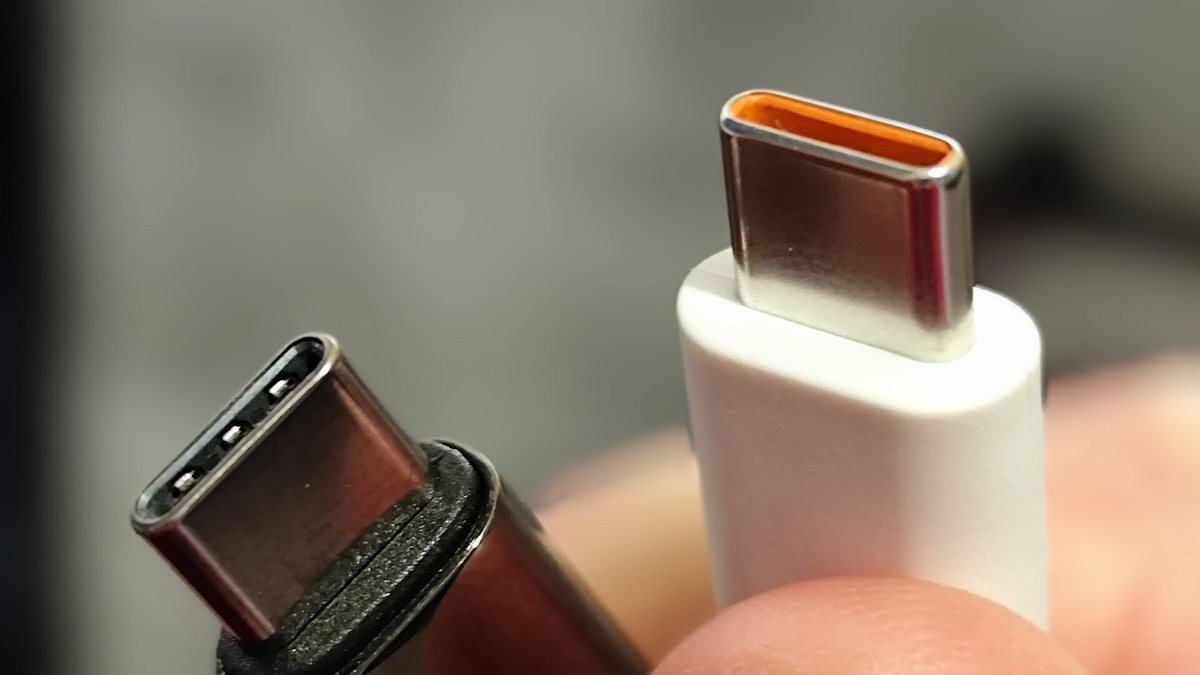
Genuinely not your fault.
Before 2015, ports were shaped by what they carried — USB-A, mini-B, FireWire, DisplayPort, HDMI, each different, so shape was the spec sheet.
USB-C deleted that on purpose — one reversible plug, genuinely good, but a universal shape stops carrying information: capability moved into invisible silicon.
USB-C Is the Connector, Not the Capability
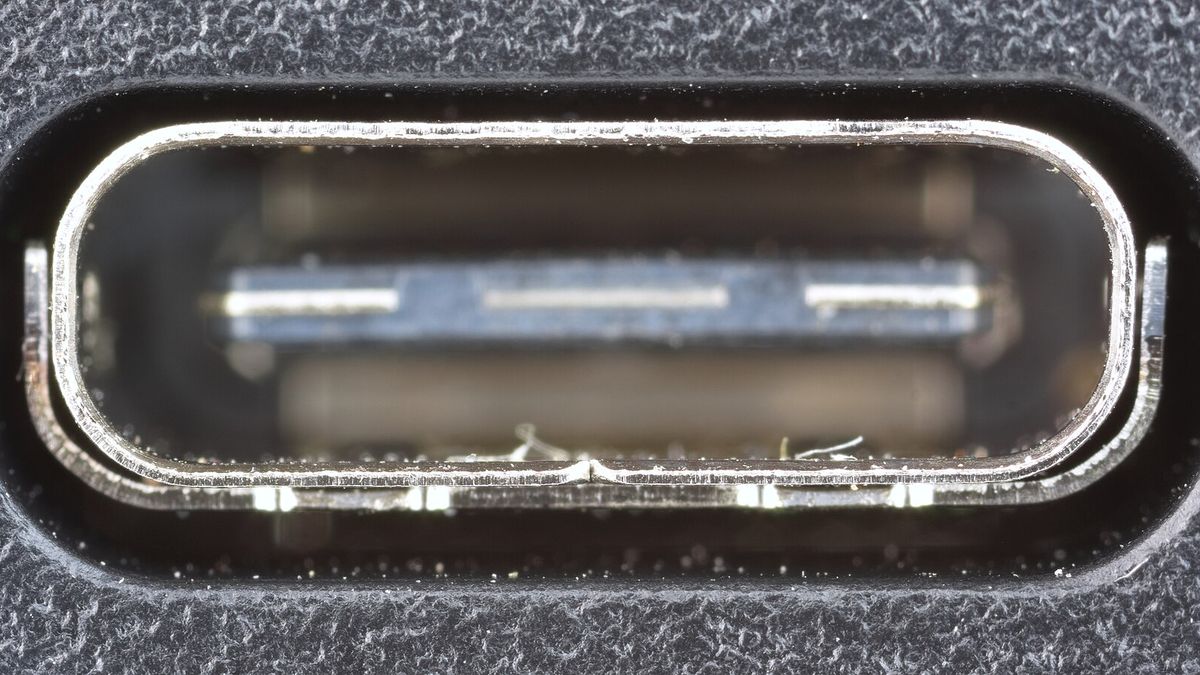
USB-C is the socket in your wall; protocols are the appliances running through it. The socket is standard; what travels through it isn’t.
A USB-C receptacle is a 24-pin oval: some pins carry a slow lane, others high-speed pairs a device may skip; wiring only the slow lane still prints “USB-C.”
Thunderbolt Is a Protocol That Travels Through That Connector
Thunderbolt isn’t a plug — it’s Intel’s protocol, riding USB-C since Thunderbolt 3, meaning two different things depending what’s wired behind it.
Thunderbolt adds guarantees — Intel’s Thunderbolt 4 deck sets 40Gb/s min, 32Gb/s PCIe, two 4K or one 8K, charging on at least one port (thin-and-lights under 100W), DMA protection, wake-from-sleep.
The Industry Has Already Tried Twice to Make Speed Readable
Proof it’s structural: the standards body has tried fixing it twice.
Attempt one was branding — “SuperSpeed”, “SuperSpeed+” — dropped in 2022. The current programme is plain numbers like “USB 10Gbps”/“USB 40Gbps”, and no “SuperSpeed” logo survives in the current USB-IF branding programme.
A standards body doesn’t rebuild naming over confused customers, only when the system fails at scale — a design problem, not a you problem.
The Capability Tiers You Will Actually Meet in the Wild
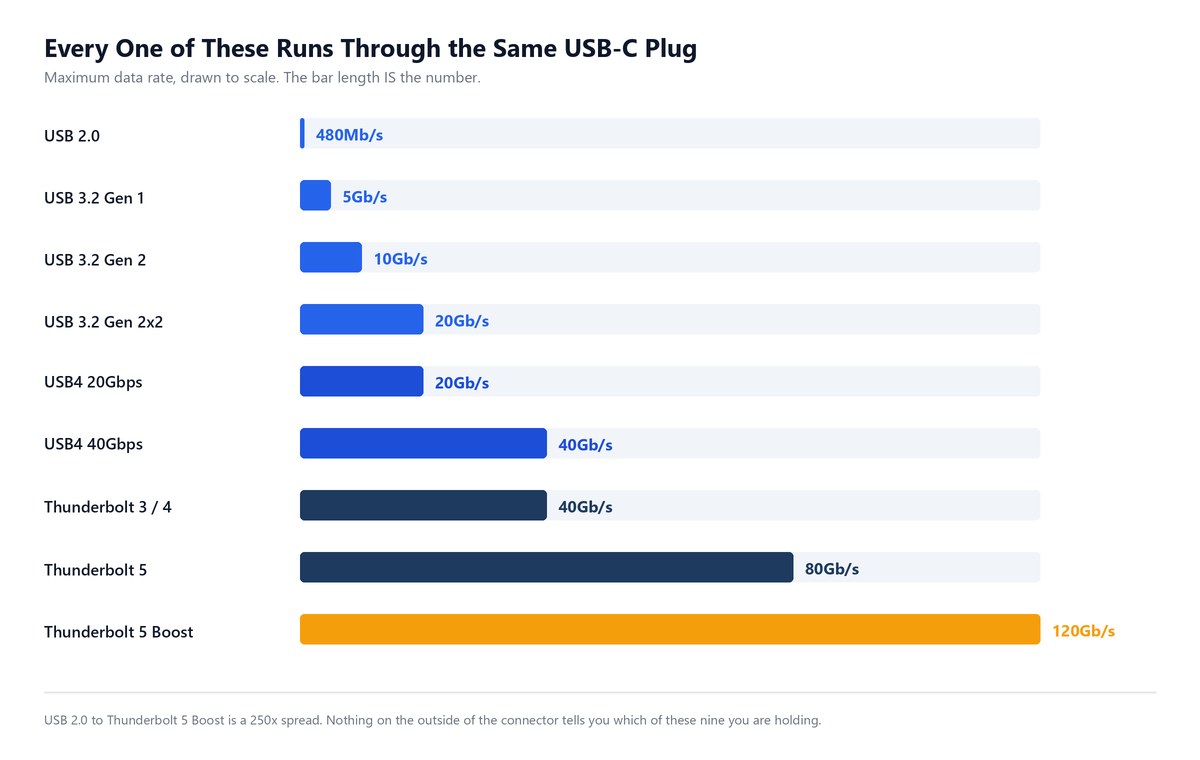
All use the same USB-C plug.
USB-C Running at USB 2.0 Speed, the Tier Nobody Advertises
What it is: 480Mb/s, unchanged since 2000. Does: it charges things and moves small files, keyboards, and mice fine. Can’t: it carries no video, and large files crawl. Who for: everyone — it’s the free earbud-cable that becomes your dock’s ceiling.
Never advertised. iPhone 17 is “USB 2 (up to 480Mb/s)”; 17 Pro is “USB 3 (up to 10Gb/s)” — 21 times apart.
The catch: Apple footnotes its 10Gb/s claim with “USB 3 cable with 10Gb/s speed required”, then ships a plain Charge Cable.
USB 3.2 Gen 1, Gen 2, and Gen 2×2
What it is: 5, 10 and 20Gb/s, renamed not upgraded — USB 3.0 is now USB 3.2 Gen 1, USB 3.1 Gen 2 is now USB 3.2 Gen 2, and 20Gb/s is Gen 2×2; nothing got faster. Does: real transfers, usable SSDs, video only with DisplayPort Alt Mode.
Who for: most people — a 10Gb/s port skips the progress bar and drives one high-res display fine. Best value on the ladder.
USB4 at 20Gbps and 40Gbps, the Same Name at Half the Speed
What it is: Thunderbolt 3’s protocol handed to USB-IF; guarantees DisplayPort Alt Mode, not PCIe tunnelling. Who for: mainstream 2026 buyers — confirm which USB4.
Keep in mind: check the model number against the USB-IF certified-product search, branded as “20Gbps”/“40Gbps”; “USB4” alone won’t say which.
Thunderbolt 3 and Thunderbolt 4 at 40Gb/s
What it is: 40Gb/s both generations, TB4 no faster than TB3. Changed: the floor — 32Gb/s PCIe, two 4K or one 8K, charging on at least one port (thin-and-lights under 100W), DMA protection, wake-from-sleep.
Thunderbolt 5 at 80Gb/s, and 120Gb/s in Bursts
What it is: the top of the ladder — Intel’s Thunderbolt 5 announcement specifies 80Gb/s, up to 120Gbps, built on USB4 v2, DisplayPort 2.1 and PCIe Gen 4, and fully compatible with earlier versions. Does: multiple 4K displays or one 8K, plus a fast NVMe enclosure near-native.
Who for: colourists, 3D artists, eGPU engineers. If that list does not describe your Tuesday, Thunderbolt 5 is bandwidth you will pay for and never saturate.
Note: Thunderbolt 5 raises the required charging minimum to 140W, up from 100W — the real upgrade for a slow-charging workstation, not the 120Gb/s.
Where Thunderbolt 5 and USB4 Version 2.0 Quietly Converge
A detail no page-one result mentions.
Thunderbolt 5’s 120Gb/s isn’t an Intel trick — it’s USB4 v2.0’s asymmetric mode. USB-IF’s own USB 80Gbps publication announcement describes USB4 v2 hitting 80Gb/s via PAM3, asymmetric to 120Gb/s one way, 40Gb/s the other.
So USB-C vs Thunderbolt at the top isn’t “rival standards” — it’s one platform, Thunderbolt the certification programme making optional parts mandatory.
How to Read a Port and a Cable Before You Buy
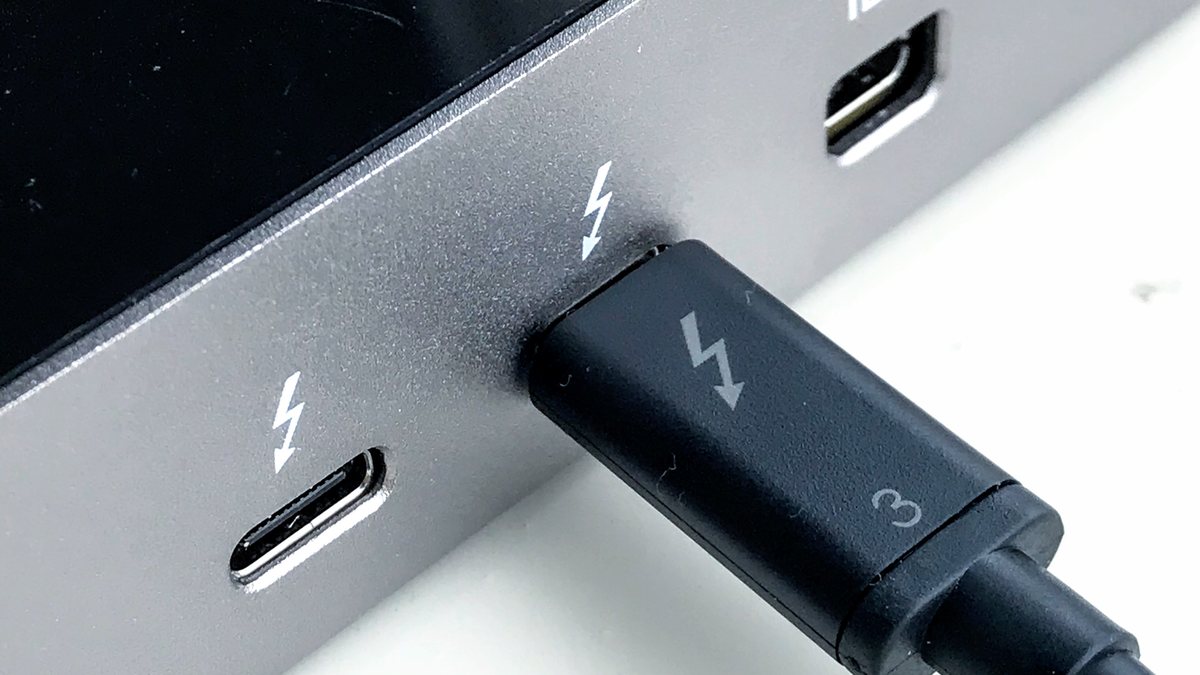
Three marks worth knowing, and one honest admission — a minute to learn.
The Thunderbolt Lightning Bolt and What It Does Not Tell You
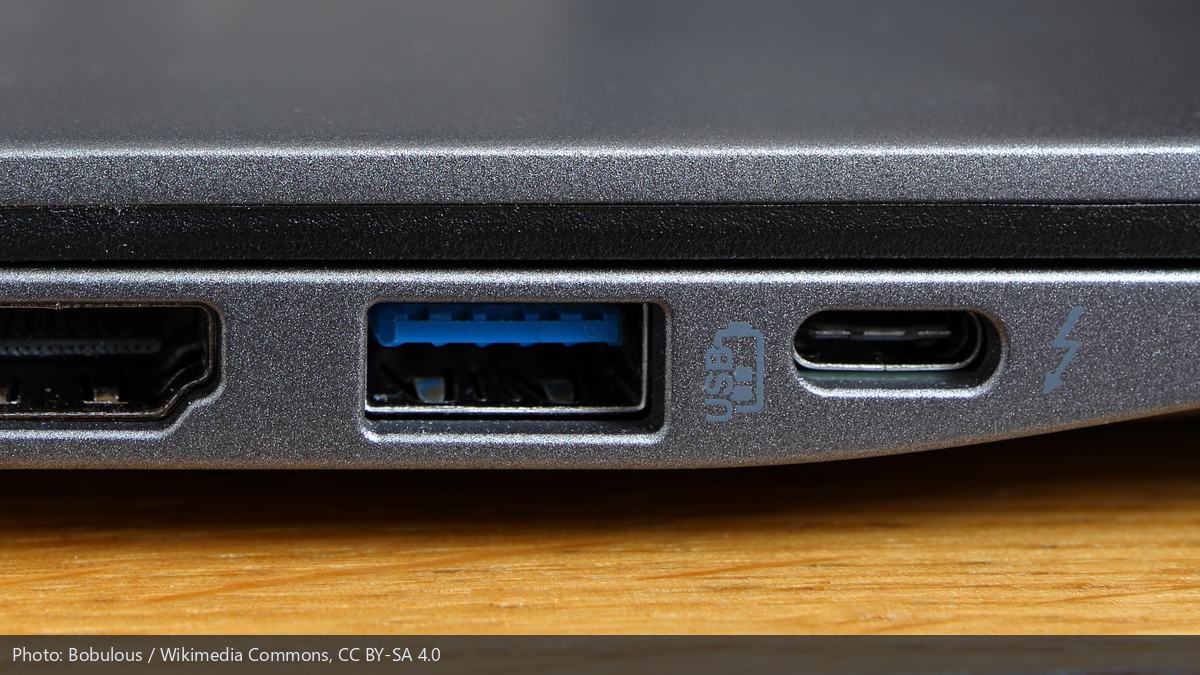
A lightning bolt beside a port means Thunderbolt; a plain port might carry “SS” or nothing.
Caveat: the bolt doesn’t say the version — 3, 4 and 5 share one symbol, so it can’t separate a 40Gb/s port from a 120Gb/s one.
The USB-IF Certified Logos for Speed and Wattage
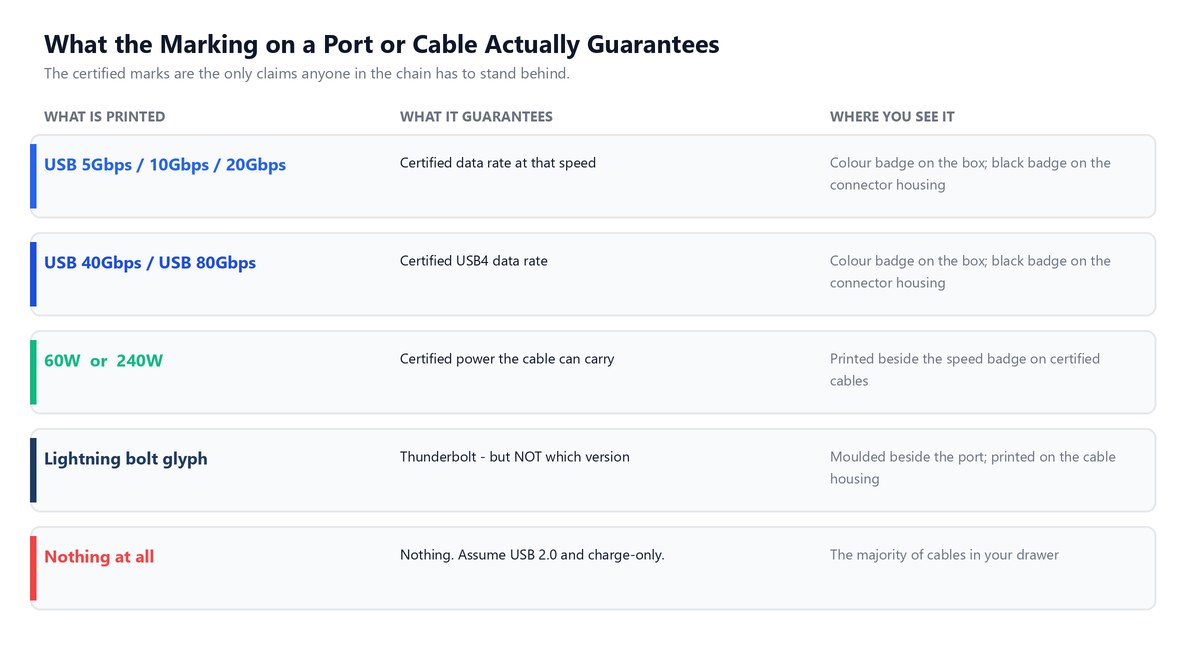
A certified cable carries two claims: speed (USB 5/10/20/40/80Gbps) and power (60W or 240W), per USB PD 3.1, which raised the ceiling from 100W to 240W by adding Extended Power Range voltages of 28V, 36V and 48V.
Why an Unmarked Cable Is a Coin Flip
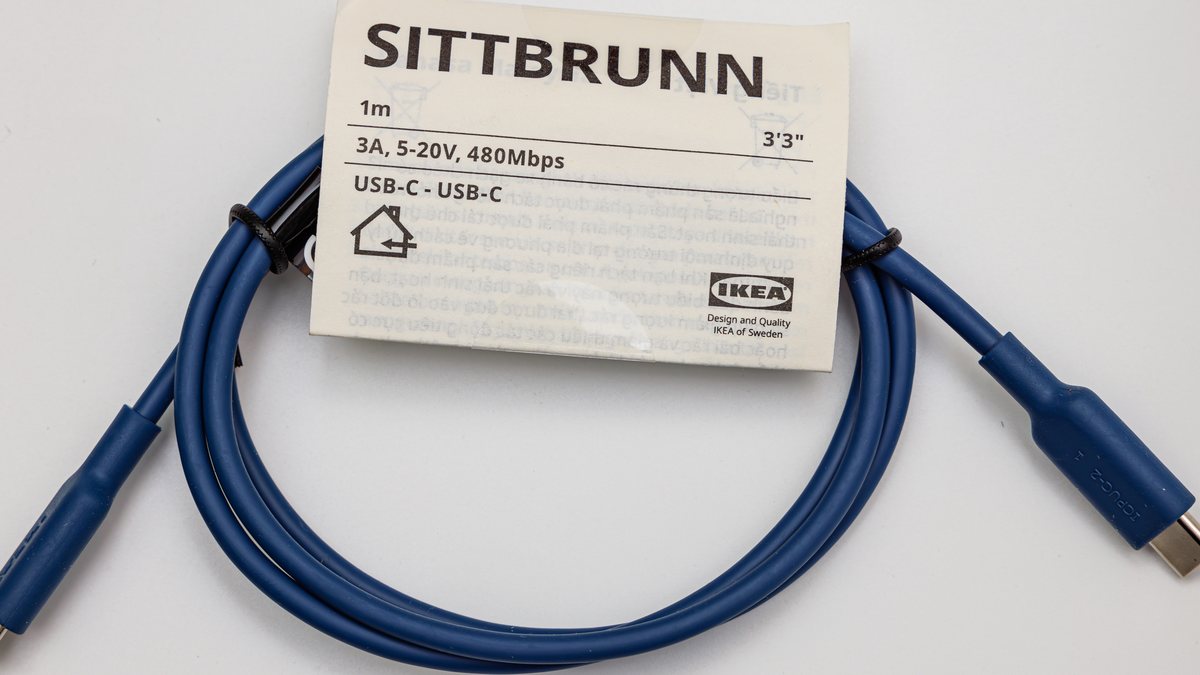
Bluntly: an unmarked cable is unknowable — no test by eye, feel, or price. A 480Mb/s and 40Gb/s cable share the same connector.
Worse, the cheap ones breed. Every phone and power bank ships one, unlabelled — freebies outpace good cables, filling drawers with slow ones.
How to Check What a Port Really Is on Windows and macOS
You do not have to trust the markings. Both operating systems will simply tell you.
- On macOS: Option-click the Apple menu, choose System Information, then check the Thunderbolt section for controllers, connected devices, and the negotiated link.
- On Windows: open Device Manager and look under System devices for a Thunderbolt controller entry. None listed means no Thunderbolt.
Do this once and write the answer down.
The Three Things That Fail Silently When the Cable Is Wrong
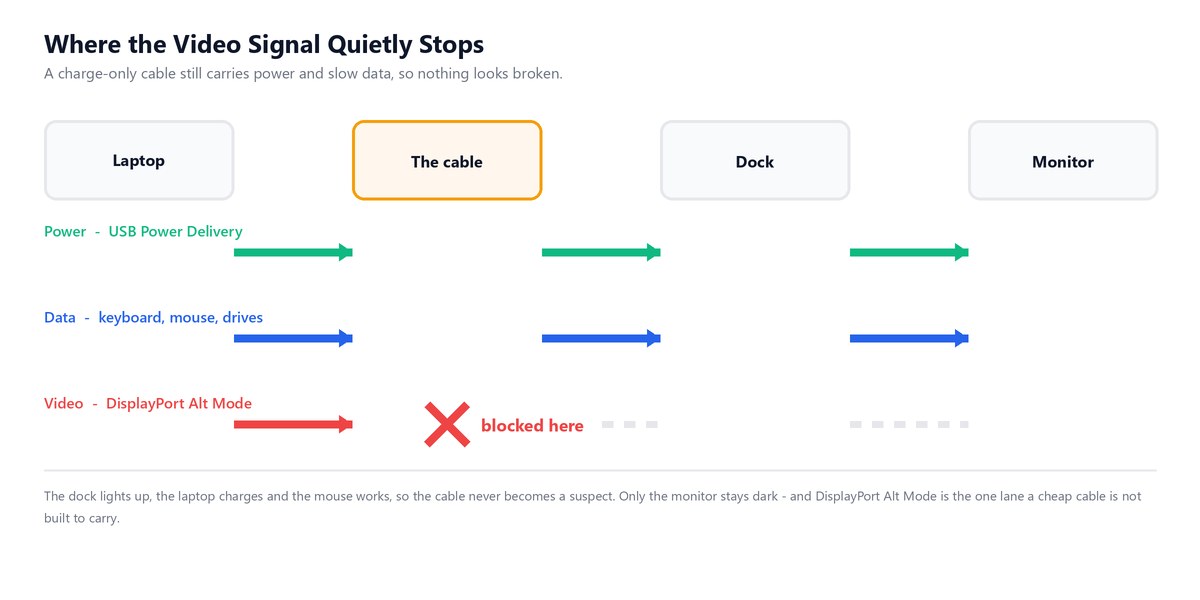
Silently is key — none of these three name the cable in an error, which is why it never gets suspected.
Your Monitor Shows Nothing and Everything Else Works
Video doesn’t travel over USB-C by magic — it rides DisplayPort Alt Mode. VESA confirms it’s a feature layered on, not a property of the connector, and Plugable puts it plainly: it’s optional.
Power flows, the mouse works, and a USB-C monitor shows “no signal”, blaming a source it can’t hear.
Length matters too: VESA’s DisplayPort 2.1b work added DP80LL active cables at 80Gb/s UHBR20 out to three metres, triple a passive DP80 cable’s reach.
Your Laptop Charges Slowly or Drains While You Work
The failure most live with for months: plugged in, battery not climbing, or climbing overnight then sliding back the moment you open a browser.
Power is negotiated: charger, cable and laptop each advertise a limit, lowest wins — a 60W cable on a 140W setup nets 60W. See laptop plugged in but not charging, charge your phone faster, or Qi2 versus MagSafe.
Your External Drive Runs at a Fraction of Its Rated Speed

The quietest failure of the three — nothing looks broken. Drive mounts, files open, everything works.
It’s running 480Mb/s instead of 10Gb/s, and the tell is simple: a 50GB video project that takes over ten minutes to copy is on a slow link, not a fast one — the same feeling as transferring data between phones.
Why Your Docking Station Is Probably Not Broken
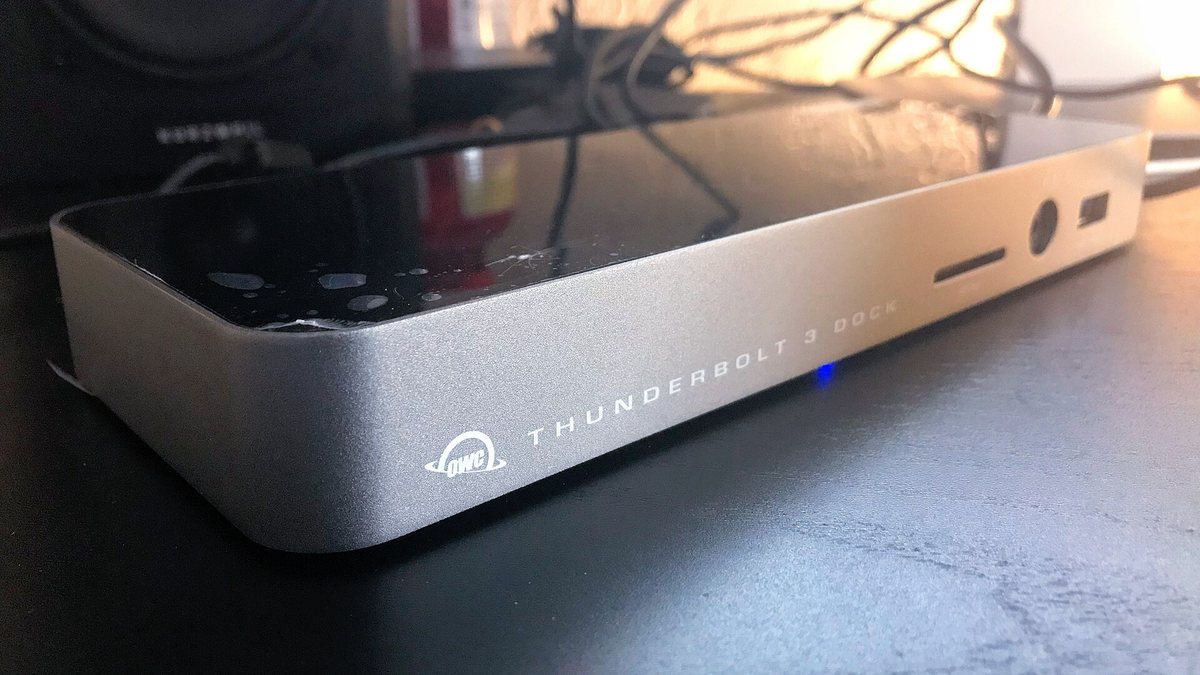
This section pays for the whole article — a six-step trap almost everybody falls into in the same order.
Step one. You buy a dock. It ships with a cable you may skip, since your own is longer or nicer.
Step two. You wire it up. LED on, laptop charging, keyboard and mouse instant, ethernet gets an address.
Step three. The monitor stays dark.
Step four, the hinge: the failure is partial — total failure would point at the cable, but since most works, you blame the new box.
Step five. You blame the dock — reboot, firmware, support page, return. Or blame and swap the monitor instead.
Step six, the clincher: the replacement dock, same cable, same failure — two docks now, must be the laptop, monitor, or macOS. Wrongly.
Who benefits? The dock’s support page suggests firmware; the monitor vendor points at the laptop. The cable is a brandless commodity with no advocate.
Tip: before returning anything, connect only the cable that shipped in the dock’s box, per Plugable’s guidance. Display comes to life? Return saved.
Do what almost nobody does: keep one known-good certified cable, labelled, as your test cable for years. That is genuinely good money spent.
Which One You Should Actually Buy in 2026
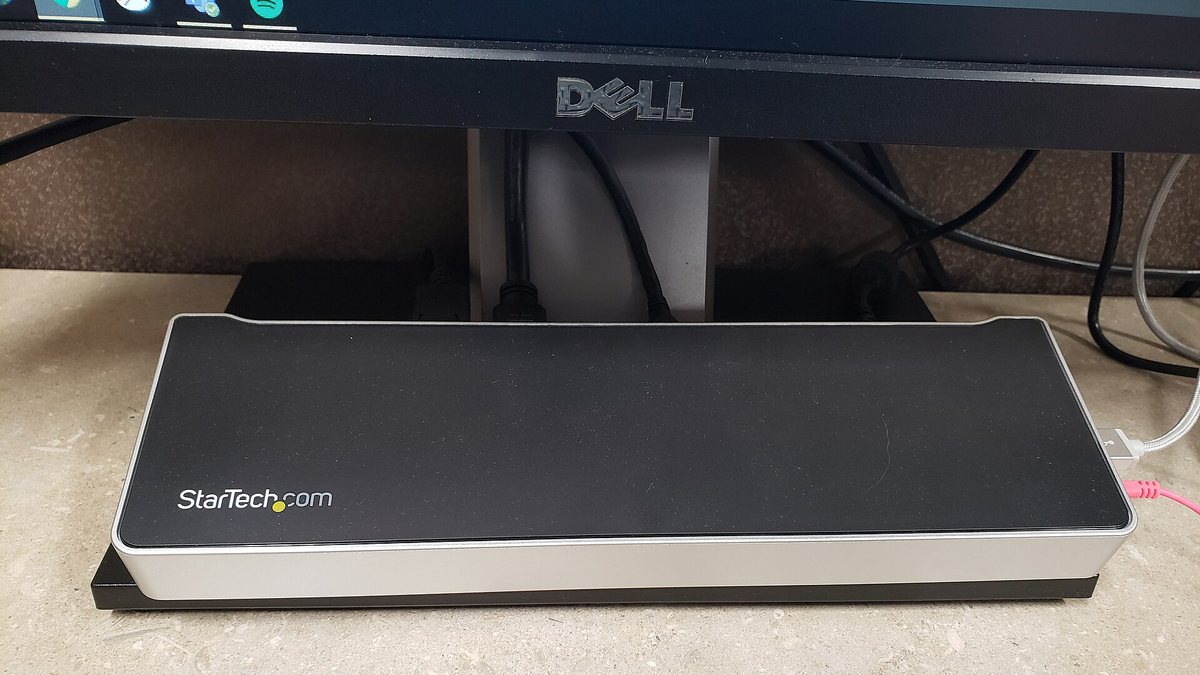
The sentence no vendor page will ever print: most people should not buy Thunderbolt.
Not contrarianism — arithmetic. A monitor, keyboard, mouse and charging laptop never touch a well-specified USB4 setup’s ceiling; spend on a cable, not bandwidth you can’t fill.
When Plain USB-C Is Genuinely Enough
One display, ordinary office work, a laptop charging from the same cable — a USB4 40Gbps port handles it for meaningfully less than Thunderbolt.
The trap here is not speed, it is the two-USB4 problem covered earlier. Buy USB4 40Gbps, not 20Gbps, and confirm the number.
When Thunderbolt Is Worth Paying For
Three situations earn the premium: two-plus high-res displays; daily large-file moves justifying PCIe tunnelling; or an external GPU needing tunnelling plain USB4 skips.
A fourth reason: certification. Thunderbolt 4/5 pass a required feature list, so “does this dock support my monitor” research disappears.
In 2026, Thunderbolt 5 is real but top-tier: Apple’s M4 Pro/Max carry three ports at “up to 120Gb/s”; the shelf laptop is still more likely USB4/Thunderbolt 4.
What to Look For on the Box
- A number, not a letter. “USB-C” only names the plug; “USB4 40Gbps” or “Thunderbolt 4” names the capability, a promise anyone has to keep.
- Both badges on cables. Speed and wattage together; a cable stating one and hiding the other is telling you something by omission.
- The version, not just the bolt. Ask which Thunderbolt generation, because the symbol will not say.
- DisplayPort Alt Mode, spelled out. Buying for a monitor? This phrase must appear in the spec, not be inferred from the connector.
- The wattage you actually need. Match the cable’s power badge to your charger, or your fast charger silently becomes a slow one.
Frequently Asked Questions
Is Thunderbolt the same as USB-C?
No. USB-C is the connector; Thunderbolt is a protocol running through it, guaranteeing display, PCIe minimum, and charging wattage — all optional on plain USB-C.
Can I use a regular USB-C cable in a Thunderbolt port?
Yes, just not at Thunderbolt speed. Thunderbolt ports are backward compatible, dropping to whatever cable and device handle; regular cables lack the chips Thunderbolt needs.
How can I tell if my port is Thunderbolt or USB-C?
Look for a lightning bolt beside the port; none? Check the OS — macOS: Option-click the Apple menu; Windows: Device Manager.
Is Thunderbolt faster than USB-C?
Usually, but not like-for-like: Thunderbolt 3/4 run 40Gb/s, Thunderbolt 5 at 80Gb/s; USB-C ranges 480Mb/s to 40Gb/s by protocol. Thunderbolt guarantees what USB4 leaves optional.
Do I need a Thunderbolt cable for a Thunderbolt dock?
Yes, for full capability — an ordinary cable powers on, passes peripherals, then fails to drive displays. Test with the dock’s own cable.
What happens if I use the wrong USB-C cable?
Three things fail, quietly: video vanishes without DisplayPort Alt Mode; charging drops to the cable’s wattage; transfers run at the cable’s speed, sometimes 4% of what you paid.
The Bottom Line
The industry standardised the plug, leaving capability invisible, then handed you a drawer of wires you can’t tell apart: nine capability levels, a 250x spread, almost no labelling.
Stop treating the cable as packaging — a component likely capping your hardware. Buy one certified cable; buy the tier you’ll use, for most, USB4.