Your earbuds cut out for half a second every time you walk into the kitchen. Your car stereo drops the call the moment you merge onto the freeway. Your mouse freezes for a beat right when you need it. If your bluetooth keeps disconnecting, it feels random and personal, like the gadget is doing it on purpose.
It isn’t random. After you fix enough of these, a pattern jumps out: almost every “random” Bluetooth drop traces back to one of two things that most how-to articles skip entirely. Either your gadget is fighting for airspace on the most crowded slice of radio in your home, or your computer is quietly cutting power to the Bluetooth radio to save a few minutes of battery. Nail those two and the rest of the causes are quick mop-up. This guide walks the causes first, because understanding why it drops is what lets you fix it in five minutes instead of factory-resetting everything you own.
- Bluetooth lives on the 2.4GHz band, the same crowded lane as your Wi-Fi, microwave, and USB 3.0 ports. Interference is the number-one cause of drops nobody tells you about.
- On Windows, there’s a checkbox buried in Device Manager that lets the PC switch off your Bluetooth radio to save power. Unchecking it fixes more “random” disconnects than any driver update.
- A weak battery in the earbud, mouse, or headset is a silent killer. Bluetooth gets flaky long before the device dies completely.
- The single most reliable fix across every phone and PC is the same: forget the device, then pair it fresh. It clears a corrupted pairing profile in seconds.
- Work the fix ladder top-down for your device. Don’t reset network settings or reinstall drivers until the cheap fixes fail.
The Six Real Reasons Your Bluetooth Keeps Disconnecting

Before you touch a single setting, know what you’re actually up against. Bluetooth is a low-power radio doing a hard job in a hostile environment, and it drops for a small, predictable set of reasons. Match your symptom to the cause here and you’ll usually know your fix before you finish reading.
Interference From Everything Else on 2.4GHz
This is the big one, and it’s covered in its own section below because it’s the cause most guides never mention. The short version: Bluetooth shares the 2.4GHz band with Wi-Fi, microwave ovens, baby monitors, wireless mice, and even the electrical noise leaking out of your USB 3.0 ports. When that lane gets crowded, your audio stutters and your connection drops. If it always cuts out in the same room or near the same appliance, interference is your answer.
A Weak or Dying Battery in the Accessory
Bluetooth turns unreliable well before a device shows as “dead.” A radio needs steady voltage to hold a clean link, and once a battery sags below a certain point, the transmitter starts browning out under load. That’s why a three-year-old earbud drops constantly at 15% but held solid at 80%, or why a Bluetooth mouse with a tired AA gets jumpy. The device still powers on, so people rarely suspect the battery.
Keep in mind: on true-wireless earbuds, the two buds run on separate batteries. If only one bud keeps cutting out while the other is fine, that bud’s cell is aging faster, not your phone’s Bluetooth.
Aggressive Power-Saving That Kills the Radio
Both Windows and phones will switch off or throttle the Bluetooth radio to stretch battery life. On a laptop this is the infamous “Allow the computer to turn off this device to save power” setting, which is on by default and disconnects your mouse or headset the second the system decides it’s idle. On phones, aggressive battery-saver modes and background limits do the same thing to apps that keep a Bluetooth link alive. The tell: it drops when the device sits idle, then reconnects the instant you move it.
A Stale or Corrupted Pairing Profile
Every pairing stores a little bundle of settings, keys, and a bonded identity on both devices. That bundle can get out of sync, especially after a firmware update, a dropped pairing, or connecting the same earbuds to five different devices. When the profile is corrupt, the two devices keep trying to reconnect and failing, so you get a rapid connect-drop-connect loop. This is why “forget and re-pair” is the closest thing Bluetooth has to a magic button.
Distance and Physical Obstruction
Most consumer Bluetooth is Class 2, rated for roughly 10 meters (about 33 feet) in open air, and that number collapses fast with walls, floors, and human bodies in the way. Water absorbs 2.4GHz signals, and your body is mostly water, so simply having the phone in your back pocket while the earbud is in the opposite ear puts a signal-blocking mass right between them. If drops happen when you turn your head or walk into another room, it’s range, not a defect.
A Codec or Driver Mismatch
The two ends of a Bluetooth link have to agree on a codec (the format for compressing audio, like SBC, AAC, aptX, or LC3). When they negotiate a codec one side handles poorly, or when a Windows Bluetooth driver is outdated or the wrong one loaded after an update, you get stutters, one-way audio, or clean disconnects. This is the cause behind “it works perfectly on my phone but drops on my laptop” with the exact same earbuds.
The 2.4GHz Interference Problem No Guide Explains
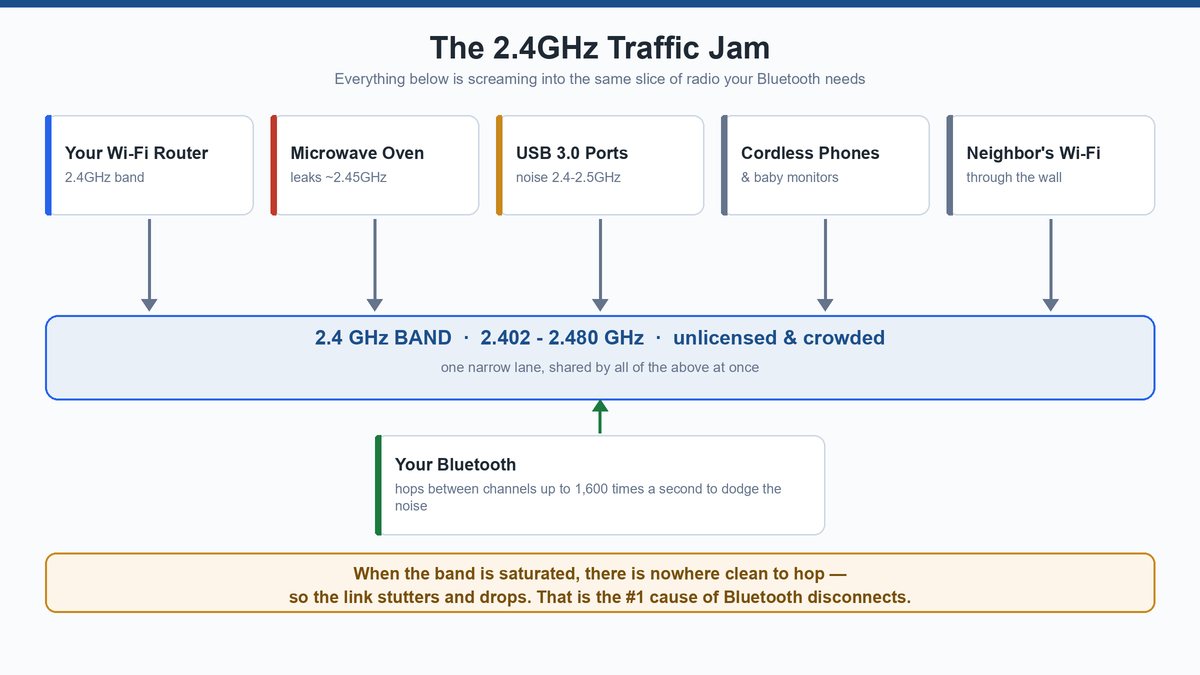
Here’s the mechanism almost nobody spells out, and it’s the difference between guessing and knowing. Bluetooth transmits on the 2.4GHz ISM band, using the range from about 2.402 to 2.480 GHz, according to the Bluetooth SIG. The problem is that this exact band is unlicensed and free for anyone to use, so it’s the single most crowded stretch of radio in your home.
Look at what else is screaming into that same 2.4GHz space: your Wi-Fi router (2.4GHz Wi-Fi and Bluetooth are neighbors), your microwave oven (which leaks around 2.45GHz when running), cordless phones, baby monitors, wireless keyboards and mice, smart-home gadgets, and your neighbor’s Wi-Fi bleeding through the wall. Bluetooth fights back with adaptive frequency hopping, jumping between channels up to 1,600 times a second to dodge the noise. But when the band is saturated, there’s nowhere clean to hop, and the link drops.
The sneakiest offender is one you’d never guess: your own USB 3.0 ports. Intel documented this years ago in a white paper on USB 3.0 radio-frequency interference, showing that USB 3.0 data and connectors radiate broadband noise right in the 2.4 to 2.5 GHz range. That’s why plugging a USB 3.0 hard drive or dongle into the port next to your Bluetooth adapter can wreck a connection that was perfectly stable a minute earlier.
The catch: if your Bluetooth drops only when you’re near your Wi-Fi router, log into the router and switch your 2.4GHz Wi-Fi to channel 1, 6, or 11, whichever is least used. Those three don’t overlap, and moving your Wi-Fi off Bluetooth’s busiest patch frees up airspace for both.
So before you reinstall a single driver, do the interference triage: move away from the microwave and router, unplug or reposition USB 3.0 devices near your Bluetooth adapter (a short extension cable helps), and if you use a USB Bluetooth dongle on a desktop, plug it into a front port or an extension away from the metal case. Half the “broken” Bluetooth I’ve seen was a USB 3.0 SSD sitting two inches from the dongle.
The Fix Ladder for Windows Laptops and PCs
Windows is where the hidden power setting lives, so this is where the most satisfying fixes happen. Work these in order. Ninety percent of Windows Bluetooth disconnects stop at step one.
Turn Off the Power Setting That Kills Your Radio
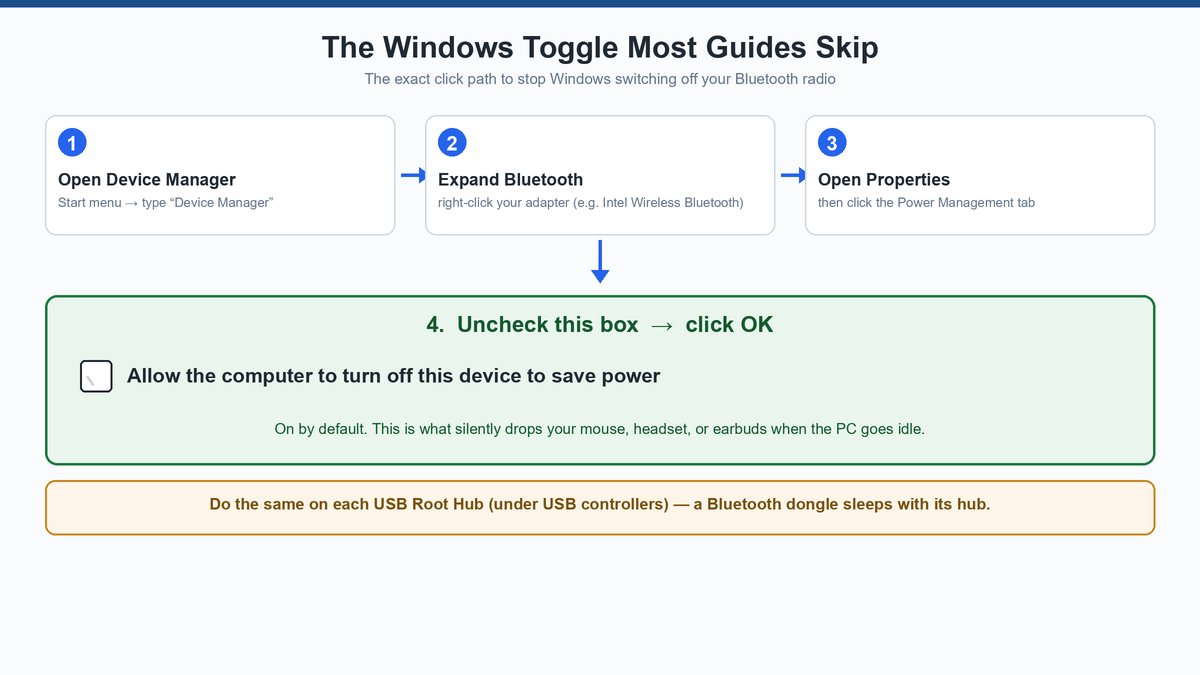
This is the toggle most guides omit, and it’s on by default. Windows is allowed to switch off your Bluetooth adapter whenever it thinks the system is idle, which is exactly why your mouse freezes after a pause or your headset drops mid-podcast.
Open the Start menu, type Device Manager, and open it. Expand Bluetooth, find your adapter (usually something like “Intel Wireless Bluetooth” or “Realtek Bluetooth”), right-click it, and choose Properties. Go to the Power Management tab and uncheck “Allow the computer to turn off this device to save power.” Click OK.
Tip: while you’re in there, do the exact same thing for the USB Root Hub entries under “Universal Serial Bus controllers,” because a USB Bluetooth dongle is powered through a hub that Windows will also try to sleep. Uncheck the box on each USB Root Hub’s Power Management tab.
Update or Reinstall the Bluetooth Driver
If the power fix didn’t do it, your driver is next. A stale or corrupted Bluetooth driver, common after a big Windows update, causes stutters and drops even when everything else is perfect. Back in Device Manager, right-click your Bluetooth adapter and choose Update driver, then Search automatically. If Windows says you already have the best driver but the problem persists, go to your laptop maker’s support page (or Intel’s) and grab the latest Bluetooth driver directly. Manufacturer drivers are almost always newer than what Windows Update ships.
If updating doesn’t help, reinstall: right-click the adapter, choose Uninstall device, then restart. Windows reinstalls a clean copy on boot, which clears a corrupted driver state that an update alone won’t touch.
Remove the Device and Re-Pair It
Still dropping? Clear the pairing profile. Go to Settings > Bluetooth & devices, click the three dots next to the misbehaving device, and choose Remove device. Then put the accessory back into pairing mode and add it fresh. This wipes a corrupted bond and rebuilds it clean, and it’s the single most effective fix on this list after the power toggle. Microsoft keeps an up-to-date walkthrough for stubborn cases in its fix Bluetooth problems guide.
The Fix Ladder for Android and iPhone
Phones give you fewer knobs than Windows, but the two that matter fix the vast majority of drops. Do them in order.
Forget the Device and Re-Pair
This is your first move on any phone, and it clears the same corrupted pairing profile that plagues laptops. On iPhone, go to Settings > Bluetooth, tap the blue “i” next to the device, and choose Forget This Device. On Android, go to Settings > Connected devices, tap the gear next to the device, and choose Forget (or “Unpair”). Then pair it again from scratch. Ninety percent of phone-side Bluetooth drops end here.
Note: before you forget an accessory, unpair it from your other devices too. Earbuds that stay bonded to your laptop, tablet, and old phone will keep trying to grab whichever one they hear first, and that tug-of-war looks exactly like a random disconnect.
Reset Network Settings
If forgetting and re-pairing didn’t hold, reset the phone’s network stack. This clears every Bluetooth, Wi-Fi, and cellular setting at once and rebuilds them, which fixes deeper corruption that a single re-pair can’t reach. On iPhone: Settings > General > Transfer or Reset iPhone > Reset > Reset Network Settings. On Android: Settings > System > Reset options > Reset Wi-Fi, mobile & Bluetooth.
Caveat: this also wipes your saved Wi-Fi passwords and any VPN settings, so you’ll re-enter those afterward. It doesn’t delete photos or apps, but have your Wi-Fi passwords handy before you tap it.
Accessory-Specific Fixes for Earbuds, Cars, and Mice
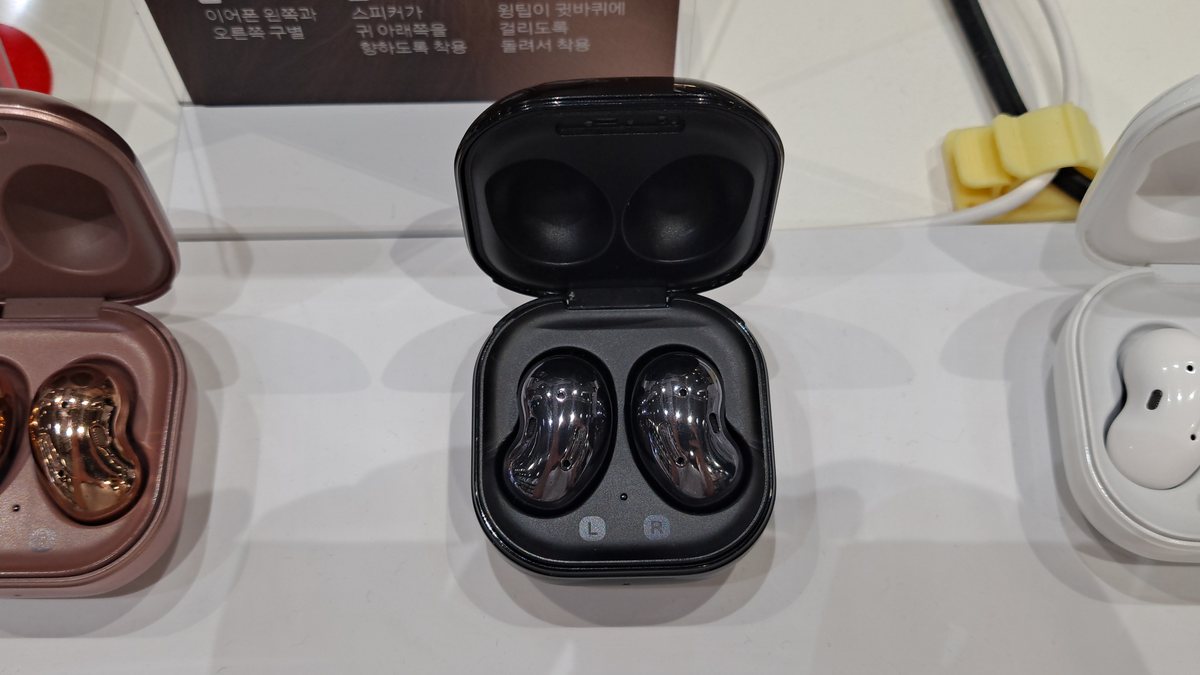
Different gadgets fail in different ways. Once you’ve ruled out interference and power settings, these are the accessory-specific quirks worth knowing.
Wireless Earbuds That Cut Out
True-wireless earbuds have their own failure mode: the two buds talk to each other as well as to your phone, so a drop can be bud-to-bud, not phone-to-bud. Put both buds back in the case, wait ten seconds, and take them out to force them to re-sync. Clean the charging contacts on the buds and in the case (grime there causes uneven charging, which brings back the weak-battery problem). And keep your phone on the same side as your dominant earbud when you can, since your head is a signal-blocking wall of water. If a re-sync doesn’t hold and you suspect a corrupted profile, our guide on how to reset Bluetooth headphones by brand walks through the exact button combos to force a clean pairing.
Car Stereo, CarPlay, and Android Auto
Cars are interference-heavy metal boxes, and head units run old, rarely updated Bluetooth firmware. If your car keeps dropping, delete the phone from the car’s Bluetooth list and forget the car on your phone, then pair both fresh, because a half-deleted pairing on one side causes endless reconnect loops. For wired CarPlay or Android Auto that keeps dropping, suspect the USB cable first; a cheap or worn cable is the top cause, not the phone.
Bluetooth Mouse or Keyboard
A jumpy or freezing Bluetooth mouse is almost always one of two things: a weak battery (swap it before anything else) or the Windows power-saving toggle from the fix ladder above. Desktop users have a third gremlin, which is a USB 3.0 device sitting right next to the Bluetooth dongle. Move the dongle to a front port or a short extension cable and the cursor stops teleporting.
Game Controller That Won’t Pair
Wireless controllers drop for the same two reasons as everything else here: a stale pairing bond and a congested 2.4GHz band. If a DualSense or Xbox pad refuses to reconnect, our walkthrough on why a PS5 controller won’t connect and how to fix it covers the reset-button pinhole and the clean re-pair sequence that clears a corrupted bond.
When to Stop Troubleshooting and Replace the Gear
Not every disconnect is fixable, and knowing when to quit saves an afternoon. If you’ve worked the interference triage, killed the power setting, updated drivers, and re-paired clean on more than one phone or PC, and a specific accessory still drops while your others are fine, the accessory is the problem. Aging batteries in earbuds and headsets can’t be replaced, and once a bud won’t hold a link above 50% charge, it’s done. Likewise, a Bluetooth adapter that drops every device you own (not just one) usually means a failing USB dongle or a dying internal card, both cheap to replace. The rule of thumb: if the fault follows the accessory, replace the accessory; if it follows the computer, replace the adapter.
Frequently Asked Questions
Why does my Bluetooth keep disconnecting only in certain rooms?
That’s almost always 2.4GHz interference. Kitchens are the worst offender because of the microwave, which leaks radio noise around 2.45GHz when it runs, right on top of Bluetooth. Rooms near your Wi-Fi router or full of smart-home gadgets crowd the same band. If it’s room-specific, it’s interference, not a broken device.
Does turning Bluetooth off and on actually fix disconnects?
Sometimes, and it’s worth a five-second try, because it forces the radio to renegotiate a clean link and pick a fresh codec. But it’s a temporary patch. If you’re toggling it constantly, the real cause is one of the six above, most likely interference or a corrupted pairing profile that needs a full forget-and-re-pair.
Can a weak battery really cause Bluetooth to drop?
Yes, and it’s one of the most missed causes. A Bluetooth radio needs steady voltage to hold a connection, and a sagging battery can’t deliver it under load, so the link drops long before the device shows as dead. If your earbuds or mouse only cut out when the battery is low, charge or replace it before you touch any settings.
Why does my Bluetooth mouse lag or freeze on my desktop PC?
Two usual suspects. First, the Windows “allow the computer to turn off this device to save power” setting, which you turn off in Device Manager. Second, a USB 3.0 device (like an external SSD) plugged in next to your Bluetooth dongle, which radiates interference straight into the 2.4GHz band. Move the dongle to a front port or an extension cable away from USB 3.0 ports.
Will resetting network settings on my phone delete my data?
No. Resetting network settings clears your saved Wi-Fi passwords, Bluetooth pairings, VPN, and cellular settings, but it does not touch your photos, apps, messages, or files. Just have your Wi-Fi passwords ready to re-enter afterward, since those get wiped along with everything else.
Is it my phone or my earbuds that keep disconnecting?
Test it. Pair the earbuds to a different phone or laptop. If they still drop, the earbuds (or their battery) are the problem. If they hold solid on the second device, your original phone’s Bluetooth or its pairing profile is the culprit, so forget and re-pair on that phone first. The fault follows the guilty device.
The Bottom Line
Bluetooth disconnects feel mysterious, but they almost never are. Start by picturing the 2.4GHz band as a crowded highway your gadget shares with your Wi-Fi, microwave, and USB 3.0 ports, then clear that traffic. On a laptop, kill the power-saving toggle that quietly switches the radio off. On a phone, forget the device and pair it fresh. Those three moves fix the overwhelming majority of drops. Reserve driver reinstalls and network resets for the stubborn cases, and if one specific accessory keeps failing after all of that, its battery has probably aged out, and no setting will bring it back.