
Your headphones were flawless yesterday, and today they won’t pair, or they connect but play nothing, or the left cup has gone stone dead while the right one is happily blasting away. Before you decide they’re broken and start eyeing a replacement, know this. Far more often than not, a Bluetooth glitch is a memory problem, not a hardware one. The headphones and your phone have gotten confused about who’s talking to whom, and the fix is to wipe that confused memory and start clean. That’s what a reset does. The catch is that there are actually two different resets, they fix different problems, and every brand hides the button combo somewhere different. So this is the whole map. I’ll show you exactly how to reset Bluetooth headphones. That means knowing when to do the quick version and when to nuke them back to factory. You’ll get the precise button holds for Sony, Bose, JBL, Beats, Anker, Sennheiser and Skullcandy, plus how to re-pair cleanly so the same glitch doesn’t crawl right back. Let’s un-break your headphones.
Published July 8, 2026 · Updated September 4, 2026
- There are two resets, not one. A “forget and re-pair” fixes most connection drama in 60 seconds. A full factory reset (holding a button combo on the headphones themselves) is the heavier hammer for when the quick version doesn’t stick.
- The single most common reason headphones “won’t connect” is a ghost device. An old phone, laptop or tablet nearby silently grabbing them first. A huge share of pairing problems die the moment you forget the headphones on every other gadget you own.
- A first-try shortcut works on a good chunk of pairs. Power fully off, then hold the power button (or both volume buttons) until the light flashes a new color or you hear a chime. It won’t hit every brand. The real combos differ. But it’s worth trying before you dig out the manual.
- Factory-reset button combos are brand-specific and unforgivingly literal. Sony wants Power + NC/AMB for 7 seconds. Bose wants the switch held with the Action button for 30. The Beats Studio3 wants Power + Volume Down for 10, but the Studio Pro wants the power button alone. Hold the wrong pair or let go early and nothing happens.
- A factory reset wipes everything. Your EQ, custom button mappings, and every paired device. Budget five minutes afterward to re-pair and re-tune, and don’t do it unless the soft reset already failed.
- AirPods and true-wireless earbuds reset from the case or the app, not with earcup combos. And the newest AirPods 4 and AirPods Pro 3 dropped the setup button entirely. So you double-tap the front of the case three times instead. The earbud section below walks through Apple, Samsung, Jabra and Sony one by one.
Figure Out Why You’re Resetting Before You Reset Anything
A reset is a blunt tool, and matching it to the actual symptom saves you from wiping settings you didn’t need to lose. Nearly every “my Bluetooth headphones are acting up” complaint falls into one of five buckets, and each one tells you which reset to reach for. Find yours first.
They Refuse to Pair or Show Up at All
You open your phone’s Bluetooth menu and the headphones simply aren’t there, or they show up and fail to connect. This is the classic reset candidate. But the real culprit is usually that the headphones are already paired to something else and never entered pairing mode. Before a factory reset, force them into pairing mode: hold the power button past the normal power-on point until the light blinks red-and-blue or you hear “pairing.” Then check that no other device you own has quietly claimed them.
They Connect but You Hear Nothing
The phone says “connected,” the battery icon shows up, and yet total silence. This is a corrupted-connection classic. The Bluetooth handshake completed but the audio profile broke, often after a firmware update or a low-battery shutdown mid-song. A quick forget-and-re-pair fixes the overwhelming majority of these. The audio profile gets rebuilt from scratch.
One Side Is Dead or They’re Out of Sync
Left cup silent, or the two sides drifting out of sync, or one earbud way quieter than the other. On over-ear and on-ear headphones this is very often a channel-balance or internal-sync fault that a factory reset clears, because the reset re-initializes both drivers and the internal balance setting together. If a forget-and-re-pair doesn’t bring the dead side back, this is the exact situation the hard reset was built for. AirPods owners should also check why AirPods only play in one ear, since that specific fault has a couple of AirPods-only causes a generic reset won’t touch.
They Keep Stealing Themselves Back to Another Device
You want them on your phone. But they keep snapping to your laptop, your tablet, or your partner’s phone the instant you power them on. That’s not a fault. It’s multipoint Bluetooth and connection priority doing exactly what they were told. The fix is rarely a factory reset. It’s forgetting the headphones on the devices you don’t want them defaulting to. If it’s happening constantly rather than just once in a while, our dedicated guide on why Bluetooth keeps disconnecting walks through the deeper connection-priority fixes.
You’re Switching to a New Phone
You upgraded phones and want a clean handoff. A factory reset before you sell or hand down the headphones (or just before pairing the new phone) clears the old device list so there’s no tug-of-war between the old phone and the new one. This is the one time you reset even though nothing is “broken.”
Learn the Two Resets So You Reach for the Right One
Here’s the distinction almost every rushed tutorial skips, and it’s the whole game. “Resetting” Bluetooth headphones means one of two very different things, and using the wrong one either wastes your time or nukes settings you wanted to keep. (Curious why the connection gets flaky in the first place? Our explainer on how Bluetooth really works covers the frequency-hopping handshake. It occasionally trips over itself.)
The Soft Reset Means Forget and Re-Pair
This is the one you should try first, every time, because it fixes most problems and costs you nothing. You’re not touching the headphones’ internal memory at all. You’re clearing the connection on your phone’s side. Go into your phone’s Bluetooth settings, tap the headphones, and choose Forget This Device (iPhone) or Unpair / the gear icon then Forget (Android). Laptops get the same treatment. On Windows 11 head to Settings > Bluetooth & devices > Devices, click the three-dot menu next to the headphones, and pick Remove device. On a Mac it is System Settings > Bluetooth, hover over the headphones, click the little info button, and choose Forget This Device. The pairing is deleted, the stale audio profile goes with it, and when you re-pair from a clean slate, the handshake gets rebuilt correctly. It keeps all your headphone settings — EQ, button maps, everything — intact. Most of the time, that is all “won’t connect” or “connected but silent” actually needs.
The Hard Reset Means Full Factory Reset
This is the heavier hammer. A factory reset (Sony literally calls it “initializing”) is performed on the headphones themselves with a physical button combo, and it wipes the headphones’ entire brain. Every paired device, your custom EQ, remapped buttons, noise-canceling preferences. All back to out-of-the-box defaults. Reach for it only when the soft reset failed, when one side is dead, when a firmware update left them glitchy, or when you’re clearing them for a new owner. It fixes deeper faults precisely because it’s total. But you pay for that with a re-setup afterward.
Caveat: Always run the soft forget-and-re-pair first, and save the factory reset for when that genuinely didn’t work — otherwise you’re rebuilding every setting from scratch to solve a problem a 30-second unpair would have handled.
Try the Universal Reset Move First
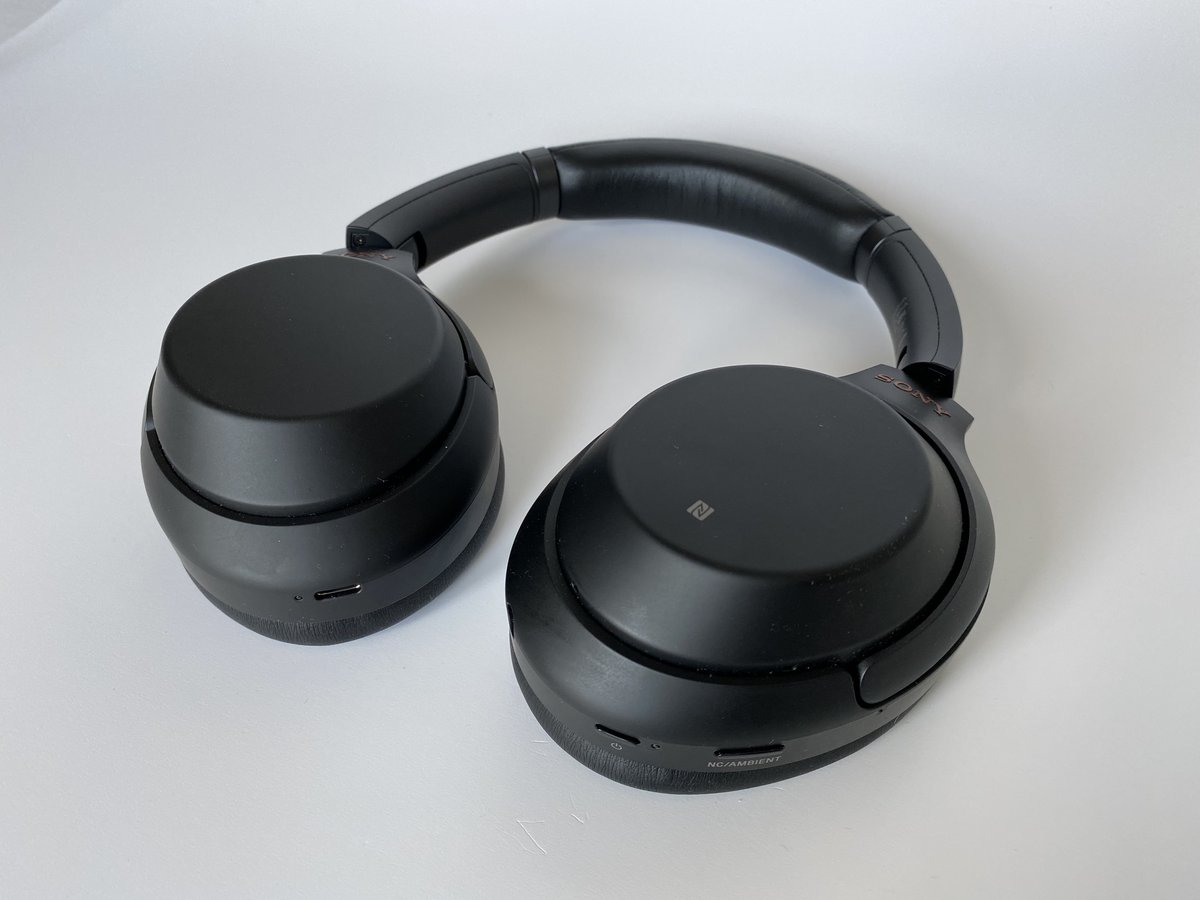
Before you go hunting for your exact model’s manual, it’s worth trying one of a couple of common reset gestures from memory. A lot of Bluetooth headphones respond to at least one of them. Power the headphones completely off. Then press and hold either the power button alone, or both volume buttons together, for somewhere between 5 and 15 seconds. You’re watching and listening for a signal that the reset landed. The LED flashing a color it doesn’t normally use (purple, or alternating red/blue), the headphones powering themselves off and back on, or a voice/chime announcing the reset. When that happens, let go. They’ll drop into pairing mode, ready for a fresh connection.
Treat that as a first try, not a guarantee. It’ll crack a fair number of models. But as the list below makes plain, the real combos genuinely differ by brand. A single button on one, dual volume on another, a switch-plus-button on a third, a multifunction-button hold on a fourth. And every one is unforgivingly literal. So the wrong two buttons or an early release does nothing at all. If the quick gesture doesn’t take, here are the verified combos for the big names.
Find Your Brand’s Exact Factory Reset Combo
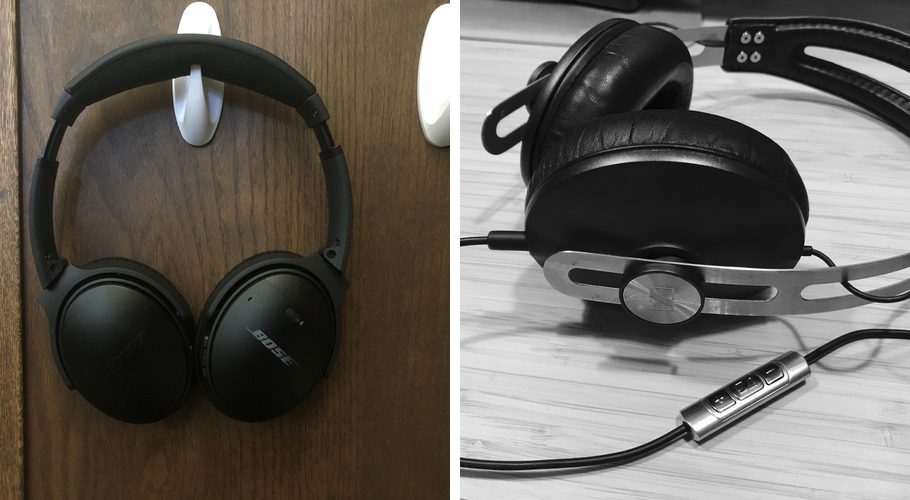
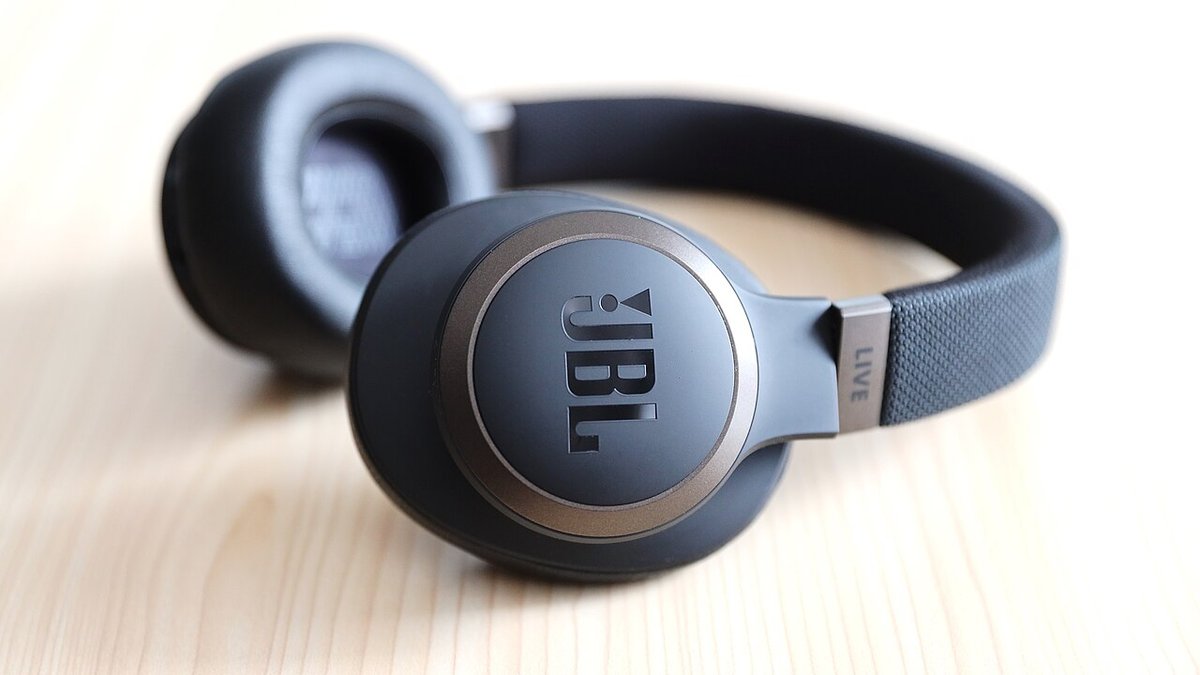
Every manufacturer buries the factory reset behind its own button choreography. These are the current, verified combos for the most common over-ear and on-ear models. In every case, hold until you see the light change or hear the confirmation. Early releases don’t count.
Want the cheat-sheet version first? Here is every verified combo in one place. Find your model, hold exactly what it says for exactly as long as it says, and watch for the LED tell. The brand write-ups below add the feel-and-fail details, and earbuds get their own section right after.
| Brand | Model | Combo | Hold time | LED confirmation |
|---|---|---|---|---|
| Sony | WH-1000XM5 | Power + NC/AMB, unplugged | ~7 seconds | Blue light flashes 4 times |
| Sony | WH-1000XM4 | Power + Custom | ~7 seconds | Blue light flashes 4 times |
| Bose | QuietComfort 45 | Power switch held right + Action button | 30 seconds | Red blink, then slow blue |
| Bose | QuietComfort Ultra | Bluetooth + multifunction button | ~15 seconds | Status light blinks white twice |
| JBL | Tune / Live / Club | Volume + and Volume − together, powered on | ~5 seconds | Two-color blink, then a power cycle |
| Beats | Studio Pro | System (power) button alone | ~10 seconds | White then red, three cycles |
| Beats | Studio3 Wireless | Power + Volume Down | ~10 seconds | Fuel Gauge LEDs flash |
| Anker Soundcore | Life Q30 | Power + Volume Up | 5 seconds | LED flashes purple |
| Anker Soundcore | Life Q35 | Power + Volume Up | 5 seconds | Blue and red flash alternately |
| Sennheiser | Momentum 4 Wireless | Multifunction button, powered off | 20 seconds | Red and white flash, plus a tone |
| Skullcandy | Crusher / Hesh | Plus and minus buttons together | Until the voice prompt | Says “disconnected,” then “pairing” |
| Apple | AirPods 1–3, AirPods Pro 1–2 | Setup button on the case back, lid open | ~15 seconds | Amber, then white |
| Apple | AirPods 4 / AirPods Pro 3 | Double-tap the case front 3 times, paced by the light | Follow the light | White, faster white, amber, then white |
| Apple | AirPods Max | Digital Crown + listening-mode button | ~15 seconds | Amber turns to flashing white |
| Samsung | Galaxy Buds (all) | Galaxy Wearable app: Earbuds settings, then Reset | — | App confirms the reset |
| Jabra | Elite 75t and newer | Hold the earbud button(s), buds in case, lid open | 10 seconds | Case LED flashes pink-purple |
| Jabra | Elite 65t | Right bud multifunction button, out of the case | 10 seconds | Red, then purple |
| Sony | WF-1000XM4 | Touch-hold both sensors, buds in case, lid open | ~10 seconds | Red flash, release; green flashes 4 times |
| Sony | WF-1000XM5 | Reset button on the case back, lid open | 15+ seconds | Blue, then orange; green flashes 4 times |
Sony (WH-1000XM Series)
Sony draws a hard line between a reset and an initialize, and it matters. A distinction that carries right through to its newest flagships like the ones in our Sony WH-1000XM6 review. A plain reset is simple. Plug the headphones into USB-C power, then press the power button and the NC/AMB button at the same time. That reboots them but keeps your pairings and settings, which is often enough. The full initialize (true factory reset) is done with the headphones unplugged. Hold Power + NC/AMB for about 7 seconds until the blue light flashes four times. That wipes pairings and settings. (Older WH-1000XM4 uses Power + Custom held 7 seconds instead.)
Bose (QuietComfort and QC Ultra)
Bose is the outlier that demands patience. On the QuietComfort 45, slide and hold the Power/Bluetooth switch to the right while simultaneously pressing and holding the Action button for a full 30 seconds. The light blinks red, then slowly blinks blue when it’s done. The QuietComfort Ultra is quicker but different. Hold the Bluetooth button and the multifunction button together for about 15 seconds until the status light blinks white twice, then release. That clears every pairing and setting, and the light finishes with a short white blink before returning to normal. On the QC45 those 30 seconds feel like forever. So don’t let go early.
JBL (Tune, Live and Club Series)
JBL keeps it refreshingly simple and skips the power button entirely. With the headphones powered on, press and hold Volume + and Volume − together for about 5 seconds. The LED blinks two colors, the headphones power down, and they come back up in pairing mode, wiped to factory. The JBL Headphones app can also trigger the reset from your phone if the buttons are being stubborn.
Beats (Studio Pro and Studio3)
Beats splits its method by model. So don’t assume one combo covers both. On the newer Beats Studio Pro, hold the system (power) button by itself for about 10 seconds. All five fuel-gauge lights flash white, then one flashes red, and that white-then-red sequence repeats three times before the headphones reset and power themselves back on. The older Studio3 Wireless is the two-button one. Hold the power button and the Volume Down button together for about 10 seconds until the Fuel Gauge LEDs flash, then release. Either way, because Beats live in Apple’s ecosystem, they’ll want re-adding to your iCloud devices afterward.
Anker Soundcore (Life and Space Series)
Anker’s Soundcore line resets with a power-plus-volume-up combo, and the confirmation color is the tell. On the Soundcore Life Q30, hold Power + Volume + for 5 seconds until the LED flashes purple, then release. The Life Q35 uses the same Power + Volume + hold. But you release when the indicators flash blue and red alternately. Watch for the specific color. That’s your proof it actually reset.
Sennheiser (Momentum 4 Wireless)
Sennheiser hides its reset in a single long hold. On the Momentum 4 Wireless, turn the headphones off, then press and hold the multifunction button for a full 20 seconds. You’ll hear a tone and see the red and white LEDs flash, which confirms the factory reset and clears every pairing. The Sennheiser Smart Control app can do it too if you’d rather tap than count.
Skullcandy (Crusher and Hesh Series)
Skullcandy’s reset doubles as a re-pair. On the Crusher Wireless and similar models, first remove the headphones from your phone’s paired list and turn Bluetooth off on the phone. Then press and hold the “+” and “−” buttons together until you hear “disconnected.” The headphones drop into pairing mode and announce “pairing.” That sequence clears the pairing history and readies them for a fresh device.
Note: None of these earcup combos apply to earbuds. The reset moved into the charging case or the companion app, and on the newest AirPods there is not even a button to hold anymore. Every major earbud family gets its own verified steps in the next section.
Reset AirPods, Galaxy Buds and Other Wireless Earbuds the Right Way
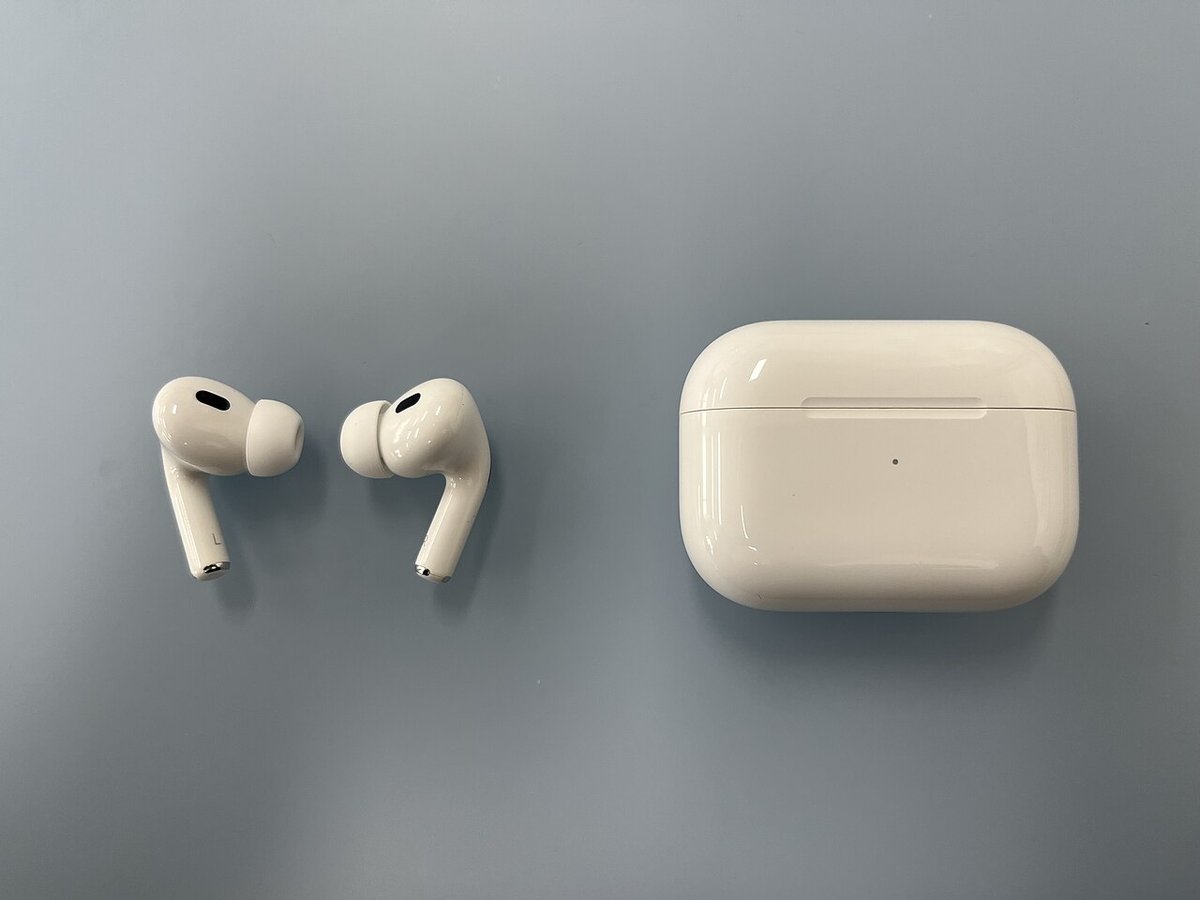
Earbuds threw out the button-combo playbook for a simple reason. The buds are too small to host the choreography. So manufacturers moved the reset into the charging case. Or off the hardware entirely, into the companion app. That means the case is usually the brain you are wiping, and it also means the steps are even more model-specific than the over-ear list above. Here are the verified moves for the four earbud families people actually own, pulled straight from each manufacturer’s own support docs. (If AirPods are the only thing giving you trouble, our how to reset AirPods guide goes deeper than the summary below.)
Apple AirPods (All Models)
Apple changed the procedure with the hardware. So match your model first. For AirPods 1, 2 and 3, and AirPods Pro 1 and 2. Pop the buds in the case, close the lid, and wait a full 30 seconds. Then on your paired iPhone or iPad, go to Settings > Bluetooth, tap the More Info button next to your AirPods, and hit Forget This Device. Twice, to confirm. Now open the lid and hold the setup button on the back of the case for about 15 seconds. The status light flashes amber, then white. White means wiped and ready to re-pair.
The AirPods 4 and AirPods Pro 3 have no setup button at all, and this is where most guides quietly go wrong. The button’s job moved to a touch gesture. With the lid open, double-tap the front of the case while the status light is on, double-tap again when the light flashes white, then double-tap a third time when it starts flashing faster. When the light flashes amber and then white, the reset took. Three double-taps, paced by the light. That is the whole trick, straight from Apple’s official reset guide.
AirPods Max skip the case logic entirely. Hold the Digital Crown and the listening-mode (noise control) button together. At around 10 seconds the light flashes amber. Let go there and you have only restarted them, which fixes plenty on its own. Keep holding to roughly 15 seconds, until the amber turns to flashing white, and that is the full factory reset.
Samsung Galaxy Buds (Every Generation)
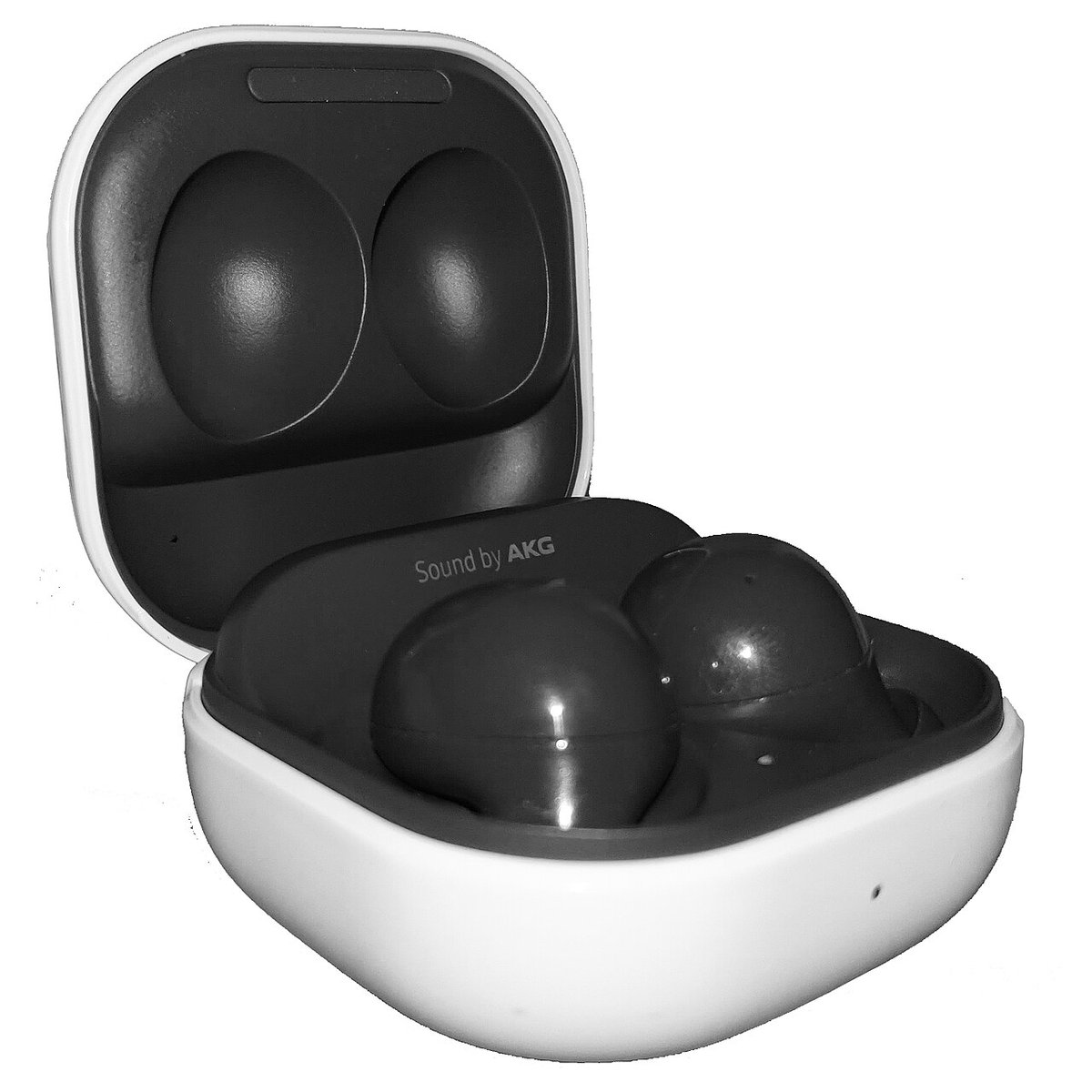
Samsung went the app route. There is no button-combo factory reset on the buds themselves. Open the Galaxy Wearable app on your paired phone and tap your buds. Go to Earbuds settings, then tap Reset and confirm with a second Reset (on the original 2019 Galaxy Buds the option lives under About earbuds > Reset earbuds instead). The gotcha is baked into the design. The buds must be connected to the app for the Reset option to be available at all. If they will not connect, run Samsung’s restart first. Dock both buds in the case, close the lid, wait at least seven seconds. Then forget them in the phone’s Bluetooth menu, re-pair, and go back into the app for the proper reset.
Jabra Elite Earbuds
Jabra kept the button hold, and the earbud generation decides where it happens. On the Elite 75t and everything after it — Elite 3, 4, 5, 7, 8 and 10. Put both buds in the charging case, leave the lid open, and press and hold the button on the earbuds for about 10 seconds until the LED in the case flashes. Pink-purple is Jabra’s confirmation color. You cannot reset just one bud. It is both or nothing, per Jabra’s own support pages. The older Elite 65t flips the logic. Take the right earbud out of the case and hold its multifunction button for 10 seconds. The LED flashes red first, and purple is your confirmation. Either way, delete the old pairing from your phone before reconnecting, or the stale handshake follows you straight into the fresh one.
Sony WF-1000XM4 and WF-1000XM5 Earbuds
Here is the trap Sony set for its own fans. If you own the WF-1000XM4 or WF-1000XM5 earbuds and go hunting for the Power + NC/AMB combo from the WH over-ears above, you will find nothing to press. The WF earbuds have no power button, and the reset lives in the charging case. On the WF-1000XM4, set both buds in the case, leave the lid open, and hold your fingers on both touch sensors for about 10 seconds. When the case light flashes red, release within 5 seconds, and four green flashes confirm the initialize. The WF-1000XM5 got an actual hardware answer. A tiny reset button on the back of the case. Buds in, lid open, hold it for 15 seconds or more. The case light blinks blue twice repeatedly, then switches to orange. Release within 5 seconds of the orange, and the four green flashes confirm the wipe. Same family name as the WH-1000XM headbands, completely different ritual. Do not mix the two up.
Tip: Sony’s earbud initialize quietly refuses to start when the charging case battery is low. The official help guide calls it out. If you are holding the sensors and never see the red flash, charge the case first, then run the sequence again.
Re-Pair Cleanly So the Glitch Doesn’t Come Right Back
Resetting is only half the job. If you re-pair sloppily, the same connection confusion crawls straight back. Usually because some other device pounces on the freshly reset headphones before your phone can. Do these two things and the fix actually holds.
Put the Headphones in Pairing Mode, Then Add Them Fresh
Right after a factory reset, headphones usually drop into pairing mode automatically (the light strobes red/blue or a voice says “pairing”). If they don’t, force it. Hold the power button past the normal power-on point until that strobe starts. Then on your phone, open Bluetooth settings, tap the headphones under “available devices,” and confirm. Because you wiped the old pairing, this rebuilds the connection from a clean handshake. Which is the entire point of having reset in the first place.
Forget the Headphones on Every Old Phone, Laptop and Tablet
This is the step everyone skips, and it’s the real cause of “they keep disconnecting.” Your reset headphones remember nothing. But your old devices still remember them. And a nearby laptop or spare tablet will silently reconnect the instant the headphones power on, yanking them off your phone. Go to every other gadget the headphones have ever touched and choose Forget This Device there too. (Windows 11 hides it behind the three-dot menu as Remove device. MacOS behind the info button in Bluetooth settings.) Pair the one device you actually want as the default last. That puts it first in the priority list. Clear the ghosts and the tug-of-war ends for good.
The catch: Multipoint headphones are built to hold two connections at once. So a “stolen” connection often isn’t a bug you should reset over. It’s the feature working as designed. If your headphones keep favoring the wrong device, the fix is connection priority (forget the unwanted device, or use the companion app’s device manager), not another factory reset. Resetting a multipoint pair over this just makes you re-pair everything for nothing.
Check These Two Things Before You Give Up on the Headphones
If you’ve run both resets, re-paired cleanly, and something is still off, don’t reach for a third factory reset out of frustration. It won’t do anything new. Two things are worth ruling out first. Check whether the actual fault lives on your phone or computer’s Bluetooth radio instead of the headphones, and whether you’re looking at a hardware failure a reset was never going to fix.
Try Resetting Bluetooth on Your Phone, Tablet, or Computer
Every reset above assumes the headphones are the confused party. Sometimes it’s the other end of the connection. Your phone or laptop’s Bluetooth radio keeps its own cache of stale connections, and no amount of resetting the headphones touches that. On an iPhone, go to Settings > General > Transfer or Reset iPhone > Reset > Reset Network Settings. It clears every Bluetooth pairing and rebuilds the radio from scratch, though it also wipes saved WiFi passwords. So know that going in. On Android, the same idea usually lives under Settings > System > Reset options (Samsung buries it in General management > Reset). Look for a “Reset Wi-Fi, mobile & Bluetooth” option. It does the same clean sweep. The exact menu wording shifts a little by manufacturer and Android version. On Windows 11, open Device Manager and find the adapter under “Bluetooth.” Right-click it and choose Uninstall device, then restart. Windows reinstalls the driver stack fresh. That quietly fixes a lot of “won’t reconnect” problems that look like a headphone fault. On a Mac, hold Option and Shift and click the Bluetooth icon in the menu bar to reveal a hidden Debug menu with Reset the Bluetooth module. A long-running troubleshooting trick that still works on most current macOS versions. If your menu bar doesn’t show a Bluetooth icon at all, go through System Settings > Bluetooth and remove the device the ordinary way instead. Pairing to a laptop specifically? Our guide to connecting AirPods to a laptop covers that pairing flow step by step.
Heads up: The fastest way to tell which side is actually broken. Pair the headphones to a completely different device you don’t normally use them with. If they connect and sound fine there, the problem was sitting in your regular phone’s Bluetooth cache, not the headphones. If they act up on every device you try, stop resetting devices and go back to the headphones themselves.
How to Tell It’s a Hardware Failure, Not Something a Reset Fixes
Resets fix confused memory, not broken parts. Try the soft reset, the full factory reset, and pairing to a totally different device. If the problem still hasn’t budged, you’re very likely looking at a hardware fault, and no amount of holding buttons changes that. A few tells that separate real hardware failure from a software glitch a reset would have cleared:
- The same side stays dead across resets and devices. A channel that goes silent after a reset on one phone and stays silent on a laptop and a tablet too points to a broken driver or a snapped wire, not a settings problem.
- The battery won’t hold a charge, or won’t charge at all. If a full charge drains in under an hour, or the case lights refuse to change no matter which cable you try, that’s a battery or charging-port fault. It shows up on AirPods and other true-wireless cases just as often as on over-ear headphones.
- There’s visible damage. A cracked hinge, a housing that’s been dropped or gone through a wash cycle, or corrosion on the charging pins. Water exposure beyond a headphone’s actual IP rating is one of the most common causes of a “the reset didn’t work” complaint that’s really a hardware complaint.
- Static or crackling that follows the headphones everywhere. If the same crackle shows up on every source device and every app, it’s very likely a damaged driver or a loose internal connection, not Bluetooth acting up.
Once two or three of those line up, check the warranty before paying for a repair or a replacement. Most major brands cover manufacturing defects for a year from purchase, and a serial-number lookup on the manufacturer’s support site takes a lot less time than another round of holding buttons.
Answer the Questions Everyone Asks After a Reset
Even with the combos in hand, a few things trip people up right after they reset. Here’s the quick, practical version of what usually comes next. And the definitive brand references worth bookmarking, like Sony’s official help guide and Bose’s support site, which spell out the exact combo for your specific model.
Frequently Asked Questions
How do I reset my Bluetooth headphones if I don’t know the exact button combo?
Try the universal move first. Power the headphones completely off, then hold either the power button alone or both volume buttons together for 5 to 15 seconds. Watch for the LED flashing an unusual color, the headphones cycling off and on, or a voice announcing the reset. That triggers a factory reset on a large share of models with no manual needed. If it doesn’t take, look up your exact model. The button pair and hold time genuinely differ by brand, and holding the wrong combo does nothing.
What’s the difference between forgetting a device and a factory reset?
Forgetting a device happens on your phone and only deletes that one connection, keeping all your headphone settings intact. It’s the quick fix for most “won’t connect” or “connected but silent” problems. A factory reset happens on the headphones via a button combo and wipes their entire memory. Every paired device, your EQ, and any custom controls, back to out-of-the-box defaults. Always try forgetting-and-re-pairing first. Save the factory reset for when that fails.
Will resetting my Bluetooth headphones delete my EQ and custom settings?
A soft forget-and-re-pair keeps everything. You’re only clearing the connection on your phone. A full factory reset wipes it all. Your equalizer presets, remapped buttons, noise-canceling preferences, and every paired device. So budget a few minutes afterward to re-pair your phone and rebuild any custom settings, and don’t reach for the factory reset unless the softer option genuinely didn’t fix your problem.
Why do my Bluetooth headphones keep connecting to the wrong device?
Almost always because another device you own still remembers them and grabs them first. A laptop, a tablet, or a second phone reconnecting the instant the headphones power on. This is connection priority and multipoint Bluetooth working as designed, not a fault. The fix isn’t a factory reset. Go to every device you don’t want as the default and choose “Forget This Device.” Then pair the device you do want last so it sits at the top of the priority list.
How do I factory reset Sony WH-1000XM headphones specifically?
Sony separates a reset from an initialize. To fully factory reset (initialize) a WH-1000XM5, make sure it’s unplugged, then hold the Power button and the NC/AMB button together for about 7 seconds until the blue light flashes four times. That wipes all pairings and settings. The older WH-1000XM4 uses Power plus the Custom button held 7 seconds. If you only want a soft reboot that keeps your pairings, plug it into USB-C power and press Power and NC/AMB at the same time instead.
Do AirPods and wireless earbuds reset the same way as headphones?
No. And the split runs deeper than most people assume. Over-ear and on-ear headphones reset with button combos on the earcups. AirPods 1 through 3 and AirPods Pro 1 and 2 reset from the charging case. Forget them in Bluetooth settings first, then hold the setup button on the back of the case for about 15 seconds until the light flashes amber, then white. AirPods 4 and AirPods Pro 3 have no case button at all. You double-tap the front of the case three times, pacing each double-tap by the status light, exactly as Apple’s official guide lays out. AirPods Max hold the Digital Crown and listening-mode button together for about 15 seconds. Galaxy Buds reset through the Galaxy Wearable app, Jabra Elites with a 10-second button hold, and Sony’s WF earbuds from the charging case itself. The full verified steps for each are in the earbuds section above.
Can I fix Bluetooth headphones by resetting my phone instead of the headphones?
Sometimes, yes. A lot of “the headphones won’t reconnect” complaints are actually the phone’s Bluetooth cache holding onto a stale connection, not the headphones malfunctioning. On iPhone, Settings > General > Transfer or Reset iPhone > Reset > Reset Network Settings clears it (note. It also wipes saved WiFi passwords). Android has the same option under Settings > System > Reset options. Try that before assuming the headphones themselves need another factory reset.
How do I know if my Bluetooth headphones are broken instead of just glitching?
If a channel stays dead, or the battery won’t charge, or there’s static after you’ve already tried a soft reset, a full factory reset, and pairing to a completely different device, that’s hardware, not software. A reset can’t fix a broken part. Visible damage, water exposure, or a battery that drains in under an hour are the clearest tells. At that point check the warranty before paying for a repair.