Something goes wrong with your AirPods and you reach for the reset. Everybody does. It is the earbud version of turning it off and on again, and for one narrow family of faults it works so reliably that the internet now offers it as the answer to every AirPods problem there is. That is the trap. A factory reset erases the pairing your case is holding onto, and that is the whole of what it does. If your fault lives inside that pairing, you are ninety seconds from fixed. If it lives in a battery, a charging port or a speaker mesh packed with earwax, you can wipe those buds ten times and watch nothing change.
The short answer first. Put both buds in the case, close the lid, wait 30 seconds, open the lid, then press and hold the setup button on the back for about 15 seconds until the status light flashes amber and then white. That covers AirPods 1 through 3 and AirPods Pro 1 and 2. AirPods 4 and AirPods Pro 3 have no setup button, so you double-tap the front of the case three times instead, timing each tap to the status light. AirPods Max use their two physical buttons. Getting the model wrong is the most common reason people decide their AirPods cannot be reset at all.
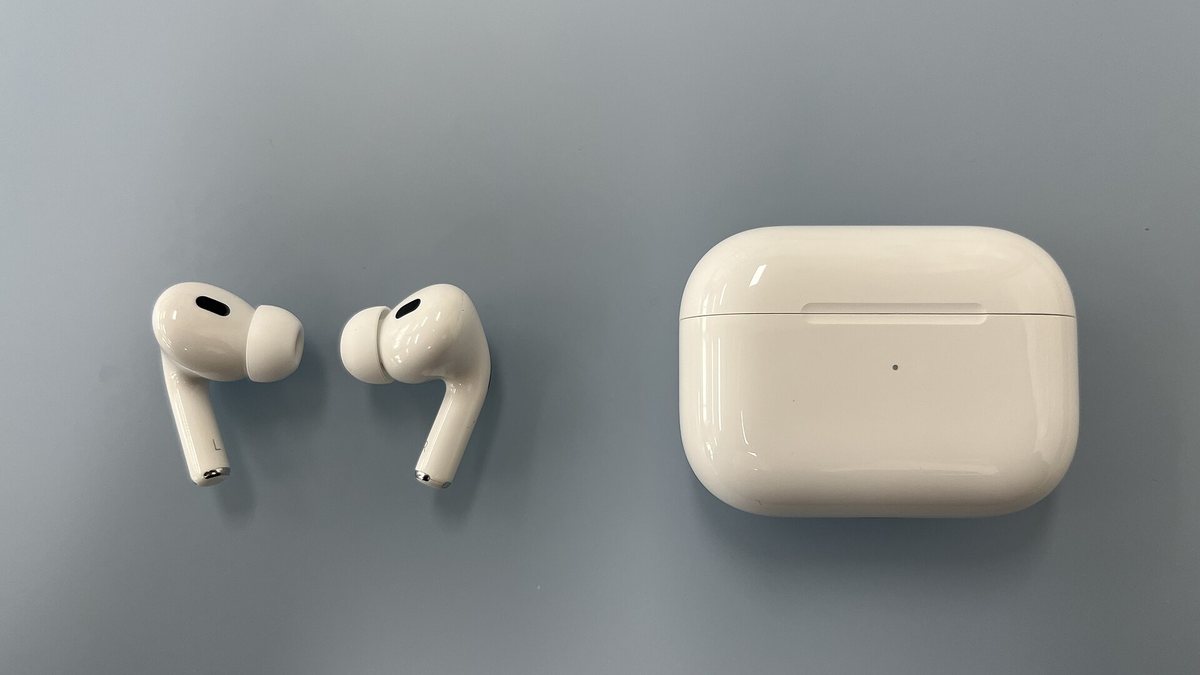
Featured photo: AirPods Pro 2 and their case, by Hajoon0102, CC BY-SA 4.0.
- A reset wipes stored pairing data. That fixes connection faults and touches nothing else, so match the symptom before you spend the evening re-pairing every device you own.
- The procedure genuinely differs by model. Setup button on older cases, three taps on the newest ones, two held buttons on AirPods Max.
- Amber is the halfway signal, not the finish line. Let go too early on AirPods Max and you have performed a restart instead.
- Tapping Forget This Device on your iPhone removes the AirPods from every device signed in to the same Apple Account, not just the phone in your hand.
- If a clean reset changes nothing, the fault is hardware and more resets will not find it.
What a Reset Actually Fixes and What It Leaves Alone
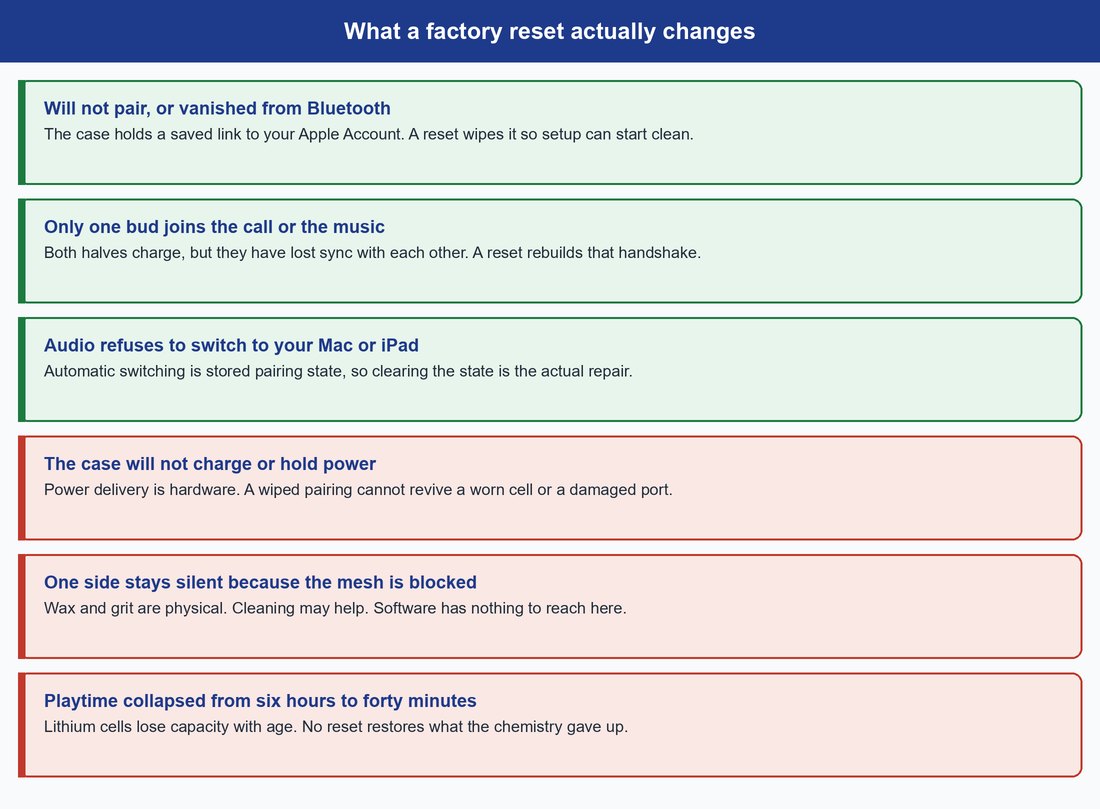
Think about what your AirPods actually store. The case and the buds hold a Bluetooth bond with your iPhone, a shared record of which device may claim them next, and a sync relationship between the left and right bud so the pair behaves as one device rather than two. That bundle of stored state is what syncs to your Apple Account, what lets audio hop from your Mac to your phone mid-sentence, and what a factory reset destroys. Nothing else in the product is software you can reach.
So the triage is simple once you say it plainly. Symptoms that live in stored state respond to a reset: buds that refuse to pair, a pair that has vanished from the Bluetooth list, one bud that charges perfectly but never joins the call, audio that will not switch to the iPad you are staring at. Symptoms that live in atoms do not care: a case that will not charge, a bud silenced by debris, playtime that has fallen off a cliff over three years.
That distinction costs you real time when you get it wrong. Wiping the pairing signs your AirPods out of every device on your Apple Account at once, so a pointless reset means re-pairing your phone, your laptop, your watch and your TV to fix a problem none of them had.
Note: Apple documents a restart separately from a reset, and it is much gentler. For AirPods and AirPods Pro, a restart is simply putting them in the case and closing the lid for at least 10 seconds. Try that before the full wipe, because a surprising share of “my AirPods are broken” moments clear on a restart with no re-pairing at all.
How to Reset AirPods and AirPods Pro Inside the Case
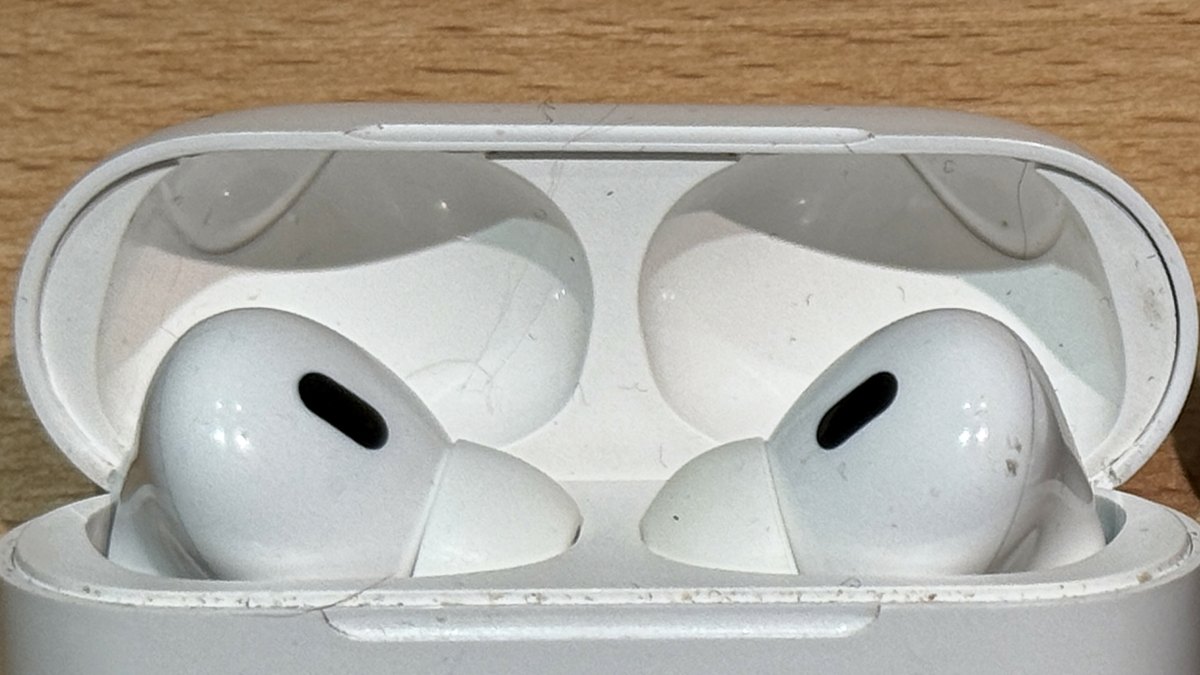
Both in-ear families reset from the case, with the lid open and the buds sitting in their wells. What changes between generations is how you tell the case you mean it. Apple’s own AirPods user guide is the source worth trusting here, because third-party instructions almost universally describe the older method and stop.
The Setup Button Method for Older AirPods and AirPods Pro
This covers AirPods 1st, 2nd and 3rd generation and AirPods Pro 1st and 2nd generation. Put both buds in the case, close the lid, and wait 30 seconds. That pause is not decoration, it is what lets the buds settle into the case and register as docked. Open the lid, then press and hold the setup button on the back of the case, the small recessed circle opposite the hinge, for about 15 seconds. Keep holding while the status light flashes amber. When it flashes white, the reset has landed and the buds are discoverable again.
The Three-Tap Method for AirPods 4 and AirPods Pro 3
Apple removed the setup button from the newest cases, which is why so many people decide their new AirPods are faulty. On AirPods 4 and AirPods Pro 3 you still put the buds in, close the lid and wait 30 seconds. Then open the lid and give it three double-taps — but the taps are timed to the light rather than tapped out at your own pace, which is the part almost every other guide leaves out. In Apple’s own reset instructions: double-tap while the status light is on, double-tap again when it flashes white, and double-tap a third time when it flashes faster. Amber then white confirms it, exactly as on the older cases.
Before you start, Apple also has you clear the account side first: on a paired iPhone or iPad, open Settings, tap Bluetooth, and if the AirPods are listed, tap the More Info button, then Forget This Device. If they are not listed, go straight to the taps.
Fix: if the light never reaches white, do not start over from the beginning. Close the lid for 20 seconds, open it again, and repeat your model’s sequence. Apple lists that pause as the standard retry, and it clears a mistimed attempt more reliably than another round of tapping.
If you are not certain which generation is sitting on your desk, our breakdown of the AirPods Pro 3 against the AirPods 4 will settle it in a minute.
How to Reset AirPods Max Without Stopping at the Restart
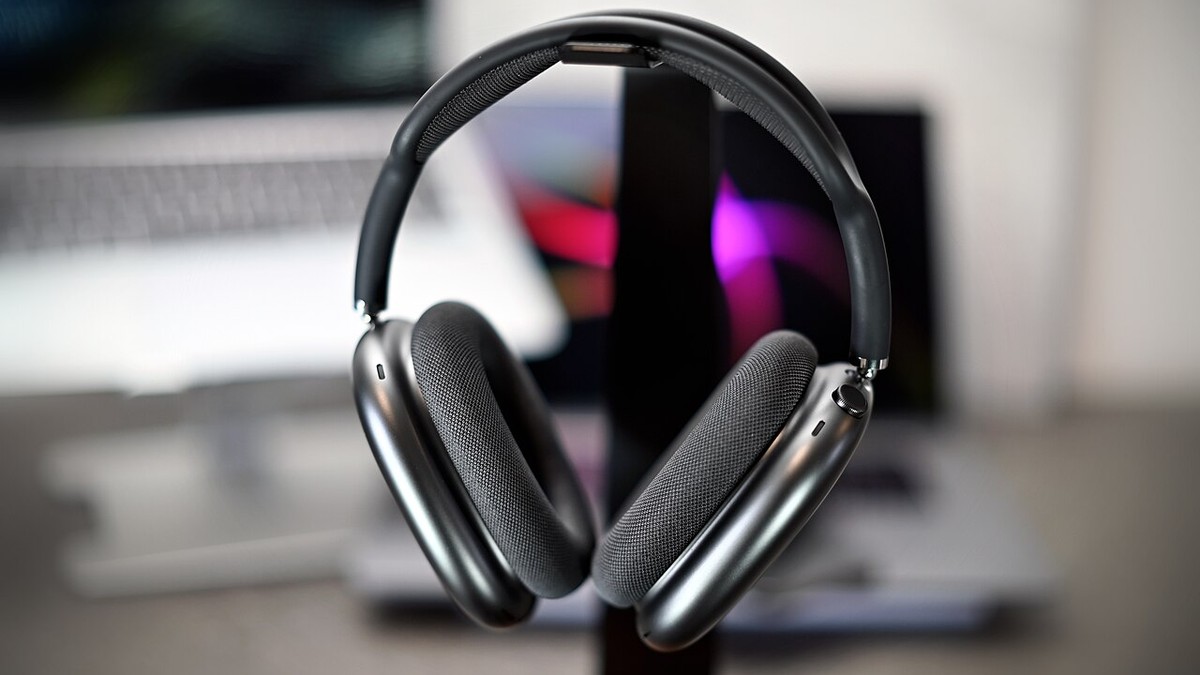
AirPods Max have no case procedure, because their case is a sleeve rather than a dock. Everything happens on the right ear cup, using the Digital Crown and the listening mode button beside it. Press and hold both at once and watch the status light next to the charging port. Hold until that light stops flashing amber and starts flashing white, roughly 15 seconds.
People fail this one because the amber flash arrives first and it looks like a result. It is not. Apple puts a number on both outcomes in the same AirPods user guide: the amber flash at around 10 seconds is the documented restart, a much smaller operation, and the change from flashing amber to flashing white at around 15 seconds is the reset. If your Max still misbehave after what you thought was a reset, that is almost certainly what happened.
Watch out: amber on AirPods Max is a fork in the road, not a finish line. Let go at amber and you restarted. Hold through to white and you wiped the pairing. The only difference between the two outcomes is about five seconds of patience.
What the Amber and White Status Lights Are Telling You
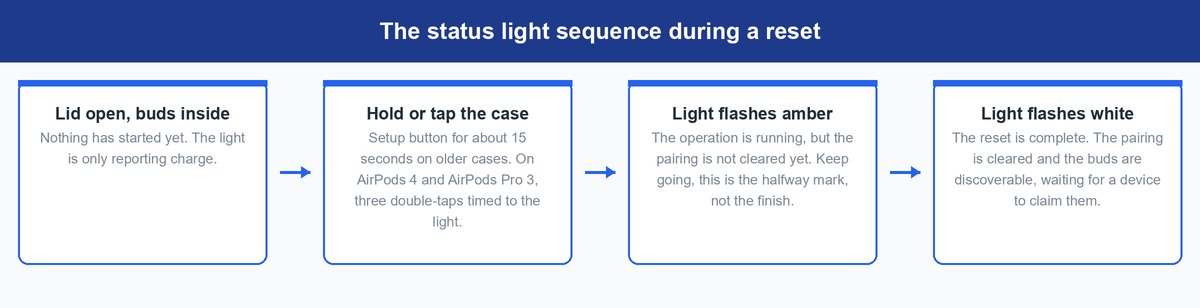
The status light is the only feedback these products give you, so read it properly. Before you begin it is reporting charge state and nothing else. Once you start holding or tapping, amber means the operation is running and the pairing has not been cleared yet. White means the wipe finished, and the buds are now advertising themselves to any device that will claim them.
If the light never reaches amber, you are not holding long enough, you are pressing something that is not the setup button, or the case has no charge left to run the operation. That last one catches people constantly. Charge the case for fifteen minutes and try again before concluding anything is broken.
Forgetting the Device and Resetting the Hardware Are Two Different Repairs
This is where most AirPods troubleshooting quietly goes wrong. On your iPhone you open Settings, tap the name of your AirPods near the top of the screen, and tap Forget This Device. On a Mac it is System Settings, your AirPods in the sidebar, Forget This Device. It feels local. It is not.
Apple is explicit that forgetting your AirPods removes them from every device where you are signed in to the same Apple Account. Your iPad, Mac, Apple Watch and Apple TV lose them together, because the pairing was never stored on one phone in the first place. It syncs.
So the two operations are halves of the same repair. Forgetting clears the record on the account side, a factory reset clears it on the hardware side. When a pair is genuinely stuck, forget the device first, reset the buds second, then pair from scratch, so neither side is holding a stale record of the other. Doing only one of the two is why the same fault returns a week later.
The catch: because forgetting propagates across your account, it also removes AirPods that other people in your household may currently be listening through if they are signed in to the same Apple Account. Warn them before you tap it, not after.
What a Reset Does to Find My and Your Other Apple Devices
AirPods sit in Find My, and the depth of that integration depends on the model. Apple’s Find My documentation for AirPods states that all models can be located, that AirPods 3, AirPods 4 with Active Noise Cancellation, AirPods Pro and AirPods Max stay visible on the Find My network for up to 24 hours after they last connect to your device, and that AirPods 4 with ANC, AirPods Pro 2 and AirPods Pro 3 show the case on the map as its own item.
A reset breaks that link, and it should. The point of the operation is that the buds no longer belong to an account, so they stop reporting to yours. If a bud is currently lost, do not reset. Wiping the half you are still holding takes the pair out of Find My and removes the strongest tool you have for recovering the other one. Find it first, troubleshoot second.
The same mechanism is what makes a reset the right move on second-hand AirPods, which keep reaching for the previous owner’s account until somebody wipes them.
How to Pair Your AirPods Back After the Reset
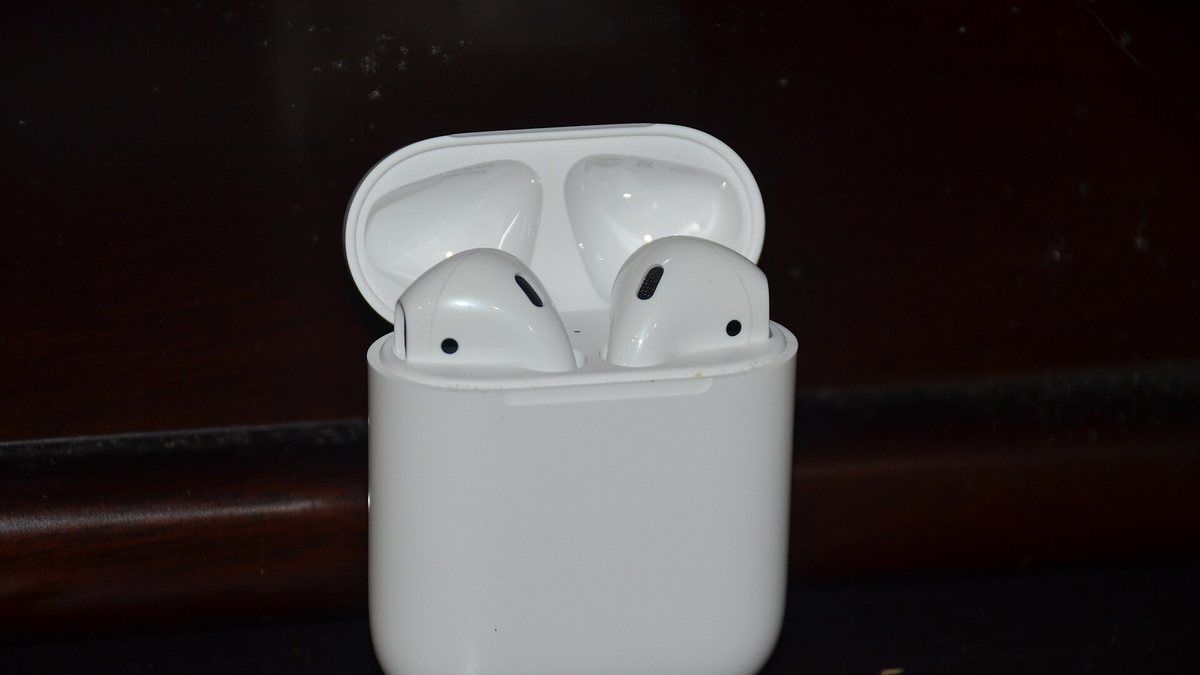
Re-pairing undoes the account-wide damage in one step. Unlock your iPhone, open the case with both buds inside, and hold it next to the phone until the setup animation appears. Tap through it and you are done. Because AirPods setup writes to your Apple Account rather than to a single device, your Mac, iPad, Apple Watch and Apple TV pick them up again automatically. You do not repeat this four times.
Tip: if the setup animation refuses to appear, do not restart the whole reset. Open the case, hold the setup button until the status light flashes white, then open Settings, go to Bluetooth and select the AirPods from the device list by hand. Apple lists this as the standard fallback in its pairing instructions, and it clears a stalled setup animation almost every time.
When the Honest Answer Is Service Rather Than Another Reset
One clean reset is diagnostic information. If the fault survives a completed wipe and a fresh pairing, you have learned something useful. The problem is not in the software, and repeating the reset will not change that verdict. The question then is whether the unit is still covered. Apple’s AirPods service and repair channel is where to check what your model qualifies for, and what you pay depends on whether you are still inside the one-year limited warranty or AppleCare+.
When the Charging Case Refuses to Power the Buds
A case that will not charge, or that charges but never passes power to the buds, is a hardware conversation from the first minute. Contacts corrode, ports collect lint, cells stop holding. None of that is stored state. Our guide to an AirPods case that will not charge has the full diagnostic path, and that is where this symptom belongs.
When Only One Side Plays After a Clean Reset
One-sided audio is the genuinely ambiguous symptom, because it can be either fault. If a reset brings the silent bud back, it was a sync problem and you are done. If that bud stays quiet after a completed reset and a fresh pairing, the cause is physical, usually a blocked mesh or a failed driver. Our walkthrough of AirPods playing in one ear only covers the steps that actually apply.
When Playtime Has Collapsed Beyond Repair
Earbud cells are tiny, they run hot, and they charge constantly. After roughly three years of daily use, a pair that once ran six hours can struggle to finish a long call. That is chemistry, not configuration. Battery service is the only answer, and no reset recovers a minute of it.
Frequently Asked Questions
Does resetting my AirPods delete anything I care about?
Not really. No music, recordings or personal data live on the buds. You lose the pairing itself, your custom name, and per-device settings such as press-and-hold behavior or accessibility adjustments. That is about two minutes of rebuilding after you re-pair.
Why is there no setup button on my AirPods case?
Because you own AirPods 4 or AirPods Pro 3. Apple dropped the physical button from those cases, and the gesture replacing it is three double-taps on the front of the case, each one timed to the status light: once while it is on, again when it flashes white, and a third time when it flashes faster. The light still ends on the same amber-then-white sequence, so everything after that is identical.
How long should I actually hold the setup button?
About 15 seconds, and the light is a more reliable guide than a stopwatch. Do not stop at amber. Amber only tells you the operation is running. White is the signal that the reset finished and the buds are ready to be claimed by a new device.
Do I need to forget the AirPods before resetting them?
For a stubborn connection fault, yes, and in that order. Forget the device first so the account side lets go, then reset the hardware so the buds let go. When only one of the two is cleared, a stale record survives on the other side and the same fault tends to return within days.
Will a reset fix AirPods that keep cutting out during calls?
Sometimes. Dropouts caused by a confused pairing, or by two devices fighting over automatic switching, do clear with a reset. Dropouts caused by radio interference, distance or a phone in your back pocket will not, and those cost nothing to rule out first.
Can I reset AirPods without an iPhone nearby?
Yes. Every procedure here runs on the hardware alone. You will need an Apple device afterwards, though, because Apple notes that AirPods removed from an account must be paired with a device associated with your Apple Account before they work normally again.
The Bottom Line
Knowing how to reset AirPods is worth ninety seconds of your attention. Knowing when not to bother is worth considerably more. Pairing faults, buds missing from the Bluetooth list and switching that has stopped switching are exactly what the reset was built for. Charging failures, blocked mesh and dying batteries are not, and no number of amber-to-white cycles changes that. Do it once, do it properly for your model, and if the fault survives, believe what the hardware just told you.