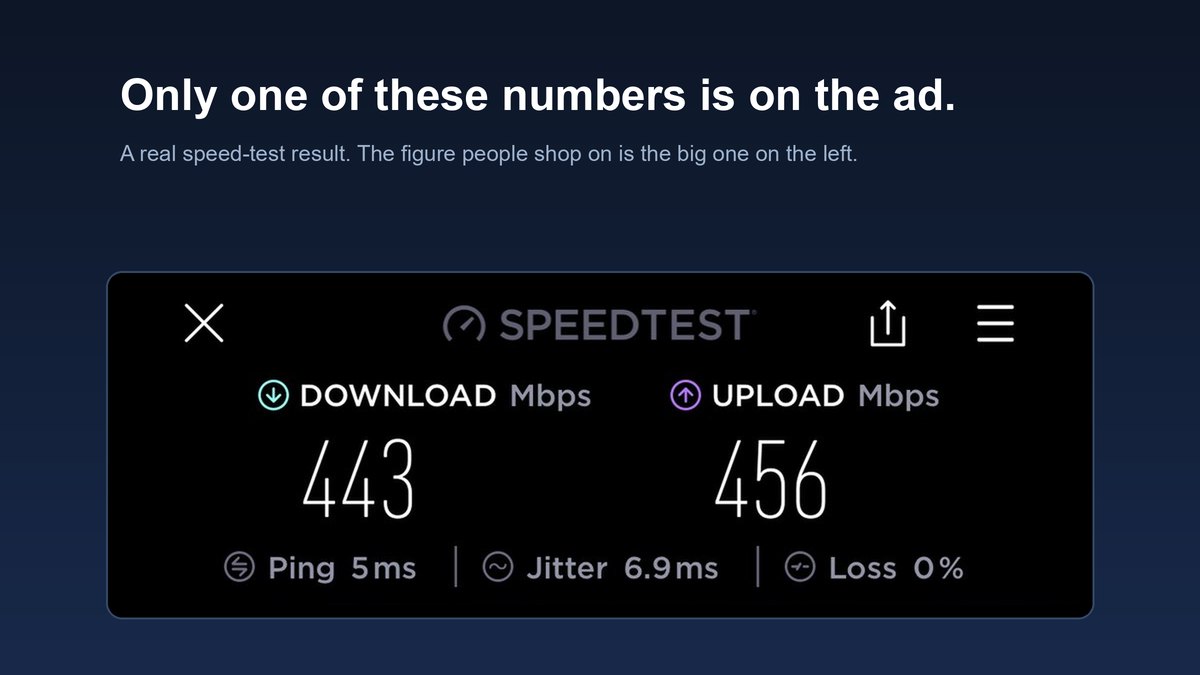
Your bill says 500 Mbps. Your video call says otherwise. And every article you open hands you the same nine-item list: reboot the router, run a speed test, you have too many devices. All first-step correct, all diagnostically useless, because none of it tells you which thing is broken.
Here is the part that changes your afternoon. When you ask why is my internet so slow, you are not describing one problem. You are describing three unrelated faults wearing the same costume: a slow link (the line into your home), a slow Wi-Fi hop (router to device), or a slow far end (the server you are pulling from). Same symptom, three different fixes. Pick the wrong one and you pay monthly for a problem you never had.
One scope note: this is connected-but-sluggish, full bars and crawling. Wi-Fi that actually drops and reconnects is a different symptom with a different fix path, covered in why your WiFi keeps dropping. Past diagnosing and into shopping? Our router guide handles that.
- “Slow internet” is three separate faults — a slow line, a slow Wi-Fi hop, or a slow far end — and almost every guide treats them as one.
- Speed-test over Ethernet, then run the identical test over Wi-Fi from the same spot. That gap names your fault in about ninety seconds.
- A device parked on 2.4 GHz tests at roughly 40–100 Mbps on a gigabit plan. It is the most misdiagnosed problem in home networking, and the ISP takes the blame almost every time.
- Fast speed test but stuttering calls means bufferbloat, which a speed test structurally cannot show you.
- Sometimes the far end is simply slow, and a bigger plan changes nothing.
The fine print: TechDaily earns a commission on some links in this article. It never changes what we recommend.
The Three Faults That Wear the Same Costume
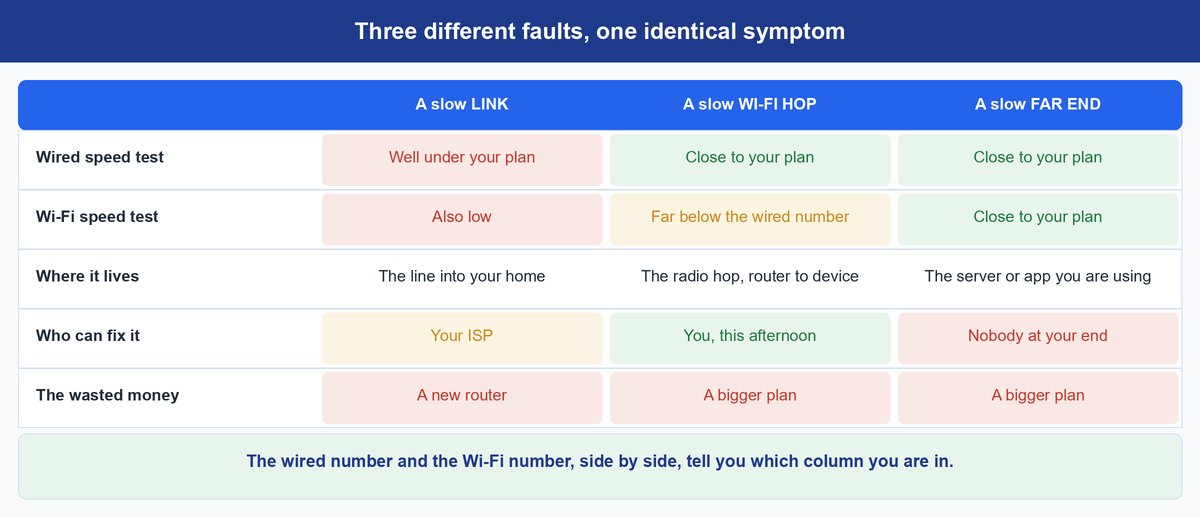
A slow link means the connection between your house and your ISP is not delivering what you pay for: a degraded line, an oversubscribed neighborhood node, a dying modem. Nothing you own fixes it.
A slow Wi-Fi hop means the line is healthy and the last thirty feet are the problem: wrong band, weak signal, a router stuffed in a media cabinet. Most common of the three, and the one you can fix this afternoon.
A slow far end means your side is fine and the server is congested, rate-limiting you, or far away. One app buffering while everything else flies is almost always this.
The catch: one speed test cannot separate them. It measures the link and the Wi-Fi hop mashed into a single number, and never touches the far end at all. That is exactly where the standard advice dead-ends.
How to Isolate the Fault in About Ninety Seconds
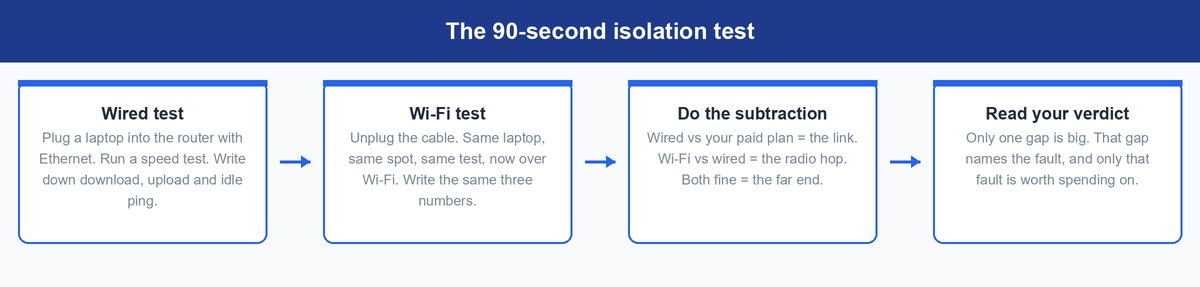
Run the speed test twice and subtract. It is the only measurement in home networking that isolates a fault instead of describing one.
- Wired. Plug a laptop straight into the router with Ethernet. Run a speed test. Note download, upload and idle ping.
- Wireless. Unplug. Same laptop, same room, same test, now over Wi-Fi. Note the same three numbers.
- Subtract. Wired versus your paid plan measures the link. Wi-Fi versus wired measures the radio hop. Both healthy means the far end is the fault.
Fill it in with your own numbers. One row will be obviously wrong, and that row is your answer.
| Measurement | Your number | How to read it |
|---|---|---|
| Plan you pay for | ____ Mbps | The number on your bill, not the one in the ad |
| Wired download | ____ Mbps | Within roughly 15% of the plan means the link is healthy |
| Wi-Fi download, same room as router | ____ Mbps | Within roughly 30% of wired means the radio hop is healthy |
| Wi-Fi download, the room that annoys you | ____ Mbps | A drop only here is coverage, not speed |
| Idle ping | ____ ms | Your baseline latency |
| Ping while a large upload runs | ____ ms | Several times the idle figure points at bufferbloat |
Fix: No Ethernet port on the laptop? A USB-C to Ethernet adapter plus a Cat 6 Ethernet cable runs about $25 and turns every future ISP call into a numbers argument instead of a feelings one.
Why One Device Crawls While Everything Else Is Fine
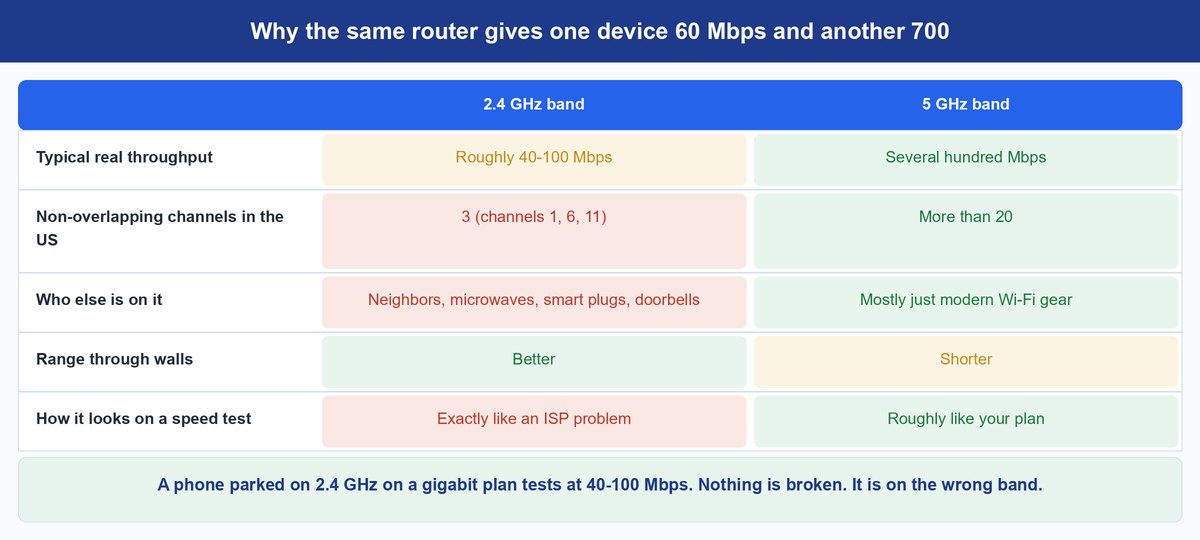
Your router broadcasts on two bands under one network name, and each device picks its own. Devices are famously bad at this. Once a phone latches onto 2.4 GHz it stays there long after it should have moved, and never tells you.
The consequence is brutal. In the US, 2.4 GHz has three non-overlapping channels — 1, 6 and 11 — shared with every neighbor, microwave, smart plug and doorbell in range, and real throughput lands roughly 40–100 Mbps. On a gigabit plan that reads as catastrophic ISP failure. It is not. It is one device on the wrong band.
Your router’s client list shows the band each device joined. The fix is to split the bands into two network names and move the sulking device to the 5 GHz one. Modern gear runs both — Wi-Fi CERTIFIED 6 covers 2.4 and 5 GHz, 6E adds 6 GHz — so this is configuration, not age. Weighing new hardware anyway? Wi-Fi 6 versus Wi-Fi 7 settles whether it is worth the money.
Keep in mind: some smart-home gadgets only speak 2.4 GHz and will refuse a new name. Leave your existing network name on the 2.4 GHz band so the doorbell and plugs stay connected, and give the 5 GHz band the new name.
When the Speed Test Is Fast and Calls Still Stutter
This one breaks the speed-test ritual completely. Your test reports 480 Mbps down. Your call still sounds underwater. Both are true at once.
The culprit is bufferbloat — gear holding far too much data in oversized buffers. When something saturates your connection, usually upstream, those queues fill and every other packet waits behind them. Latency balloons while throughput stays gorgeous. A speed test measures throughput, precisely the thing that still looks healthy, which is why “just run a speed test” leads people nowhere.
You spot it by watching latency under load: start a large upload, ping something, compare against idle. Many speed tests now report a loaded-latency or bufferbloat grade for exactly this reason. The fix is smart queue management, the consumer name for the fq_codel scheduling in RFC 8290. Routers ship it as “QoS”, “Smart Queues” or “Bufferbloat”: enable it, then cap upload just below your measured rate so the queue sits where it can be managed.
Watch out: a bigger plan does not fix bufferbloat. The queue hurting your calls is usually the upload one, and upload is the number providers raise last and least.
What Your Two Numbers Tell You to Do Next
There are only three endings here, and each has one correct action.
When the Wired Test Comes In Under Your Plan
It is the link, so call. Give them your wired figures, when you took them, and your plan name. Ask for three things: a line check from their end (signal levels on cable, sync rate on DSL, optical power on fiber), confirmation your modem is supported and not end-of-life, and a ticket number. Say up front you have already rebooted.
When Wi-Fi Falls Far Below the Wired Number
It is your hop, so fix it yourself. Move the router out of the cabinet and off the floor first — free, and often enough alone. If distance is the real issue, add a second access point fed by an Ethernet run rather than a repeater: a node relaying over Wi-Fi shares one radio for both jobs and can cut throughput roughly in half per hop. A mesh system with Ethernet backhaul sidesteps it.
When Both Numbers Come Back Healthy
It is the far end, and the grown-up move is to accept it. A congested game server does not care what you pay. If you are unsure your plan fits the household, that is a sizing question rather than a fault, and how much internet speed you actually need works through the maths.
Three faults, one costume. Ninety seconds of subtraction is all that stands between you and knowing which one you actually have.
Frequently Asked Questions
Why is my internet so slow all of a sudden?
Something changed, and the wired test finds it fastest. If the wired number is still fine, the change is inside your home: a background sync, a firmware update that reset your channel or QoS, a neighbor’s new router landing on your channel. If the wired number is also low, it is your provider’s side, and now you can prove it.
Why is my internet so slow at night?
On cable broadband the coax serving your street is shared, so evening peaks genuinely congest it. On fiber or DSL the local loop is yours, so a nightly slowdown usually means a busy streaming or game server, or more devices awake at home. Compare a wired test at 9 p.m. against one at 11 a.m.
Why is my WiFi so slow but ethernet is fast?
That gap is the definition of a slow Wi-Fi hop, which is good news because you control it. Usual causes in order: the device sat down on 2.4 GHz, the router is boxed in or on the floor, too many walls, a crowded channel. None are ISP problems, and none are fixed by a faster plan.
Why is my internet slow on only one device?
Because the fault is on that device. Check which band it joined first — a client stuck on 2.4 GHz explains most cases. If the band is right, suspect the machine: a full disk, a VPN quietly still running, distant DNS, a bad extension. Put it on your phone’s hotspot; still slow there and the device is the problem.
Why is my internet so slow when I pay for fast speed?
Because the money bought link capacity and the bottleneck is not the link. A gigabit plan still crosses one Wi-Fi hop to reach your laptop, and that hop can cap you at 60 Mbps with nothing broken. Run the wired test: if it lands near your plan, you are already getting what you paid for.
Does rebooting the router actually fix slow internet?
Sometimes, and it costs thirty seconds, so do it. What it will not do is tell you anything. A reboot clears a wedged state; it never separates a bad line from a bad radio hop from a slow server. Reboot once. If the slowness comes back, start measuring.