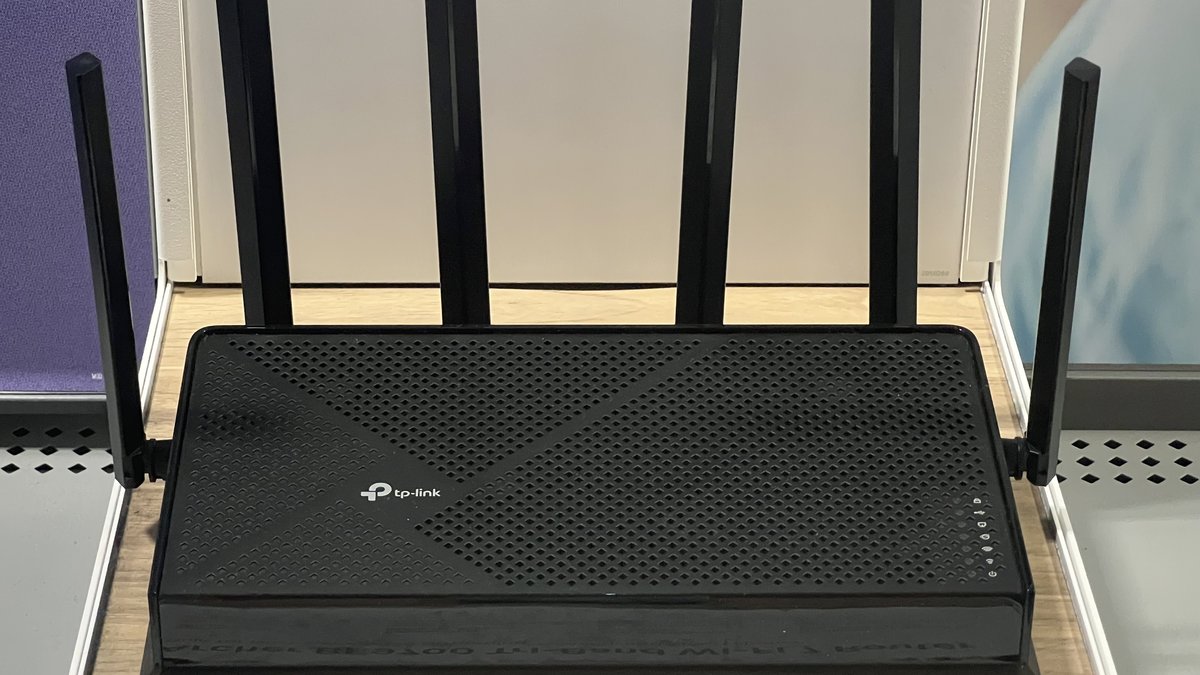
Here’s the thing nobody tells you when your wifi keeps dropping: the router you’re about to throw across the room is almost never the culprit. I’ve fixed this exact problem in dozens of homes, and the pattern is boringly consistent. The connection isn’t broken — it’s fighting for air. Your wifi lives in a crowded slice of invisible radio spectrum, sharing it with every neighbor’s network, your microwave, a cheap USB drive, and sometimes literal weather radar. When one of those wins the fight, your device goes silent for a few seconds to a minute, and you call it a “drop.”
Published July 8, 2026 · Last updated July 12, 2026
So before you buy a new router or scream at your ISP, understand the real order of operations. Most drops trace back to two things: the RF environment around your router and how your bands are set up. Fix those first and the “random” disconnects usually stop cold. Power settings on your devices come next. Firmware and actual dead hardware come dead last — because they’re the rarest cause, not the first thing to blame. This guide walks that decision tree in order, then handles every device that famously drops: iPhone, laptop, PC, MacBook, PS5, and your TV.
Short on time? Match your symptom to its first fix below, then jump to the section that explains it.
| Symptom | Likely Cause | First Fix |
|---|---|---|
| Drops every evening, fine late at night | 2.4 GHz congestion from neighboring networks | Pin 2.4 GHz to channel 1, 6, or 11 |
| One device drops while the rest stay connected | A power-saving or roaming setting on that device | Fix that device’s setting (per-device fixes below) |
| Whole house stalls at random moments | Band thrash on one shared network name, or DFS radar on 5 GHz | Split the bands into two named networks; move off DFS channels |
| Drops when the microwave or a USB 3.0 drive runs | 2.4 GHz interference | Move the offender a few feet from the router |
| Wired Ethernet drops too | Modem, cabling, or an ISP outage | Check the modem lights, then Downdetector, then call your ISP |
| Only devices far from the router drop | Weak signal at range | Add a mesh node or run Ethernet to that room |
- When your wifi keeps dropping, work the RF environment and band setup first, device power settings second, and firmware or hardware dead last. That order fixes the most drops for the least effort.
- The single highest-value move is splitting your bands into two named networks (like MyWiFi-2.4 and MyWiFi-5) and pinning the 2.4 GHz band to channel 1, 6, or 11. This alone kills most “random” disconnects.
- The 2.4 GHz band has only three non-overlapping channels, so you and your neighbors are all crammed into the same lanes. Congestion there is the number one silent drop-maker.
- Weird culprits are real: a USB 3.0 drive next to your router can jam 2.4 GHz, and a 5 GHz network on a DFS channel gets kicked off the air whenever nearby radar shows up.
- Every device that drops has its own silent setting behind it — Windows quietly powering down the wifi card, an iPhone bailing to cellular, a PS5’s weak antenna. Fix the air first, then chase the device.
The Real Reason WiFi Drops and Why Routers Get Blamed
Wifi is radio. Your router and your laptop are tiny two-way radios shouting at each other across your living room, and radio only works when the channel is clear enough to hear over the noise. Every drop is really one of two failures: the signal got too weak, or the noise got too loud. A “broken” router almost never does either on its own — something in the environment does it to the router.
That’s why swapping routers so often “fixes” it for a week and then the drops come back. You didn’t repair the connection; you reset it and got lucky with a temporarily quieter channel. Then your neighbor’s network drifts back onto your frequency, or your own gear starts radiating interference again, and you’re back to square one. The router was never the problem. The air around it was.
Note: Before you touch anything, watch when the drops happen. Every evening at 8 p.m.? That’s congestion, when the whole street streams at once. Only when the microwave runs? That’s 2.4 GHz interference. At totally random times near an airport or coast? Suspect DFS radar. The timing pattern points straight at the cause, and it saves you hours of guessing.
Once you accept that the airwaves are the battlefield, the fix order writes itself. Clear the air and fix the bands, then handle the device, then — only if you’re still dropping — look at the box itself. Let’s go in that order.
The Root Causes Behind Constant WiFi Drops

These are the four mechanisms that cause the overwhelming majority of drops, in the order you should attack them. Read the why on each one, because understanding the mechanism is what lets you recognize your own situation instead of blindly flipping switches.
The 2.4 GHz Band Is Overcrowded With Only Three Real Lanes
The 2.4 GHz band feels roomy on paper — it lists channels 1 through 11 (or 13). The catch is that each channel is wide enough to bleed into its neighbors, so there are really only three non-overlapping channels: 1, 6, and 11. Everyone in radio range shares those three lanes. Your router, the four networks you can see from your couch, plus a dozen you can’t, are all elbowing for the same space.
When your router is set to “Auto” or, worse, sitting on an overlapping channel like 3 or 9, it’s straddling two of those three lanes and colliding with everything on both. That collision is a drop. Pin the 2.4 GHz band to 1, 6, or 11 — whichever one your neighbors are using least — and you stop straddling. This is the closest thing to free performance you’ll find.
Tip: Use a phone wifi analyzer app to see which of channels 1, 6, and 11 is least crowded in your specific spot, then hard-set your 2.4 GHz radio to that one in the router admin page. Don’t leave it on “Auto” — Auto re-picks on reboot and often lands on an overlapping channel that quietly wrecks the whole band.
A USB 3.0 Drive Near Your Router Jams the 2.4 GHz Band
This one sounds like a myth and it is completely real. Intel documented it back in 2012 in a white paper titled USB 3.0 Radio Frequency Interference Impact on 2.4 GHz Wireless Devices (document 327216-001). USB 3.0’s data is scrambled and clocked in a way that radiates broadband noise across roughly 2.4 to 2.5 GHz — smack on top of the wifi band — leaking out of the connector, the cable, and the device itself.
The real-world version: someone plugs a USB 3.0 external hard drive, an unshielded hub, or a dock into a laptop or a router’s USB port, sits it right next to the wireless gear, and the noise floor on 2.4 GHz jumps. The receiver can no longer hear the router over the racket, and nearby 2.4 GHz devices start dropping. It looks like a haunted router. It’s a physics problem with a two-second fix.
Note: If a 2.4 GHz gadget only misbehaves when an external drive or dock is running, move that USB 3.0 device and its cable at least a few feet from the router and any 2.4 GHz dongle, and use a shielded cable. This is documented behavior straight from Intel, not folklore, and repositioning the drive genuinely restores the band.
DFS Radar Kicks Your 5 GHz Network Off the Air
Here’s a sneaky one that only bites certain homes. A big chunk of the 5 GHz band — channels 52 through 144, the DFS range — is shared with weather, military, and aviation radar, and radar has legal priority. Your router is a guest there. The moment it detects radar energy on the DFS channel it’s using, it is required to vacate immediately and hop to a new channel, dropping every connected client for a minute or more while it moves. On top of that, when a router first boots onto a DFS channel it runs a Channel Availability Check and keeps that channel dark for one to ten minutes before it’ll even transmit.
So if you live near an airport, a coastline, or a weather-radar site and your 5 GHz network drops periodically — clean for hours, then a dead minute, then fine again — DFS radar is your prime suspect. Nothing is wrong with your router. It’s doing exactly what the rules demand.
Caveat: Moving off DFS to a non-DFS channel like 36 through 48 or channel 165 stops the radar-eviction drops, but it also means you’re sharing that smaller pool of non-DFS channels with more neighbors. It’s a real trade-off: fewer radar drops, potentially more congestion. Near radar sources, the stability is almost always worth it.
One Shared Network Name Makes Devices Thrash Between Bands
Most routers ship with 2.4 GHz and 5 GHz broadcasting under a single network name, with “band steering” deciding which one your device uses. In theory it’s seamless. In practice, a device sitting at the edge of 5 GHz range keeps bouncing back and forth — jump to 5 GHz, signal weakens, fall back to 2.4 GHz, look strong again, jump back — and every one of those handoffs is a brief stall. To you it reads as a random drop, especially on video calls and games where a half-second gap is instantly obvious.
The device and the router disagree about which band is better, and they keep re-litigating it forever. The cleanest fix is to stop making them guess, which leads straight into the single most effective change in this whole guide.
The One Fix That Stops Most Random Drops
If you do nothing else, do this: split your bands and give them separate names. In your router admin page, turn off the single-SSID or “smart connect” option, then name your 2.4 GHz network something like MyWiFi-2.4 and your 5 GHz network MyWiFi-5. Now each device connects to exactly one band and stays put — no more thrashing on the handoff, no more mystery stalls.
While you’re in there, pin that 2.4 GHz network to channel 1, 6, or 11. That combo — split, rename, and lock the channel — resolves the biggest single share of “my wifi keeps dropping for no reason” cases I ever see. It costs nothing, takes five minutes, and it targets the two mechanisms (band thrash and 2.4 GHz congestion) that cause the most drops.
Tip: After you split the bands, connect your close-up, speed-hungry gear (laptop, phone, console, TV) to the 5 GHz network for speed, and put your far-away or low-bandwidth stuff (smart plugs, older sensors, a garage camera) on 2.4 GHz for range. You get the best of both bands instead of letting the router flip a coin every few minutes.
Keep in mind: This is exactly why congested 2.4 GHz is more than an annoyance. A lot of smart-home gear — video doorbells, security cameras, smart plugs — is 2.4 GHz only, and when that band is jammed, those devices drop silently. You don’t get an alert. You find out when the doorbell clip you needed is missing or your camera has a gap right when something happened. Fixing 2.4 GHz congestion isn’t just about smoother Netflix; it’s about the gear you’re trusting to actually be recording.
If splitting the bands helped but a specific device still drops while everything else is rock solid, the problem has moved from the air to that device. That’s where the per-device settings come in — and almost every one of them is a silent power-saving trick working against you.
Why WiFi Keeps Dropping on Each Specific Device
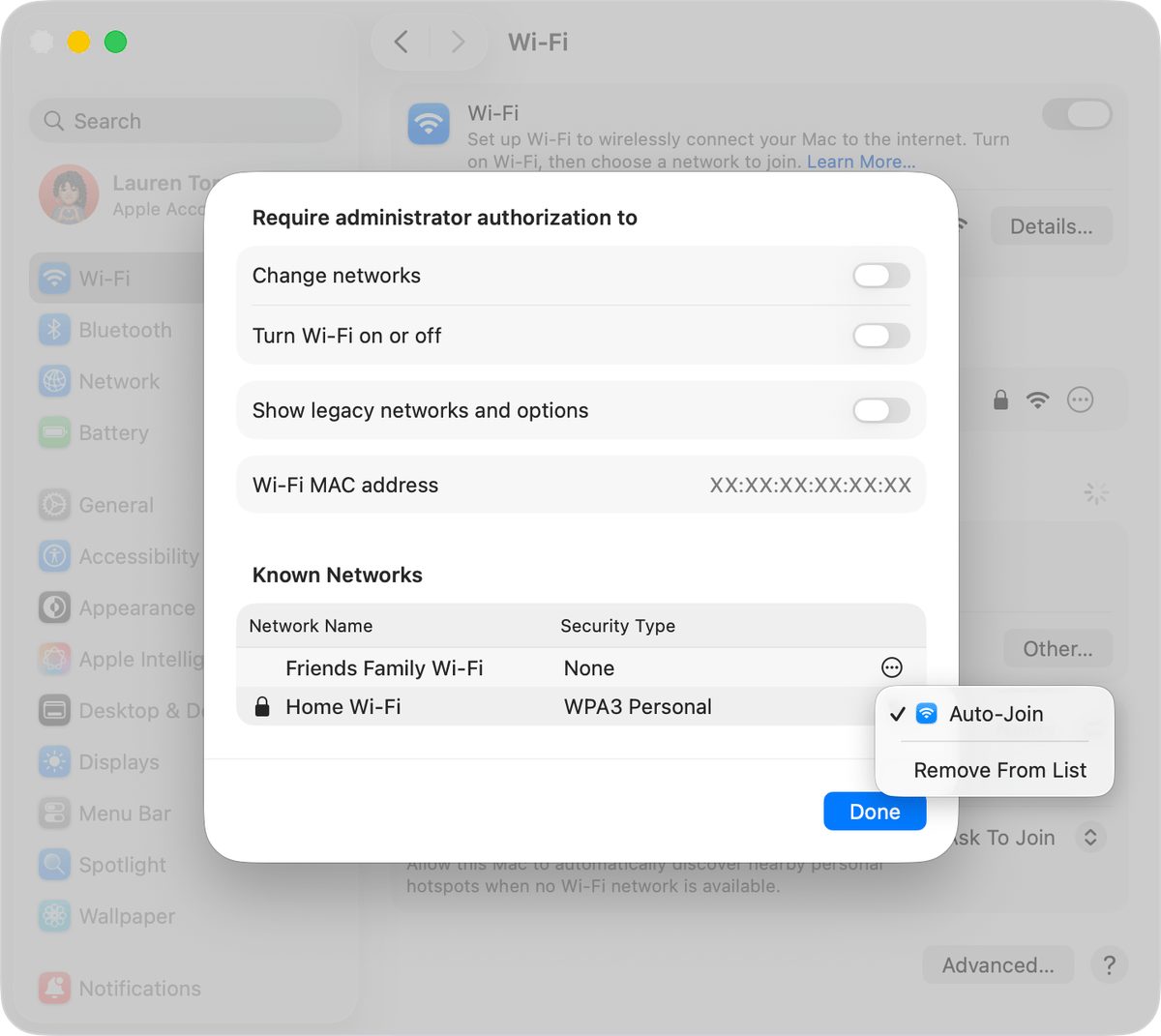
When one device drops and the rest of the house is fine, stop blaming the router and look at the device. Each of these has a specific, often hidden setting that quietly kills the connection.
Why WiFi Keeps Dropping on an iPhone
The iPhone is built to protect your experience, and that’s exactly what disconnects it. Two features do it. “Auto-Join” will happily hop onto a weak remembered network the second it sees it, even a worse one, and “Wi-Fi Assist” silently hands you off to cellular data when wifi looks shaky — so it feels like wifi dropped when really the phone quietly abandoned it. If you just split your bands, your iPhone may also be clinging to the old network name and needs a nudge.
The fix: forget the old network, then join your new split 5 GHz SSID fresh so the phone commits to it. In Settings, turn off Wi-Fi Assist if your phone keeps sliding to cellular at home. And know that Private Wi-Fi Address (the iPhone’s per-network random MAC) occasionally trips a router’s MAC filter or device limit, which reads as a drop.
Caveat: If your iPhone connects fine but drops the instant it’s been idle or the screen locks, and you use MAC-based parental controls or a device allow-list on your router, toggle Private Wi-Fi Address off for that network only. The random address can look like a brand-new unknown device to the router and get quietly booted. Leave it on for public networks, where it protects your privacy.
Why WiFi Keeps Dropping on an Android Phone
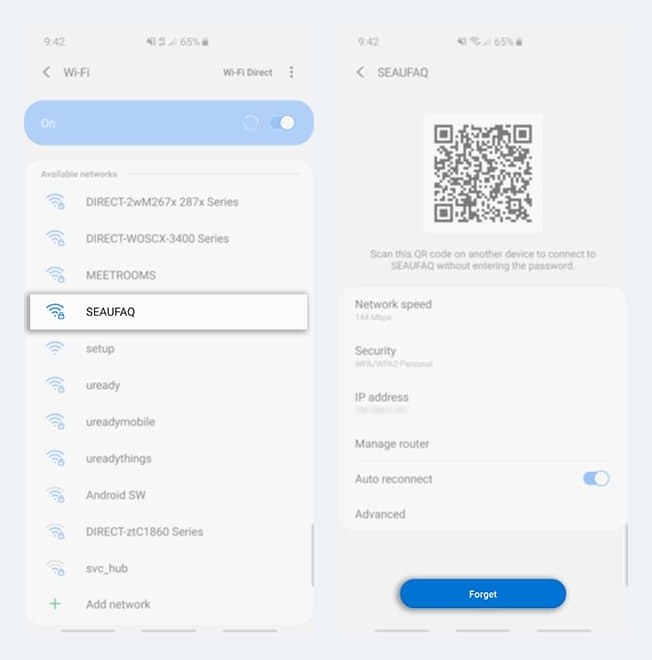
Android’s problem is that three different helpers are all allowed to touch your connection, and none of them tells you when it does. Stock Android and Pixels have a “Switch to mobile data automatically” toggle (under Network preferences in your wifi settings) that bails to cellular the moment wifi looks weak — the same silent abandonment as the iPhone’s Wi-Fi Assist. Samsung goes further and buries a whole Intelligent Wi-Fi menu inside Connections, with its own switch-to-mobile-data logic. And on top of both, Android’s battery optimization — Adaptive Battery and the per-app “optimized” state — is allowed to choke background network access once the screen goes dark, which is why an Android that “drops” mostly when idle usually hasn’t dropped at all. The radio was told to stand down to save a few milliamps. Turn off the mobile-data handoff for your home network, and if a specific app keeps missing messages until you open it, set that app’s battery usage to Unrestricted instead of blaming the router.
If the drops survive that, do a clean forget-and-rejoin: forget your network in wifi settings, reboot the phone, and join your split 5 GHz name fresh so the phone commits to one band with clean credentials. This matters double if you just renamed your networks, because Android happily keeps chasing the stale saved entry forever. Still dropping when every other device is stable? Use the last resort — a network settings reset (Settings, System, Reset options, “Reset Wi-Fi, mobile & Bluetooth” on stock Android; Settings, General management, Reset on a Samsung). It rebuilds the phone’s entire network stack and clears corrupted saved-network data that survives an ordinary forget.
Keep in mind: A network settings reset wipes every saved wifi password, every paired Bluetooth device, and your cellular preferences — not just the one network that’s misbehaving. Have your wifi password written down before you tap it, and expect to re-pair your earbuds and watch afterward.
Why WiFi Keeps Dropping on a Laptop
On a Windows laptop, the number one silent killer lives in one checkbox. Open Device Manager, expand Network adapters, right-click your wifi adapter, open Properties, and go to the Power Management tab. There’s a box labeled “Allow the computer to turn off this device to save power,” and it’s checked by default. That means Windows will literally power down your wifi radio when it thinks the laptop is idle — especially on battery — and you come back to a dead connection that reconnects a beat too late.
Uncheck it. That’s the whole fix for a huge share of laptop-only drops. It’s the classic one because it’s invisible: nothing tells you Windows just switched your radio off to save a fraction of a watt.
Tip: While you’re in there, also open your power plan’s advanced settings and set “Wireless Adapter Settings” to Maximum Performance for both battery and plugged-in. Windows otherwise throttles the radio to save power, which weakens the link right at the edge of range and turns marginal signal into a drop.
Why WiFi Keeps Dropping on a Windows 11 PC
Windows 11 is the same power-management story as a laptop, plus two extra wrinkles worth knowing. First, the same Device Manager power checkbox exists and should be unchecked. Second, Windows 11 leans harder on aggressive power throttling, and it ships with a “Random hardware addresses” setting under Wi-Fi settings that, like the iPhone’s private address, can confuse a router that filters or limits devices by MAC.
On a desktop PC specifically, there’s one more thing: a lot of towers rely on a cheap wifi adapter or a tiny antenna screwed onto the back, often stuffed under a desk behind a metal case. Weak placement plus power throttling is a drop waiting to happen. If your desktop is the only thing dropping, a cheap USB wifi adapter with an external antenna you can position often solves it outright.
Note: In Windows 11, go to Settings, Network and internet, Wi-Fi, click your network, and check the “Random hardware addresses” toggle. If your router uses MAC filtering or a device allow-list, set this to Off for your home network so the PC always presents the same address the router expects. On a network with no MAC filtering, you can leave it on with no downside.
Why WiFi Keeps Dropping on a MacBook
Macs have a specific bad habit: they cling to whichever remembered network they think is best, and their idea of “best” is often a weaker network you’d never choose. If your MacBook drifts off your strong 5 GHz network onto a distant one — or onto the old pre-split name — it’s the preferred-network order doing it.
Fix it in System Settings, Wi-Fi, Advanced. You’ll see your list of remembered networks; drag your strong split-band SSID to the top and delete every junk network you’ll never use again (old cafes, that one hotel, a neighbor’s guest network you connected to once). The Mac walks that list top-down, so putting the right network first stops the drift. Also worth knowing: macOS uses wifi scanning for Location Services, and those periodic background scans can cause a brief hiccup on an already-marginal connection.
Tip: Hold Option and click the wifi icon in your menu bar for a hidden diagnostics panel showing your live RSSI (signal strength) and the exact channel you’re on. If RSSI is worse than about -70 dBm, your drops are a range or interference problem, not a Mac bug — move closer to the router or fix the channel before blaming the laptop.
Why WiFi Keeps Dropping on a PS5
The PS5 has a deserved reputation for a weak, 2.4 GHz-biased wifi antenna. Tucked inside a dense console chassis, often sitting in an entertainment cabinet behind a TV and a tangle of gear, its radio just doesn’t pull signal like your phone does. Left to its own devices it frequently latches onto the congested 2.4 GHz band and rides it into the ground, which is why PS5 drops so often line up with the exact 2.4 GHz congestion we’ve been talking about.
The move is to force it onto your split 5 GHz SSID. Go to Settings, Network, Settings, Set Up Internet Connection, and manually pick your 5 GHz network instead of letting it auto-choose. If the PS5 is far from the router, this is one of the strongest arguments for a mesh node or a wired connection. Two more gotchas: a flaky DNS can look like a drop (try 1.1.1.1 or 8.8.8.8 in the manual network setup), and Rest Mode’s “Stay Connected to the Internet” setting can hand you a dropped connection on wake if the console’s low-power network state gets confused.
The catch: If your PS5 sits more than a room away from the router, no setting fully saves that little antenna — the 5 GHz signal it needs for speed also fades fastest through walls. A wired Ethernet run or a mesh node right next to the console does more than any menu toggle. For a stationary box that streams and downloads dozens of gigabytes, wired is the real fix.
Why WiFi Keeps Dropping Out on a TV
Smart TVs are where cheap radios go to disappoint you. Manufacturers spend their budget on the panel, not the wifi chip, so the TV’s radio is often weak, 2.4 GHz-only, and buried behind a big metal-and-glass screen that blocks its own signal. Default a weak 2.4 GHz-only radio into a congested band and you get a picture that buffers and drops right in the middle of a movie.
Two things fix most TV drops. First, if the TV can see 5 GHz, put it on your split 5 GHz SSID for a cleaner, faster lane. If it’s genuinely 2.4 GHz-only, then fixing that band’s channel (1, 6, or 11) and cutting congestion matters even more, because the TV has nowhere else to go. Second, hunt down the TV’s power-saving or “eco” network setting — many sets quietly cut power to the wifi radio to save energy, which drops the stream. Turn that off. And be honest about distance: a TV two rooms from the router, on a bad radio, may simply need a mesh node nearby or a cheap Ethernet run.
Keep in mind: A streaming stick or box (a Roku, Fire TV, Apple TV, or Chromecast) almost always has a far better wifi radio than the TV’s built-in smart platform. If a specific TV keeps dropping and nothing else does, plugging in an inexpensive streaming stick and using its wifi instead of the television’s often ends the problem entirely — you’re bypassing the weakest radio in the house.
Is It Your Router, Your Modem, or Your ISP?
Everything above assumes the problem is wifi — the air between your router and your devices. But sometimes the whole chain goes down: every device, wired and wireless, all at once. That’s a different animal, and it hits harder than it used to — Deloitte’s Connected Consumer survey puts the average US household at 21 connected devices across 13 different device types, so one line hiccup now silences a whole houseful of gear simultaneously. That’s exactly why it feels catastrophic, and exactly why people factory-reset a perfectly innocent router. Before you touch anything, spend five minutes ruling the chain in or out — modem lights, then your ISP’s status, then the physical cables. In that order, because each check is faster than the one after it.
Read Your Modem’s Status Lights Before You Reboot Anything
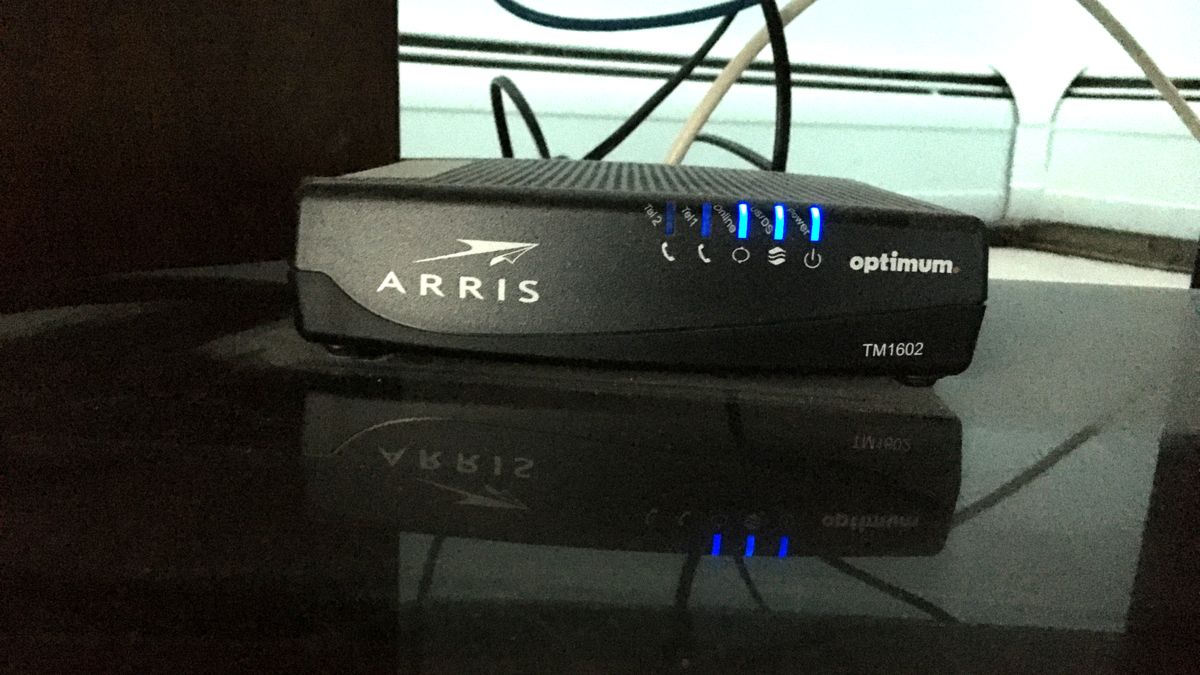
The lights on the front of your modem are a live diagnostic, and they all speak the same two-word language: solid means locked, blinking means still trying. Power should be solid the moment it’s plugged in. Downstream (often labeled Receive, DS, or a down arrow) goes solid when the modem locks onto your ISP’s incoming signal — if it blinks forever, the modem can’t hear the network at all. Upstream (Send, US, up arrow) goes solid when the return path locks. And Online (sometimes Internet or a globe icon) is the payoff light: solid means you are fully connected to your provider. The labels shuffle between Arris, Netgear, and Motorola boxes, but the grammar never changes.
Here’s what that buys you: all lights solid while your wifi still drops means the internet is arriving at your house just fine, and everything in this guide — the air, the bands, the device settings — is where your problem lives. Downstream or Online blinking or cycling means the problem is upstream of you, and no router setting on earth will fix it. And when you do reboot, order matters: pull power on the modem first, wait for its lights to march back to solid one by one, and only then restart the router, so the router wakes up to a line that’s actually ready.
Tip: If the lights re-cycle on their own every few hours — solid all day, then a spontaneous resync — that’s the signature of a marginal signal level, not a dead modem. Call your ISP and ask them to check the signal levels to your modem; a corroded fitting outside or a degraded drop line is usually the culprit, and it’s their side to fix.
Check Downdetector to See if the Outage Is Bigger Than Your House
Before you spend an evening rebooting equipment, find out whether your whole zip code is down. Downdetector charts real-time problem reports for every major ISP, and the shape of the graph is the answer: a sudden vertical spike in reports for your provider means a regional outage, and nothing you unplug at home will change it. Your phone still has cellular, so the check takes thirty seconds — search your ISP’s name and look at the last hour. While you’re at it, your provider’s own app or status page will often confirm a known outage at your exact address, which Downdetector’s crowd data can’t do.
The tell that separates an ISP outage from a wifi problem is agreement: every device fails together — wired desktops included — and the modem’s Online light is out or blinking. If your wifi “outage” only ever hits wireless devices while a plugged-in computer sails on, stop checking Downdetector; that’s an air problem, and it’s covered in the sections above.
Note: Downdetector only shows what people report, so a small-neighborhood outage — one damaged line serving a few blocks — may never register on its chart. A flat graph doesn’t acquit your ISP; it just means the outage isn’t regional. Your provider’s address-level status check is the authoritative source for that.
Inspect the Coax and Ethernet Cables Feeding Your Network
The least glamorous cause of “wifi keeps dropping” is a connector that’s a quarter-turn loose. Start at the coax: the screw-on fitting at the wall plate and the one on the back of the modem should both be finger-tight plus a nudge, with no visible corrosion on the center pin. Follow the cable’s whole run — a coax line pinched behind a couch or kinked around a door frame degrades in ways that look exactly like random drops, because the signal level sags right to the edge of what the modem can tolerate and every little disturbance pushes it over.
Then the Ethernet side: check the little link lights where the cable meets the router and the computer — no light, no link. A patch cable with a snapped-off retention clip is a classic ghost: it seats just well enough to work until someone bumps the desk, and the resulting intermittent connection gets blamed on wifi every time. Ethernet cables are cheap enough that swapping a suspect one is faster than diagnosing it. Do the same for the cable between your modem and router — it’s the busiest cable in the house and the one nobody ever replaces.
The catch: Every coax splitter between the street and your modem eats signal — a standard two-way splitter costs about 3.5 dB per output, and they compound. If your line passes through a chain of old splitters feeding TVs you no longer have, bypass them and feed the modem as directly as possible; marginal signal from splitter loss is one of the most common causes of the random-resync pattern.
The Fix Order That Actually Works
Put it all together and the decision tree is simple. Start with the air: split and rename your bands, lock 2.4 GHz to channel 1, 6, or 11, and clear obvious interference like a USB 3.0 drive parked on your router. If you’re near radar and 5 GHz drops periodically, move off DFS channels. That single pass fixes most homes.
Only then move to the device that’s still misbehaving: uncheck the Windows power-management box, reorder the MacBook’s networks, force the PS5 and TV onto 5 GHz, forget-and-rejoin on the iPhone. And if — after all of that — one device is still dropping, that’s when firmware updates and the possibility of genuinely dead hardware finally earn your attention. That’s the correct last stop, not the first, because it’s the rarest cause. Work the air, then the device, then the box. That’s how you stop chasing ghosts and actually make the drops stop. If you’re shopping for new gear anyway, understanding where the standard is headed with Wi-Fi 7 helps you buy something that won’t fight you like this.
Frequently Asked Questions
Why does my wifi keep dropping only at night?
Congestion. In the evening the whole neighborhood streams, games, and video-calls at once, and everyone’s 2.4 GHz gear piles into the same three channels. If your wifi keeps dropping specifically around 7 to 10 p.m. and is fine at 3 a.m., that’s the tell. Split your bands, push what you can onto 5 GHz, and pin 2.4 GHz to the least-used of channels 1, 6, or 11.
Should I split my 2.4 GHz and 5 GHz into separate network names?
For fixing drops, yes — it’s the single best change you can make. Separate names stop your devices from thrashing back and forth between bands and stalling on the handoff. The one downside is that your device won’t auto-pick the “better” band as you walk around the house, but for killing random disconnects that trade-off is well worth it.
Is it my router or my internet provider causing the drops?
Usually neither, and there’s an easy test. If only wifi devices drop while a computer plugged in by Ethernet stays rock solid, the problem is your wifi (the air, the bands, the device) — not your provider. If the wired connection drops too, then it’s your modem, the line, or your ISP, and that’s the moment to call them. Test wired first before you sit on hold.
Can a USB drive really make my wifi drop?
Yes, if it’s a USB 3.0 device sitting close to your router or wifi adapter. Intel documented that USB 3.0 radiates broadband noise across the 2.4 GHz band, raising the noise floor so your wifi can’t be heard over it. Move the drive and its cable a few feet away, use a shielded cable, and the 2.4 GHz band clears up. It’s a real, measured effect, not a coincidence.
Why does only one device drop while everything else stays connected?
Because the problem has moved from the air to that specific device. When the whole house is fine and one gadget drops, it’s almost always a device-level setting — Windows powering down the wifi card, an iPhone bailing to cellular, a MacBook clinging to the wrong network, or a PS5’s weak antenna losing a congested band. Fix that device’s setting rather than touching the router.
Will a mesh system or Wi-Fi extender stop my wifi from dropping?
It depends on why you’re dropping. If the cause is weak signal because a device is far from the router — a PS5 in the back bedroom, a TV two rooms away — then yes, a mesh node nearby genuinely helps by putting a strong radio close to the device. But if the cause is 2.4 GHz congestion, band thrash, or DFS radar, a mesh system won’t fix any of that until you also split the bands and sort the channels. Solve the air problem first; add hardware only if distance is the real issue.