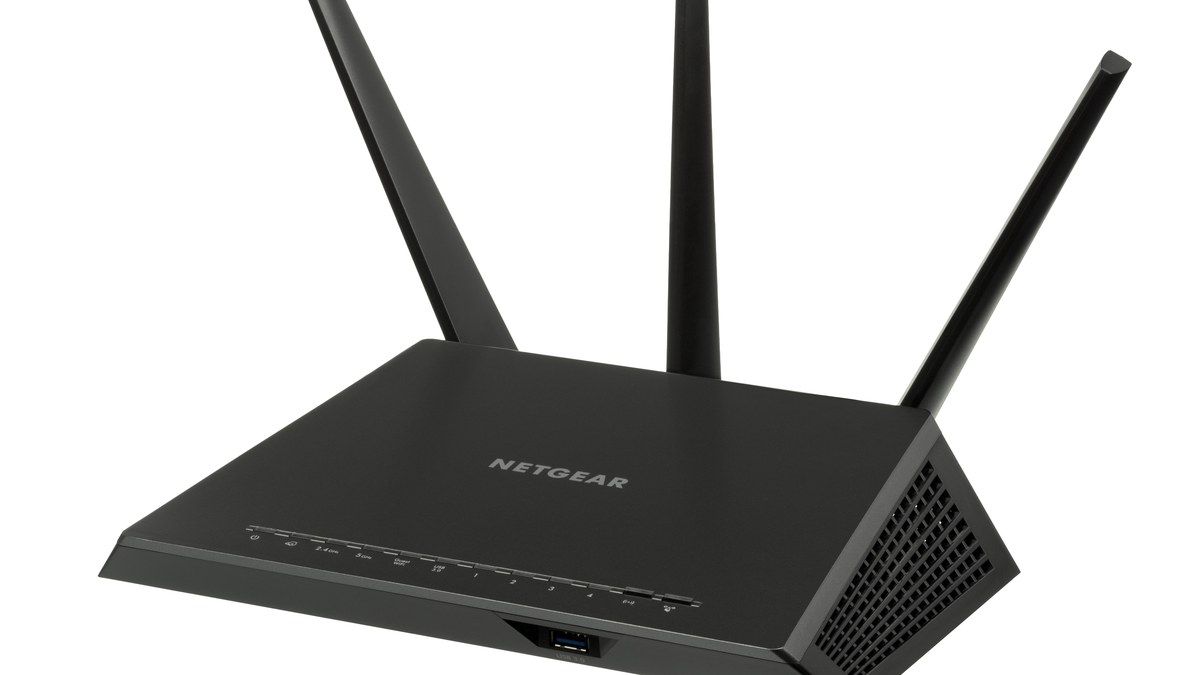
Somebody’s leeching your connection, you handed the old password to one too many houseguests, or you finally realized it’s still the random string printed on the bottom of the router from 2019. Whatever the reason, figuring out how to change your WiFi password takes about three minutes once you know where the setting actually lives — and most of the vendor pages that show up when you search bury that in a wall of “contact support” fluff. This guide skips the fluff. You’ll find your router’s control panel, log in, swap the password, and — the part everyone forgets — get every device back online without your smart lights and thermostat throwing a tantrum.
Published July 8, 2026 · Last updated July 12, 2026
There are really only two doors into the setting: your router’s built-in admin page, or the app your internet provider makes you use. We’ll cover both, plus the exact steps for the routers most people actually own (Netgear, TP-Link, Google Nest, Eero) and what a password worth setting actually looks like in 2026.
- Two routes exist: your router’s admin page (type an address like 192.168.0.1 into a browser) or your ISP’s app (Xfinity, Spectrum, AT&T). Which one you use depends on whether you rent the provider’s gateway or own your own router.
- The admin address is almost always 192.168.0.1, 192.168.1.1, or 10.0.0.1 — and your phone or computer will tell you the exact one under “default gateway” if those don’t load.
- Changing the password instantly kicks off every connected device. That’s the whole point, but it means you’ll re-enter the new password on phones, laptops, TVs, printers, and every smart-home gadget you own.
- Changing your password is not the same as resetting the router. A reset wipes everything; changing the password touches one setting.
- A strong WiFi password is long and boring — a 16-plus-character passphrase on WPA3 or WPA2 beats a clever short one every time.
Why You’d Bother Changing Your WiFi Password at All
Most people never touch their WiFi password after setup, and honestly, if nothing’s wrong, you don’t have to. But there are a handful of moments where changing it is the right move, and it helps to know which one you’re in — because it changes how careful you need to be afterward.
The classic trigger is the freeloader: the internet feels slow, and you suspect a neighbor (or that ex, or the entire block) is still on your network. Changing the password is the cleanest way to kick everyone off at once — no hunting through a device list. The second trigger is oversharing. You gave the password to guests, a contractor, a dog-sitter, and a dozen phones you’ll never see again, and now it’s basically public. The third is the security default problem: your network is still running the factory password printed on the router, which is exactly what an opportunistic attacker or a wardriver counts on.
There’s also the quiet one nobody talks about — a data breach or a lost phone. If a device that had your WiFi password saved gets stolen or compromised, that saved password walks out the door with it. Rotating it closes that hole. If you want the fuller security picture on your home network, our guide on why your WiFi keeps dropping and how to fix it covers a lot of the same admin-page territory from the reliability side.
Want a number instead of vibes? Verizon’s 2025 Data Breach Investigations Report — built from more than 22,000 real-world security incidents — found that stolen or abused credentials were still the way attackers got in for 22% of breaches, the most common entry point it tracked, and that only 3% of the compromised passwords it analyzed met even basic complexity requirements. That data comes from corporate breaches, but the habit underneath it is universal: passwords that were weak on day one and never got rotated. Your home network runs on the exact same human firmware.
Warning: Changing your WiFi password is not a factory reset. A reset holds down the recessed button on the back and erases everything — your network name, your custom settings, port forwards, the works — sending the router back to how it shipped. Changing the password edits one field and leaves the rest alone. If a guide tells you to hold the reset button to change a password, close it.
How to Tell Whether You Use the Router Page or an App
Before you go hunting for a settings page, figure out which of the two routes is even yours, because doing it the wrong way wastes ten frustrating minutes.
If your internet company (Comcast/Xfinity, Spectrum, AT&T, Verizon) gave you a single black box that’s both the modem and the WiFi, you’re probably meant to use their app or their gateway page — and increasingly they lock the good controls behind the app. If you bought your own router (a Netgear, TP-Link, ASUS, Eero, or a Google Nest puck) and plugged it into a modem, you use that router’s admin page or its own app. And if you have both — a provider modem with your own router behind it — the device that broadcasts your WiFi is the one you change, which is your own router, not the ISP’s box.
Caveat: If you own a separate router but your provider’s gateway is still broadcasting its own WiFi in the background, you can end up with two networks and change the password on the wrong one. The fix is to make sure the ISP box is in “bridge” or “pass-through” mode so it only acts as a modem, and let your router handle WiFi. Otherwise you’ll swap the password and swear nothing happened.
How to Change It From Your Router’s Admin Page

This is the universal method — every self-owned router has a built-in control panel you reach through a web browser, no app required. Four steps, and they’re the same whether you’re on a laptop or a phone connected to that WiFi.
Find Your Router’s Admin Address (192.168.0.1 or 192.168.1.1)
Open any web browser on a device that’s already connected to the network and type an IP address into the URL bar — not a search box, the address bar. The three that cover the vast majority of home routers are 192.168.0.1, 192.168.1.1, and 10.0.0.1. Many routers also answer to a friendly name printed on their label, like routerlogin.net (Netgear) or tplinkwifi.net (TP-Link), which saves you guessing.
If none of those load, your device will tell you the exact one. That address is your router’s “default gateway,” and every phone and computer knows it.
Tip: On Windows, open Command Prompt and type ipconfig — the “Default Gateway” line is your router’s address. On a Mac, it’s under System Settings, Network, Details, TCP/IP. On an iPhone or Android, tap your connected WiFi network in Settings and look for “Router” or “Gateway.” Whatever number shows up there is exactly what you type into the browser.
Log In With the Admin Username and Password
The router will ask for an admin login — and this is where people get tripped up, because it is not your WiFi password. It’s a separate credential for the control panel itself. If you never changed it, it’s the factory default, usually printed on the sticker on the bottom of the router. Common combos are admin/admin, admin/password, or admin with a blank password. Newer routers print a unique admin password on the label instead.
If you (or whoever set it up) changed the admin password and you don’t remember it, that’s the one case where you may genuinely need to reset the router — because there’s no way around the admin login. But try the sticker first.
Open the Wireless or WiFi Settings Section
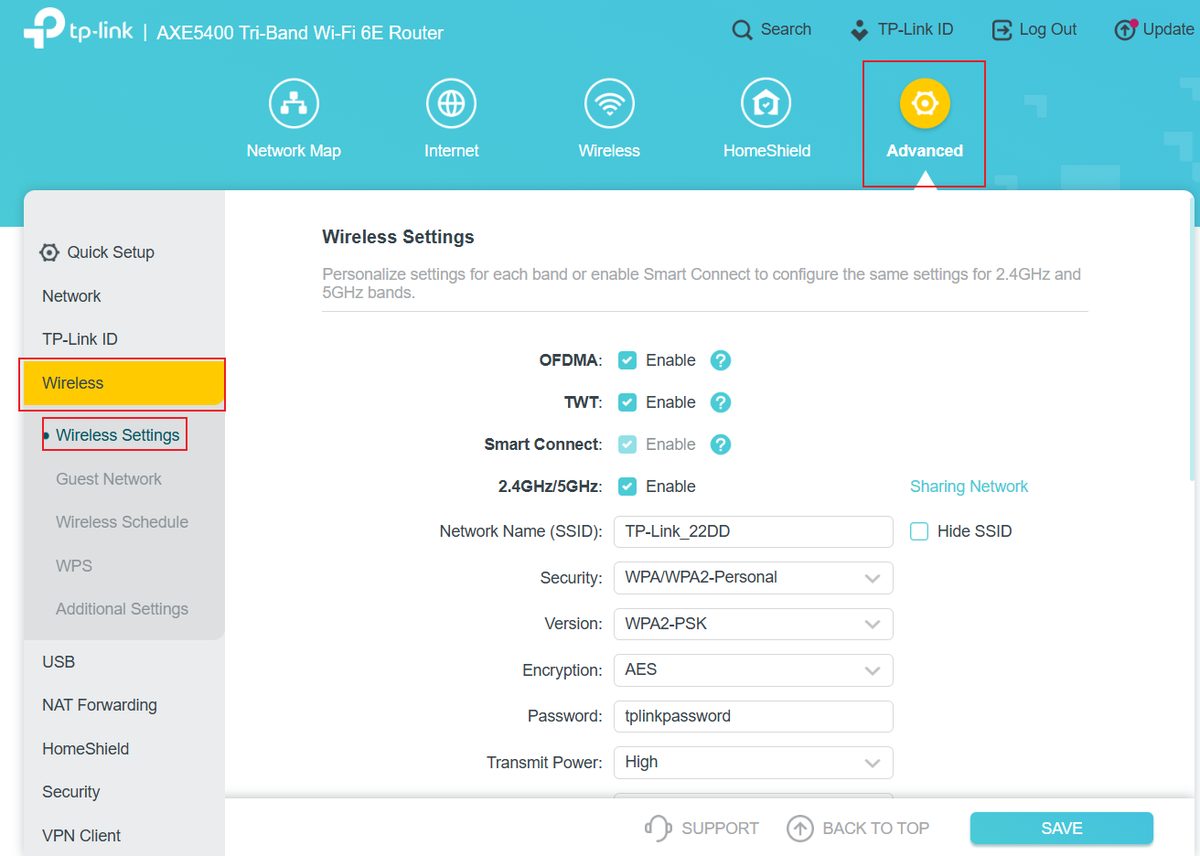
Once you’re in, look for a menu labeled Wireless, WiFi, Wireless Settings, or sometimes just a WiFi icon. Inside, you’ll see your network name (SSID) and a field for the password, which routers variously call “Password,” “Passphrase,” “Network Key,” or “Pre-Shared Key.” If your router splits your WiFi into a 2.4GHz and a 5GHz band with separate names, you may see two password fields — change both, and it’s fine to make them identical.
While you’re here, check that the security type is set to WPA3 or WPA2 (more on why below). If it’s on WEP or “Open,” you’ve found a bigger problem than a shared password.
Change the Password and Save
Type your new password into the field, double-check it (some panels have a “show password” eyeball so you don’t fat-finger it), and hit Save or Apply. The router will take anywhere from a few seconds to a full minute to reboot the wireless radio. Your own connection will drop during this — that’s normal, not a mistake. When it comes back, the network is running the new password, and every device is now locked out until you re-enter it.
The Crucial After-Steps Most Guides Skip
Here’s where the thin vendor pages leave you stranded. They tell you to hit Save and call it done — then you spend the next hour wondering why your thermostat is offline and your printer vanished. Changing the password disconnects everything at once, and reconnecting is a chore only if you don’t do it methodically.
Reconnect Every Phone, Laptop, and Tablet
Start with the devices you use hands-on. On each phone, laptop, and tablet, go to WiFi settings, “forget” the old network if it keeps trying the stale password, then tap the network and enter the new one. Do the family’s devices too, or you’ll get a chorus of “the internet’s not working” within the hour.
Update Your Smart-Home and IoT Gear
This is the step that turns a three-minute job into an evening. Smart plugs, bulbs, cameras, doorbells, robot vacuums, and speakers all had the old password memorized, and most of them have no screen to type the new one into. Each one has to be reconnected through its own app — usually a “WiFi settings” or “reconnect” option, though some cheaper gadgets force a full re-setup from scratch. Our walkthrough on setting up a smart home for beginners covers the app-by-app reconnection flow if you’ve got a houseful of these.
Keep in mind: A WiFi-only smart lock or garage door opener is the one to handle carefully. If it drops off the network and its app makes you re-onboard it from zero, you can lock yourself out of remote control until it’s back on WiFi — so keep the physical key handy and reconnect it while you’re standing right next to it, not remotely.
Fix the Devices You Forgot About
Printers, streaming sticks, smart TVs, e-readers, and that one old tablet running the kitchen recipe app all quietly hold the old password too. You won’t notice until you try to print a boarding pass at 6 a.m. Do a quick mental lap of the house and reconnect anything with a screen and a WiFi antenna. A printer usually needs its network re-selected from its own little menu; a Roku or Fire Stick will prompt you for the new password the next time you open it.
Two-Minute Security Upgrades While You Are in the Admin Panel
You’re already logged into a page you visit maybe once a year. Before you close the tab, three settings are worth the extra two minutes:
- Switch the security type to WPA2/WPA3 transition mode. Pure WPA3 gets you the strongest encryption but locks out older gadgets — that 2017 printer, the first-gen smart plug. Transition mode (panels label it “WPA2/WPA3-Personal” or “mixed”) lets new devices negotiate WPA3 while the old stuff stays on WPA2, so you upgrade the encryption without spending the evening troubleshooting whatever fell off the network.
- Turn WPS off. That push-button pairing feature was built for convenience, but its PIN mode is a well-documented brute-force target — and it walks right past the password you just set. Nothing made in the last decade actually needs it.
- Turn off remote management. Usually under Administration or Advanced settings, this exposes your router’s login page to the entire internet instead of just your own network. Unless you genuinely manage your router from across the country, switch it off — the vendor apps still work away from home without it.
Update the Saved Password on Your Devices
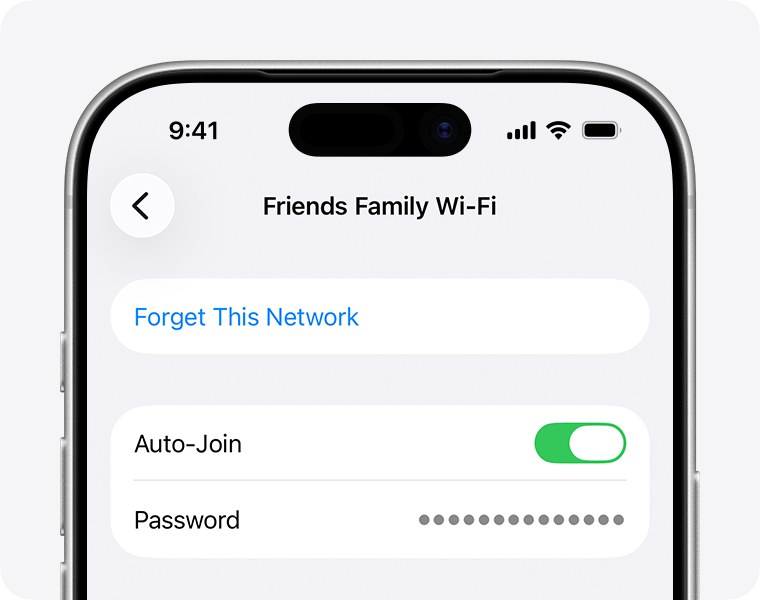
Every phone and computer in the house still has the old password memorized, and each one handles the swap a little differently. Some pop a “can’t connect” prompt and let you type the new one on the spot; plenty just spin silently on the stale credential forever. The reliable move is the same everywhere: forget the network, then rejoin it fresh. Here’s exactly where that lives on each platform.
Update the Saved Password on Windows 11
- Click the WiFi icon in the taskbar corner, then the arrow beside the WiFi button to open the network list. Pick your network and hit Connect — if Windows notices the password changed, it asks for the new one right there and you’re done.
- If it fails silently instead, open Settings, then Network & internet, then Wi-Fi.
- Open Manage known networks and click Forget next to your network’s name.
- Go back to the taskbar network list, select your network, and enter the new password when prompted.
Update the Saved Password on a Mac
- Open the Apple menu and choose System Settings, then Wi-Fi.
- Click Details next to your network’s name and choose Forget This Network, then confirm with Remove. (On macOS Monterey and older, the same lives under System Preferences, Network, Advanced.)
- Pick your network from the list again, type the new password, and click Join. The new password syncs to iCloud Keychain, so other Apple devices on the same account often pick it up on their own.
Update the Saved Password on Android
- Open Settings, then Network & internet (Samsung calls it Connections), then Internet or Wi-Fi.
- Tap the gear icon next to your network’s name and hit Forget.
- Tap the network again in the list, type the new password, and hit Connect. Menu names drift a little between Pixel, Samsung, and everyone else, but the gear-then-Forget pattern holds across all of them.
Update the Saved Password on an iPhone or iPad
- Open Settings, then Wi-Fi.
- Tap the blue info button next to your network’s name, choose Forget This Network, and confirm.
- Tap the network in the list, enter the new password, and hit Join. Like the Mac, iCloud Keychain shares the new password across your other Apple gear, which quietly saves you a few re-entries.
Changing It Through Your Internet Provider’s App
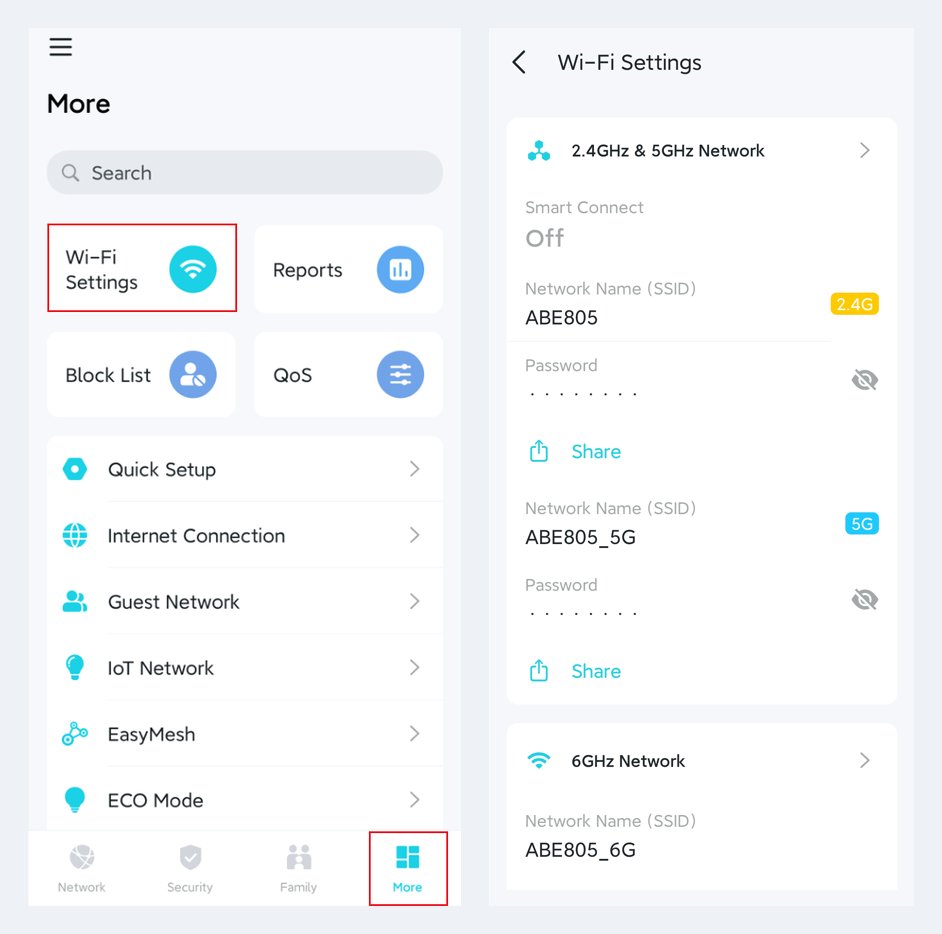
If you rent your provider’s all-in-one gateway, the browser admin page is often locked down and the app is the intended route. The good news: the apps are genuinely simpler than the old admin pages. Here’s where the setting lives in the three big ones.
Xfinity and the xFi App
Open the Xfinity app (it absorbed the old xFi app), sign in with your Xfinity ID, and go to the WiFi tab. Tap View WiFi equipment, pick your gateway, and choose Edit WiFi. You’ll see the network name and password together — change the password, tap Save, and it pushes to the gateway. Comcast gateways also answer at 10.0.0.1 in a browser if you’d rather use the web panel.
Spectrum and the My Spectrum App
In the My Spectrum app, sign in and tap Services, then Internet. Select your router or gateway, and you’ll find Manage Network or a settings gear that opens the WiFi name and password fields. Update the password and confirm. Spectrum’s gateways typically live at 192.168.1.1 if you want the browser route instead.
AT&T Smart Home Manager
Open Smart Home Manager (app or the web version), sign in, and go to the Network tab, then My WiFi Network. There’s an Edit option next to your network where you change the password. AT&T’s own gateways sit at 192.168.1.254 in a browser, and the physical gateway also has the current WiFi credentials printed on a sticker on its side.
Brand-Specific Steps for the Routers People Actually Own
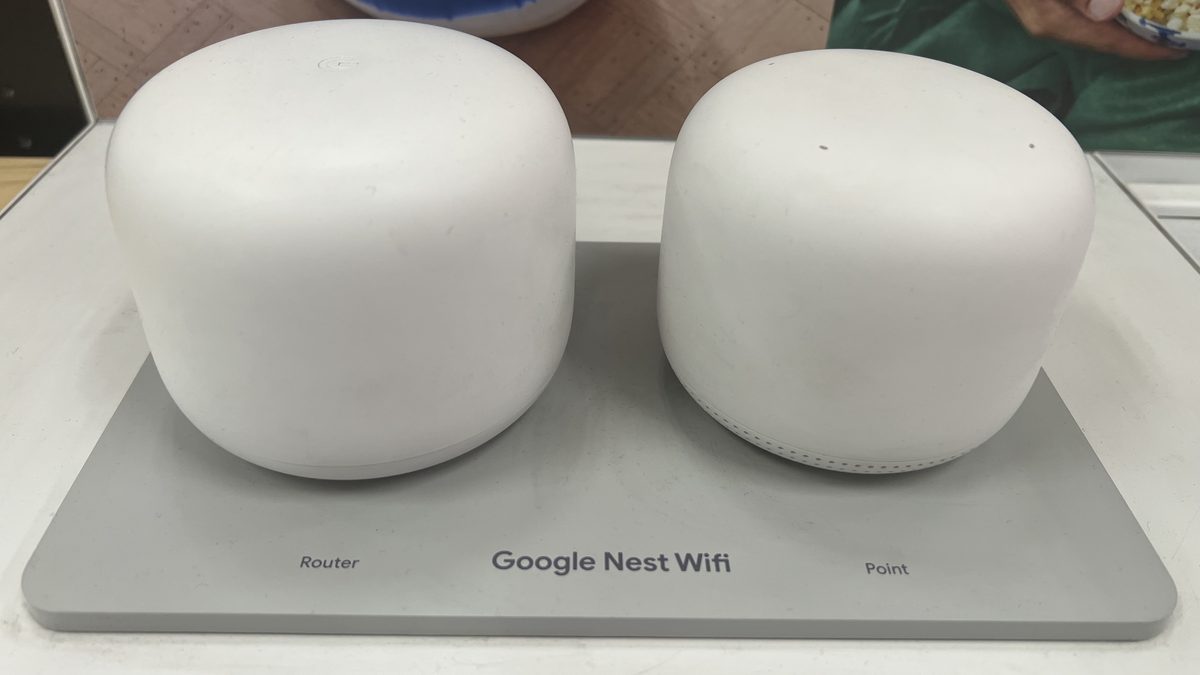
Beyond the ISP boxes, six names cover almost every self-bought router and mesh system out there. The setting is the same idea everywhere — find the WiFi settings, change the password, save — but the path differs, so here’s the cheat sheet up front, with the full walkthroughs below.
| Router Brand | Browser Login Address | App to Use |
|---|---|---|
| Netgear Nighthawk / Orbi | routerlogin.net / orbilogin.com | Nighthawk app / Orbi app |
| TP-Link / Deco | tplinkwifi.net (Deco is app-only) | Tether app / Deco app |
| ASUS | router.asus.com | ASUS Router app |
| Google WiFi / Nest WiFi | None — app only | Google Home app |
| Eero | None — app only | Eero app |
| Verizon Fios | 192.168.1.1 | My Fios app |
Netgear Nighthawk and Orbi
For a Nighthawk router, use the Nighthawk app (tap the WiFi settings tile) or go to routerlogin.net in a browser, log in, and open Wireless. Orbi mesh systems use the Orbi app or orbilogin.com; change the password once and it syncs across every satellite automatically, so you don’t repeat it per unit.
TP-Link and Deco
Standard TP-Link routers use the Tether app or tplinkwifi.net, under Wireless settings. TP-Link’s Deco mesh system is app-only — open the Deco app, tap More, then WiFi, and edit the password there. Like Orbi, the change propagates to every Deco node at once.
Google WiFi and Nest WiFi
These have no browser admin page at all — everything runs through the Google Home app. Open it, tap your WiFi network, hit the gear icon for settings, then Show WiFi password to view it or the edit option to change it. Google makes you confirm, then re-shares the new password across the mesh.
Eero and Its App-Only Setup
Eero is also app-only. In the Eero app, tap the Settings tab, then your network name, and you’ll find the WiFi password under network settings. Change it, and every Eero unit updates together. Eero also lets you generate guest networks here, which is a smarter long-term fix than sharing your main password with visitors.
ASUS Routers and the ASUS Router App
ASUS routers answer at router.asus.com in a browser (most models also respond at 192.168.1.1 or 192.168.50.1). Log in with the admin credentials, open Wireless under Advanced Settings, and the password sits in the WPA Pre-Shared Key field — ASUS is one of the last brands that still calls it by its technical name. Change it, hit Apply, and the radio restarts. On the phone, the ASUS Router app reaches the same field under Settings, then WiFi. Running an AiMesh setup? Change it once on the main router and every node follows automatically.
Verizon Fios and the My Fios App
Fios routers live at 192.168.1.1, and the admin password is printed on the sticker on the router itself — Verizon ships each one unique, so no guessing default combos. Log in, open the WiFi section, pick your network, and edit the password field. The app route is even shorter: open the My Fios app, sign in, tap Internet, choose your network under My Networks, and tap Edit to set the new password. Either way the change pushes to the router in a few seconds, and if you run one of Verizon’s WiFi extenders it inherits the new password on its own.
What Actually Makes a Strong WiFi Password
Since you’re already in here, set a password worth setting — because a weak WiFi password is the difference between rotating it once and rotating it every few months when someone cracks it again.
Length beats complexity. A long, memorable passphrase like purple-otter-rides-a-slow-train is far harder to crack than a short scramble like Xk7#q and much easier to type on a TV remote. Aim for at least 16 characters; four or five random words strung together hits that easily. Avoid anything guessable — your address, your last name, your phone number, or the network name itself.
The security type matters as much as the password. Make sure your router is set to WPA3 if it supports it, or WPA2 at minimum; both encrypt your traffic properly. WEP and “Open” networks are effectively unlocked no matter how long the password is. The FTC’s guidance on securing your home WiFi network is a solid, plain-English reference if you want to lock things down further. And if guests are the real reason you keep changing the password, set up a separate guest network instead — it gives visitors internet without handing over the keys to your smart-home devices.
Frequently Asked Questions
Will changing my WiFi password disconnect all my devices?
Yes, immediately, and that’s expected. Every device that had the old password saved gets kicked off the moment you save the change, and each one has to be reconnected with the new password. Plan to spend a few minutes re-entering it on phones, laptops, TVs, and every smart-home gadget you own.
Is changing my WiFi password the same as resetting my router?
No, and it’s an important difference. Changing the password edits a single setting and leaves everything else — your network name, custom settings, and connected-device history — intact. A factory reset wipes the router back to how it shipped, erasing all your settings. You only need a reset if you’ve forgotten the admin login for the control panel itself.
What’s the difference between my WiFi password and my router admin password?
The WiFi password is what devices use to join your network. The router admin (or login) password is a separate credential that gets you into the router’s control panel to change settings. They’re often different by default, and you have to get past the admin login before you can change the WiFi password.
I changed my password but a device still won’t connect — what do I do?
Have that device “forget” the network first, then reconnect. Older gadgets sometimes keep trying the stale saved password on a loop, which looks like a failure even though the new password is correct. Forgetting the network clears the old one so the device asks for the new password fresh.
Do I have to change the router admin password too?
It’s a smart idea, especially if it’s still the factory default printed on the sticker. That default admin login is public knowledge for most models, and anyone already on your network could use it to change your settings. Changing both the WiFi password and the admin password closes that gap.
How often should I change my WiFi password?
There’s no strict schedule for a home network with a strong password and WPA2/WPA3 — you don’t need to rotate it monthly. Change it when something prompts it: you suspect a freeloader, you’ve shared it too widely, a device with the password saved was lost or stolen, or you’re still on a weak or default password. A strong password plus a separate guest network reduces how often you’ll ever feel the need.