Short version: you will be told 4 to 7 years, most people get 3 to 5, and neither number tells you anything about the machine on your desk. Laptops rarely die. They get retired — and the thing that retires them is almost never the thing that broke.
Published 11 August 2026. Support cutoff dates and vendor figures verified 10 August 2026.
There is no single lifespan number to memorize here: how long your laptop lasts comes down to whichever of four things fails first — the battery, the storage, the cooling, or the date your operating system stops getting security updates.
Ask any repair bench what kills laptops and the list is short: a flat battery, a drive out of road, a heatsink packed with dust. All three are cheap, none needs a new laptop. What ends a laptop’s working life is a date on a support page — the number nobody puts in the headline. Let’s find yours.
- The published range for how long do laptops last runs from 3 years to 10. A spread that wide means the average describes nothing.
- Laptops get retired by expired software support far more often than by hardware failure. That is a calendar, not a fault.
- Windows 11 needs TPM 2.0, Secure Boot and a CPU on Microsoft’s approved list. Plenty of healthy 2017 laptops fail that test and always will.
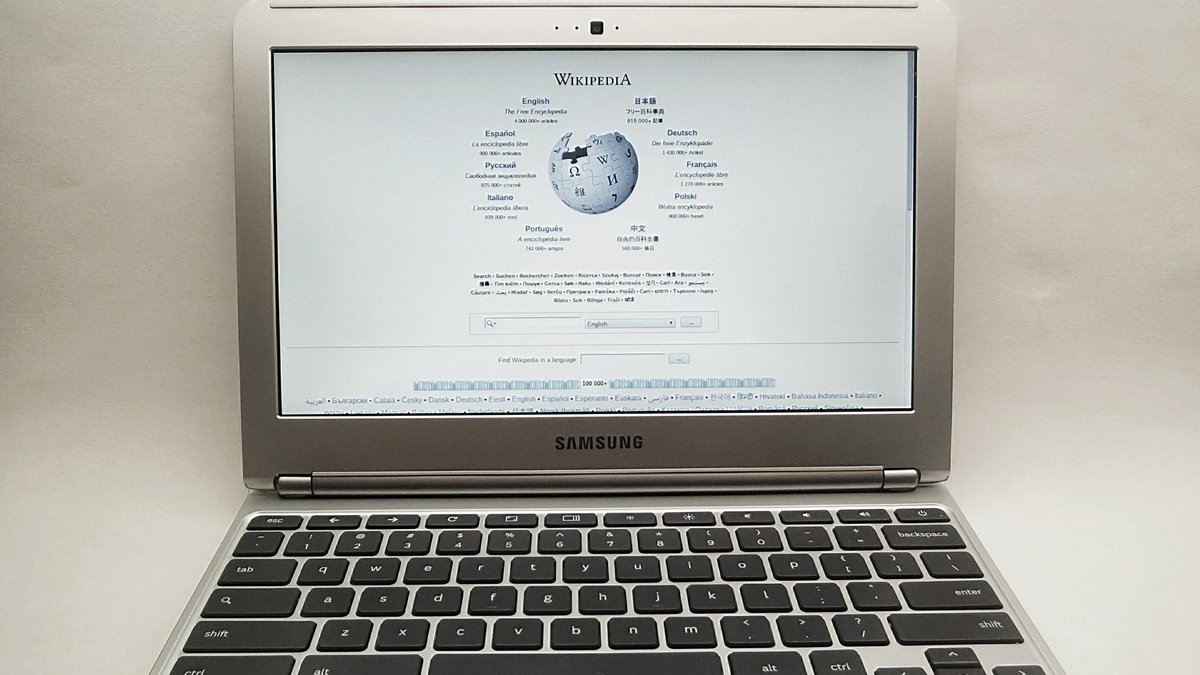
- Chromebooks are the only ones honest enough to print the date up front: 10 years of updates from the platform release.
- Work out which of four things is wrong — battery, storage, thermals, or support. Only the last one means buy new.
The fine print: TechDaily earns a commission on some links in this article. It never changes what we recommend.
Why the Average Laptop Lifespan Is the Wrong Number to Chase
HP’s Tech Takes puts the average around 4 to 7 years. Microsoft’s Surface team lands nearby. Data Doctors says 3 to 5 for most people, 6 to 7 for high-end machines that get upgrades. Others promise 8 to 10 with good care. The claimed lifespan of one product category swings by a factor of three. If a mechanic told you a car lasts somewhere between 3 and 10 years, you would not call that an estimate.
Worth naming plainly: several pages ranking for this question are published by companies that sell laptops, HP and Microsoft among them. That does not make their ranges wrong. It does explain why the conversation stays on duration, which sounds like wear and tear, rather than support expiry, which sounds like a company switching your device off.
The catch: an average only helps if failure is random. Laptop retirement is not — it clusters hard around operating system cutoffs, which is why a whole generation goes obsolete in the same month instead of drifting out one by one.
What Actually Wears Out Inside a Laptop and What Never Does
Three parts have an expiry date. The battery is a true consumable: Apple states its notebook batteries are “designed to retain up to 80% of [their] original capacity at 1000 complete charge cycles” — that is Apple’s own figure, and Windows makers sit in the same range. Charge fully on most working days and you burn roughly 250 cycles a year, so degradation shows around year three. Mechanical hard drives are next, the only part with moving pieces: three to five years is the honest expectation, and if your laptop still has one, that is also why it feels slow. Cooling is third, and it does not wear out so much as silt up.
Now the parts nobody mentions. The processor, graphics chip, mainboard and screen do not meaningfully degrade under normal use — a 2018 quad-core CPU is exactly as fast today as the day it shipped. That is the tension here: the parts that fail are the cheap replaceable ones, and the parts that would justify a new machine keep working.
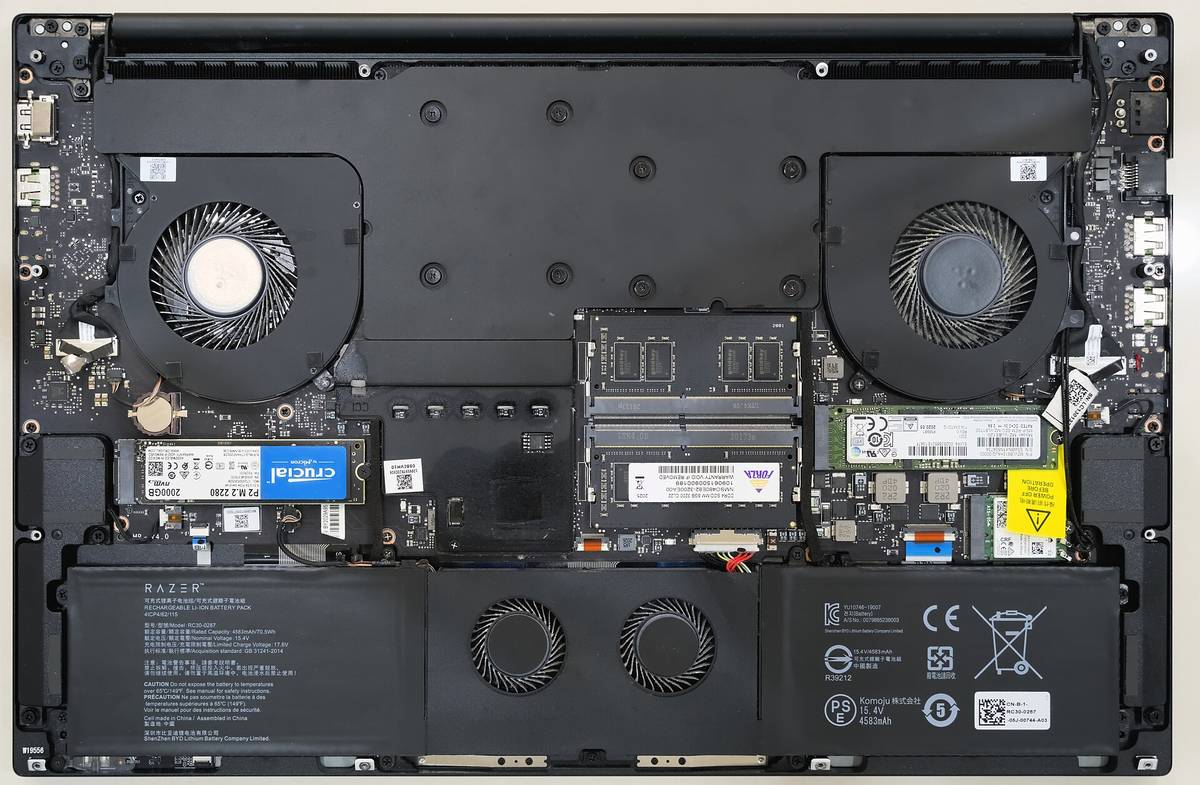
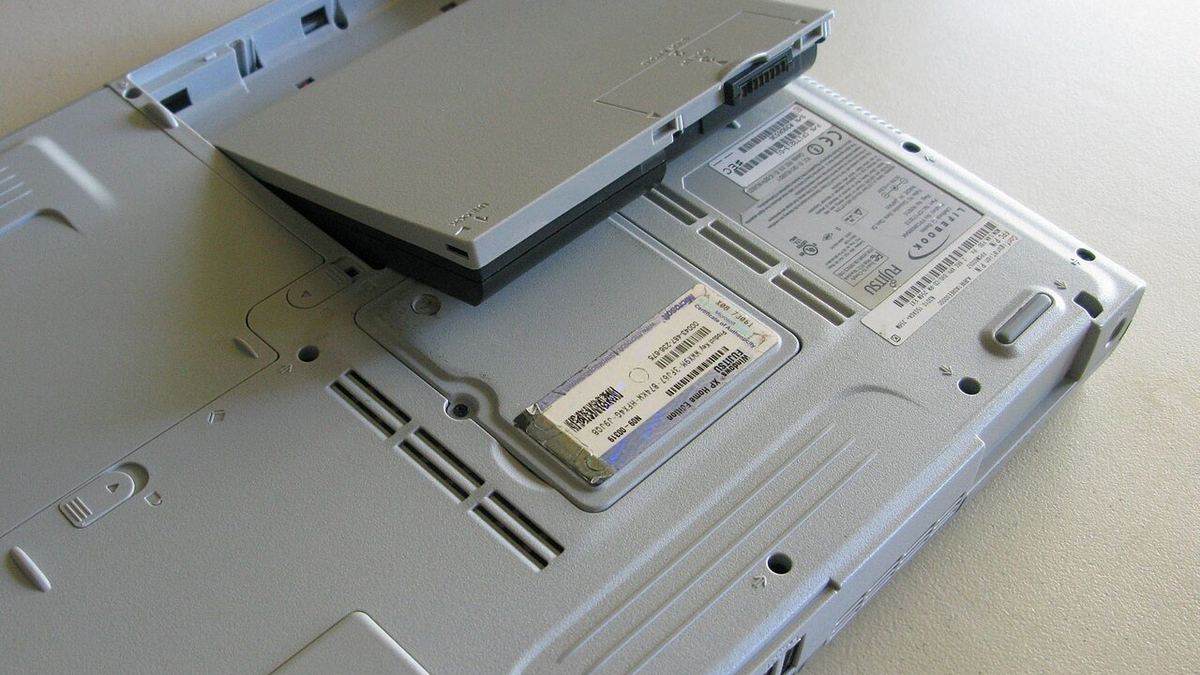
Which is why the photo above matters. Two socketed memory sticks and a removable M.2 drive — ten minutes and two parts buy that gaming laptop years. Now picture a modern thin-and-light with RAM soldered to the board and storage often soldered too. Nothing wore out faster. The rescue route was designed out.
How Operating System Support Sets Your Laptop’s Real Expiry Date
Here is the mechanism the lifespan articles skip, and the one that actually ends laptops.
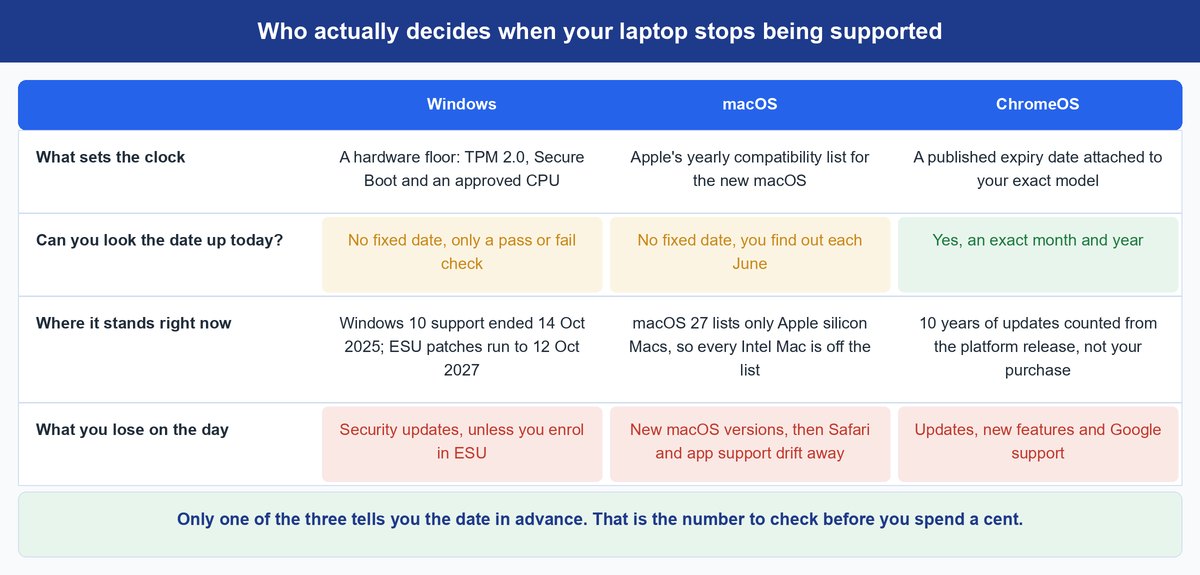
Windows. Microsoft ended support for Windows 10 on October 14, 2025. Enrolled machines get security patches through the Extended Security Updates program until October 12, 2027, and that is the end of the line. The jump to Windows 11 is gated by hardware: Microsoft requires a 64-bit processor on its approved list, TPM 2.0, and UEFI with Secure Boot. Millions of laptops that boot fine and have never had a fault fail that test, and no amount of care changes it. They were retired by a specification. One thing worth checking before you accept that verdict: on many 2016-to-2018 machines the TPM is present but switched off in the BIOS, listed as fTPM on AMD or PTT on Intel. Turning it on is sometimes the whole fix.
macOS. Apple runs the same clock with better manners. Its current macOS compatibility list covers only Apple silicon machines — MacBook Air and MacBook Pro from 2020 onward, plus the equivalent desktops. Every Intel Mac is off it, and you find out each June rather than in advance.
ChromeOS. Google is the only one that tells you up front. Every Chromebook carries an Auto Update Expiration date, and current devices get 10 years of updates measured from the platform’s release, not from the day you bought it. Buy a two-year-old model and you inherit eight, not ten — but you can look it up before you pay, which is one reason the Chromebook versus laptop decision is really a decision about expiry dates.
Keep in mind: a laptop does not stop working on its expiry date. It stops getting security patches. Fine for a machine that only plays video, a genuinely bad idea for one you bank on.
Quick self-check — see if you are already past your cutoff:
- Windows 10 and you never enrolled in ESU — you have been unpatched since 15 October 2025. Enrolled machines have until 12 October 2027.
- Windows 11 Settings says “This PC doesn’t currently meet the requirements” — TPM 2.0, Secure Boot, or the CPU list is the blocker.
- Intel Mac missing from Apple’s current macOS compatibility page — the macOS 27 list is already out and Intel Macs are not on it.
- Chromebook’s Auto Update Expiration date has already passed — check it under Settings, About ChromeOS, Additional details.
How to Decide Between Repairing and Replacing Your Laptop
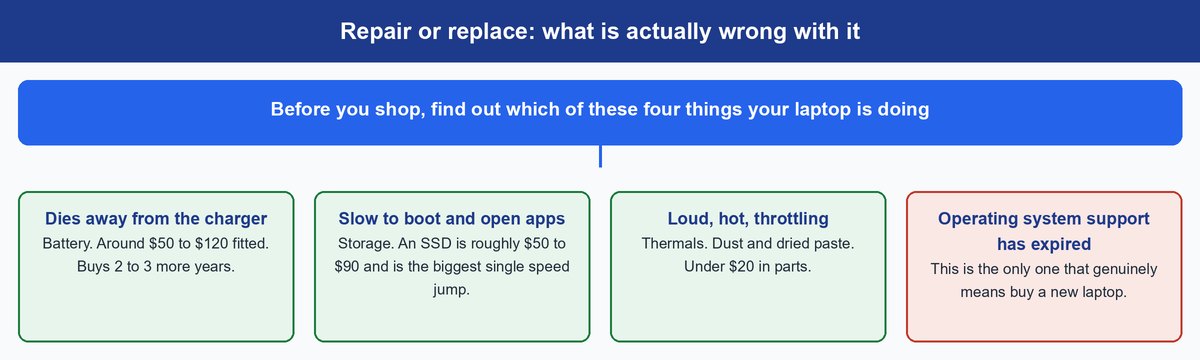
Stop asking whether the laptop is old. Ask which of these four things it is doing.
The Battery Is the First Thing to Suspect
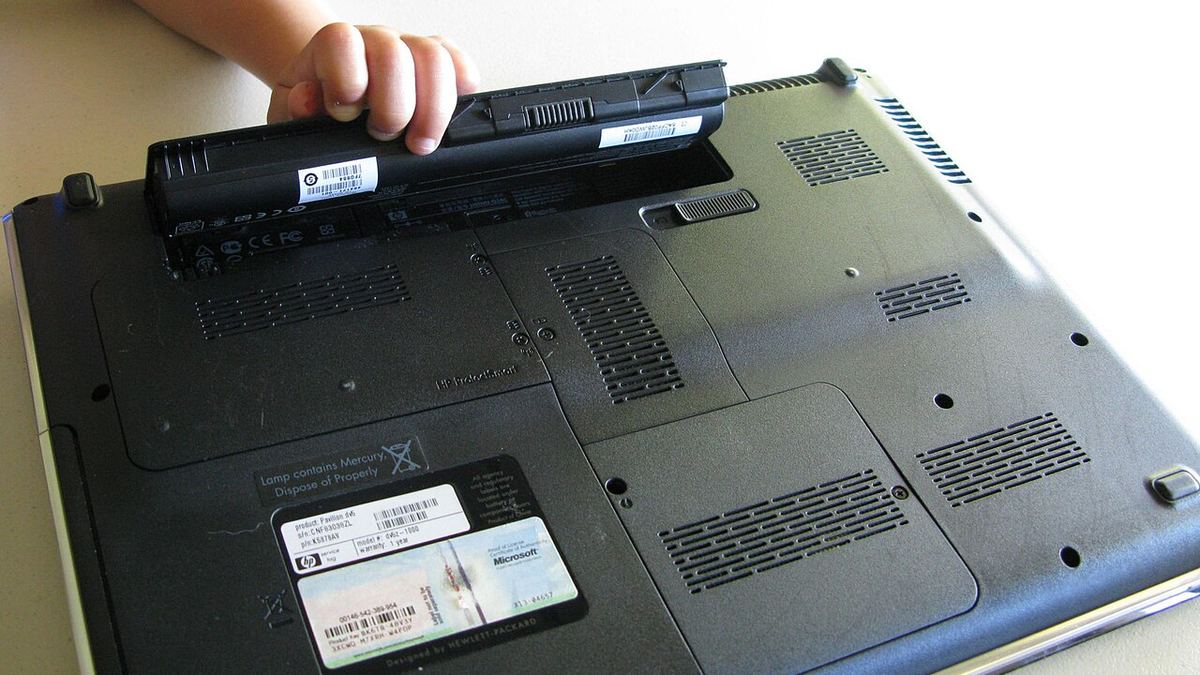
Fine on mains power, useless off it? That is a battery, not a laptop. On Windows, run powercfg /batteryreport from Command Prompt and compare design capacity with full charge capacity; on a Mac, hold Option, click the Apple menu, then System Information, then Power. Under 80% health is your answer. A replacement battery runs roughly $50 to $120 fitted and buys two to three more years. Skip the cheapest listing — a bad cell is a fire risk, not a bargain.
Slow Almost Always Means Storage, Not Age
A laptop that takes two minutes to reach the desktop is starved of fast storage and memory, not of youth. If a spinning drive is in there, moving to a SATA SSD or an NVMe M.2 drive is the biggest speed jump available to any computer, at around $50 to $90. Socketed RAM and only 8GB? A second stick is the cheap follow-up — check first, because on many machines since about 2019 the memory is soldered.
Loud and Hot Usually Means Dust, Not Death
Screaming fans, a chassis too hot for your wrist, performance collapsing after ten minutes: that is thermal throttling, and it is a cleaning job. Blocked heatsink fins and chalky thermal paste are the culprits, both fixable for the price of lunch. A laptop that has been throttling for a year is not dying. It cannot breathe.
Support Expiry Is the Only Verdict That Means Buy New
Everything works, the operating system has stopped getting updates, and the hardware cannot make the jump. That is the end. No part swap fixes a support decision, and holding on now costs you something real, because you are running an unpatched machine on the open internet.
How to Buy Two or Three More Years for Under a Hundred Dollars
Assuming your machine is still supported, this is the cheap-rescue playbook in order of return.
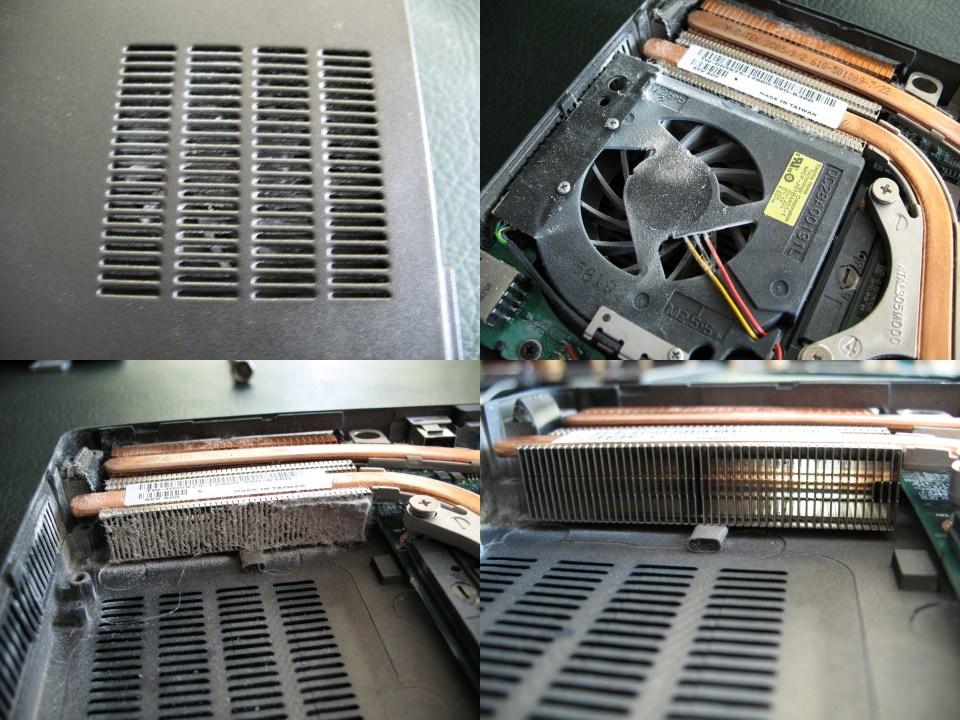
- Clean the cooling system. A can of compressed air through the vents twice a year, plus a strip-and-clean every couple of years if you own a screwdriver. The laptop pictured above is two and a half years old — that grey felt across the fins is the entire reason it was throttling.
- Repaste if it still runs hot. Fresh thermal paste costs under $10 and often drops sustained temperatures by 10°C or more on a machine that has never been opened.
- Fit an SSD — only if you are still on a mechanical drive, in which case do it first.
- Replace the battery once, not twice. A swap at year three is good economics; a second at year six usually is not, because by then the support clock is the binding constraint.
- Do not buy RAM you cannot use. Confirm the slots are socketed first.
Tip: that list totals roughly $80 to $100, against $600-plus for a replacement. The rule repair shops actually use — if the fix costs more than half of a comparable replacement, stop fixing.
When It Is Genuinely Time to Replace Your Laptop
There is an honest end point, and pretending otherwise leaves people limping along on machines that frustrate them daily. Buy new when:
- Support has expired and the hardware cannot upgrade — no TPM 2.0, not on Microsoft’s CPU list, an Intel Mac off Apple’s list, or a Chromebook past its expiration date.
- One repair quote passes half the replacement price. Screen assemblies, hinge and chassis damage, and mainboard faults are the usual offenders.
- Everything is soldered and you are at the ceiling. 8GB of soldered RAM in 2026 is a hard limit, not a starting point.
- You need something it physically cannot do — a discrete GPU, a modern NPU, a screen you can work on. Read whether an AI PC is worth waiting for first, and our guide to choosing a laptop that lasts through college is built on this same longevity question. When you do buy a new laptop, favour socketed memory, a user-replaceable drive and a long support runway over raw speed.
One thing not on that list: a laptop that will not charge. That is usually a cable, a port or a driver rather than a dead machine, so rule out the power path first.
Frequently Asked Questions
How long do laptops last on average?
Published figures cluster around 4 to 7 years — 3 to 5 for budget machines, 6 to 7 for high-end ones that get upgrades. Treat that as rough planning only. The date your operating system stops supporting your model is far more predictive.
How long should a laptop last before you replace it?
Five to seven years is realistic for a mid-range or better machine that gets one battery and one storage upgrade. Budget laptops with soldered 8GB of RAM feel finished nearer three or four — not because they break, but because they run out of headroom.
How long do gaming laptops last?
The parts last just as long, often longer, because they are usually socketed and serviceable. What shortens the useful life is the graphics chip falling behind the games you want to play, plus heat: hours at full load bake the dust and paste harder. Clean and repaste every couple of years and four to six years of real gaming use is normal.
How long do MacBooks last?
Physically they are among the longest-lived laptops you can buy, with batteries rated to keep 80% of capacity at 1000 cycles. The limit is Apple’s compatibility list, now Apple silicon only. An Intel MacBook still works fine; it just will not get the new macOS, and app support follows the OS out the door.
How long does a laptop battery last?
Two to four years before runtime visibly shrinks, with capacity typically near 80% around 1000 full charge cycles. Keeping the machine cool and not parking it at 100% on mains all day both help. When it goes, replace the battery, not the laptop.
Is it worth repairing an old laptop?
Yes, if the fault is the battery, the storage or the cooling and the machine still gets updates — those repairs cost tens of dollars and return years. No, if support has ended and the hardware cannot upgrade, or if one quote lands above half the price of a comparable replacement.
What This Means for the Laptop on Your Desk
Find your machine’s support date today. On Windows, check whether it clears the Windows 11 requirements. On a Mac, check whether your model is on Apple’s current compatibility list. On a Chromebook, open Settings, then About ChromeOS, then Additional details, and read the Auto Update Expiration date straight off the screen.
That date is your actual answer. Everything before it is a maintenance schedule — a battery around year three, an SSD if you never got one, a can of air twice a year. Everything after it is a purchase decision. Most people get those two backwards.