Almost nobody searching for how to turn off Find My iPhone actually wants less security. You are selling the phone. Or trading it in. Or a repair shop just told you they cannot touch it. Or you are staring at a hand-me-down iPhone that asks for an Apple Account you have never seen. The toggle is not the goal — getting the phone cleanly out of your name is.
That distinction matters more than it sounds, because Find My is not a location feature with a switch on it. It is the lock on your iPhone’s title deed, and the single flip most people go looking for is only one of three different actions, each of which leaves the phone in a very different state. Do them in the wrong order and you get the outcome that fills resale forums: a wiped iPhone that still belongs to someone else.
Short answer: Open Settings, tap your name, tap Find My, tap Find My iPhone, and switch the toggle off — Apple asks for your Apple Account password before it will turn off. That step alone disables tracking, Lost Mode and Activation Lock, but it does not erase the phone or remove it from your Apple Account. To actually hand a phone over, follow the toggle with signing out of your Apple Account, then Settings, General, Transfer or Reset iPhone, Erase All Content and Settings — in that order, with your password ready for each step.
- Find My and Activation Lock are the same switch — Apple turns Activation Lock on automatically the moment you set up Find My, and your Apple Account password is required before anyone can turn it off
- Turning off the toggle, signing out of your Apple Account, and erasing the phone are three different actions with three different results; only the full erase leaves a phone ready to hand over
- A wiped iPhone can still be locked, because Activation Lock lives on Apple’s activation servers, not on the phone’s storage
- Selling or trading in has an order: back up, check the parts history, switch off Stolen Device Protection, unpair the Watch, sign out, then erase
- If the phone is already gone, iCloud.com behaves differently depending on whether it is online or offline — and the 30-day clock has a sting in the tail
What Turning Off Find My Actually Does to Your iPhone
Find My is two things wearing one name. There is the part you know — the map, Lost Mode, the ping that makes the phone shriek under a sofa cushion. And there is the part that does the real work: Activation Lock. Apple is blunt about how they are wired together. Activation Lock “turns on automatically when you set up Find My,” and once it is on, Apple stores your Apple Account on its activation servers and ties it to that specific device. From then on, your Apple Account password is required before anyone can turn off Find My, erase the device, or reactivate and use it.
Read that last sentence again, because it explains every frustrating thing about this process. The password prompt is not a nuisance dialog. It is the mechanism. Apple deliberately built a lock that a thief cannot clear by wiping the phone, and the price of that design is that a legitimate owner cannot clear it by wiping the phone either.
The reach goes further than most sellers realize. Apple now applies the same logic to individual components: if your iPhone contains a part harvested from another device that was Activation Locked when the part came out, that part is ineligible for service under the Apple Limited Warranty or an AppleCare plan. The lock followed the hardware into the repair supply chain.
Keep in mind: this is the structural reason “just factory reset it” advice from the Android world gets iPhone buyers burned. On an iPhone, the reset is the easy half. The account unlink is the half that decides whether the phone is worth anything.
The Three Switches People Confuse With Each Other
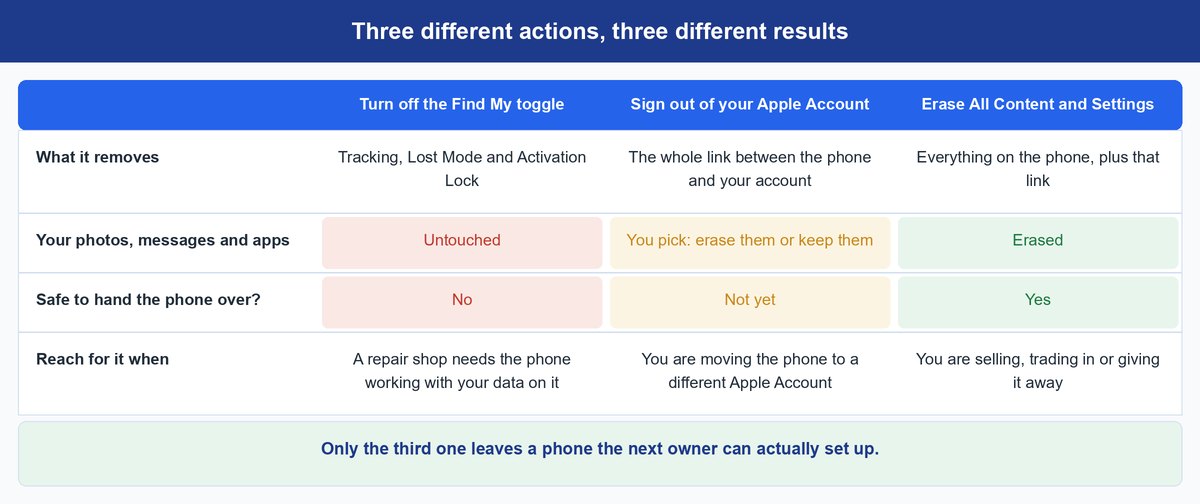
Almost every stranded-iPhone story starts with someone doing one of these three things and assuming it did the job of another. They are not interchangeable.
Turning Off the Find My iPhone Toggle
Open Settings, tap your name, tap Find My, tap Find My iPhone, and switch it off. Apple’s Find My setup guide uses the same path in reverse. You will be asked for your Apple Account password, and when it is done, tracking, Lost Mode and Activation Lock are all gone — while every photo, message and app stays exactly where it was.
That combination is useful in exactly one common situation: handing the phone to a repair technician who needs it working and unlocked, with your data intact. It is the wrong move before a sale, because you have just removed your own protection and left your entire digital life sitting on a device you are about to give away.
Signing Out of Your Apple Account
Settings, your name, scroll to the bottom, Sign Out. On iOS 26 you are then asked to choose between “Erase this iPhone” and “Sign Out But Don’t Erase.” On iOS 18 and earlier you enter your Apple Account password and tap Turn Off. Either way, signing out severs the link between the phone and your account, and Find My goes with it.
This is the move when the phone is staying in the family but changing hands to a different Apple Account, or when you are consolidating two accounts. It is also the step Apple puts immediately before the erase in its own sell-and-trade checklist, which is a hint about sequencing rather than a redundancy.
Erasing All Content and Settings
Settings, General, Transfer or Reset iPhone, Erase All Content and Settings. Apple’s Express Replacement Service prep page spells out what this actually accomplishes: it deletes your personal data and removes the phone from your Apple Account, and you need to enter your Apple Account password to confirm. That password prompt is the same lock doing the same job — it is what turns a wipe into a legitimate handover.
If you want the full picture of what a wipe does and does not remove, we covered that separately in what a factory reset actually deletes. The short version for this post: the data goes, and with the password entered, so does the lock.
Why Activation Lock Can Survive a Full Wipe
Here is the part that catches out sellers, buyers and repair shops alike. Activation Lock does not live on the phone. It lives on Apple’s activation servers as a record joining your Apple Account to that device’s identity. Every time an iPhone is activated or recovered, it phones home and asks whether that record still exists. Erasing 256GB of storage does nothing to a database entry in a data center.
Apple states the consequence plainly: even if you erase your device remotely, Activation Lock keeps deterring anyone from reactivating it. That is not a bug in the erase — it is the entire point of the remote erase, which was designed for a stolen phone. iCloud’s own remote erase documentation confirms that Activation Lock stays on afterwards and that your Apple Account and password are required to reactivate.
So the same word, “erase,” means two opposite things depending on where you press it. On the device, with your password typed in, it clears the record and the phone is free. From Find My on the web, it wipes the phone and deliberately keeps the record. A seller who wipes remotely because the phone is already boxed up has done the security thing, not the selling thing.
The catch: a remote erase on an offline phone is queued, not executed. It runs the next time that iPhone connects to a network. If you find the device first, you can cancel it with Stop Erase Request at icloud.com/find and your Apple Account password.
The Order of Operations for Selling or Trading In
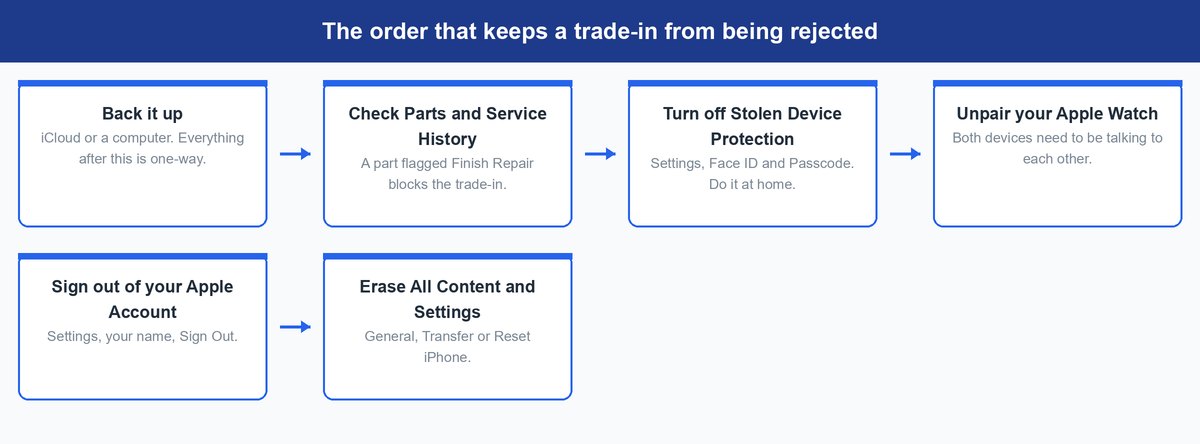
Sequence is where money gets lost. Every step below has to happen while the phone can still authenticate, still talk to its paired devices, and still be checked by a trade-in system. Once it is wiped, several of these become impossible.
Start with a backup, because everything after it is one-way. Then check your Parts and Service History in Settings: if any component shows a “Finish Repair” flag, you have to finish that repair before the device can be traded in at all, and finding that out after the wipe means setting the phone up again to fix it.
Next, turn off Stolen Device Protection, then unpair any Apple Watch — Apple’s unpairing instructions require the paired iPhone nearby and your Apple Account password, and warn that without that iPhone you can erase the watch but its Activation Lock stays on. Wipe the phone first and you have quietly bricked the watch too. If you hold an AppleCare plan, cancel it or transfer it to the new owner while you can still prove the device is yours. Then sign out of your Apple Account, and only then run Erase All Content and Settings.
Two clean-up items get forgotten because they happen off the phone. If you are moving to Android, deregister iMessage, or texts from iPhone users will keep vanishing into a device you no longer own. And remove the old iPhone from your list of trusted devices in your Apple Account settings, so it can no longer receive two-factor codes.
Tip: do the Stolen Device Protection step at home. Away from a familiar location, turning it off starts a one-hour security delay before the setting will move at all.
What to Do When the iPhone Is Already Gone or Offline
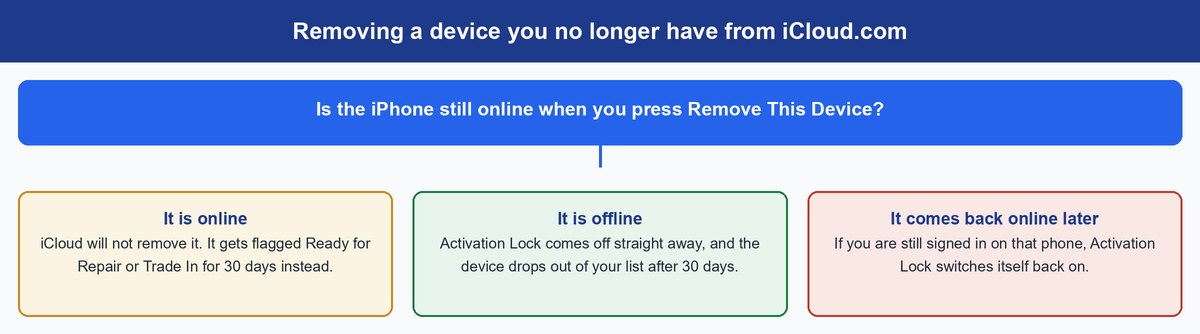
You sold it, shipped it, or handed it over, and only later realized you never signed out. This is recoverable, but the rules at icloud.com/find are stricter than most people expect, and they hinge entirely on whether the device is online.
When the Phone Is Online and iCloud Refuses
Pick the device, choose Remove This Device, and if it is currently connected, iCloud will not remove it. Instead it offers to flag the device as Ready for Repair or Trade In for the next 30 days. Apple’s device removal guide documents this behavior — the flag is the documented workaround for an online device, not a way to strip Activation Lock on the spot. If the new owner is reachable, the far cleaner fix is asking them to power the phone off for a few minutes.
When the Phone Is Offline or Powered Down
If the device is offline, Activation Lock is removed immediately and the device disappears from your Find My list after 30 days. That 30-day gap is where people get complacent. If the phone comes back online after those 30 days and you are still signed in on it, it reappears in your device list and Activation Lock switches itself back on — a buyer can be locked out weeks after a sale that looked finished.
Failing all of that, Apple runs an Activation Lock support request for people who own the device and have proof of purchase. It is slow and it needs a real receipt with the serial number on it, which is exactly why keeping the original invoice for a secondhand iPhone is not paranoia.
Why the Toggle Is Grayed Out or the Password Prompt Will Not Move
If the Find My iPhone switch refuses to move at all, the culprit is almost always Stolen Device Protection. Apple’s documentation is unambiguous: you need Find My turned on for the feature to work, “and you can’t turn it off while Stolen Device Protection is enabled.” Turn the protection off first, at Settings, Face ID (or Touch ID) and Passcode, Stolen Device Protection. Apple recommends doing exactly this before you sell, give away or trade in an iPhone.
Away from home or work, that feature also adds a security delay of one hour plus two separate Face ID or Touch ID checks before certain settings will change, and it requires biometric authentication — with no passcode fallback — for Erase All Content and Settings. It is available on iOS 17.3 and later, and it may already be on by default. Plan around it rather than fighting it.
The password prompt itself has no workaround, and you should be suspicious of anyone selling one. If you have forgotten the password, reset it through Apple’s account recovery rather than looking for a bypass — and note that under Stolen Device Protection, changing your Apple Account password is itself a security-delay action, so start early rather than the morning the courier arrives.
Frequently Asked Questions
Can I turn off Find My iPhone without the Apple Account password?
No, and that is the feature working correctly. Apple requires your Apple Account password before anyone can turn off Find My, erase the device, or reactivate it. Tools and services promising a bypass are either scams or trading in stolen hardware.
Does a factory reset turn off Find My iPhone?
It depends entirely on how you reset it. Erase All Content and Settings from the phone’s own Settings app asks for your Apple Account password and removes the device from your account. A restore done in recovery mode on a computer, or a remote erase from Find My, wipes the storage but leaves Activation Lock in place.
Will turning off Find My iPhone delete my photos?
No. Flipping the Find My iPhone toggle changes nothing about your content. It removes tracking, Lost Mode and Activation Lock and leaves every photo, message and app untouched — which is precisely why it is not enough on its own before a sale.
Can I turn off Find My iPhone from a computer?
Not the toggle itself, no. What you can do at icloud.com/find is remove the device from your account, which clears Activation Lock — immediately if the phone is offline, and only as a Ready for Repair or Trade In flag if it is online.
Does turning off Find My iPhone affect my iPad or Mac?
No. Find My is set per device, so switching it off on one iPhone leaves every other device on your Apple Account exactly as it was. You do have to repeat the process on each device you are selling.
I already sold my iPhone and forgot to sign out. What now?
Go to icloud.com/find, select the device and choose Remove This Device. If it is offline, the lock clears right away. If it is online, ask the buyer to power it down first, or start an Activation Lock support request with your proof of purchase.
The Bottom Line Before You Hand the Phone Over
Treat Find My as ownership rather than as a setting and the whole process stops being confusing. You are not switching off a map — you are transferring a title, and Apple built the paperwork so it cannot be forged. Back up, clear the trade-in blockers while the phone still works, sign out, then erase with your password in hand. Ten minutes on the sofa, in that order, is the difference between a clean sale and a stranger holding a very expensive brick with your email address on the lock screen.