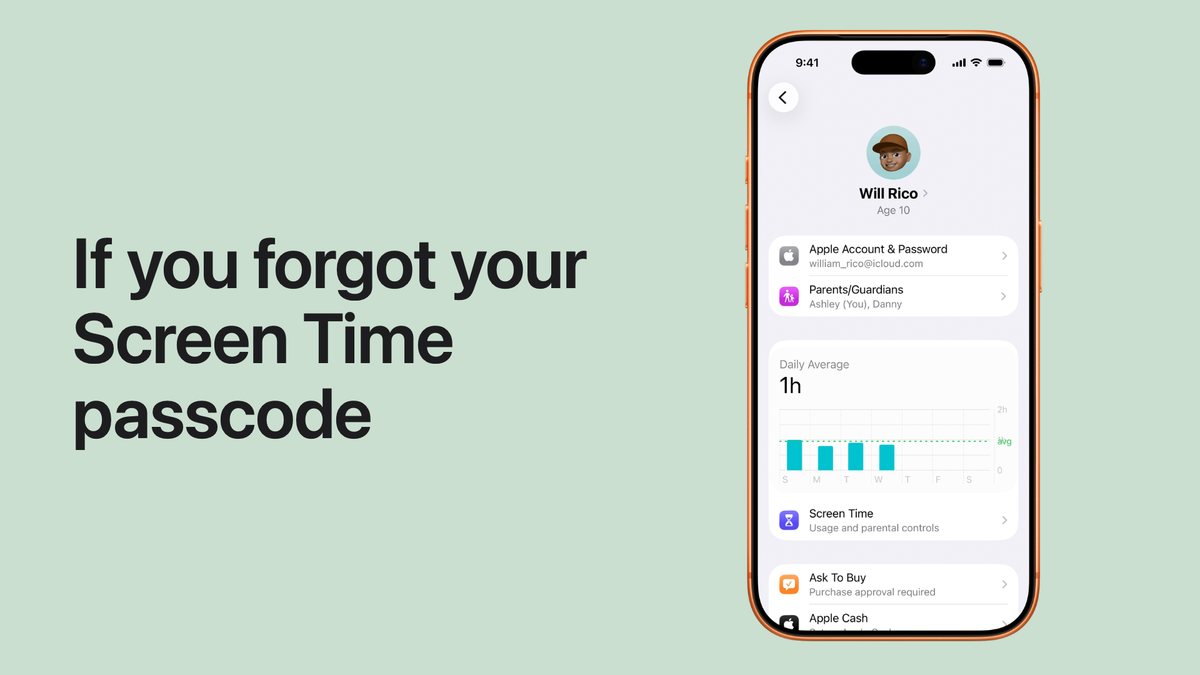
Open Settings, tap Screen Time, tap Change Screen Time Passcode, then tap Forgot Passcode?. Type the Apple Account email and password you used when you set the code, pick a new four-digit code, and you are back in. If you forgot your Screen Time passcode and landed here mid-panic, that is the whole fix, and it takes about a minute. Here is the part nobody tells you, though. That Forgot Passcode? link is not on every iPhone. Whether it shows up was decided months or years ago, in a setup screen you probably tapped through without reading. This post covers the fast reset, the fix for your kid’s device, and the one situation where there is genuinely no shortcut left.
- The fix on your own device is Settings, Screen Time, Change Screen Time Passcode, Forgot Passcode?. Your Apple Account email and password unlock a new code in about a minute.
- Locked out of your kid’s limits? You never need their device. The reset lives on your own phone, under their name in your Screen Time settings.
- The Forgot Passcode? option only exists if an Apple Account was attached when the code was first set. That one setup tap is the entire ballgame.
- Skipped that step? Then the only real way out is erasing the device and setting it up as new. Every app and “master code” promising otherwise is wasting your time.
- After a forced reset, do not restore the old backup. The forgotten passcode is inside it, and it will ride right back onto the phone.
Reset a Forgotten Screen Time Passcode With Your Apple Account
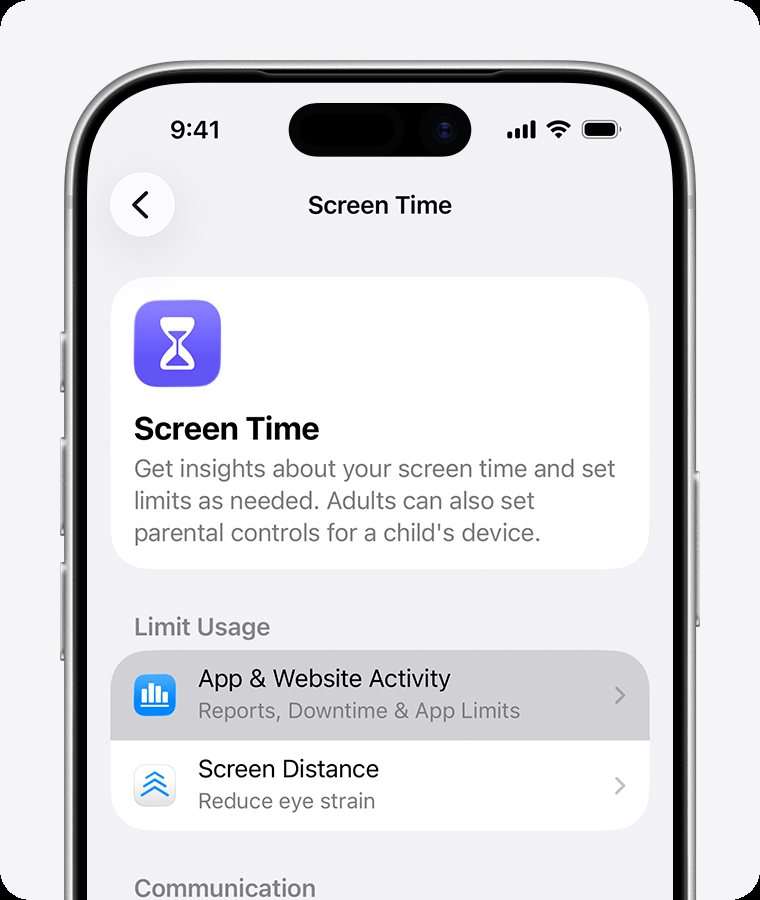
This is the path for your own iPhone or iPad, and it works the same on both. Apple’s own support page walks the same path, updated as recently as June 2026.
- Open Settings and tap Screen Time. You will land on the screen shown above, with App & Website Activity up top.
- Scroll down and tap Change Screen Time Passcode. A small menu appears. Tap Change Screen Time Passcode again.
- Tap Forgot Passcode?. It sits under the number pad asking for your old code. This is the link everyone scrolls past while trying to remember the code instead.
- Sign in with your Apple Account. It must be the same email and password you used when you first set the passcode. A different account will not work, even if it is yours.
- Set a new passcode. Enter it twice and you are done. Nothing is deleted, no apps are touched, and your limits stay exactly as they were.
Any iPhone updated in the last few years has this option. Apple added the account reset back in iOS 13.4, so unless the device has been frozen in time since 2020, the door is there.
Worth knowing: if Share Across Devices is on in your Screen Time settings, one reset updates the passcode on every device signed in to the same iCloud. You do not have to repeat this on your iPad.
Why Some iPhones Show the Forgot Passcode Option and Others Never Will
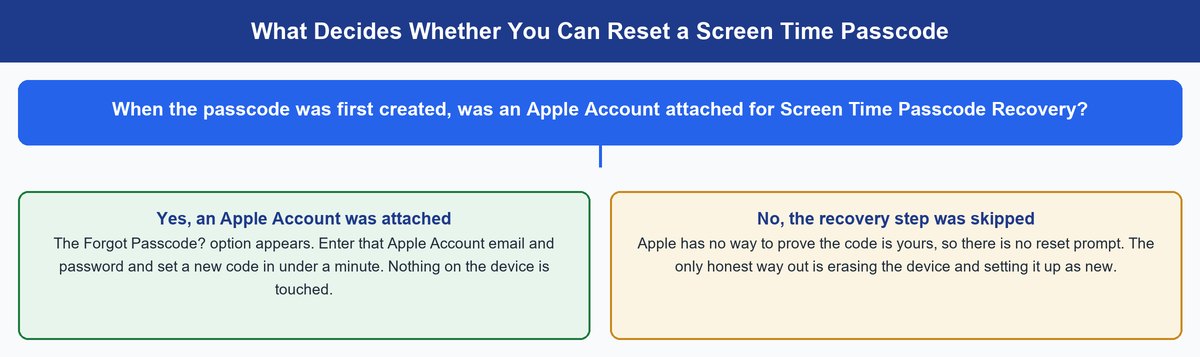
Here’s why, because it explains every dead end in this topic. A Screen Time passcode is a lock you set against yourself, or against your kid. A lock like that is worthless if a clever teenager can talk their way past it. So Apple made a hard rule. The passcode can only be reset by proving identity, never by proving cleverness.
That proof gets set up in one place. When you first create a Screen Time passcode, iOS asks for an Apple Account as Screen Time Passcode Recovery. Say yes, and Apple keeps that link on file. From then on, the Forgot Passcode? option can check you are really you. Skip that screen, and Apple holds nothing to check you against. The Forgot Passcode? link is not hidden or broken on those devices. It has nothing to verify, so the reset path simply does not exist.
This is also why the fix for a forgotten code is either trivial or brutal, with nothing in between. One tap during setup decides whether the easy reset exists. If you take one thing from this page, take this. The next time any Apple device offers Screen Time Passcode Recovery, do not skip it.
Reset Your Child’s Screen Time Passcode From Your Own Phone
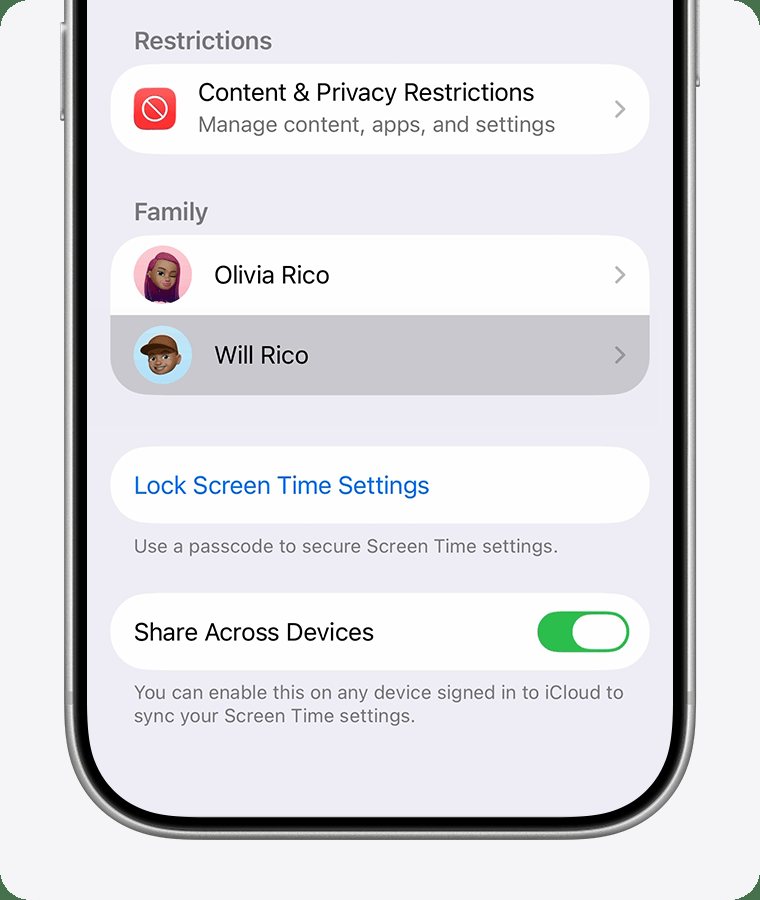
If the code guarding your kid’s iPhone or iPad is the one you lost, the news is better than you think. When the child is in your Family Sharing group, the passcode belongs to your account, not their device. You reset it from your own phone and never have to pry theirs out of their hands.
- Open Settings and tap Screen Time on your phone. You must be the family organizer or a parent in the group.
- Tap your child’s name. It sits in the Family section, like the screen above.
- Under Restrictions, tap Manage Screen Time. Then tap Change Screen Time Passcode, and tap it once more to confirm.
- Enter the new code. It applies to the child’s device on its own. No touching their iPhone, no arguments.
Apple’s family setup guide covers the same flow, including adding a child to the group if you set their phone up as a standalone device. That standalone case is the trap, by the way. A kid’s iPhone set up outside Family Sharing behaves like an adult’s phone. Then the reset depends on whichever Apple Account was typed in at setup, and if that was skipped, you are in erase territory like everyone else.
When No Apple Account Is Attached, Erasing Is the Only Honest Exit
Now the hard case. The passcode was set years ago, no Apple Account was attached, and Forgot Passcode? either never appears or rejects every account you own. Every guide dances around this, so here it is straight. You erase the device and set it up as new. That is Apple’s own answer, and there is no app, service, or secret code that changes it.
Go to Settings, General, Transfer or Reset iPhone, then Erase All Content and Settings. Sign out of Find My when asked, let it wipe, and set it up as a new phone. Sign in to iCloud and your photos, messages, and contacts flow back, because they live in your account, not the backup file. Apps reinstall from the App Store. What you lose is device-level clutter like app logins and Home Screen layout, which costs you an afternoon. Some people even come out ahead, since years of junk go with it. Though if a cluttered, sluggish phone was your actual complaint, clearing your iPhone’s cache is the far less drastic fix.
Watch out: do not restore the backup you made before the wipe. The Screen Time passcode lives inside that backup, and restoring it puts the same locked wall right back on the phone. Set up as new, then start a fresh backup the same day.
The Tricks That Do Not Work on a Screen Time Passcode
Search this topic and you will wade through videos promising a bypass in thirty seconds. Here is what each one is actually worth.
Master Codes and Default Passcodes Do Not Exist
There is no factory code, no 0000 or 1234 skeleton key, and no dial-pad trick that opens Screen Time. Every “secret Apple master code” video is engagement bait. Think about what the feature is for. A universal unlock code for a parental control would be passed around every middle school in America within a week. Apple knows that, which is exactly why the only keys are the Apple Account or a full erase.
Guessing Buys You Nothing but Longer Lockouts
Wrong guesses are not free. Miss a handful of attempts and iOS puts a timer on the pad, starting around a minute and stretching longer the more you hammer it. The good news is that wrong Screen Time guesses never wipe the device, unlike the lock screen passcode. The bad news is that a locked-out hour of “try again later” gets you no closer, because the code is not guessable in any practical way. Four digits is ten thousand combinations behind a growing timer.
Recovery Apps Are Selling You a Trick That Died Years Ago
Paid “Screen Time passcode recovery” tools mostly repackage one old trick. Ancient iOS versions left the restrictions code sitting in phone backups where software could dig it out. Apple closed that door generations of iOS ago, and modern versions keep the code out of reach. Today those tools either fail or quietly do the same erase you could do free.
Real talk: Apple support cannot read your passcode back to you either. Nobody at Apple can see it. If a caller or a website claims they can pull it for a fee, you are talking to a scam.
Frequently Asked Questions
Is the Screen Time passcode the same as my iPhone passcode?
No, and mixing them up causes half the confusion around this topic. The lock screen passcode opens the phone. The Screen Time passcode guards limits and settings inside it. Resetting one never touches the other, and the Apple Account trick on this page works only for Screen Time.
How do I reset a forgotten Screen Time passcode on an iPad?
Exactly the same way as an iPhone. Settings, Screen Time, Change Screen Time Passcode, then Forgot Passcode?, and sign in with the Apple Account used at setup. If Share Across Devices is on, fixing it on your iPhone fixes the iPad too.
Can I reset my child’s Screen Time passcode without their device?
Yes, as long as they are in your Family Sharing group. Open Screen Time on your own phone, tap the child’s name, and change the passcode there. You only need their physical device if it was set up outside Family Sharing.
Will resetting the Screen Time passcode delete anything?
The Apple Account reset deletes nothing. Apps, photos, limits, and downtime schedules all stay put. Only the code changes. Data loss only enters the picture in the no-account case, where erasing the device is the last resort.
How many wrong guesses do I get before something bad happens?
Nothing dramatic ever happens. iOS adds wait timers that grow with each batch of wrong Screen Time guesses, but it never erases the phone for them. The real cost is your time, which is why the account reset beats guessing every single time.
Does the Forgot Passcode option exist on a Mac?
Yes. Open System Settings, click Screen Time, choose Change Passcode, then click Forgot Passcode and sign in with the same Apple Account. Same rule as iPhone, so a Mac passcode set without an account attached needs the same drastic measures.
Attach the Recovery Now So You Never Read This Twice
It all comes down to one choice Apple made. They decided a Screen Time passcode gets reset by proving who you are, never by outsmarting it, and that one decision explains every fix and every dead end on this page. If the Forgot Passcode? link is there, you were done five minutes ago. If it is not, skip the recovery apps and the guessing marathons, take the erase on the chin, and set up as new. Then spend thirty seconds making sure this never happens again. Check that Screen Time Passcode Recovery is attached on every device you manage, turn on Share Across Devices so one reset covers them all, and write the new code somewhere that is not your memory. The passcode was never the real lock. The account behind it is.