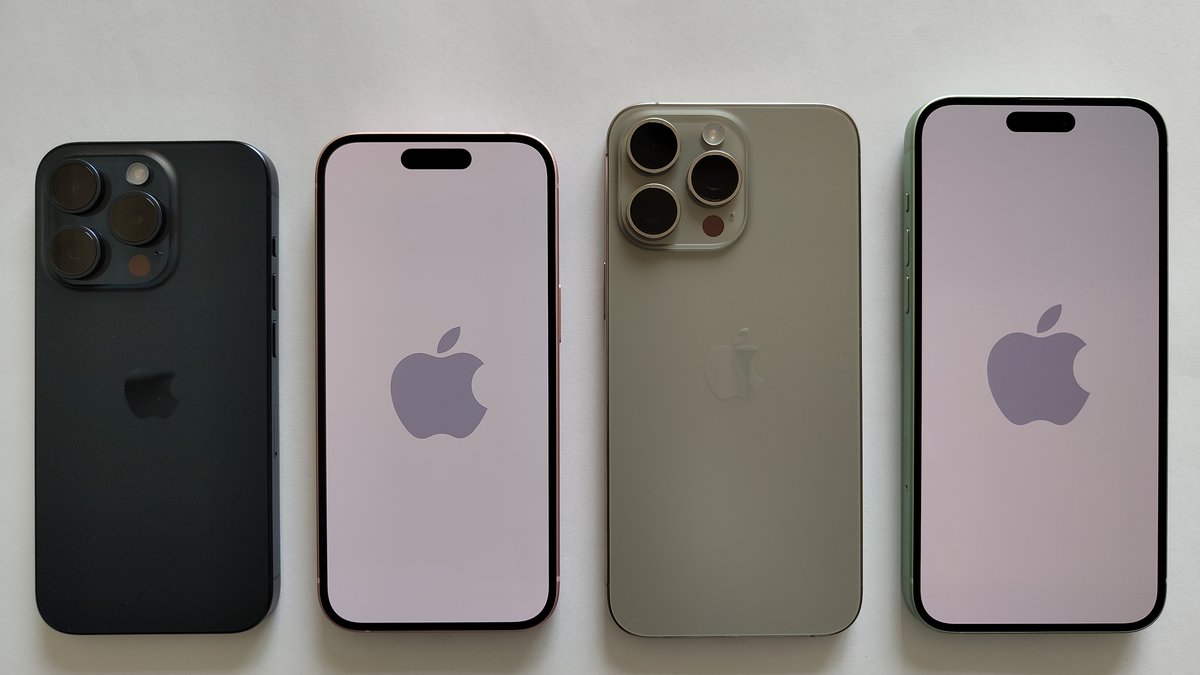
Before you turn off every setting a random forum told you to kill, stop. There’s one number on your iPhone that tells you, in about ten seconds, whether your iPhone battery draining fast is a free fix you can do right now or a worn-out battery that needs replacing. That number lives in Settings, most people never look at it, and it changes everything about what you should do next. Chasing “battery drain tips” without checking it first is like taking cold medicine without knowing if you have a cold or pneumonia. So let’s read the one gauge that actually splits the problem — and then fix whichever half you’ve got.
Published July 8, 2026 · Last updated July 12, 2026
- Check Battery Health first (Settings → Battery → Battery Health — still labeled Battery Health & Charging on iPhone 14 and earlier). High capacity plus fast drain means a rogue app or setting — free to fix. Near or below 80% means the battery itself is worn out.
- Apple treats 80% capacity as the line where a battery is considered consumed, and it’s where performance throttling can start after an unexpected shutdown.
- iPhone 14 and earlier are built to hit 80% at 500 charge cycles; iPhone 15 and later at 1,000 — so “fast drain” on a three-year-old phone means something very different than on a six-month-old one.
- Sudden drain right after an iOS update is usually the phone re-indexing and re-syncing in the background. It normally settles within 24 to 48 hours — don’t panic and don’t factory reset yet.
- Draining while plugged in almost always means heat or a bad cable or adapter, not a broken phone. Overnight drain is background refresh and push doing laps while you sleep.
- On iOS 26, Adaptive Power (Settings → Battery → Power Mode) predicts your heavy days and flips on Low Power Mode by itself at 20 percent — but Apple ships it OFF by default on everything except the iPhone 17 lineup and iPhone Air.
- A worn-out battery costs a small fraction of a new phone to replace at Apple, and the exact figure depends on model — and it’s free under AppleCare+ once capacity drops below 80 percent.
- A swollen, bulging, or hot battery is a fire hazard. Stop using the phone, don’t press on it, and get it serviced — this is the one symptom you never wait out.
Read Your Battery Health Number Before You Touch Anything Else
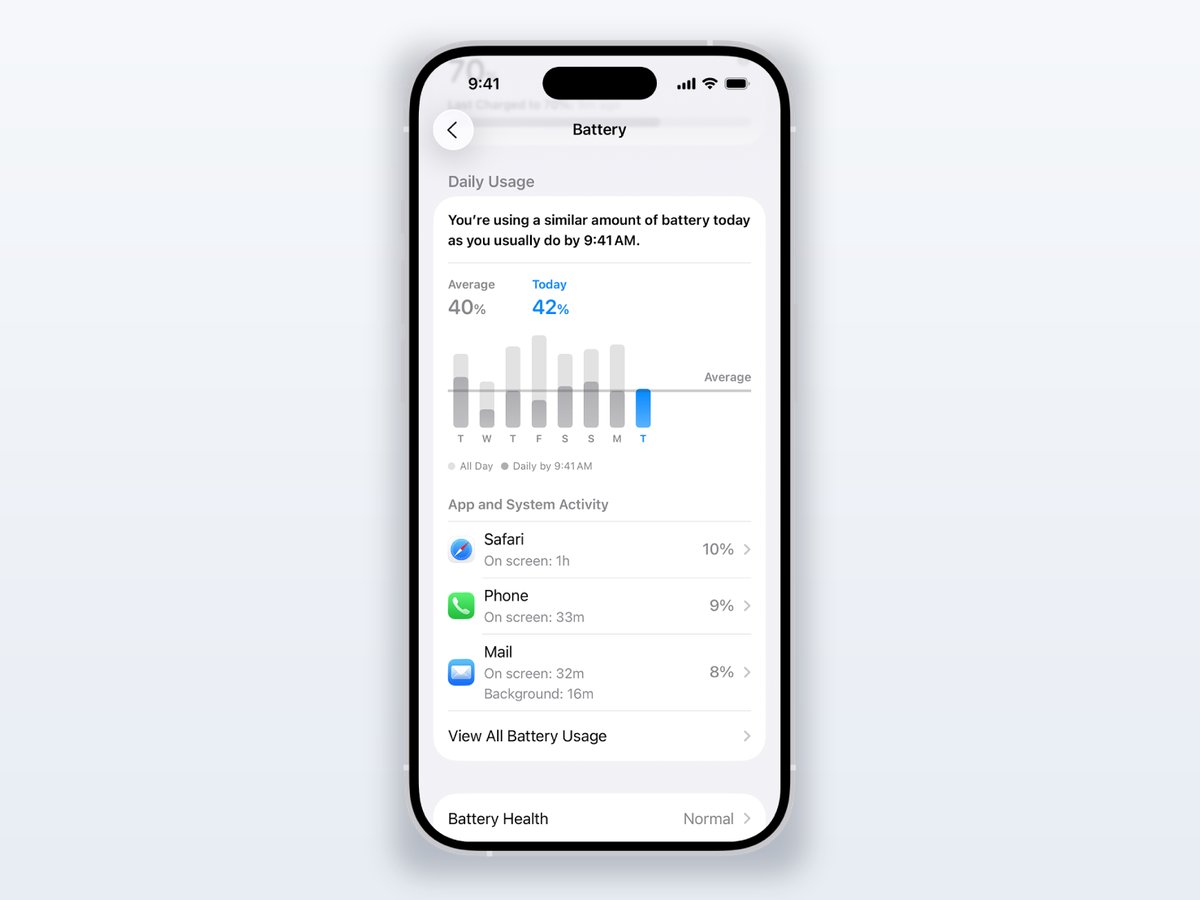
Open Settings → Battery and tap Battery Health — on iPhone 14 and earlier it’s still labeled Battery Health & Charging — then look at Maximum Capacity. That single percentage is the fork in the road, and everything else in this article branches off it. Here’s why it matters so much: your iPhone’s battery is a consumable part, like brake pads. Maximum Capacity tells you how much of the original tank is left. Every other “fix” on the internet assumes the tank is fine and the leak is software — but if the tank itself is shot, you can disable Background App Refresh until you’re blue in the face and still be dead by 3 p.m.
The read is simple. If Maximum Capacity is high — say, 90% and up — and your phone still dies fast, the hardware is healthy and something in software is draining it. That’s the good outcome, because it’s free to fix, and the rest of this guide is your checklist. If it’s drifting toward or below 80%, the battery is genuinely worn, and no setting will bring back capacity that’s chemically gone. That’s a replacement, not a tweak.
Tip: Apple defines 80% capacity as the point where the battery is considered consumed — it’s the threshold its one-year warranty is built around and where performance management can kick in. Crossing under 80% isn’t your phone “breaking.” It’s the battery reaching the end of the life Apple designed it for.
Use Charge Cycles to Tell “Old and Tired” From “Something’s Wrong”
Battery Health gives you the capacity number, but cycle count gives you the context — and context is what separates a normal, boring death from an actual bug. On iPhone 15 and later you can see the cycle count directly (Settings → General → About → scroll to Cycle Count). On older models you’ll need a third-party tool or a Genius Bar check, but you can estimate from how hard you’ve used it. One cycle equals a full 0-to-100% worth of charging, whether that’s one long charge or several partial top-ups added together.
The reason this matters is that Apple rates different generations to very different lifespans. iPhone 14 and earlier are designed to keep 80% of capacity through 500 complete charge cycles. Starting with iPhone 15, Apple doubled that to 1,000 cycles — a change Apple confirmed in 2024 and one the EU’s battery-durability rules pushed the whole industry toward. So do the math on your own phone before you assume the worst.
Keep in mind: A 3-year-old iPhone 13 that’s dropped to 82% has simply lived a full, normal life — that’s roughly on schedule. A 6-month-old iPhone 16 showing the same drain is not aging; it has a software problem or a defect, and it’s worth a warranty conversation. Same symptom, opposite diagnosis, and cycle count is what tells them apart.
Fix the Software Drains When Your Battery Health Is Still Good
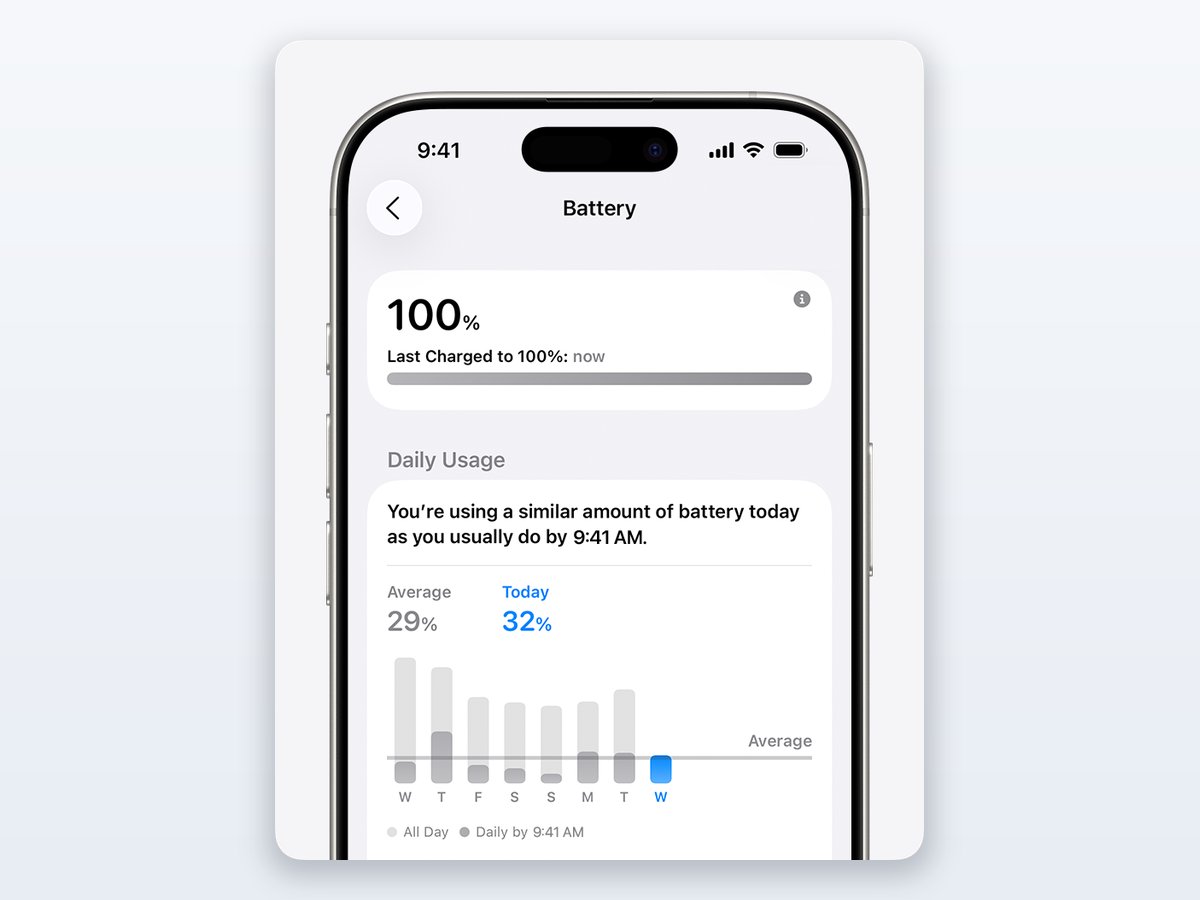
If your Maximum Capacity is healthy, congratulations — this is a settings problem, and it’s fixable in minutes. Even better: iOS 26 rebuilt the Battery screen into an actual diagnostic tool, so stop shotgunning random toggles and let the phone rat out the culprit. Open Settings → Battery. Any Suggestions and Insights sit right above the chart — nudges like “enable auto-brightness” when your screen habits are costing you, or an “Ongoing iOS Update” Insight that means the phone is still chewing through post-update work and today’s drain isn’t a fault. Below that, the Daily Usage chart (new in iOS 26) compares today against your last seven days, so you know instantly whether today is genuinely abnormal or just feels that way. Under the chart, App and System Activity names the day’s three biggest battery eaters, and View All Battery Usage opens the full lineup — Apple documents the whole screen here. The offender is almost always sitting right at the top of that list. Work these five fixes in order.
Hunt Down the One App That’s Looping in the Background
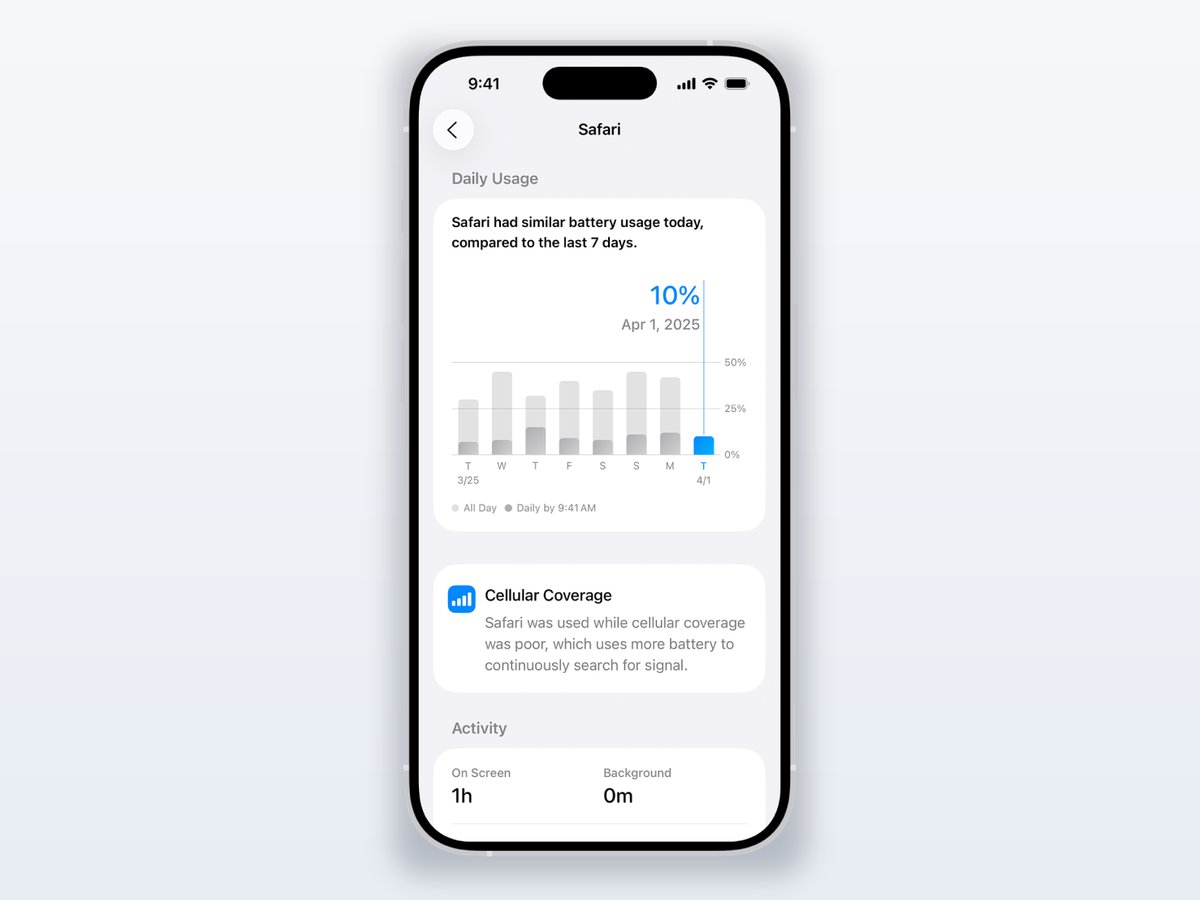
In the App and System Activity list, look for an app with a wildly disproportionate share — then tap it. iOS 26 gives every app its own chart against the last seven days, plus a usage label that tells you why it drained you, and learning to read the four labels is the whole diagnosis. Background Activity means the app burned most of its power while you weren’t even using it — that’s the crash-and-relaunch loop, the endless retry against a dead server, the label that convicts a rogue app. No Mobile Coverage and Low Signal means the drain isn’t the app’s fault at all; your radio was screaming into a dead zone the whole time it ran. Notifications means the app’s pings keep waking the device — trim its alerts and the drain follows. And Connected to Charger is an acquittal: the app ran while plugged in and cost your battery nothing, so move on. If Background Activity is the verdict, force-quit the app, then delete and reinstall it if it reoffends. Social, email, and VPN apps are the usual suspects because they wake constantly to sync.
Rein In Background App Refresh Instead of Killing It Entirely
Background App Refresh lets apps update before you open them, which is genuinely useful — so don’t nuke it wholesale. Go to Settings → General → Background App Refresh and switch off the apps that have no business updating in the background (games, shopping, that airline app you use twice a year). Leave messaging and email on. Blanket-disabling it is the advice that makes your phone feel broken; targeted trimming is what actually helps.
Switch Location Services From “Always” to “While Using”
A handful of apps quietly hold GPS open around the clock, and the radio is one of the hungriest components in the phone. In Settings → Privacy & Security → Location Services, scan for anything set to “Always” that doesn’t need it — weather, shopping, and delivery apps are repeat offenders. Drop them to “While Using the App.” Your maps and rideshare apps still work perfectly; the ones spying on you in the background stop draining you.
Set Mail to Fetch on a Schedule Instead of Constant Push
Push email keeps a live connection open so mail lands the instant it’s sent — great for one critical account, wasteful across five. In Settings → Mail → Accounts → Fetch New Data, set the accounts you don’t live in to Fetch every 15 or 30 minutes instead of Push. You’ll never notice the delay on a newsletter inbox, and you claw back a steady trickle of standby drain that runs all day whether you touch the phone or not.
Set Voice and Data to 5G Auto So Smart Data Mode Saves Battery
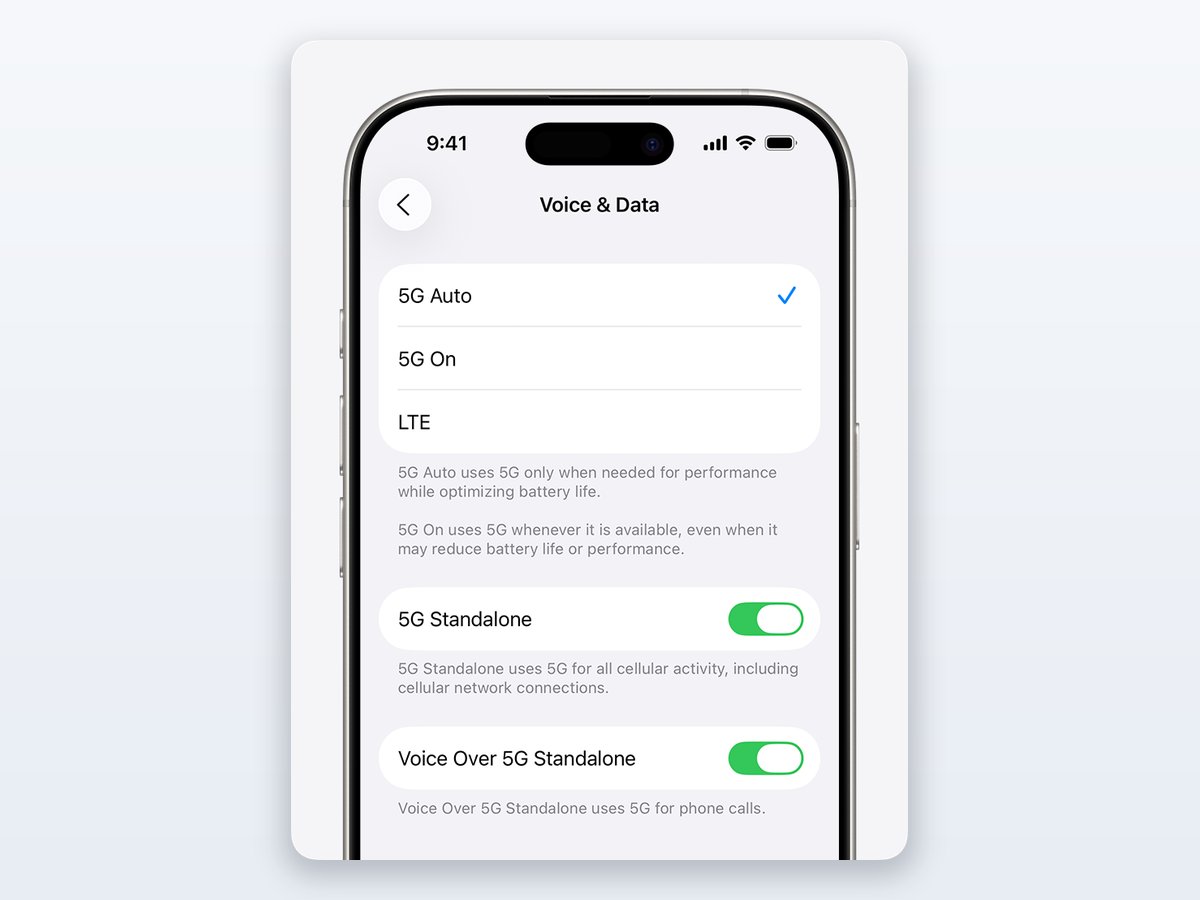
Here’s the fix almost nobody checks: the 5G radio itself. On any iPhone 12 or later, go to Settings → Cellular → Cellular Data Options → Voice & Data and pick 5G Auto, which enables Smart Data mode. When 5G isn’t actually delivering a noticeably better experience than LTE, the phone quietly drops to LTE and pockets the savings — you keep 5G when it matters and stop paying the radio tax when it doesn’t. “5G On,” by contrast, holds the 5G connection whenever one exists, and Apple itself warns that choice can reduce battery life. Unless you have a specific reason to force 5G full-time, Auto is the grown-up setting — and if you flipped it to “On” once to test your carrier’s coverage map, this is your reminder to put it back.
Let Adaptive Power on iOS 26 Handle the Heavy Days Automatically
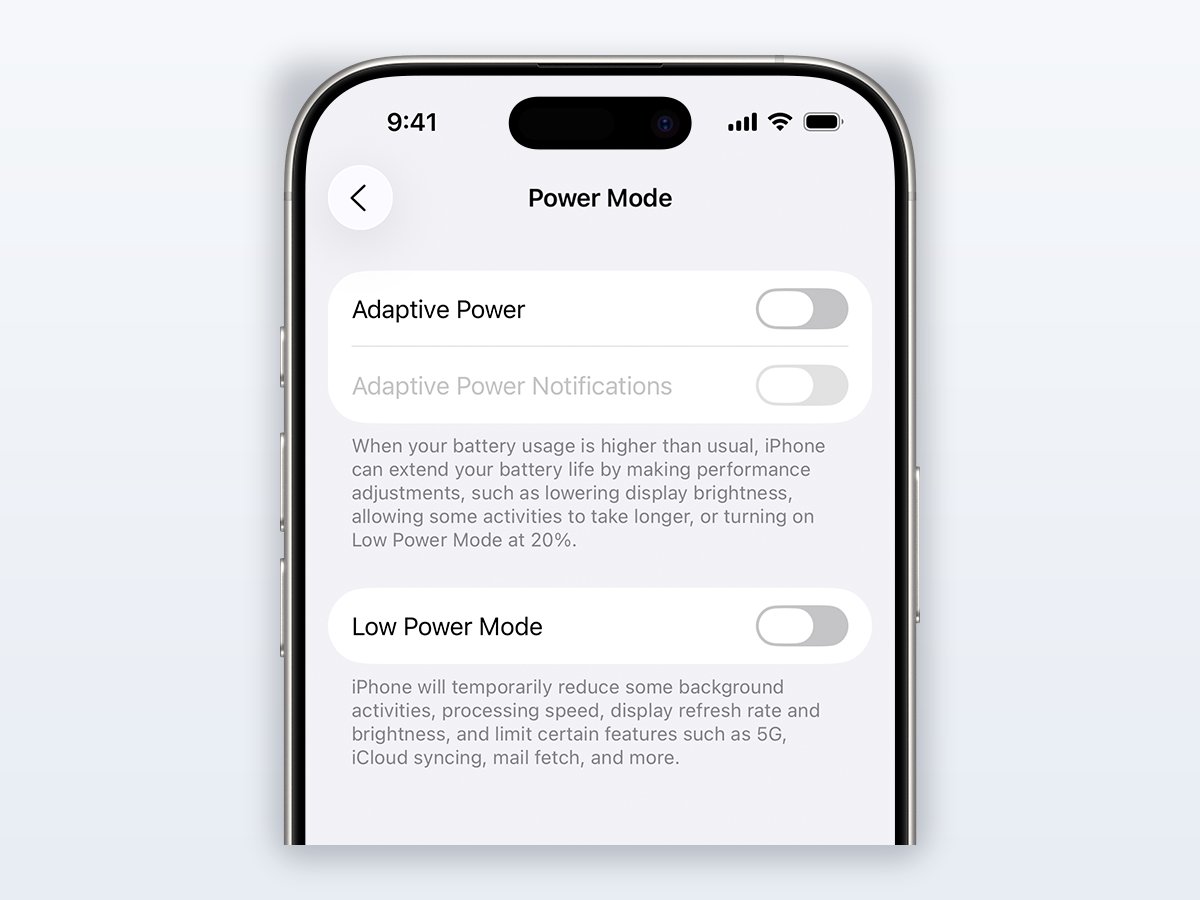
iOS 26 added a third answer to battery anxiety, sitting between “do nothing” and “manually babysit Low Power Mode.” Adaptive Power uses on-device intelligence to learn your usage patterns, predict the days you’ll burn more charge than usual, and quietly intervene: it makes small performance adjustments, dims the screen a touch, lets some background work take longer, and — the part most people miss — flips on Low Power Mode by itself the moment you hit 20 percent. It also deliberately keeps its hands off the moments you’d notice, like shooting with the camera or playing a game with Game Mode on, so the trade-off stays invisible where it counts.
The support list is narrower than you’d expect, and that’s the catch. Per Apple’s own battery-drain guidance, Adaptive Power runs on the iPhone 17 lineup, the iPhone Air, the iPhone 16 lineup, and the iPhone 15 Pro and 15 Pro Max — nothing older, and not the regular iPhone 15. The defaults are the sneaky part: Apple ships it ON for the iPhone 17 models and the Air, but OFF for every iPhone 16 and both 15 Pros. So if you’re on a 16 wondering why a friend’s 17 coasts through long days, this untouched toggle is part of the answer. Find it at Settings → Battery → Power Mode, then be patient — Apple says it needs about seven days of learning your charging habits before it engages at all.
When should you leave it off? If you edit photos or video and need the display locked at full brightness, uncommanded dimming will drive you up a wall. Same if you insist on identical performance every single day — Adaptive Power trades a sliver of consistency for endurance, and that’s a taste call. And be clear about what it can’t do: it manages demand, not capacity. If your Battery Health number already failed the ten-second check, Adaptive Power just slows the bleeding on a battery that needs replacing.
Understand Why Your iPhone Battery Drains Overnight While You Sleep
Waking up to a phone that lost 20% doing nothing is the most common complaint, and it’s rarely a battery fault. Overnight is prime time for background work: apps refreshing, mail pushing, iCloud photos syncing, and — the real villain — a rogue app looping unchecked with nobody watching. During the day you plug in and don’t notice. At 3 a.m., that same drain has eight uninterrupted hours to add up.
The fix is targeted, not drastic. Before bed, the biggest single lever is a poor signal: if you sleep in a dead zone, your iPhone cranks its radio to max power hunting for a tower all night, and that alone can cost double-digit percentages. Airplane mode overnight kills it instantly if you don’t need calls while you sleep. Beyond that, the Background App Refresh and Fetch fixes above do most of the work — they’re the same drains, just given a quiet, uninterrupted night to run.
Note: Optimized Battery Charging can make overnight drain look worse than it is. Your iPhone deliberately holds at 80% and finishes to 100% only near your alarm to spare the battery — so a phone that reads 80% at 6 a.m. isn’t failing, it’s protecting itself exactly as designed.
Know Why Battery Drains Fast After an iOS Update — and Why to Wait
This one triggers the most panic and needs the least action. You install a big iOS update, and for a day or two the battery drops like a stone. Before you factory reset or start blaming Apple, understand the mechanism, because almost every panic article skips it: right after a major update, your iPhone rebuilds its Spotlight search index, re-analyzes your Photos library for people and objects, and re-syncs data with iCloud. That’s a genuine, heavy, temporary workload — and it’s supposed to happen. On iOS 26 the phone even tells you outright: open Settings → Battery and look for an “Ongoing iOS Update” Insight above the Daily Usage chart — that’s Apple’s way of saying the drain is scheduled, not broken.
Here’s the reassuring part nobody tells you: this post-update spike almost always settles within 24 to 48 hours once the indexing finishes. The single best move is patience — leave the phone on Wi-Fi and plugged in overnight so it can finish the work while charging. If you’re still seeing brutal drain after two full days, then it’s real: check the per-app battery list for a specific app that didn’t survive the update well, and update or reinstall that one app rather than blowing away the whole phone.
Caveat: If drain is still severe on day three or four, don’t keep waiting — that’s past the normal re-indexing window. At that point it’s a specific app that broke against the new iOS, and the fix is updating or reinstalling that app, not a factory reset. Reserve the nuclear option for when the targeted fix fails.
Diagnose an iPhone That Drains While Plugged In or Sitting Idle
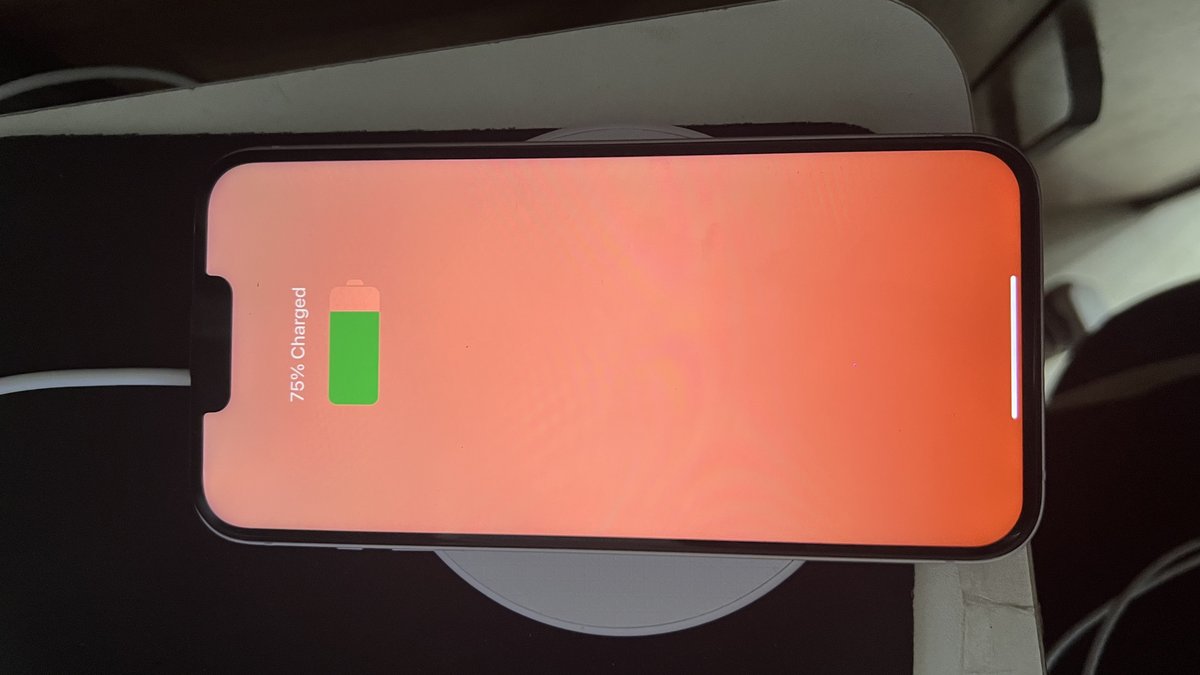
Two symptoms confuse people the most: losing charge while it’s on the cable, and losing charge while it just sits there untouched. Both have clean explanations.
When Your iPhone Drains Even While It’s Charging
If the battery percentage falls while plugged in, the phone is pulling more power than the charger can supply. The two causes are heat and a weak accessory. Heavy use while charging — gaming, navigation, a hot car — generates heat, and heat makes the phone throttle charging to protect the battery, so it drains faster than it fills. The other cause is a frayed cable or an underpowered adapter (that free airline USB port, a cracked third-party cable) that simply can’t push enough watts. Swap to a known-good Apple or MFi-certified cable and a proper wall adapter before you blame the phone. This heat-versus-charging tug-of-war is the same story we saw play out across a major iOS release in our iOS 26 battery life review.
When Your iPhone Drains While Sitting Unused
Standby drain — losing charge with the screen off and the phone in your pocket or on a desk — comes down to what’s still awake. Location Services holding GPS open, a flood of push notifications waking the screen, and constant email polling are the big three, and they run whether or not you’re looking. Apply the Location and Fetch fixes above, turn on Low Power Mode when you’re away from a charger, and the idle drain drops sharply. A modern iPhone in good health should lose only a small single-digit percentage overnight in standby — much more than that points straight back to one of those three radios.
When the Fault Climbs From Charging Port to Charging IC to Logic Board
If a known-good cable and adapter didn’t cure a phone that loses charge on the charger, the suspect list climbs in a strict order — and so does the repair bill.
- Charging port — pocket lint compacts at the back of the port and makes contact intermittent, which reads as “draining while charging.” Power off, shine a light in, and if you see debris, lift it out gently with a dry wooden or plastic pick — never anything metal. This is the only rung of the ladder that’s sensibly DIY.
- Charging IC — the small power-management chip that negotiates charging between the port and the battery. When it fails you get fake charging, drain with flawless accessories, or random shutdowns. Fixing it is board-level microsoldering — emphatically not a YouTube-and-a-screwdriver job — so it goes to Apple, an authorized provider, or a reputable independent board shop.
- Logic board — the end of the line, usually after liquid damage. At this point you’re into Apple’s “other damage” service tier, which runs several hundred dollars, so weigh the quote against what the phone is actually worth before saying yes.
The honest rule: your screwdriver stops at the port. A botched board-level repair turns a hundred-dollar problem into a dead phone, which is why the pros charge what they charge.
Recognize the One Battery Symptom You Should Never Wait Out
Everything above is about optimization and patience. This is the exception — the one situation where you stop troubleshooting and act immediately. iPhone batteries are lithium-ion, and a damaged one is a real fire and thermal-runaway hazard, not a hypothetical.
If your iPhone’s screen is bulging or lifting off the frame, the back is separating, the phone feels hot when it isn’t being used or charged, or you smell or see anything leaking — the battery is swelling, and that is dangerous. Do not keep using it, do not press on it, and above all do not puncture it. U.S. fire-safety authorities are blunt about this: per USFA/FEMA guidance, stop using a battery immediately if you notice swelling, heat, odor, leaking, or a change in shape, and if a lithium-ion battery ever catches fire, don’t try to fight it — get away and call 911. Power the phone down, keep it away from anything flammable, and take it to Apple or an authorized service provider for replacement.
Warning: A swollen battery is not a “keep an eye on it” problem — puncturing or bending a swollen lithium cell can trigger a fire in seconds. This is the single symptom in this entire guide where the correct move is to stop, power off, and get it serviced today, no matter how good the rest of the phone feels.
When a Fast-Draining iPhone Battery Is Just Worn Out
Let’s close the loop on the other branch. If your Battery Health check came back near or under 80%, none of the software fixes will save you, and that’s not a failure on your part — it’s chemistry. Lithium-ion cells lose capacity every cycle; that’s the deal. The honest move is to stop fighting it and replace the battery, which is dramatically cheaper than a new phone and makes an otherwise-fine iPhone feel new again.
A fresh battery restores full runtime and, just as importantly, removes any performance throttling Apple applied to prevent unexpected shutdowns on a degraded cell — so the phone gets faster too. If you want the deeper science on why capacity fades in the first place and what’s physically happening inside the cell, we cover it in what’s really inside your phone battery and why it fades over time. Either way: check the number first, and let it decide whether you’re tweaking settings or booking a battery swap.
What Apple Actually Charges for an iPhone Battery Replacement
Here are Apple’s own out-of-warranty battery service estimates, straight from Apple’s iPhone battery service page — US tiers, checked July 12, 2026 — tap through for the current figure for your model. Almost nobody puts this tiering next to the advice, so let’s fix that.
| iPhone Model | Apple Battery Service Tier (Out of Warranty) |
|---|---|
| iPhone Air, 17 Pro Max, 17 Pro, 16 Pro Max, 16 Pro | Highest tier |
| iPhone 17, 17e, 16, 16 Plus, 16e, all iPhone 15 and iPhone 14 models | Second tier |
| iPhone 13, 12, 11, XS, XR, and X models | Third tier |
| iPhone SE, 8, 7, and 6s models | Lowest tier |
Read that table with the 80 percent rule in mind and two things jump out. First, if you carry AppleCare+, Apple replaces the battery at no extra charge once capacity drops below 80 percent — the exact threshold your ten-second check measures, which is why that one number is the whole ballgame. Second, the battery “Pro tax” is new: an iPhone 15 Pro Max battery sits a tier below a 16 Pro — the Pro premium only starts with the 16 Pro generation. Either way, a battery against several hundred for a whole new phone is the cheapest performance upgrade in tech. Treat Apple’s number as an estimate, though — authorized service providers set their own fees, and Apple confirms the final price after inspecting the phone.
Frequently Asked Questions
Why is my iPhone battery draining so fast all of a sudden?
A sudden change almost always has a specific trigger. The top three: you just installed an iOS update and the phone is re-indexing (settles in 24 to 48 hours), a specific app started misbehaving in the background, or your battery has finally crossed its wear threshold. Check Settings → Battery for the per-app breakdown and Battery Health for capacity — between those two screens you’ll spot which one it is.
What is a good iPhone battery health percentage?
Anything above 80% is considered healthy, and Apple treats 80% as the point where the battery is “consumed.” Most people start noticing meaningfully shorter runtime somewhere in the low-to-mid 80s. Below 80%, especially with unexpected shutdowns, it’s time for a replacement — no setting brings chemically lost capacity back.
Does my iPhone battery drain faster after an iOS update because the update is bad?
Usually not. The heavy drain in the first day or two after a major update is your iPhone rebuilding its search index, re-analyzing photos, and re-syncing iCloud in the background — real work that ends once it finishes. It typically normalizes within 24 to 48 hours. Only if severe drain persists past a couple of days should you suspect a specific app that broke against the new iOS.
Why does my iPhone lose charge while it’s plugged in?
Because it’s drawing more power than the charger delivers. Either you’re using it hard enough (gaming, navigation, heat) that the phone throttles charging to protect the battery, or your cable or adapter is too weak or damaged to supply enough watts. Swap to a known-good Apple or MFi-certified cable and a proper wall adapter, and let the phone cool down.
How do I stop my iPhone from draining overnight?
Target the background work that runs while you sleep: turn off Background App Refresh for non-essential apps, switch chatty email accounts from Push to Fetch, and drop always-on Location Services to “While Using.” If you sleep in a weak-signal area, Airplane Mode overnight stops the phone from burning power hunting for a tower — often the single biggest overnight drain.
Is it safe to keep using an iPhone with a swollen battery?
No. A swollen or bulging battery is a genuine fire hazard. Stop using the phone immediately, don’t press on or puncture it, keep it away from flammable materials, and take it to Apple or an authorized service provider for replacement. Fire-safety authorities are clear that swelling, heat, odor, or leaking means stop using the device now.