Let me settle the argument you came here for, because the internet still hasn’t caught up to reality: is windows defender enough to protect your PC without a paid antivirus? For most people running a single Windows 11 machine in 2026, the honest answer is yes — and the independent labs back that up, not Microsoft’s marketing. The tired “it’s free, so it must be weak” take died years ago. Defender’s malware engine now goes toe-to-toe with the paid suites in the exact tests those suites brag about. So the real question isn’t whether the antivirus core is good enough. It is. The question is whether the extras a paid suite bundles — a VPN, a password manager, cross-device coverage — are worth your money for how you actually use your computer. Let’s separate the protection from the packaging, using the data.
- Yes, for a typical single-PC Windows 11 user with decent habits, Windows Defender is genuinely enough — its malware protection is no longer the weak link people assume it is.
- The proof isn’t vibes: in AV-TEST’s February 2026 Windows 11 evaluation, Microsoft Defender scored a perfect 6/6 for protection, matching the paid heavyweights.
- What Defender does NOT give you: a bundled VPN, a password manager, strong phishing protection outside Microsoft Edge, or coverage for your phone and Mac. That’s the actual gap — features, not core defense.
- Two settings decide how good your free protection really is: Controlled Folder Access (off by default — turn it on) and Tamper Protection. Flip both.
- You’re paying a third-party suite for convenience and multi-device coverage in 2026, not for a materially better shield against malware. Buy it for the bundle, or don’t buy it at all.
What the Independent Lab Data Actually Says About Microsoft Defender
Here’s the part that ends most arguments. Two independent labs — AV-TEST in Germany and AV-Comparatives in Austria — spend their entire existence throwing live, in-the-wild malware at antivirus products and scoring who blocks what. They don’t take Microsoft’s word for anything, and they have no reason to flatter a free tool. So when they say Defender is good, that carries weight a Reddit thread never will.
In AV-TEST’s February 2026 test on Windows 11, Microsoft Defender scored a flawless 6 out of 6 for protection — the same top mark handed to Bitdefender, Kaspersky, and Norton. It pulled 6/6 on performance and usability too, for a perfect 18/18. Over at AV-Comparatives, Defender routinely blocks north of 99% of real-world threats in the rolling Real-World Protection Test. This is not a product limping along on charity. It is a front-runner.
Why did this happen? Two structural reasons the “Defender is weak” crowd never accounts for. First, Microsoft sees more of the global threat landscape than any single security vendor — telemetry from over a billion Windows devices feeds its cloud-delivered protection, so a novel threat detected on one machine hardens everyone else’s within minutes. Second, since Defender ships inside Windows, Microsoft treats its detection quality as a platform-reputation problem, not an upsell. A public 6/6 is worth more to them than nudging you toward a subscription.
Defender’s one persistent knock in the lab data isn’t misses — it’s false positives. In 2025’s testing the leanest competitors (Kaspersky, Bitdefender) flagged the fewest legitimate files, while Defender historically runs a touch higher on false alarms. In plain terms: it’s more likely to nag you about a safe file than to wave through a real threat. That’s the safe direction to err.
What Windows Security Includes for Free in 2026
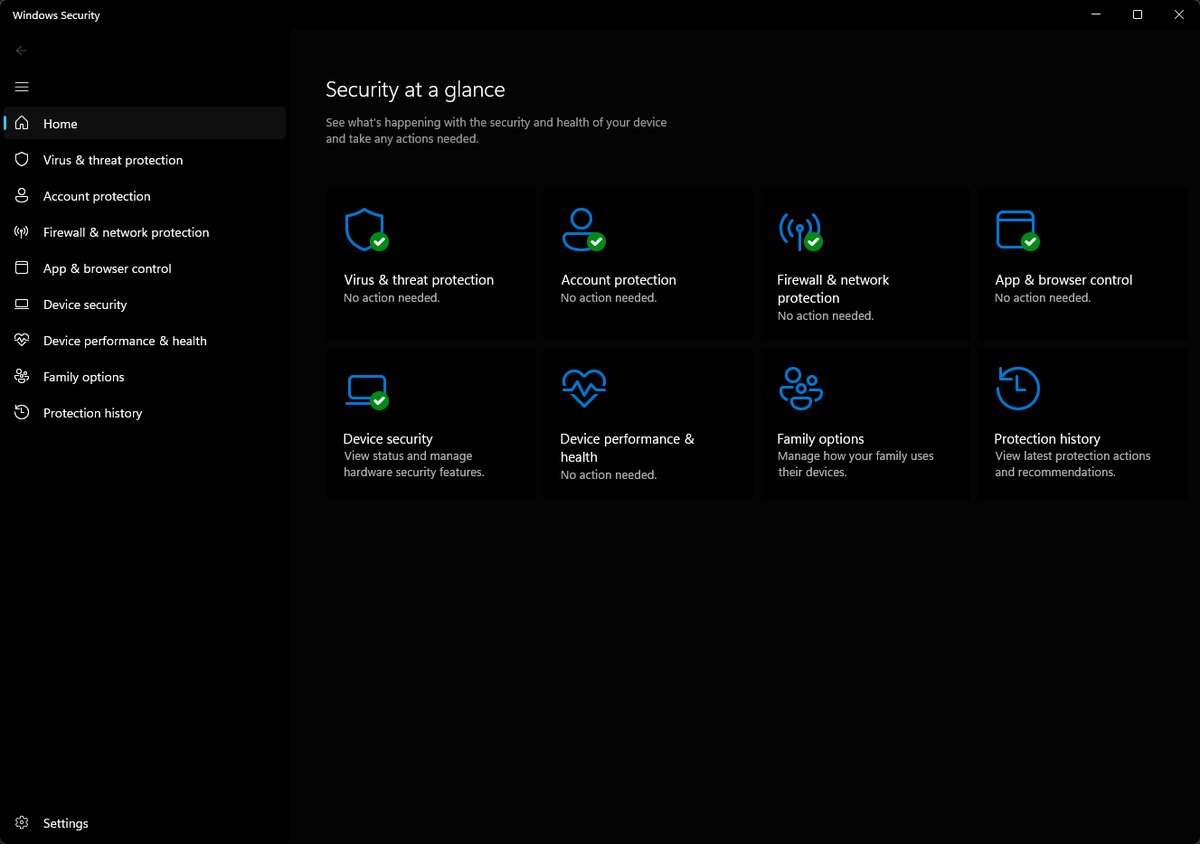
Open the Windows Security app — the same “Security at a glance” dashboard pictured at the top of this page — and you’re not looking at a stripped-down “basic antivirus.” You’re looking at a layered security stack that used to cost money. Here’s what’s actually running, and why each piece matters — because “Defender” is really shorthand for five different defenses working together.
Real-Time Antivirus and Cloud-Delivered Protection
This is the core: Microsoft Defender Antivirus scans files, downloads, and running processes the moment they touch your system, and checks anything suspicious against Microsoft’s cloud in real time. That cloud lookup is the difference-maker — it means Defender can block a brand-new threat it has never seen locally, based on what Microsoft’s global network learned seconds ago. Real-time protection is on by default, and if you try to switch it off, Windows quietly turns it back on after a short delay unless you’ve installed a rival antivirus.
SmartScreen Reputation Filtering for Downloads and Sites
SmartScreen is the bouncer that checks the reputation of files you download and sites you visit against Microsoft’s database of known-bad URLs and rarely-seen executables. Try to run a sketchy installer that almost nobody else has run, and SmartScreen throws up a warning before it executes. It’s a genuinely strong anti-malware and anti-phishing layer — with one big asterisk on the phishing side that we’ll get to.
The Windows Firewall
The built-in firewall controls what’s allowed to talk to your PC over the network and what your apps are allowed to send out. It’s been quietly competent for over a decade, and for a home user it does the same job the “firewall” bullet point on a paid suite’s box does. Paying extra for a third-party firewall in 2026 is, for the vast majority of people, solving a problem you don’t have.
Controlled Folder Access Against Ransomware
This is the sleeper feature, and it’s aimed squarely at ransomware. Controlled Folder Access locks your Documents, Pictures, and other personal folders so that only apps Microsoft trusts can modify them — so when ransomware tries to encrypt your files, it gets slapped down before it can. The catch: it’s switched OFF by default, so most people never get the protection they already own.
Tamper Protection and Core Isolation
Tamper Protection stops malware from reaching in and disabling your antivirus — a favorite first move of modern threats. Core Isolation uses your CPU’s virtualization to wall off critical security processes from the rest of Windows. Both are the kind of hardening that used to live only in enterprise tools, now sitting in a free consumer app. Tamper Protection is on by default in current Windows 11; Core Isolation’s memory integrity is worth confirming.
To turn on the ransomware shield, open Windows Security, go to Virus & threat protection, click Manage ransomware protection, and flip Controlled Folder Access to On. Add your games and creative apps to the “Allowed apps” list first, or you’ll get save-file and export errors until you whitelist them.
Where Microsoft Defender Falls Short Against Paid Security Suites
Now the honest other side, because a fair verdict names the gaps. When you buy Norton 360 or Bitdefender Total Security, you are mostly not buying better malware detection — the labs just showed you Defender matches them there. You’re buying a bundle of conveniences Defender leaves out. Here’s exactly what’s missing.
No Bundled VPN for Public Wi-Fi
Paid suites almost always throw in a VPN. Windows Security does not include one. If you regularly work from coffee shops, airports, and hotel Wi-Fi, that bundled VPN has real value — not for stopping malware, but for privacy on untrusted networks. It’s the single most common reason a careful user still ends up buying a suite.
No Built-In Password Manager
Reused and weak passwords cause more account takeovers than exotic malware ever will, and Defender doesn’t ship a password manager to fix that. Paid suites usually do. You can absolutely close this gap for free with a dedicated manager like Bitwarden — but out of the box, this is a real hole in Defender’s coverage of your actual risk.
Phishing Protection Weakens Outside Microsoft Edge
Here’s the asterisk from earlier, and it’s the most important limitation to understand. SmartScreen’s URL and phishing reputation is baked into Microsoft Edge. Browse in Chrome or Firefox and you’re no longer covered by SmartScreen’s site checks — you’re relying on Google Safe Browsing instead, which those browsers build in. It’s not that you’re unprotected; it’s that Defender’s phishing layer doesn’t follow you to a non-Microsoft browser the way a third-party suite’s browser extension does.
Thin Cross-Platform Coverage for Phones and Macs
Windows Security protects Windows. That’s the whole scope. If your household runs iPhones, Android tablets, and a MacBook, the free built-in Defender does nothing for any of them. A family antivirus subscription that covers five or ten mixed devices under one plan is solving a problem Defender structurally can’t touch.
Limited Identity and Dark-Web Monitoring
The free built-in Windows Security won’t tell you your email turned up in a breach dump or watch the dark web for your data. Paid suites increasingly lead with identity-theft monitoring and breach alerts. Worth noting: Microsoft does sell these extras through the separate Microsoft Defender app in a Microsoft 365 subscription — but that’s a paid product, not the free antivirus built into your PC.
Every gap above except cross-platform coverage is closable for free. A no-cost VPN tier, Bitwarden for passwords, and Chrome’s own Safe Browsing set to Enhanced mode replicate most of a paid suite’s bundle without a subscription — the suite’s real advantage is having it all in one dashboard and one bill.
Do I Need Antivirus on Windows 11 Beyond Defender?
This is the question underneath the question, so let’s hit it directly: no, you do not need to install a separate antivirus on Windows 11 for baseline safety. Windows 11 ships with Defender active out of the box, and as the lab scores show, that baseline is genuinely strong. The old ritual of “first thing on a new PC, install a third-party antivirus” is outdated advice from the Windows 7 era, when Defender really was mediocre. And if that new machine is still on your shopping list, it is worth settling whether you actually need an AI PC in 2026 before you pay for one.
What actually moves your risk in 2026 isn’t which antivirus brand you run — it’s your behavior. The dominant threats now are phishing, credential theft, and social-engineering scams that trick you into clicking, approving, or paying. No antivirus, free or paid, reliably saves someone who types their password into a convincing fake login page. So “do I need more antivirus” is the wrong upgrade to obsess over. Enabling multifactor authentication on your important accounts and using a password manager will protect you far more than swapping Defender for a paid engine that blocks the same malware.
Never run two real-time antivirus engines at once. Install a third-party AV and Defender automatically steps back into passive mode to avoid conflicts — but stacking two active scanners causes crashes, slowdowns, and files each one fights over. One active engine, always.
Who Genuinely Needs a Third-Party Suite, and Who Doesn’t
The lazy takes say “everyone needs paid antivirus” or “paid antivirus is a scam.” Both are wrong. It’s a fit question, not a quality question. Here’s how to place yourself.
You Can Safely Stick With Windows Defender If This Sounds Like You
You run one or two Windows PCs, you keep Windows updated, you don’t pirate software or click every email link, and you’re comfortable flipping on Controlled Folder Access and using a free password manager. That describes most people reading this. For you, Defender plus good habits isn’t a compromise — it’s the correct, no-cost choice, and paying for a suite buys you almost nothing in added safety.
You Should Add a Third-Party Suite If Any of These Apply
You manage security for a whole family across mixed phones, tablets, and Macs; you want a VPN, password manager, and identity monitoring in one subscription instead of assembling them yourself; you live in Chrome or Firefox and want browser phishing protection that travels with you; or you’re a genuinely high-risk target (public figure, high-net-worth, frequent handler of sensitive data). In those cases the bundle and the cross-platform reach earn their price — again, for the extras, not because the malware engine is meaningfully better.
If you buy a suite, buy it for the whole bundle and actually use the VPN, password manager, and monitoring. Paying a yearly subscription and then only using the antivirus half is the worst-value move in the whole category — you’re paying premium prices for detection you had for free in Defender.
How to Get the Most Out of Windows Defender Right Now
If you’re staying with Defender — and most of you should — spend ten minutes turning good protection into great protection. These are the settings that separate “technically protected” from “actually hardened,” and they cost nothing.
Turn On Controlled Folder Access and Confirm Tamper Protection
Enable Controlled Folder Access (Virus & threat protection to Ransomware protection) so ransomware can’t touch your personal folders, and confirm Tamper Protection is on so malware can’t disable Defender itself. These two flips close the gaps that let a bad day become a catastrophe.
Enable Cloud-Delivered Protection and Automatic Sample Submission
In Virus & threat protection settings, make sure Cloud-delivered protection and Automatic sample submission are both on. This is what plugs your PC into Microsoft’s billion-device threat network for near-instant blocking of brand-new malware. Off, you’re running a good local scanner; on, you’re running a global one.
Block Potentially Unwanted Apps and Keep SmartScreen Strict
Turn on the “Block potentially unwanted apps” reputation-based protection to stop the bundleware, adware, and sketchy “optimizers” that technically aren’t viruses but wreck a system. Keep SmartScreen on for both apps and Microsoft Store content so low-reputation downloads get flagged before they run.
Reputation-based protection and PUA blocking live under App & browser control, not the antivirus page — a lot of people never find them. They’re the settings that quietly stop the “why is my PC full of toolbars” class of junk that pure malware scanning ignores. And if a PC is already junked up enough that you are weighing a clean start, it helps to know exactly what a factory reset removes and what survives it before you commit.
Frequently Asked Questions
Is Windows Defender enough in 2026?
For the typical single-PC Windows 11 user with sensible habits, yes. Independent labs put its malware protection on par with top paid suites — AV-TEST scored it a perfect 6/6 for protection in February 2026. Defender is enough for baseline safety; what a paid suite adds is extras like a VPN, password manager, and multi-device coverage, not materially better malware blocking.
Do I need antivirus on Windows 11?
You don’t need a separate one. Windows 11 comes with Microsoft Defender running by default, and that built-in protection is genuinely strong. Installing a third-party antivirus is optional and worth it only if you specifically want the bundled extras or cross-platform coverage — not because Windows 11 ships unprotected. It doesn’t.
Is Microsoft Defender good enough without a VPN?
For malware protection, yes — a VPN and antivirus solve different problems. Defender guards against malicious files and sites; a VPN encrypts your traffic on untrusted networks. If you frequently use public Wi-Fi you should add a VPN, but that’s a privacy tool, not a gap in Defender’s antivirus. You can pair Defender with any standalone VPN.
Does Windows Defender slow down my PC?
Not meaningfully for most users. AV-TEST gave Defender a full 6/6 on performance in its February 2026 Windows 11 test. In AV-Comparatives’ performance testing its system impact has historically been moderate rather than the absolute lightest, but on modern hardware you’re very unlikely to notice it during normal use.
Is Bitdefender or Malwarebytes better than Windows Defender?
On raw malware detection, the top paid engines and Defender all cluster near the top of the lab charts — the differences are small enough that protection alone rarely justifies switching. Where paid tools like Bitdefender pull ahead is the bundle: VPN, password manager, multi-device plans, and identity monitoring. Choose based on those features, not on the assumption that Defender’s detection is weaker.
How do I turn on ransomware protection in Windows Defender?
Open the Windows Security app, go to Virus & threat protection, scroll to Ransomware protection and click Manage ransomware protection, then switch Controlled Folder Access to On. It’s off by default, so this is a manual step. Add any apps that legitimately need to write to protected folders — games, photo and video editors — to the Allowed apps list so they keep working.