Your router is acting up. Slow speeds, dropped connections, devices that won’t connect no matter what you try. You’ve rebooted it a dozen times. Nothing works.
A factory reset wipes the slate clean, but it also nukes every setting you’ve spent years configuring. Your WiFi name, password, port forwards, parental controls. All of it, gone.
The catch: most people reset their router when a simple settings tweak would fix the problem. Then they spend hours reconfiguring everything from scratch.
This guide gives you the reset-last approach: exhaust the free fixes first, then reset with a recovery plan so you’re not starting from zero.
- A factory reset erases ALL settings — WiFi name, password, port forwards, everything. You’ll need to set up your network from scratch.
- Try a reboot, firmware update, and settings tweaks BEFORE resetting. Most “router problems” don’t need a full wipe.
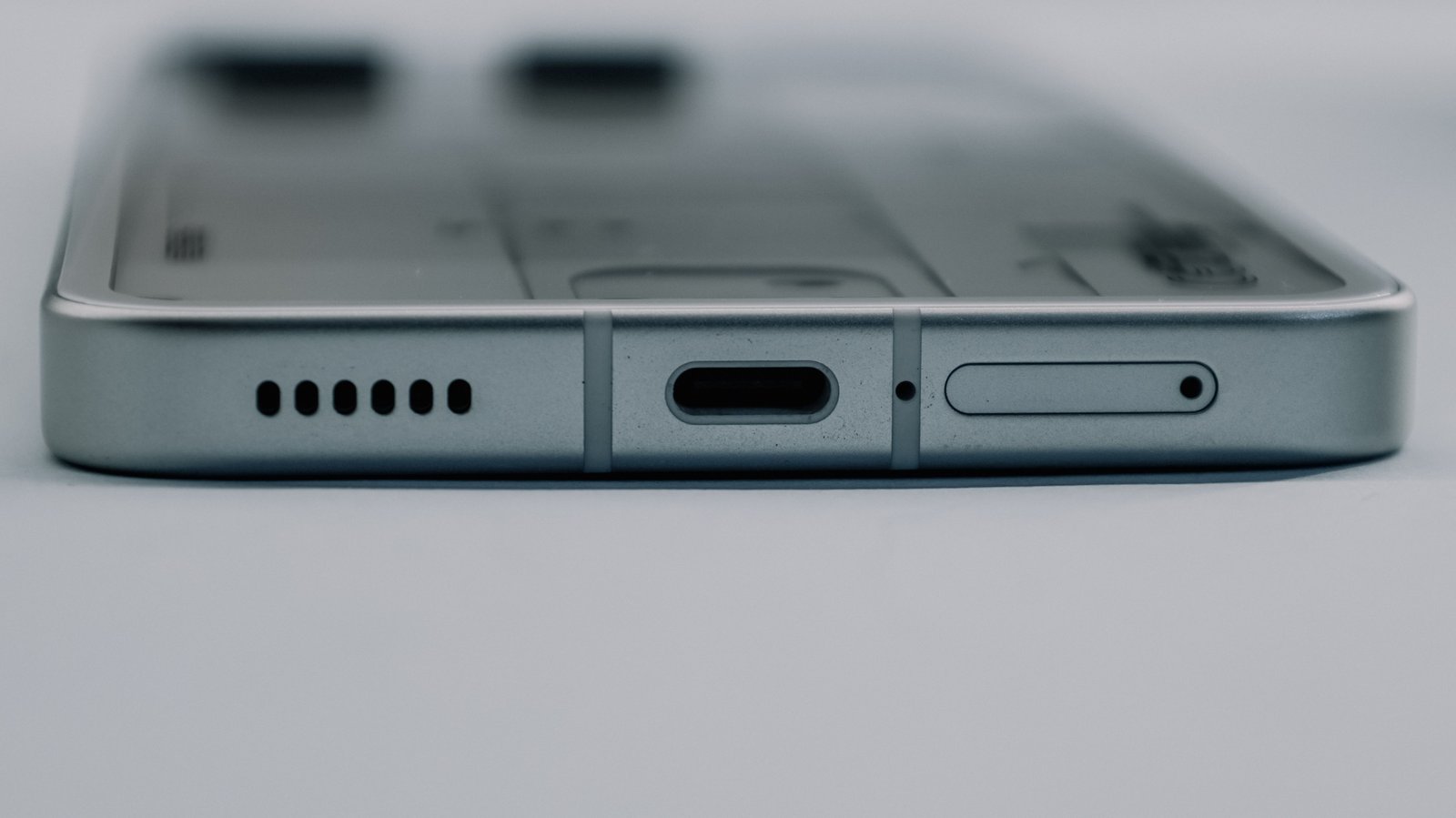
- The reset button location varies by brand: recessed pinhole (Netgear, TP-Link), external button (ASUS), or app-only (Eero, Google Nest).
- After reset, reconfigure using the router’s web interface (192.168.x.x) or manufacturer app. Write down your new password this time.
When You Actually Need a Reset
A factory reset is the nuclear option. Use it only when:
- You can’t access the admin panel — you’ve tried every password combo and the router won’t let you in
- Network issues persist after everything else — reboot, firmware update, DNS change, channel switch, all failed
- You’re selling or giving away the router — don’t hand over a device that still has your password and network history
- The router is in an unknown state — someone else configured it, or it’s been through multiple ISP swaps
Tip: if you’re just dealing with slow speeds or occasional dropouts, try a reboot first. Unplug the router for 30 seconds, plug it back in, wait 2 minutes. In most cases that alone clears the problem, and it costs you nothing.
Try These Free Fixes Before You Reset
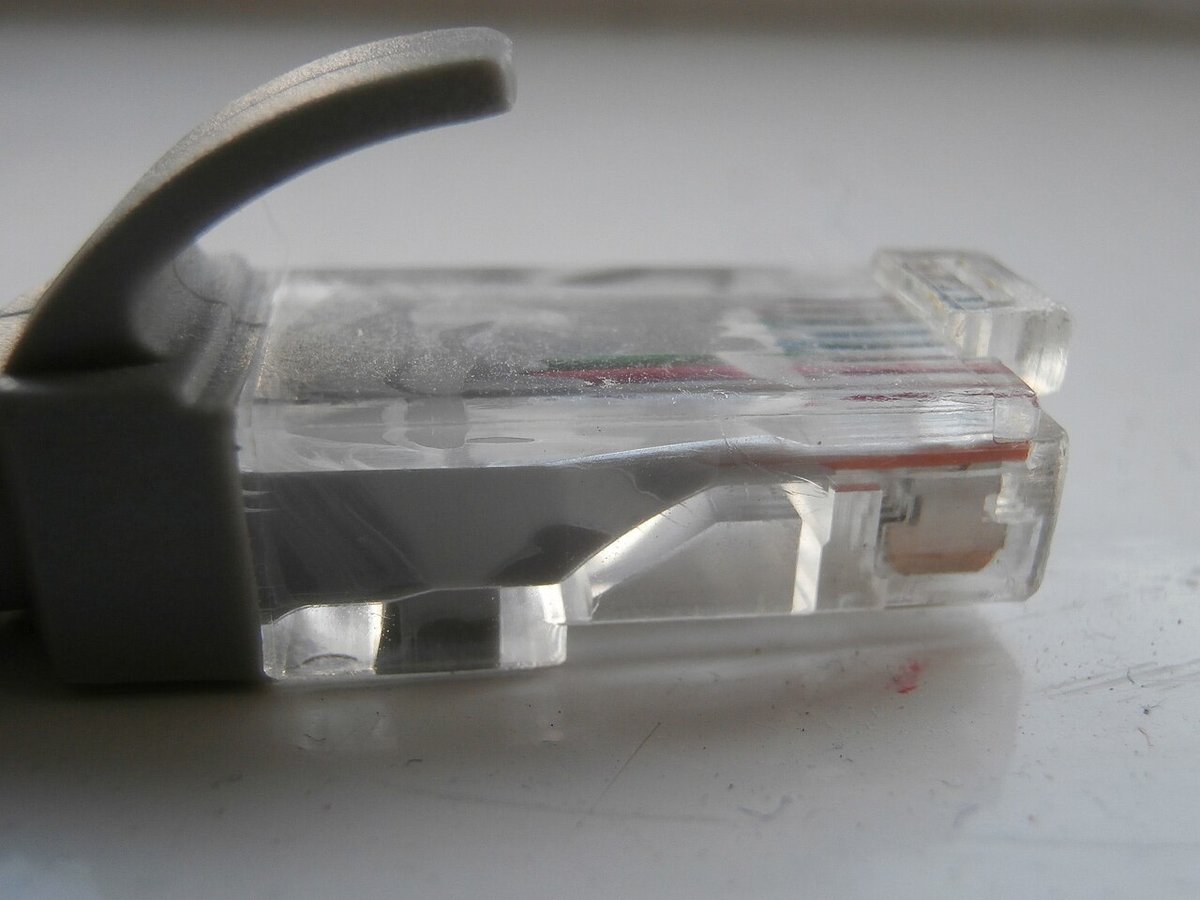
Before you factory reset, work through this ladder. Each step takes under 5 minutes.
1. Reboot (Not Reset)
Unplug the router from power. Wait 30 seconds. Plug it back in. Wait 2–3 minutes for it to fully restart.
This clears temporary memory and re-establishes connections with your ISP. It’s different from a factory reset — it doesn’t touch your settings.
2. Update Firmware
Outdated firmware causes stability issues and security vulnerabilities. Log into your router’s admin panel (usually 192.168.1.1 or 192.168.0.1 in a browser) and check for firmware updates.
Some routers auto-update. Others need manual checks. Netgear, TP-Link, and ASUS all have firmware check buttons in their admin panels under Settings > Firmware or Advanced > Administration.
3. Change WiFi Channel
Interference from neighbors’ networks can cause drops. Use your router’s admin panel to switch WiFi channels (1, 6, or 11 for 2.4 GHz; any channel for 5 GHz).
If you have a mesh system like Eero or Google Nest, the app handles this automatically — you can’t manually change channels.
4. Reset Just the Network Settings
Some routers let you reset network settings without wiping everything. Look for “Reset Network Settings” or “Restore WiFi Defaults” in the admin panel. This isn’t a factory reset — it keeps your admin password and custom rules, but resets your WiFi name and password to defaults.
5. Check Your Cables
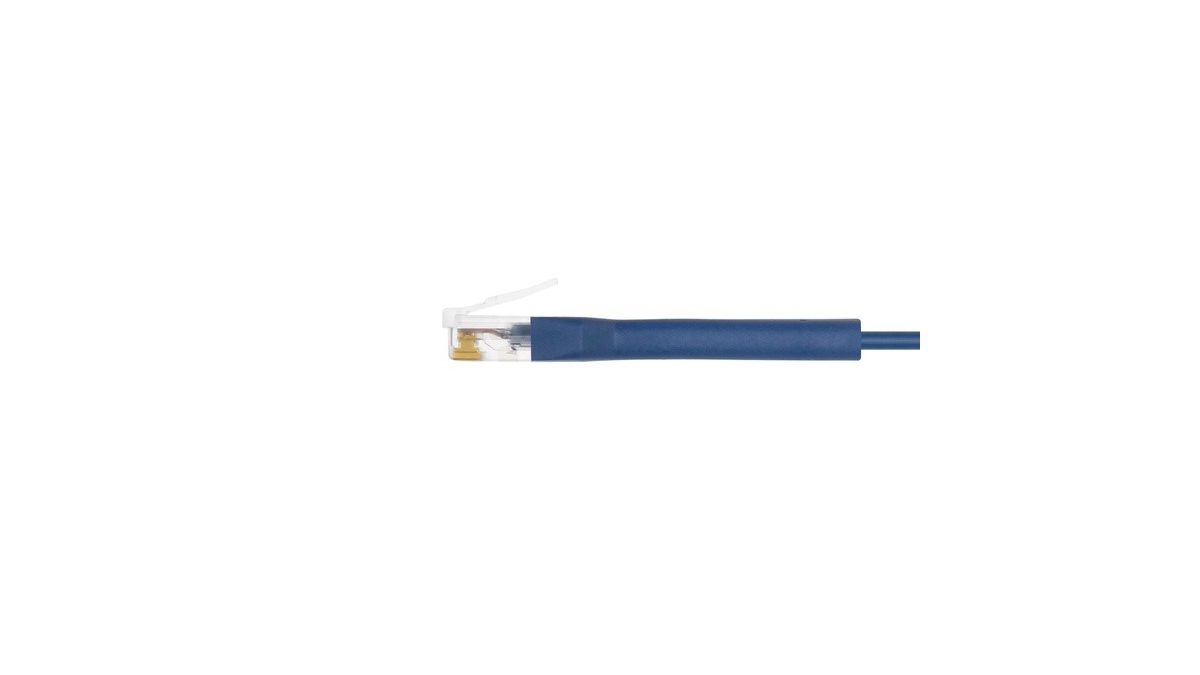
A loose ethernet cable between your modem and router can cause intermittent issues. Unplug and firmly reseat both ends of the cable. While you’re at it, verify the cable itself isn’t damaged — a kinked or chewed cable is a common hidden cause of flaky connections.
Gear That Makes Router Troubleshooting Easier
Disclosure: TechDaily earns affiliate commissions from qualifying purchases made through links on this page.
A few cheap tools make diagnosing and protecting your router significantly easier — especially if you suspect a cable problem before reaching for the reset button.
Cable Tester
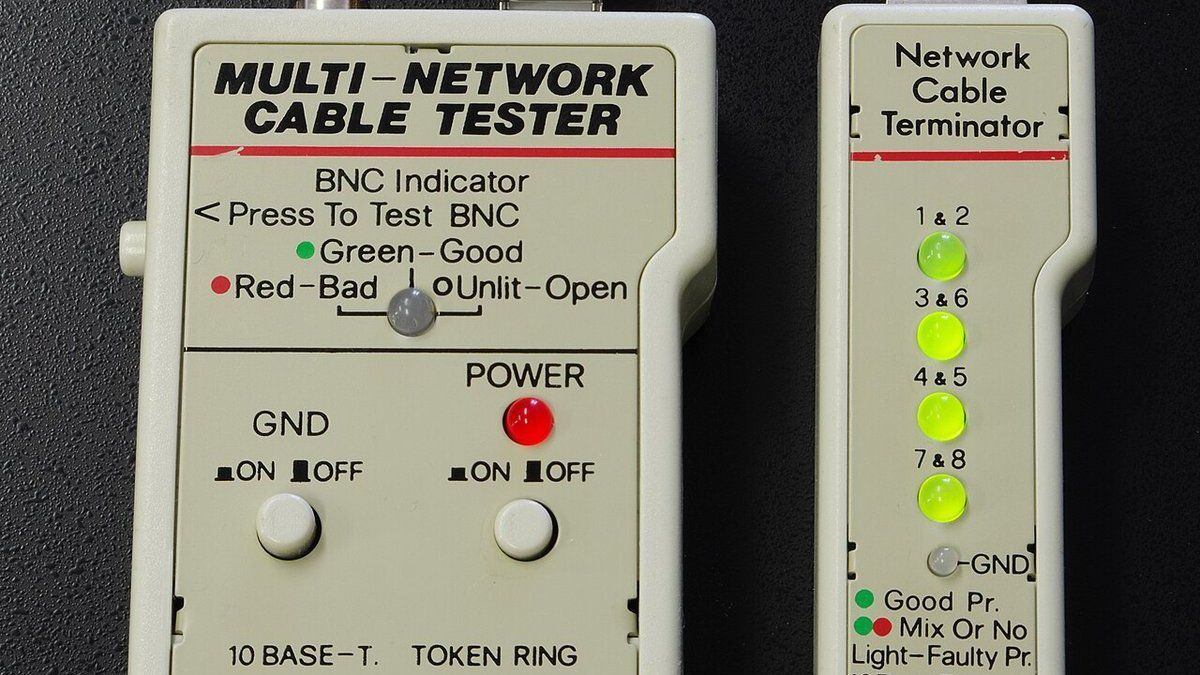
A basic RJ45 cable tester costs under $30 and instantly tells you whether the cable between your modem and router is actually wired correctly. You plug both ends in, press a button, and watch a sequence of lights — mismatched or dead pins mean a bad cable, not a bad router. It saves you from resetting a perfectly healthy router over a dead $5 cable.
Surge Protector
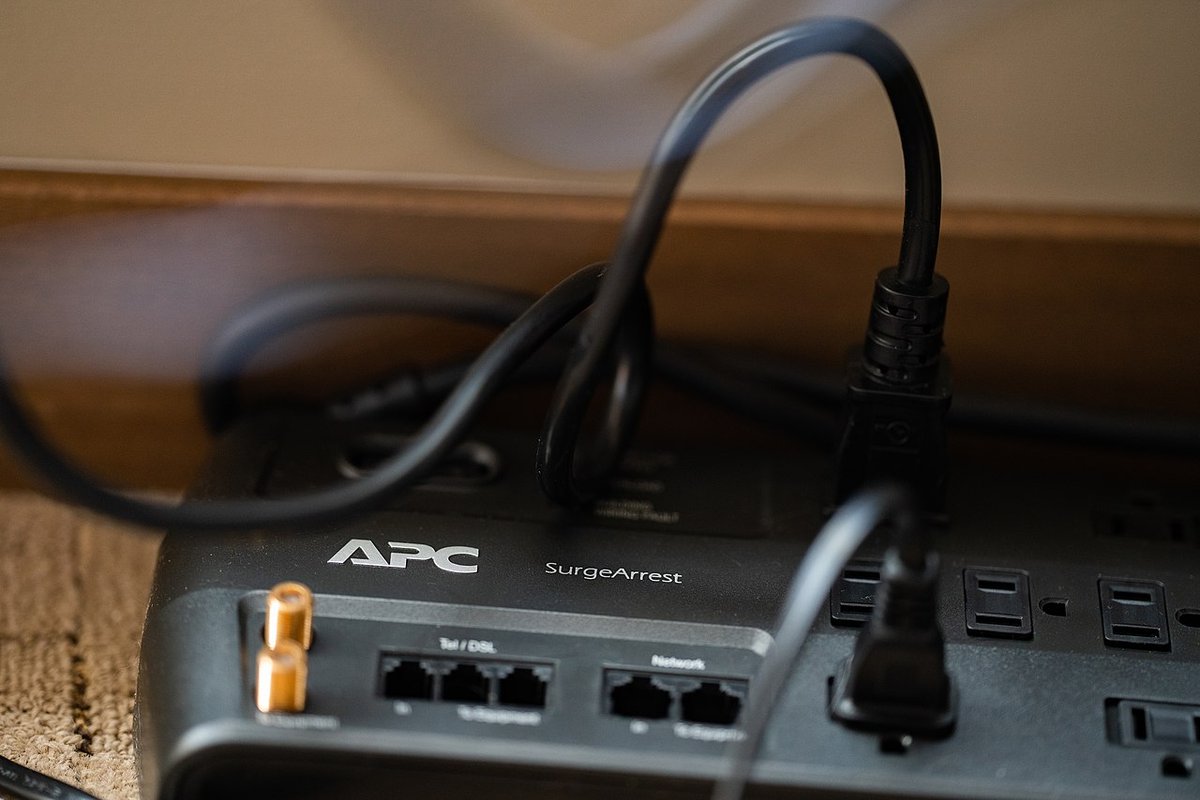
Power surges from lightning or brownouts can corrupt your router’s firmware, causing exactly the kind of intermittent issues that make people reach for the reset button. A good surge protector with a joule rating above 1,000 protects the investment — especially valuable if your router sits near a window or in a storm-prone area.
How to Factory Reset Your Router by Brand
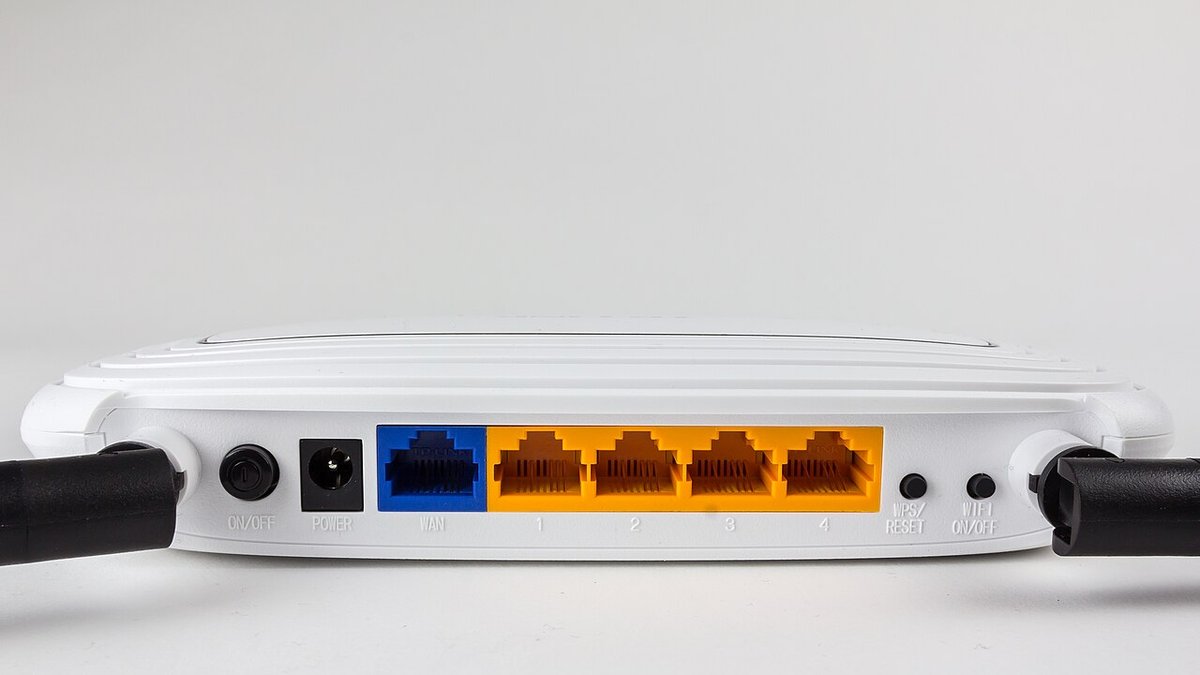
Every router brand has a slightly different reset method. Here’s the exact procedure for the most common brands.
Netgear
Button location: Recessed pinhole on the back or bottom panel, labeled “Reset”
Method:
- Power on the router
- Use a paperclip or pin to press and hold the reset button for 7 seconds
- Release when the power LED blinks amber
- Wait 2–3 minutes for the router to reboot
After reset: Connect to the default WiFi network (printed on the router’s label) and visit routerlogin.net or 192.168.1.1 to set up. Netgear’s Orbi mesh systems use the same pinhole method on the main router unit — satellite units reset separately. If your model behaves differently, Netgear’s support site has the exact procedure for every current router.
TP-Link
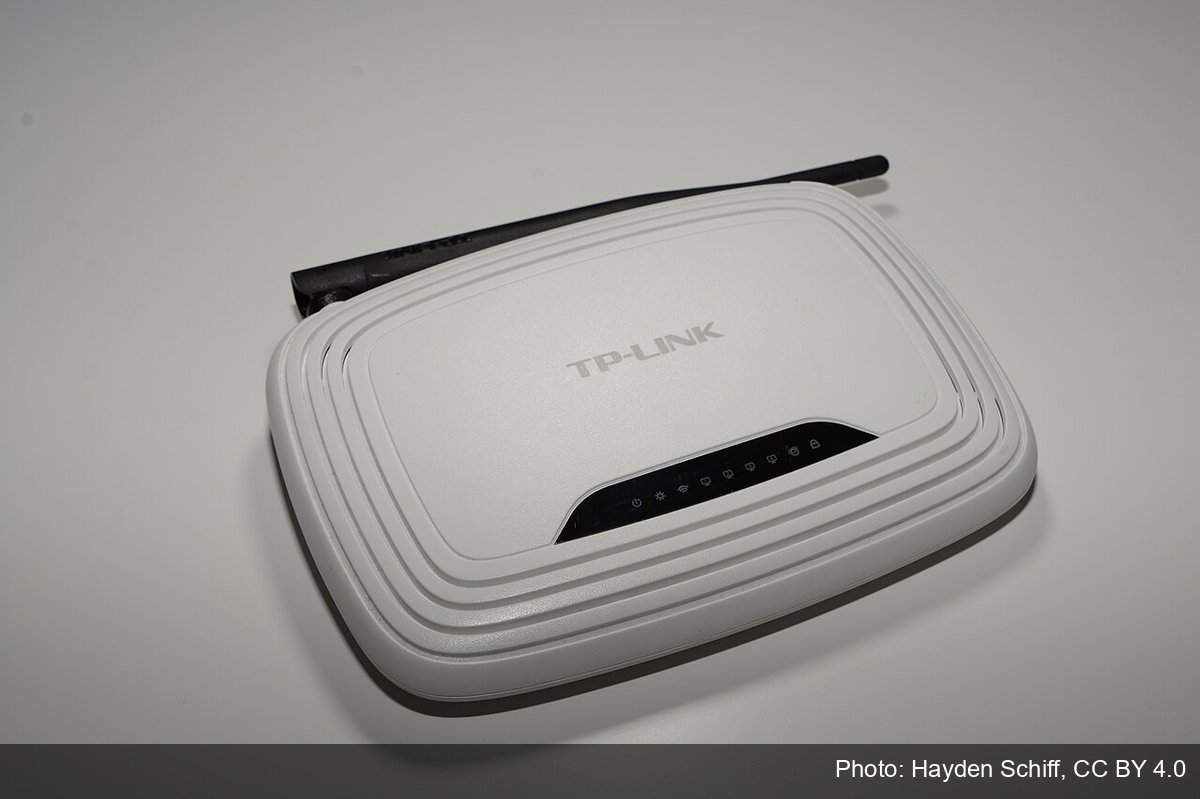
Button location: Recessed pinhole on the back, labeled “Reset” or a circular arrow symbol
Method:
- Power on the router
- Press and hold the reset button with a paperclip for 10 seconds
- Release when all LEDs blink simultaneously
- Wait 1–2 minutes
After reset: Connect to the default WiFi (TPLINK_XXXX or printed on label) and visit tplinkwifi.net or 192.168.0.1. For TP-Link Deco mesh systems, open the Deco app, tap the Deco unit, then tap “Reset” in settings — the physical button needs a 10-second hold.
ASUS
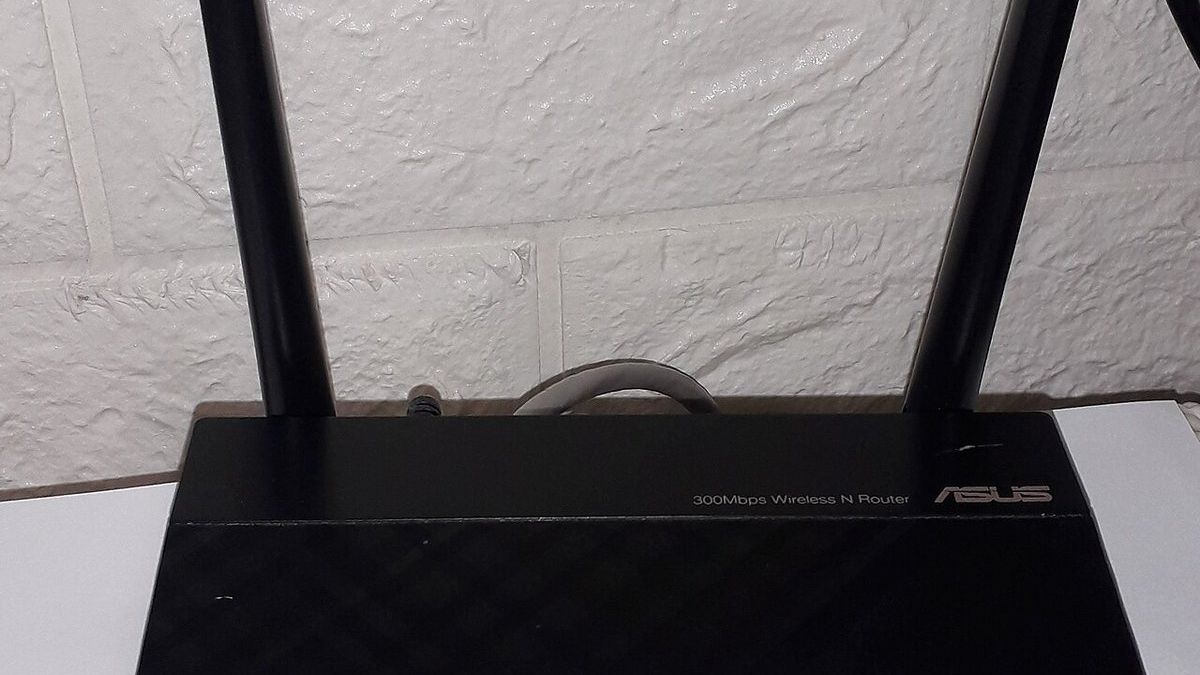
Button location: External button on the back or bottom, labeled “Reset” (not recessed on most models)
Method:
- Power on the router
- Press and hold the reset button for 5–10 seconds
- Release when the power LED starts blinking
- Wait 2–3 minutes
After reset: Connect to the default WiFi (ASUS_XX) and visit router.asus.com or 192.168.1.1. Some ASUS gaming routers (ROG Rapture series) have the reset button recessed near the power port, so keep a paperclip handy.
Linksys
Button location: Recessed pinhole on the back or bottom
Method:
- Power on the router
- Press and hold reset for 10–15 seconds
- Release when the Linksys LED blinks
- Wait 2 minutes
After reset: Connect to the default WiFi and visit linksyssmartwifi.com or 192.168.1.1.
Eero
Button location: No physical button — reset through the app only
Method:
- Open the Eero app
- Tap the Settings tab
- Tap “Advanced” > “Reset Network”
- Confirm the reset
The catch: Eero’s network reset keeps your WiFi name and password but removes all custom settings. For a full factory reset (to sell the unit), use the app’s “Remove Network” option, then manually forget the network from each device.
Google Nest WiFi
Button location: Recessed pinhole on the bottom of the router point
Method:
- With the device powered on, press and hold the reset button for 10 seconds
- The status light will flash white, then pulse blue
- Release when the light turns solid white
- Wait 5–10 minutes for the mesh to fully restart
The Google Home app can also reset individual points without wiping the entire network. Tap the point > Settings > Factory reset. Full instructions for every Nest model live on Google’s Nest help center.
ISP-Provided Routers (Xfinity, Spectrum, AT&T)
Most ISP gateways have a reset pinhole on the back. Hold for 10–30 seconds (varies by model).
Warning: ISP routers often have custom firmware. A factory reset might require you to call the ISP to reactivate the device on their network. Xfinity gateways, for example, need to be re-provisioned after a hard reset — call 1-800-XFINITY or use the Xfinity app.
What Happens After a Factory Reset
Your router returns to its out-of-box state:
- WiFi network name and password revert to defaults (printed on the router label)
- Admin username and password reset to defaults (often “admin” / “password” or blank)
- All port forwards, parental controls, and custom DNS settings are erased
- Firmware stays on the current version (reset doesn’t downgrade firmware)
- MAC address filters and access control lists are cleared
Keep in mind: write down your new settings immediately after reconfiguring. You don’t want to do this again.
What to Reconfigure After the Reset
After the reset, work through this list:
1. Change the Default Password
The default admin password is publicly known. Anyone on your network could log in and change settings. Change it immediately.
How: Admin panel > Administration > Set Password (wording varies by brand)
2. Create a New WiFi Name and Password
Use a password you haven’t used elsewhere. 12+ characters, mix of letters, numbers, and symbols.
How: Admin panel > Wireless > WiFi Name/Password
3. Check Firmware Version
If you haven’t updated firmware recently, do it now while you’re already logged in.
4. Re-add Port Forwards (If You Had Any)
Gaming, security cameras, and home servers often need port forwarding. Re-enter each rule.
5. Set Up Guest Network (Optional)
Guest networks keep visitors off your main network. Enable it in Wireless settings.
6. Reconnect All Devices
Every phone, laptop, smart TV, and IoT device needs the new WiFi password. Go room by room.
When Reset Doesn’t Fix the Problem
If you’ve reset and the issues persist, the problem isn’t your router settings.
Check your modem: The modem connects to your ISP. If it’s failing, your router can’t compensate. Look for blinking lights or call your ISP to run a line test.
Check for hardware failure: Routers typically last 3–5 years. If yours is older and frequently drops connections, runs hot, or makes clicking sounds, it may be dying.
Consider interference: Thick walls, metal appliances, and neighboring networks all degrade WiFi. A mesh system or strategically placed access point solves more problems than a reset ever will. If you’re deciding between the two, our wifi extender vs mesh comparison walks through the decision.
Bottom Line
A factory reset is a last resort, not a first step. Reboot, update firmware, and tweak settings before you wipe everything. When you do reset, have a recovery plan: write down your new password, know your brand’s exact button combo, and set aside 30 minutes to reconfigure. For more on keeping your network healthy, see our guides on how to change wifi password and how to extend wifi range.
Frequently Asked Questions
Will resetting my router change my WiFi name?
Yes. A factory reset returns your WiFi name (SSID) and password to the defaults printed on the router’s label. You’ll need to reconnect every device with the new credentials.
What’s the difference between reboot and reset?
A reboot restarts the router without changing any settings. A reset wipes all settings back to factory defaults. Always try a reboot first.
Do I need to reset my modem too?
Usually no. Your modem and router are separate devices (unless you have a combo gateway). Reset just the router first. If issues persist, contact your ISP about the modem.
Will I lose my internet connection during reset?
Yes. The reset takes 2–5 minutes, and you’ll be offline during that time. Plan accordingly if you’re working or have scheduled calls.
Can I reset my router from my phone?
For most routers, no — you need physical access to the reset button. Mesh systems like Eero and Google Nest are exceptions: their apps can trigger resets remotely.
How long does a router reset take?
The button hold itself is 5–15 seconds depending on brand. The router then reboots, which takes 1–5 minutes. Budget 30 minutes total if you factor in reconfiguring your WiFi name, password, and any port forwards.