
Your iPhone keeps three separate piles of temporary files. Safari has one. Every app has its own. And a bucket called System Data holds the rest. Learning how to clear cache on iPhone really means learning which pile you can touch. You can clear the first two in about two minutes, right from Settings. The third has no button at all — and that one locked door is the reason “cleaner” apps are selling you a fantasy. Here is the safe way to do it, what you will lose with each method, and when clearing cache is actually worth your time.
- Your iPhone has three caches — Safari’s, each app’s, and System Data — and you can only clear the first two yourself.
- Settings > Apps > Safari > Clear History and Website Data wipes Safari’s junk, but it also signs you out of websites.
- Offloading an app clears its bulk while keeping your data. Deleting the app wipes everything it stored.
- System Data has no clear button. Any app that promises to scrub it is describing something iOS does not allow.
- Clearing cache is a repair, not a speed boost. Do it when something misbehaves, not on a schedule.
The Three Kinds of Cache Hiding on Your iPhone
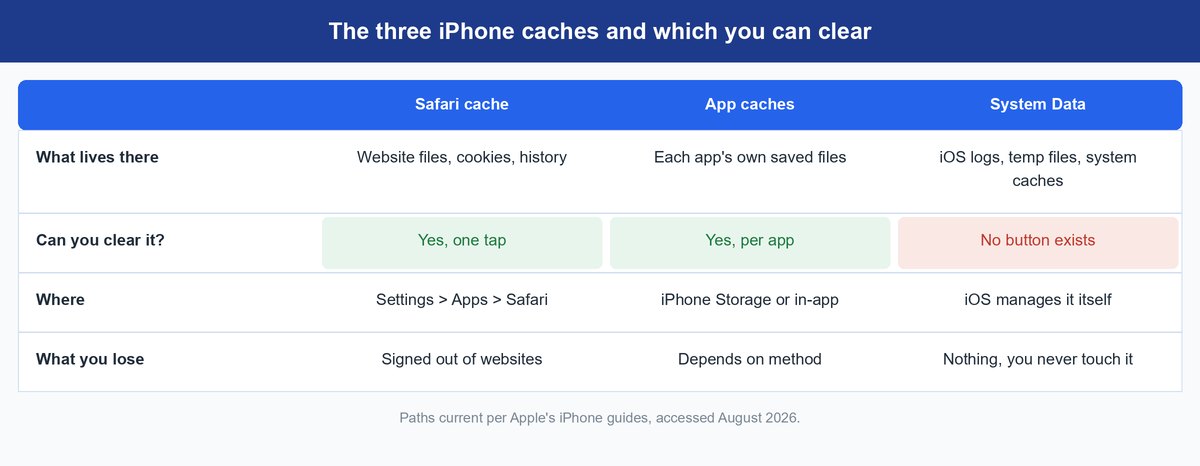
A cache is just a scratch pad. Your phone saves copies of things it already loaded — images, scripts, chunks of video — so it does not have to download them again. That is why the second visit to a website feels faster than the first. Cache is a feature, not dirt.
The confusion starts because “cache” on an iPhone is three different things:
- Safari’s cache holds website files, cookies, and history. You clear it with one tap in Settings.
- App caches belong to each app. Spotify’s saved streams, TikTok’s watched videos, Discord’s loaded images. Each app guards its own pile, so there is no single switch for all of them.
- System Data is the catch-all iOS reports in your storage list. It holds logs, temporary files, and caches the system makes for itself. There is no button for it. iOS manages it in the background, on its own schedule.
That split matters because it changes what clearing can do for you. Clearing cache is a fix for a misbehaving app and a privacy wipe for your browser. It is not a storage plan — freeing up space on a full iPhone is a different job with different tools, and cache is usually a small slice of it.
How to Clear Safari Cache and Cookies the Safe Way
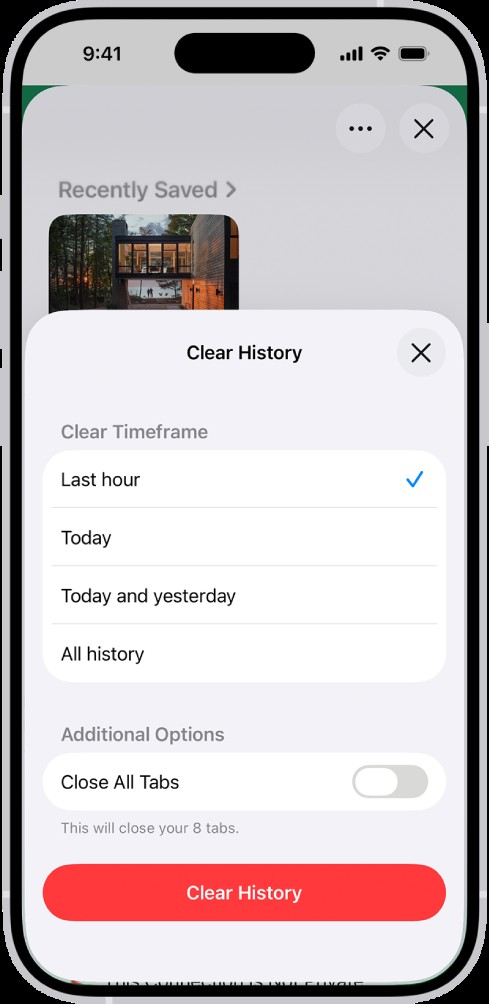
When a website loads a broken layout, shows stale content, or just acts haunted, Safari’s cache is the first suspect. Apple’s own steps, per the Safari cache guide, take four taps:
- Open Settings.
- Tap Apps, then Safari.
- Tap Clear History and Website Data.
- Confirm.
That removes your browsing history, cookies, and cached website files in one sweep. The trade is real, though: cookies are what keep you signed in to websites. Wipe them and every site treats you like a stranger. That is exactly what makes this a great privacy move before you hand your phone to someone — and a small headache the rest of the time.
Watch out: clearing cookies signs you out of websites, but it does not delete your saved passwords. Those live separately in Apple’s Passwords app, so signing back in is a tap with autofill, not a memory test.
How to Clear App Cache on iPhone Without Deleting Your Stuff
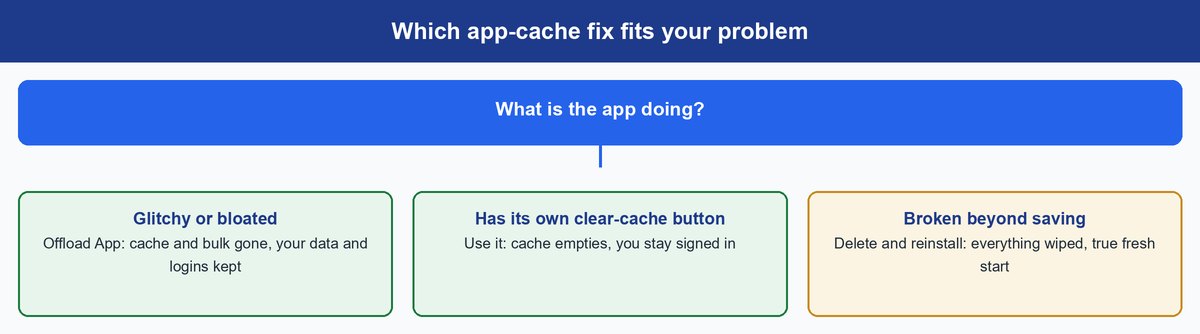
There is no master “clear all app caches” switch on an iPhone. Apple gives you three doors instead, and picking the right one is the difference between a quick fix and re-downloading your life. Check the damage first: Settings > General > iPhone Storage shows how much space each app is using, sorted biggest first.
Offload the App and Keep Your Data
Offloading removes the app itself — the bulky part — while keeping its documents and data, per Apple’s storage guide. The icon stays on your Home Screen; tap it and the app re-downloads with your stuff waiting. In iPhone Storage, pick the app and tap Offload App. This is the gentle option: bulk gone, logins and settings kept.
Worth knowing: iOS can do this for you automatically. Flip on Settings > Apps > App Store > Offload Unused Apps and your phone quietly offloads apps you have not opened in a while.
Delete and Reinstall the App for a Clean Slate
Deleting an app removes everything — the app, its cache, and its data. Reinstall from the App Store and you start fresh. This is the hard reset for an app that keeps crashing or has swollen far past its real size. Just know what “everything” means: local files, downloads, and any progress not backed up to an account are gone for good.
Use the Clear-Cache Button Inside the App
Many apps — Spotify, TikTok, Discord, and Telegram among them — build their own clear-cache option into their settings. Dig into the app’s settings menu and look under storage or data usage. This is the best option when it exists: the cache empties, and you stay signed in with nothing else touched. It is worth thirty seconds of looking before you reach for delete.
Here is what each method costs you:
| Method | Cache cleared? | Your data and logins? |
|---|---|---|
| Clear History and Website Data (Safari) | Yes | Signed out of websites; passwords stay saved |
| Offload App | Yes, app bulk removed | Kept — restored on re-download |
| Delete and reinstall | Yes, everything | Gone unless backed up to an account |
| In-app clear-cache button | Yes | Kept — you stay signed in |
The System Data Cache You Cannot Clear by Hand
Open iPhone Storage and you will see a gray bar called System Data. This is where the honest guides go quiet, so let’s not. System Data holds the caches, logs, and temporary files iOS creates for itself — and Apple gives you no way to clear it directly. No tap, no slider, no secret menu. iOS grows it when it is useful and trims it when the phone needs room, and you are not invited to that decision.
A restart gives the system a natural moment to tidy some of its temporary files, and it costs you nothing. Beyond that, the honest answer is that you wait for iOS to do its job. If System Data is eating your phone and storage is the real emergency, you are past cache-clearing territory — that is a storage problem, and it deserves a storage fix, not a cache superstition.
Why Cleaner Apps Cannot Clean Anything That Matters
Here is the mechanism the app-store ads skip. Every iOS app runs in a sandbox — a sealed container with its own files, walled off from every other app’s files. A third-party “cleaner” cannot see Safari’s cache, cannot touch TikTok’s cache, and cannot go near System Data. The sandbox is not a setting it can ask you to unlock. It is how iOS is built.
So what do cleaner apps actually do? The things you granted permission for: scan your photos for duplicates, compress videos, merge contacts. Useful chores, maybe — but none of them are cache, and most of these apps charge a recurring subscription for work Settings does free. Everything in this guide happens in menus Apple already gave you.
Real talk: a cleaner app promising to wipe your iPhone’s cache is promising to walk through a wall Apple built on purpose. If it could really do that, it would be a security hole, not a feature.
When Clearing Cache Actually Helps Your iPhone
Clear the cache when something is wrong: a website stuck on a broken version of itself, an app that glitches, stutters, or has ballooned in size, or a browser you want wiped before someone else uses your phone. In those moments, the steps above are the fix, and they work.
Do not clear it hoping for speed. A cache’s whole job is making your phone faster — it is the reason apps and sites open without re-downloading everything. Wipe it and the first thing you feel is the opposite: slower loads while every app rebuilds its scratch pad. A healthy iPhone gets nothing from a cache wipe, which is why “clear your cache weekly” advice never survives contact with how iOS actually works. If the whole phone drags no matter what you clear, the bottleneck is somewhere else — our phone slowness guide walks through the four real causes.
If your phone genuinely feels tired, look at real maintenance instead. A gunked-up charging port causes more everyday grief than any cache, and a few settings changes can make your phone charge faster without buying anything. Cache clearing is a repair tool. Use it like one — when something breaks, not because a subscription app whispered that your phone is dirty.
Frequently Asked Questions
Does clearing the cache on an iPhone delete photos or messages?
No. Cache is temporary copies of things, not your originals. Photos, messages, notes, and contacts are untouched by any method in this guide. The one real risk is deleting an app whose local files were never backed up — that removes the app’s data, which is why offloading is the safer first move.
Will clearing Safari’s cache log me out of websites?
Yes. Clear History and Website Data removes cookies, and cookies are what keep you signed in. Every website will ask you to log in again. Your saved passwords are not deleted, though — they stay in Apple’s Passwords app, so autofill gets you back in quickly.
How often should I clear the cache on my iPhone?
Only when something misbehaves. There is no maintenance schedule, because cache is not dirt that builds up — it is a speed feature your phone manages on its own. Clear Safari when a site acts broken or for privacy, and clear an app’s cache when that app glitches or bloats. A calendar reminder to clear cache is a reminder to slow your phone down.
Does clearing the cache make an iPhone faster?
Not on a healthy phone. Cache exists to make things load faster, so wiping it briefly does the opposite while apps rebuild it. Clearing helps only when a specific cache is corrupted or bloated and causing a real problem. If your whole phone feels slow, the cause is almost never cache.
How do I clear System Data on an iPhone?
You cannot, at least not directly — Apple provides no button for it. iOS trims its own temporary files when the phone needs space. A restart gives it a clean moment to tidy up, and offloading your biggest apps recovers far more room than chasing System Data ever will.
Do iPhone cleaner apps actually work?
Not for cache. iOS sandboxing means no third-party app can touch another app’s files, Safari’s cache, or System Data. Cleaner apps mostly do photo cleanup and contact merging — with your permission — and charge a subscription for it. Every real cache-clearing tool an iPhone has lives in Settings, free.