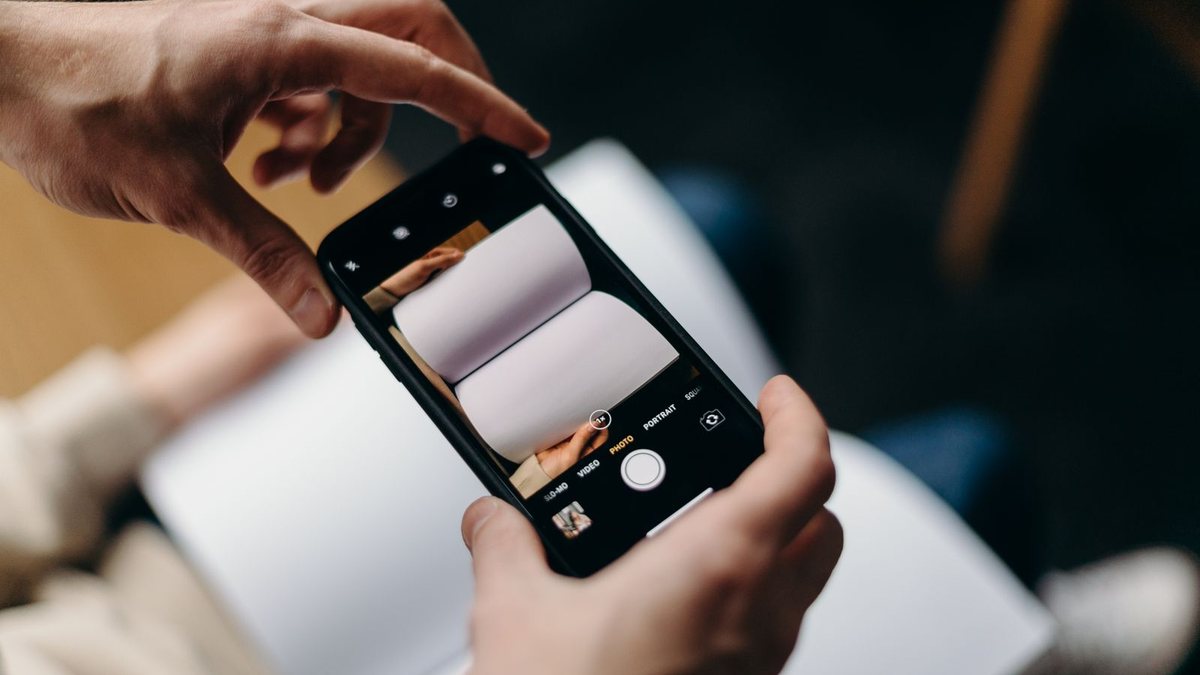
Here is the answer up front: you already own a scanner. The fastest way to scan a document with an iPhone is the Notes app, where Apple hid a complete scanner behind the paperclip icon — auto edge detection, multi-page PDFs, even a signature tool. No download, no watermark, no fee. Open Notes, tap the paperclip, tap Scan Documents, and hold the phone over the page. That is the whole trick. The rest of this guide covers the two other built-in routes, the two apps actually worth adding, and how to rescue a scan that came out looking like a photocopy from 1993.
- Notes is your free scanner. Paperclip button, Scan Documents, done — it captures pages automatically and stacks them into one PDF.
- The Files app scans straight to a PDF in a folder, which beats Notes when the scan needs to live in iCloud Drive, not in a note.
- The Camera app cannot make a PDF, but Live Text can lift the words off a page when text is all you actually need.
- Google Drive and Adobe Scan earn a download in exactly two cases: your files live in Drive, or you scan piles of pages and need searchable text.
- Most “bad scans” are a lighting problem, not a phone problem. A window, a flat surface, and the Black & White filter fix nearly all of them.
Scan a Document With the Notes App in Three Taps
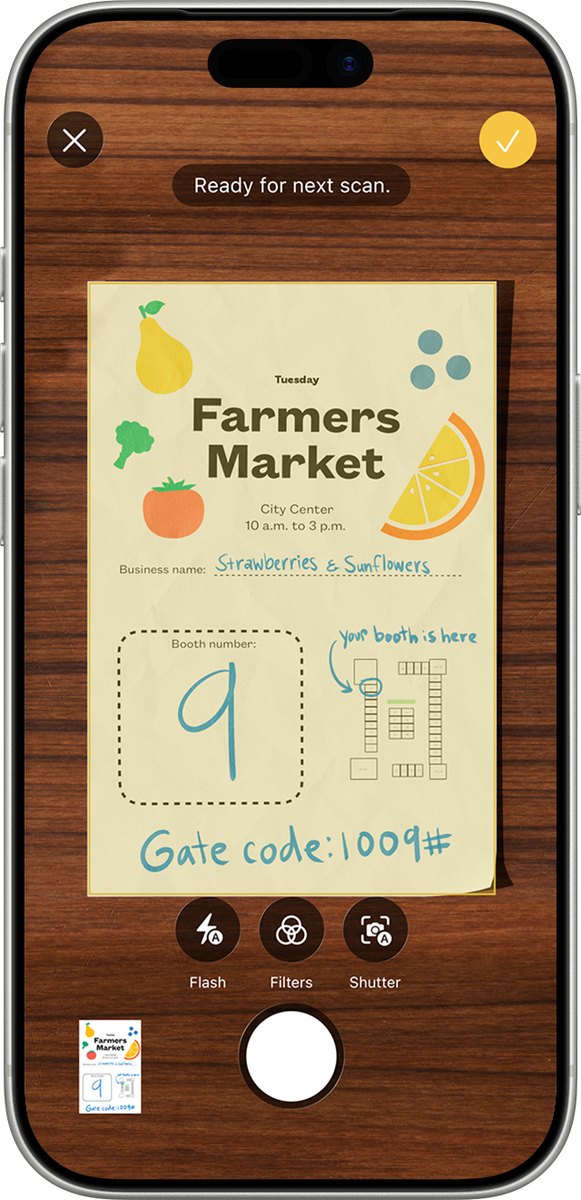
The scanner hides behind the paperclip, which is why so many people never find it. Here is the full path, straight from Apple’s own playbook:
- Open Notes and start a new note, or open an old one.
- Tap the Attachment button — the paperclip — then tap Scan Documents.
- Hold the phone over the page. In Auto mode, the camera finds the edges and snaps the page on its own. Want control? Switch to Manual and fire the shutter yourself — the volume buttons work as a shutter too. On iOS 26 you also get flash and filter options right at capture.
- Drag the corners if the crop missed, then tap Keep Scan.
- Keep snapping pages, then tap Save. Every page lands in one tidy PDF, in order.
Need it signed? Tap the scan inside the note, tap the Markup button, tap the plus button, and choose Signature. You can draw a new one or drop in a saved one — no printing, no pen, no scanning it back.
Worth knowing: if Scan Documents is missing from the paperclip menu, check where that note lives. Notes stored in a Gmail or Yahoo account cannot hold attachments — keep the note in iCloud or On My iPhone and the scanner comes back.
The Files App Scans Straight Into a Folder as a PDF
The Notes route has one quirk: your scan lives inside a note. Fine for a receipt, clumsy for a lease you need filed away. The Files app skips the middleman.
Open Files, go to the Browse tab, tap the three-dot More button in the corner, and choose Scan Documents. Same scanner, same auto-capture, same corner handles — but when you hit Save, you pick a real folder, and the scan lands there as a PDF. Point it at iCloud Drive and the document is already on your Mac and iPad before you put the phone down.
Use Notes when the scan belongs with your thoughts about it. Use Files when the scan needs a filing cabinet.
Handy shortcut: long-press the Notes icon on your Home Screen and Scan Document sits right in the quick-action menu — one press, straight to the camera.
When the Camera App Is All You Actually Need
The Camera app cannot make a PDF, and that is fine, because sometimes you never wanted one. You wanted the words.
Point the camera at any printed page and look for the Live Text indicator in the corner of the frame. Tap it, and the text on the page becomes text you can select, copy, translate, or paste into an email — phone numbers become callable, addresses open in Maps. It works on iPhone XS and newer running iOS 15 or later.
So the split is simple. A form someone must see gets scanned in Notes or Files. A paragraph, a Wi-Fi password taped to a router, or a phone number on a flyer gets Live Text. Copying text out of a real scan works too — Live Text reads scanned pages inside Notes just as happily.
When Google Drive or Adobe Scan Earns the Download
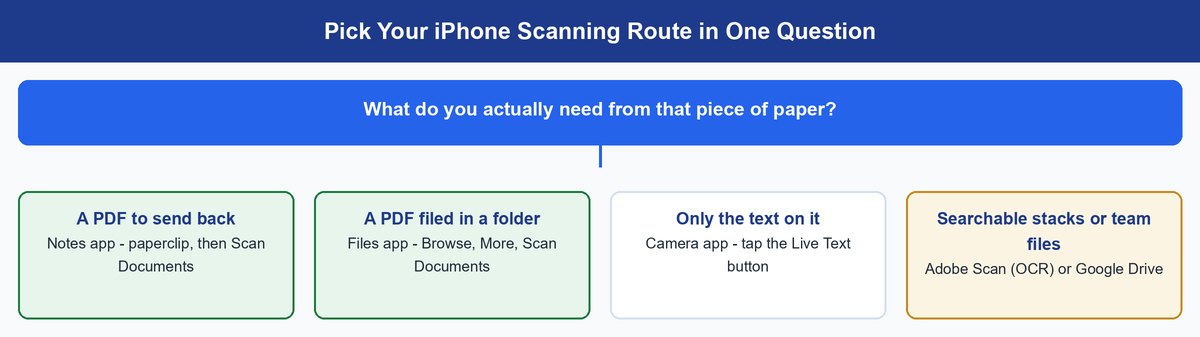
The built-in scanner covers most people forever. Two apps are still worth their storage space — each for one specific reason.
Google Drive Puts Scans Where Your Files Already Live
If your life runs on Drive — shared team folders, Gmail, Docs — scanning into Notes just creates a delivery problem. The Drive app has its own scanner that saves searchable PDFs directly into any Drive folder, and its Clean tool can erase stains and stray fingers from the capture. The scan starts where it needs to end up, already shared with the people who need it.
Adobe Scan Reads the Text Inside Every Page
Adobe Scan is the volume player. It is free with an Adobe sign-in, and its trick is OCR — text recognition that turns every scan into a searchable PDF. Scan a shoebox of receipts and you can later search for the one with “brake pads” in it, instead of opening forty files one by one. If you scan stacks of paper every week for work, this is the one to get.
Real talk: if all you scan is the odd school form or receipt, skip both downloads. The built-in scanner already makes multi-page PDFs, and one less app is one less login.
How to Fix a Bad Scan
Nearly every ugly scan traces back to light, movement, or the wrong filter. Match your problem to the fix.
A Shadow Is Lying Across the Page
That dark stripe is usually you — your hand or head blocking the ceiling light. Move the page near a window so light comes from the side, or step so your shadow falls away from the paper. On iOS 26, turning on the scanner’s flash flattens out dim, uneven light too.
The Text Is Blurry
Blur means the phone moved at the moment of capture. Plant your elbows on the table, hold the phone flat over the page, and let Auto mode fire when it is ready — it waits for a steady frame. Still soft? Switch to Manual and use a volume button as the shutter, which shakes the phone less than tapping the screen.
The Edges Are Crooked or Cut Off
Auto edge detection is good, not psychic — a page on a busy patterned tablecloth confuses it. Rescan on a plain, contrasting surface: white paper on a dark table is the easy win. If the crop is only slightly off, drag the corner handles at the Keep Scan step instead of starting over.
The Page Looks Gray and Dingy
The scanner’s default color filter faithfully records that your “white” paper is actually beige. Tap the filter control and switch a text document to Grayscale or Black & White. The page snaps to clean white, the text gets darker, and the whole scan looks like it came from an office machine.
One Page Out of Ten Came Out Bad
Do not rescan the stack. Open the scan, find the bad page, and retake just that one — the new capture drops into the same PDF in the same spot. Ten-page contract, one blurry page, thirty-second repair.
Before you email it: color scans of text pages make surprisingly heavy PDFs. Flip text-only pages to Black & White and the file often shrinks to a fraction of the size — which matters when an inbox bounces anything over a few megabytes.
Frequently Asked Questions
How do I scan a document on my iPhone for free?
Use the Notes app — it is a complete scanner with no cost, no watermark, and no page limit. Tap the paperclip in any iCloud note, choose Scan Documents, and save. Nothing about it is a trial; it is simply part of iOS.
Where do scanned documents go on an iPhone?
Notes scans live inside the note you scanned into. Files scans go to whatever folder you picked when you hit Save. Either way, the share sheet exports a PDF you can email, message, or AirDrop anywhere.
How do I email a scan as a PDF?
It already is one. Open the note, tap the scan, hit the share button, and choose Mail — it attaches as a PDF automatically. If you scanned through the Files app, just attach the file from its folder like any other document.
Can I sign a document I scanned on my iPhone?
Yes. Tap the scan in Notes, tap the Markup button, tap the plus button, and choose Signature. Draw one with your finger once and iOS saves it for every form after that.
Does document scanning work the same on iPad?
Same paperclip, same steps, bigger screen. Notes and Files both scan on iPad, and on compatible iPads you can sign with an Apple Pencil instead of a fingertip — the closest this gets to an actual pen.
Is an iPhone scan good enough for official documents?
For most banks, schools, landlords, and employers, yes — a flat page, good light, and the Black & White filter produce a scan that reads as cleanly as a flatbed’s. A few agencies still demand originals or set specific requirements, so check the instructions on the form before you shred anything.
The Scanner Was in Your Pocket the Whole Time
The dedicated scanner app business mostly runs on people not knowing about a paperclip icon. Now you do. Notes for everyday scans, Files when the PDF needs a proper folder, Live Text when you only need the words, and Drive or Adobe Scan for the two jobs they genuinely do better. While you are collecting built-in tricks Apple never advertises, our guides to screen recording on iPhone and clearing your iPhone’s cache are cut from the same cloth. The next time someone says “scan this and send it back,” you are sixty seconds from done — and you never bought a scanner.