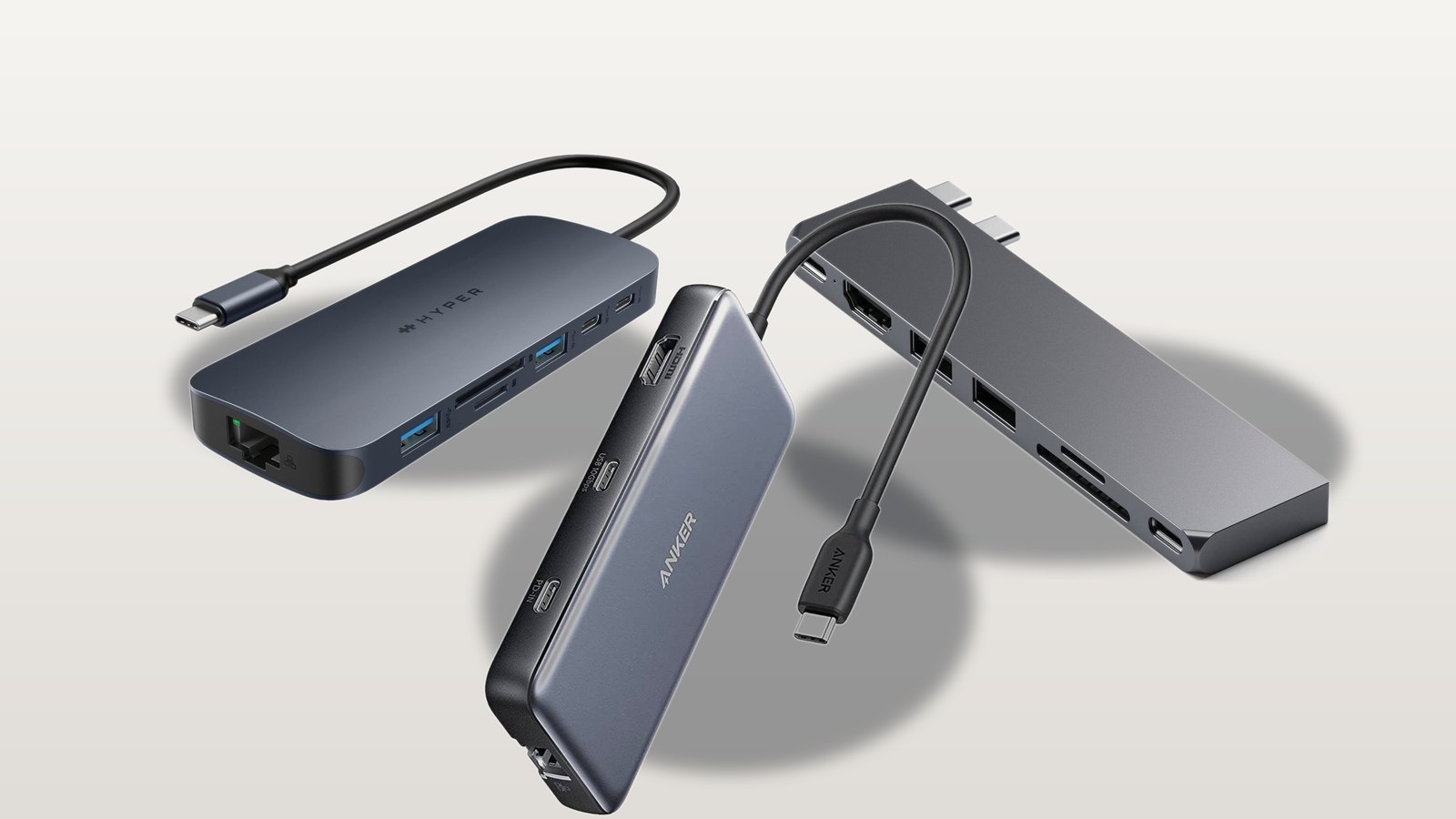
Walk through any online hub listing and it is a numbers race: 7-in-1, 9-in-1, 11-in-1, each one shouting a bigger port count than the last. That number is the least useful thing on the box. I have watched a bargain-bin hub choke a 14-inch MacBook Pro into slow-charging while a plugged-in monitor flickered at 30Hz, and I have watched a mid-priced one run two displays, Gigabit Ethernet, and full-speed charging without breaking a sweat. Same port count. Wildly different hubs.
Published July 30, 2026
Here is the thing nobody selling you a hub wants to say out loud: the best USB-C hub for MacBook is not the one with the most ports. It is the one that passes four specs the cheap ones quietly fail. Get those four right and match the hub to how you actually work, and the “how many ports” question answers itself.
- Port count is marketing. Four specs decide whether a hub is any good on a MacBook: real power pass-through wattage, true 4K at 60Hz video, 10Gbps data on the right port, and thermal protection.
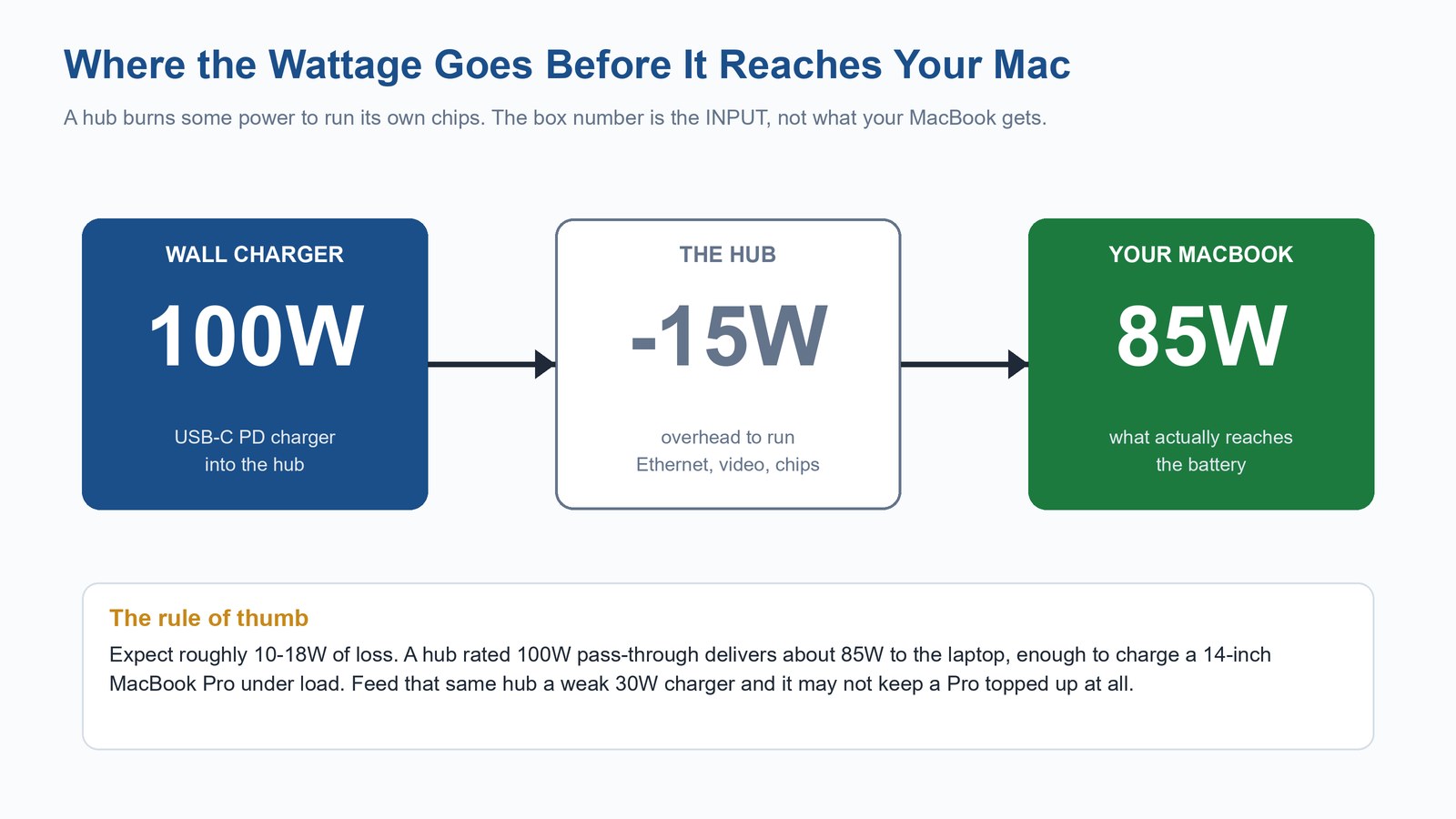
- A hub rated “100W pass-through” does not send 100W to your Mac. Expect roughly 85W after the hub takes its cut, which is fine for a 14-inch Pro and generous for an Air.
- Cheap hubs love to advertise “4K HDMI” and hide that it is only 4K at 30Hz, which makes your cursor feel like it is dragging through syrup.
- Buy by job, not by port count. A traveler wants a slim hub that charges over one cable; a desk worker wants a dock with two displays and Ethernet.
- Our picks: Anker 555 for most people, UGREEN Revodok Pro for value, Satechi Pro Hub Slim for travel, and the HyperDrive Next 11-Port when you actually dock.
What do you need most from a hub?
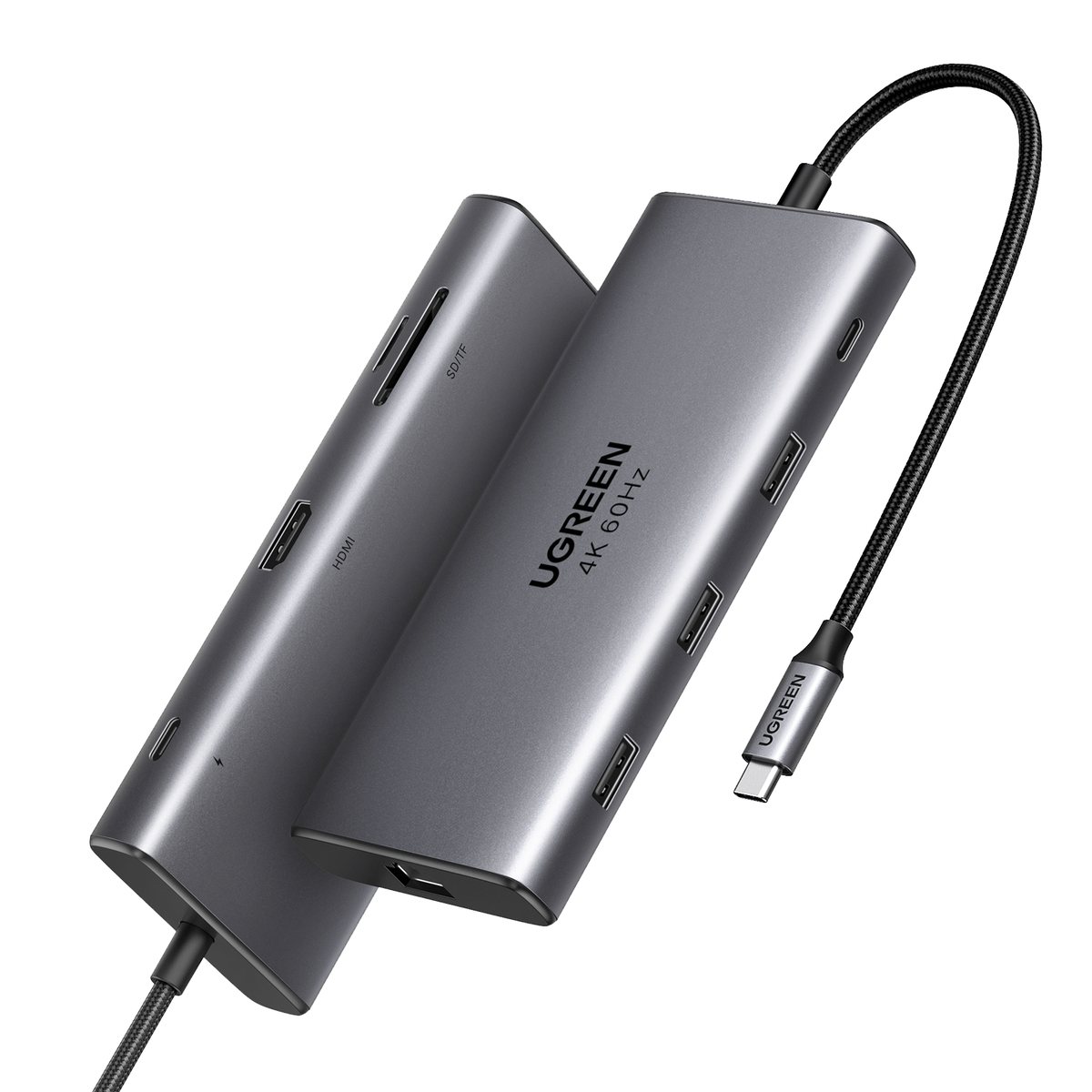
★ Your pick: UGREEN Revodok Pro
4K/60Hz + 100W + 9 ports without the premium markup.
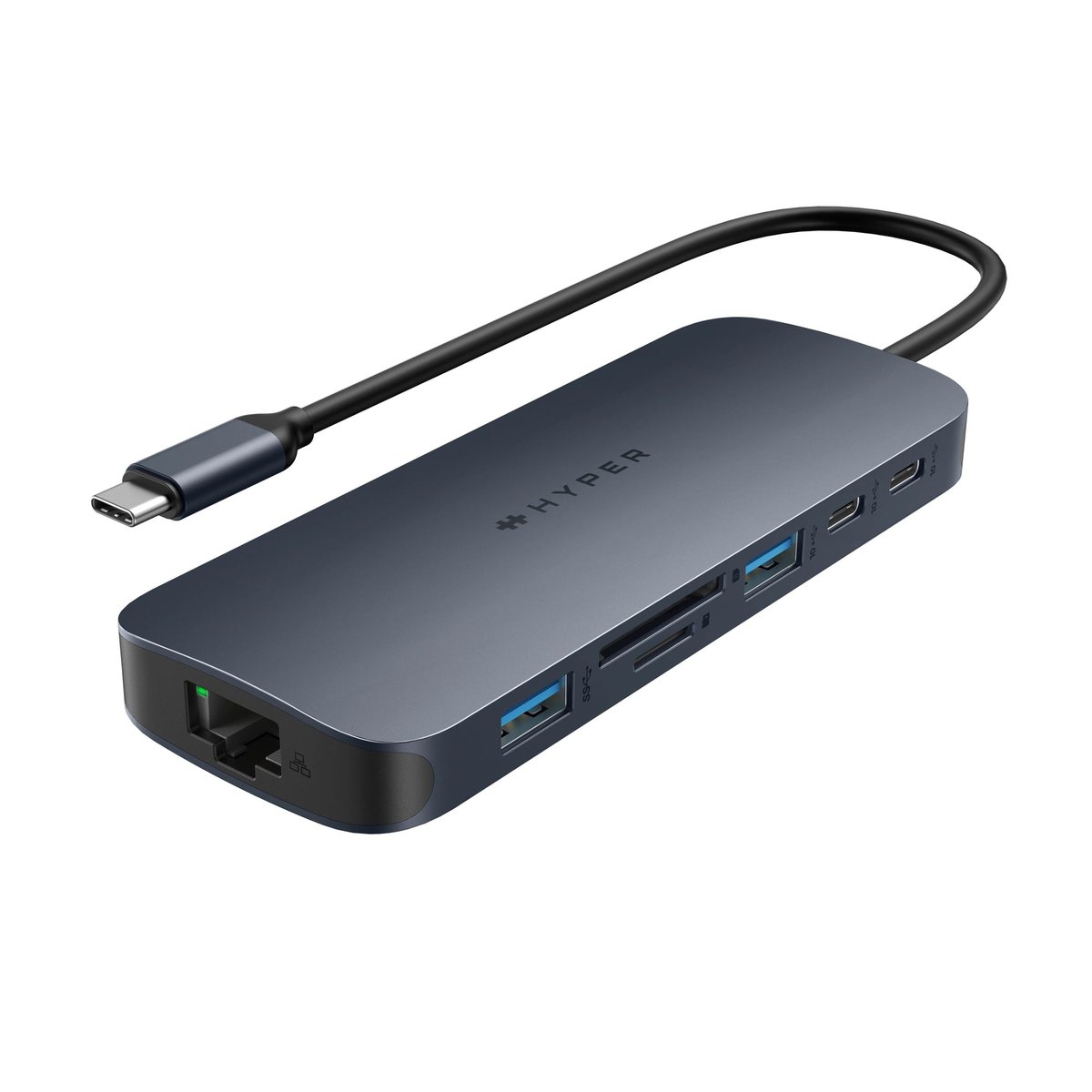
★ Your pick: HyperDrive Next
The full docking array — Ethernet, dual display, card readers — when your MacBook lives on a desk.
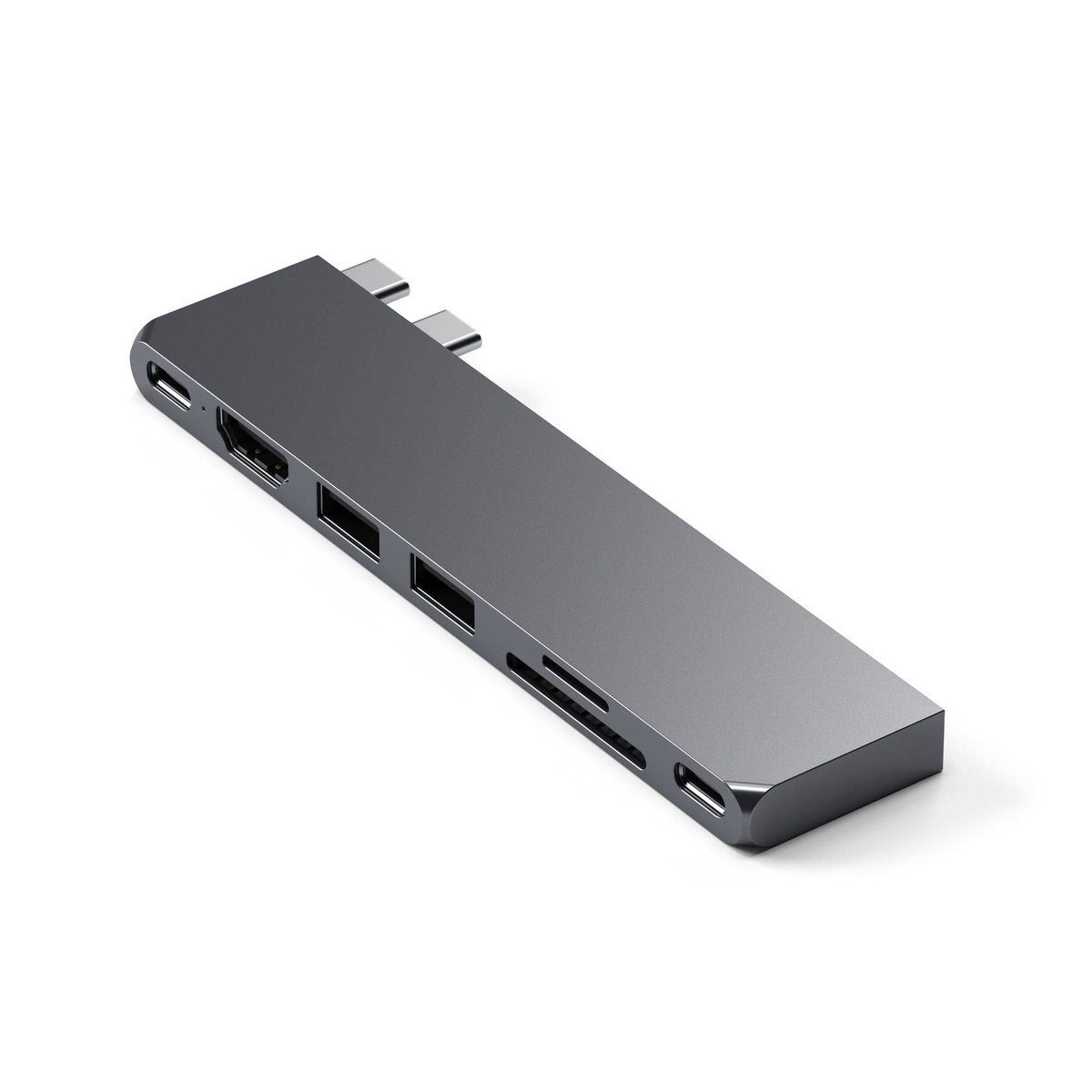
★ Your pick: Satechi Pro Hub Slim
USB4 speed in a thin body that disappears in a bag.
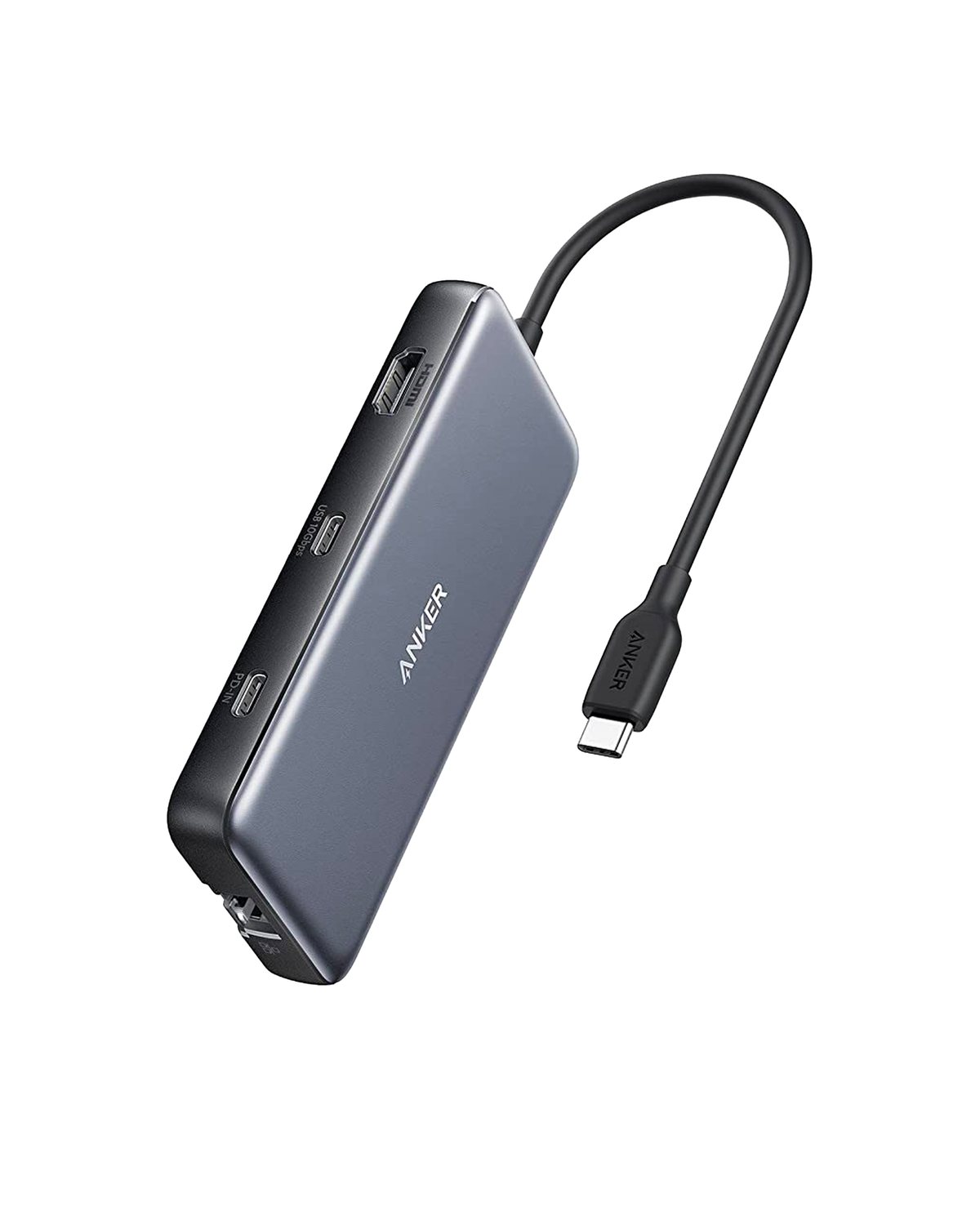
★ Your pick: Anker 555
The safe pick: reliable 4K/60Hz + 85W with Anker’s support behind it.
👑 Our Top Pick — Best Overall Value
UGREEN Revodok Pro
Best value: 4K/60Hz, 100W charging and 9 ports for well under the premium names — the most hub for the money.
Opens on our Top Pick. Tap an option to see the best match for you.
The Four Specs Cheap USB-C Hubs Quietly Fail
Every hub can move a file and light up a screen. The gap between a good one and junk shows up in four numbers that rarely make the headline bullet points. Learn these and you can read past the marketing on any product page in about ten seconds.
Power Delivery Pass-Through and the Watts You Actually Get
Your MacBook has a limited number of USB-C ports, and a hub eats one of them. So the hub has to hand your charger’s power back through to the laptop, a trick called Power Delivery (PD) pass-through. The catch is that the hub skims some of that power to run its own chips.
That is why “100W pass-through” is a half-truth. Feed the hub a 100W charger and your Mac sees closer to 85W, because 10 to 18 watts vanish keeping the Ethernet controller, video chip, and USB lanes alive. For a MacBook Air, 85W is overkill and it will charge full speed. For a 14-inch MacBook Pro under a heavy export, it is exactly enough. Plug a hub into a weak 30W phone charger, though, and a Pro can slowly drain even while “charging.”
Keep in mind: Match the charger to the laptop, not to the hub. A 96W or 100W USB-C charger keeps any current MacBook happy through a hub. The wattage printed on the hub is the ceiling it can pass, not a promise of what it makes.
True 4K at 60Hz, Not the 30Hz Downgrade
“Supports 4K HDMI” is the most abused phrase in this whole category. Plenty of budget hubs deliver 4K resolution at only 30Hz, which means the screen redraws 30 times a second instead of 60. You will not notice it in a spreadsheet. You will absolutely notice it the moment you move a window or scroll a web page, because the motion smears and the cursor feels like it is wading through syrup.
A hub worth buying states 4K at 60Hz in plain text. On older or cheaper HDMI chipsets you often get 4K/30 or 1080p/60 and nothing in between, so read the fine print rather than the big bullet.
Watch out: A base M-chip MacBook Air historically drove only one external display, no matter how many HDMI ports the hub had. Newer M3 and M4 Airs can drive two with the lid closed, but two HDMI jacks on a hub do not override what your Mac’s own chip allows. Check your model’s spec first.
10Gbps Data on the Port That Matters
USB naming is a mess on purpose, so here is the honest version. “USB 3.0” and “USB 3.2 Gen 1” both mean 5Gbps. The port you actually want for a fast external SSD is 10Gbps, sometimes labeled USB 3.2 Gen 2. That is the difference between moving a 50GB video project in under a minute versus standing there twice as long.
The trap: a hub might have five USB ports, but only one of them runs at 10Gbps and the rest crawl at 5Gbps or slower. Find which port is the fast one before you buy, and plug your SSD into that.
Overcurrent and Thermal Protection You Never See
This is the spec that never makes a bullet list and matters most for the health of your Mac. A well-built hub includes overcurrent and thermal protection: circuitry that shuts things down before a power spike or a runaway heat build-up can reach your laptop. The no-name bargain special often skips it to hit the price.
You cannot see this on a product photo, so you buy it by trusting the brand. Established names like Anker, UGREEN, Satechi, and Hyper spend money on safety certification and protection circuits because a warranty claim on a fried MacBook costs them far more than a chip. That reputation is the actual product the premium buys you.
How to Match a Hub to the Way You Use Your MacBook
Once a hub clears those four specs, the only question left is which shape fits your life. This is where most people overbuy, grabbing an 11-port dock that then lives in a bag it barely fits in. There are really only two jobs, and they want opposite hubs.
The Travel-Slim Hub for People Always on the Move
If your hub follows you to coffee shops, client offices, and hotel rooms, size and weight beat port count every time. You want something that slips into a laptop sleeve, throws one HDMI at a conference-room TV, and passes enough power that a single cable keeps you charged. Five to seven ports is plenty. A slim USB4 hub or a clean 7-in-1 is the sweet spot, and you will never miss the second HDMI you did not carry.
The Desk Dock for a Two-Monitor Command Center
If the hub lives on your desk and your goal is to walk in, plug one cable, and have everything come alive, buy the opposite. Now you want two displays, wired Gigabit or 2.5G Ethernet so video calls never stutter, a card reader for camera work, and several 10Gbps ports for drives. A 9-to-11-in-1 hub or a Thunderbolt dock earns its size here because it replaces a drawer full of dongles with one connection.
The Best USB-C Hubs for MacBook, Ranked by the Job They Do
These four clear the spec bar above and cover the jobs most MacBook owners actually have. Prices move around with sales, so treat them as ballpark. Each pick names the job it wins, not just a star rating.
The fine print: TechDaily earns an affiliate commission when you buy through the links below, at no extra cost to you. It never changes which hubs make the list or the order they land in. We rank on the four specs, full stop.
1. Anker 555 USB-C Hub — Best Overall for Most MacBooks
Mid range8-in-14K@60Hz HDMI10GbpsGigabit Ethernet
The Anker 555 is the hub I hand to friends who just want it to work. It passes all four specs without drama: 4K at 60Hz over HDMI, a genuine 10Gbps USB-C data port plus two 10Gbps USB-A ports, Gigabit Ethernet, and 100W PD in that delivers about 85W back to the laptop. Add SD and microSD readers and you have covered roughly every job a single-monitor MacBook setup throws at you, at a price that does not sting.
It is not the pick if you need two external monitors, and the built-in cable is short by design. But for the person who wants one honest, safe, does-everything hub, this is the default answer.
Pros
- Hits every one of the four specs, including true 4K/60 and 10Gbps
- Gigabit Ethernet and dual card readers in a compact body
- Trusted safety and thermal protection at a mainstream price
Cons
- Single HDMI, so no dual-monitor setup
- Short attached cable limits placement
2. UGREEN Revodok Pro 9-in-1 — Best Value Without Feeling Cheap
Mid range9-in-14K@60Hz HDMI100W PDSD + microSD
UGREEN’s Revodok Pro line is what happens when a value brand decides to stop cutting the corners that matter. You get nine ports, HDMI at a real 4K/60, 100W PD pass-through, a stack of USB-A and USB-C data ports, and SD plus microSD readers, usually for a little more than the Anker. It is the pick when you want more ports than the 555 without stepping up to true docking-station money.
The trade-off is that it is chunkier than a travel hub and the aesthetic is more “workhorse” than “Apple accessory.” For the money, that is an easy trade.
Pros
- Nine ports and 100W PD for barely more than a basic hub
- True 4K/60 HDMI and dual card readers
- Strong value from a brand that invests in safety
Cons
- Bulkier than a slim travel hub
- Single video output caps it at one external display
3. Satechi Pro Hub Slim — Best for MacBook Design and Travel
PremiumUSB4 7-in-14K@60Hz HDMI40Gbps USB4100W PD
If your MacBook is also a bit of a design object to you, Satechi gets it. The Pro Hub Slim is a machined aluminum wafer that colour-matches your laptop and plugs in over dual USB-C connectors, so it sits flush against the side instead of dangling off a cable. Under the looks it is serious: a USB4 port that runs up to 40Gbps, HDMI at 4K/60, 100W PD, two USB-A ports, and card readers.
There is no Ethernet, which is deliberate; this is a travel and single-monitor hub, not a desk dock. If you want the sleekest thing that still passes the four specs, this is it.
Pros
- Gorgeous slim aluminum body that matches the MacBook
- USB4 at up to 40Gbps, the fastest data here
- Plugs in flush over dual USB-C, no dangling cable
Cons
- No Ethernet port
- Premium price for the port count
4. HyperDrive Next 11-Port — Best for a Real Docking Setup
Premium11-in-1Dual 4K@60Hz140W PDGigabit Ethernet
This is the one you buy when a single monitor is not enough. The HyperDrive Next 11-Port runs two HDMI outputs, both at 4K/60, which is the whole reason it exists. It also carries 140W PD 3.1 pass-through, two 10Gbps USB-C ports, USB-A, SD and microSD readers, Gigabit Ethernet, and a headphone jack. For the walk-in-and-plug-one-cable desk life, it replaces a drawer of adapters.
It is bigger and pricier, and total overkill if you never use a second screen. But here is the part MacBook buyers need to hear before they order it for that reason: dual independent 4K/60 out of one hub is a PC and Chromebook story first. Apple Silicon gets in the way. A base M-series MacBook, Air or 14-inch Pro, drives exactly one external display, so wiring this hub’s two HDMI ports to two monitors gets you one live screen and one that mirrors it or stays dark, not the two-monitor spread the spec sheet implies. To actually run two independent external displays off a MacBook, you need an M-series Pro or Max chip, or a DisplayLink-based dock instead of a straight video-signal hub like this one.
Caveat: On a PC or Chromebook, both HDMI ports genuinely run independent 4K/60 displays. On a base Apple Silicon MacBook, treat this as a one-external-display hub with a deep port array and 140W of headroom, not a dual-monitor solution. It is the right buy for PC docking, or for a MacBook owner who wants the Ethernet, the 10Gbps ports, and the full array on the desk even with only one monitor lit, or for anyone on an M-series Pro/Max chip that can actually feed two screens. It is the wrong buy if a two-monitor MacBook Air or base Pro rig is the entire reason you are paying up for it.
See the full HyperDrive Next 11-Port review here — the Mac single-monitor caveat, port-by-port breakdown, and power math.
Pros
- Dual HDMI, both real 4K at 60Hz on PC and Chromebook
- 140W PD headroom and Gigabit Ethernet
- Genuine desk-dock replacement in a portable shell
Cons
- On base Apple Silicon MacBooks, the second HDMI mirrors or goes unused instead of driving an independent display
- Overkill and pricey for single-monitor users
- Larger footprint than travel hubs
Does the Best USB-C Hub for MacBook Pro Differ From the Air?
Short answer: the hub you want changes because the two laptops start from different places. A best USB-C hub for MacBook shopping trip should begin with what your specific machine already has on it.
A MacBook Air gives you two Thunderbolt / USB-C ports, MagSafe for charging, and nothing else. No HDMI, no SD slot, and both USB-C ports sit on the same side, which gets awkward fast. For an Air, a hub is close to mandatory the first time you need a monitor or a card reader, and an 8-in-1 like the Anker 555 transforms it.
A 14-inch or 16-inch MacBook Pro already ships with HDMI 2.1, an SDXC card slot, three Thunderbolt 4 ports, and MagSafe. It is far less needy. You only add a hub when you want more than one external display, wired Ethernet, or extra fast USB ports beyond the three the Pro gives you. That usually points a Pro owner toward a dual-display dock like the HyperDrive rather than a basic single-HDMI hub, because the Pro can already do the simple stuff on its own.
Hubs With HDMI vs Hubs With Ethernet, and Which You Need
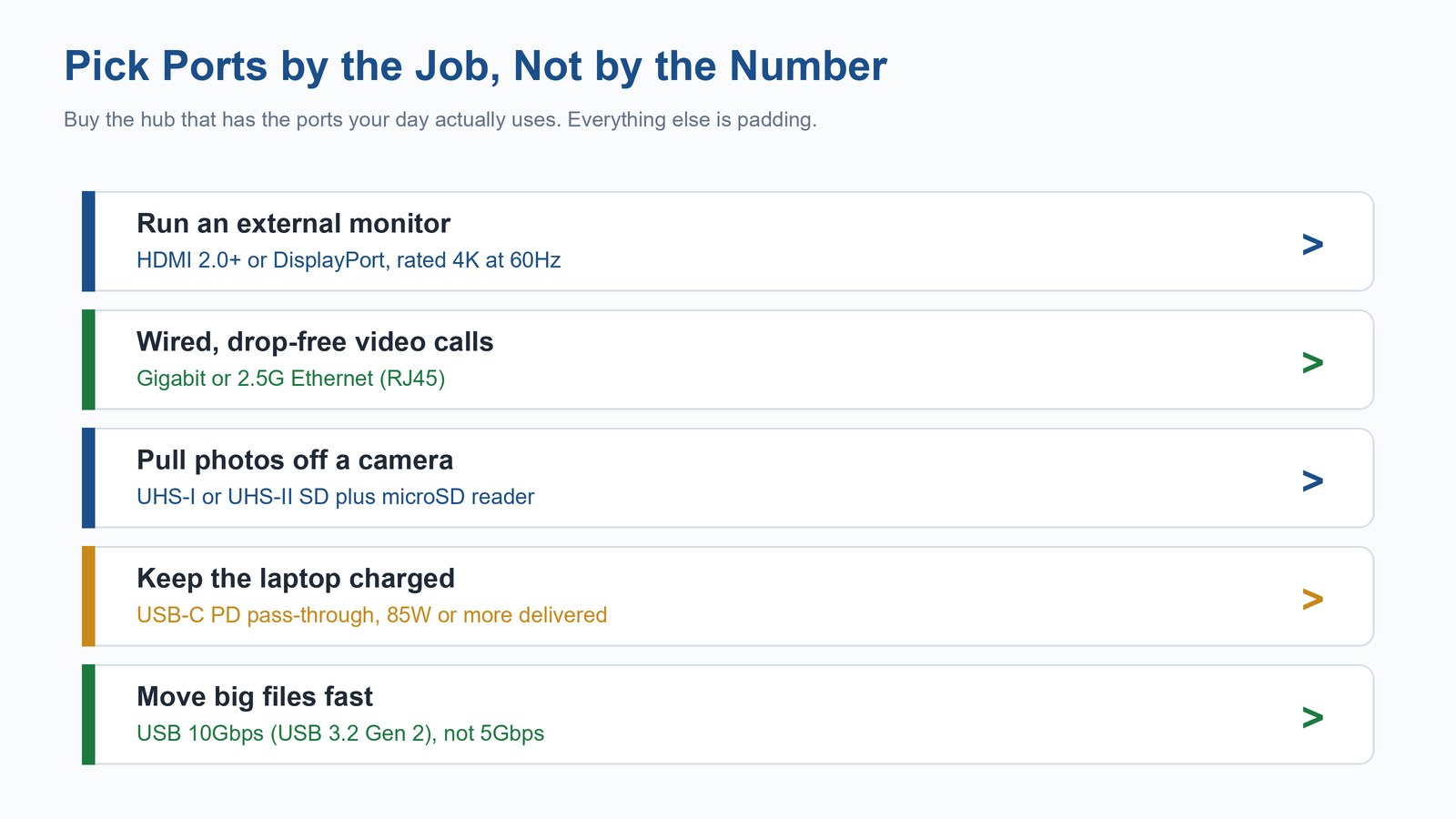
People search for a hub “with HDMI” or “with Ethernet” as if they are separate species. They are not; most good hubs have both. The real question is which ports earn their place for the way you work, so buy for the job instead of collecting jacks.
HDMI is the one nearly everyone needs, because it is how you drive a monitor, a TV, or a projector. The only thing to insist on is that it is rated 4K at 60Hz, for the reasons above. If you run two screens, you need a hub with two video outputs, and dual HDMI is simpler than juggling HDMI plus DisplayPort.
Ethernet matters more than people expect. Wi-Fi is fine until the one video call where it is not, and a wired Gigabit or 2.5G connection simply does not drop. If you take calls for a living or move large files across a local network, an Ethernet port is worth more than two extra USB-A slots you will never fill. If you are mostly mobile and tether to your phone anyway, skip it and save the bulk. For a deeper look at how these ports and speeds actually differ, our guide to USB-C versus Thunderbolt breaks down what the labels really mean, and Apple lists exactly how many external displays each chip supports on its MacBook Air specs page.
Frequently Asked Questions
Do I really need a USB-C hub for my MacBook?
If you have a MacBook Air, almost certainly yes, the first time you connect a monitor, an SD card, or a wired network, because the Air has only USB-C ports. A 14-inch or 16-inch MacBook Pro already has HDMI, an SD slot, and three Thunderbolt ports, so you only need a hub when you want a second display, Ethernet, or more ports than the three it gives you.
What wattage hub do I need to keep my MacBook charged?
Match the charger to the laptop, not the hub. Use a 96W or 100W USB-C charger and a hub rated for 100W pass-through, and you will get roughly 85W to the Mac after the hub’s overhead, which keeps any current MacBook charging under normal load. A weak 30W or 45W charger through a hub can leave a MacBook Pro slowly draining while it works.
Why does my external monitor look choppy through a cheap hub?
Almost always because the hub outputs 4K at only 30Hz instead of 60Hz. At 30Hz the screen redraws half as often, so motion and scrolling smear and the cursor feels laggy. Buy a hub that explicitly states 4K at 60Hz, and confirm your Mac’s chip supports the display you are connecting.
Can a USB-C hub run two external monitors on a MacBook?
Only if two things are true: the hub has two video outputs, and your MacBook’s chip supports that many external displays. A dual-HDMI hub like the HyperDrive Next handles the hardware side, but a base M-chip MacBook Air may still cap you at one or two external screens regardless. Check your exact model’s display limit before buying a dual-output dock.
Is a hub with Ethernet actually worth it over Wi-Fi?
If you take video calls or move big files on a local network, yes. A wired Gigabit or 2.5G connection does not stutter or drop the way Wi-Fi can in a busy building, and it is more secure. If you are mostly mobile or tether to your phone, an Ethernet port is dead weight and you should buy a slimmer hub instead.
Will a USB-C hub slow down my MacBook?
A well-built hub will not slow the laptop itself, but it can bottleneck the devices plugged into it. Every port shares the single USB-C connection back to the Mac, so a cheap hub with only 5Gbps ports will throttle a fast SSD. Use a hub with a true 10Gbps port for drives, and keep bandwidth-heavy devices spread across your Mac’s own ports when you can.