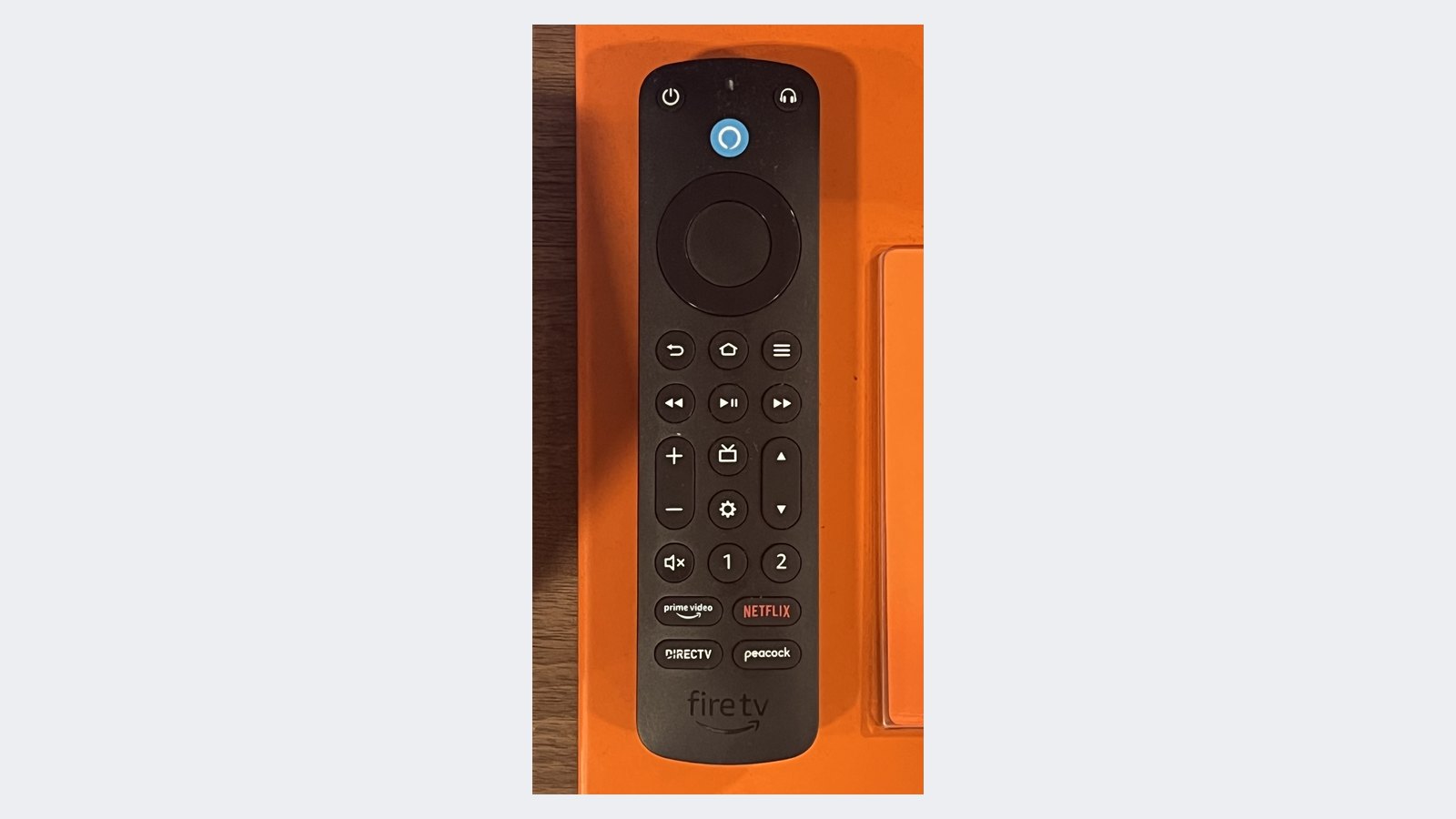
Here is the thing nobody tells you when you’re jabbing at a dead Fire TV remote: it is almost certainly not broken. A fire tv remote not working is one of the most over-diagnosed problems in the streaming world, because people treat it like a Roku remote, and it is nothing like a Roku remote. A Roku clicker can fall back to infrared and blast a signal at your TV even when the fancy Wi-Fi pairing dies. Your Fire TV remote can’t. It talks to the box over Bluetooth, full stop, and — this is the part that trips everyone up — it has no physical reset button anywhere on it. There is no pinhole, no recessed switch, nothing to press. So every real fix is a specific button combo, and the exact combo depends on which generation of remote you’re holding. Run the wrong one and literally nothing happens, which is precisely why so many perfectly good remotes get chucked in a drawer as “dead.” Match the combo to your remote and most of them come right back to life.
Published July 8, 2026 · Last updated July 12, 2026
- A fire tv remote not working usually isn’t dead — it’s a Bluetooth pairing drop, and the single highest-yield fix is holding Home for ~10 seconds to re-pair.
- There is no reset button on any Fire TV remote. Every fix is a button combo, and the correct combo depends on your remote’s generation. The wrong combo does nothing, which is why people wrongly conclude it’s broken.
- The #1 trap: a 1st-gen Alexa Voice Remote resets with Left + Menu only. The newer three-button combo (Left + Menu + Back) does nothing on it.
- If navigation works but volume and power don’t, stop resetting — that’s a completely separate system that lives in Settings, not in a re-pair.
- “New batteries and still nothing” isn’t a dead end. It rules out power and points you straight at a wrong combo, a pairing drop, or the 7-device Bluetooth cap.
- You are never actually stuck: the free Fire TV phone app is a full backup remote and the tool you use to re-pair the physical one.
Why a Fire TV Remote Behaves Nothing Like a Normal Clicker
Get this mental model right and every fix below makes sense. Your old cable remote and even a Roku remote lean on infrared — a dumb, line-of-sight light beam. If the pairing brain goes sideways, IR still works as a fallback. The Fire TV remote threw all of that out. The navigation pad, the select button, the whole “drive the menus” experience runs over Bluetooth, which means the remote and the Fire TV have to stay paired the way two Bluetooth earbuds stay paired to your phone. When that pairing silently drops — after a power blip, a software update, or the box just losing the plot — the remote is still powered, still sending, and still getting ignored. Nothing is wrong with the hardware. The handshake just broke.
That single design choice explains the whole troubleshooting playbook. Because there’s no IR fallback and no reset button, you can’t just “turn it off and on again” in any physical sense. You have to force a new Bluetooth handshake with a button combo — and Amazon built different combos into different remote generations over the years. This is the trap the internet keeps walking into: someone Googles the fix, finds the three-button reset for a modern remote, runs it on their old one, sees nothing happen, and decides the remote’s toast. It wasn’t the remote. It was the wrong combo.
Note: A remote with a dead pairing still lights up and still drains its batteries. “It’s clearly getting power” tells you nothing about whether it’s paired — those are two separate systems, and confusing them is how good remotes end up in the trash.
Start Here Because This One Fix Solves Most Cases

Before you reset anything, do the re-pair. On the overwhelming majority of “not working” remotes, this alone fixes it, and it takes ten seconds. Pop in a fresh pair of batteries first to take power out of the equation, then press and hold the Home button for about 10 seconds, release, and give it a few seconds. On remotes that have an LED, you’ll see it blink and then settle to a steady blue the moment it re-pairs. On remotes without an LED — and plenty don’t have one — there’s no light show, but the re-pair still happens in the background.
This is the fix to try first for a reason: a dropped Bluetooth pairing is by far the most common cause of a fire tv remote not working, and Home-for-10 is the exact motion that forces the box to accept the remote again. If your remote has been sitting unpaired, this is usually the entire fix.
Tip: If Home-for-10 does nothing, get within a few feet of the Fire TV device itself, not just the TV. On a Fire TV Stick tucked behind the panel into an HDMI port, the box can be physically buried behind a metal-backed screen that kills the Bluetooth signal. Move closer or grab an HDMI extender before you decide the remote failed.
Run the Remote’s Hidden Troubleshooting Mode
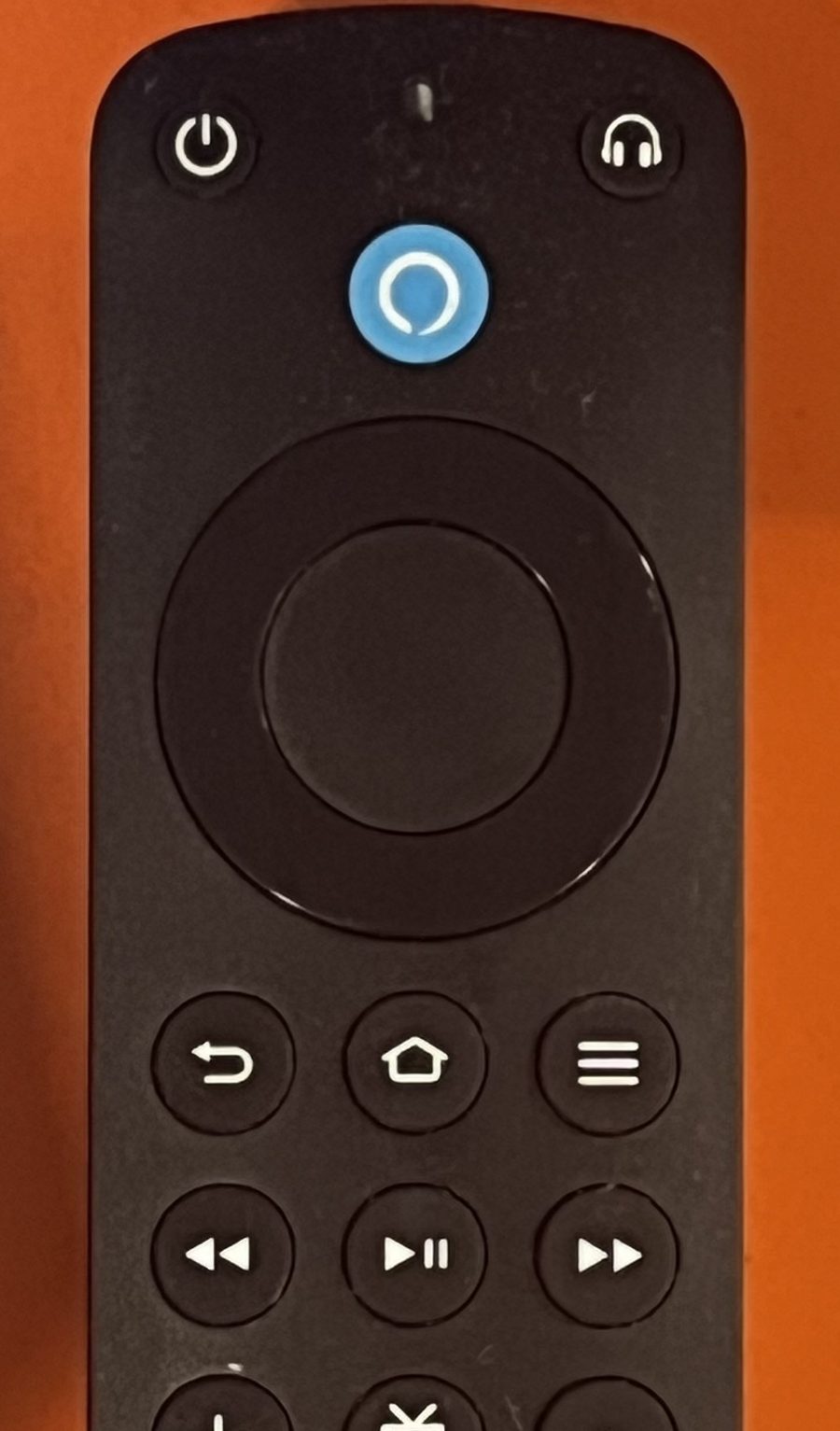
Now for the feature Amazon buries so deep most owners will never find it: newer Fire TV remotes have a built-in diagnostic mode that turns the LED into a status readout. Instead of you guessing whether the problem is batteries, pairing, or the box itself, the remote flat-out tells you — in color. It’s the difference between an hour of guess-and-check and a thirty-second diagnosis, and it’s documented on Amazon’s official remote troubleshooting page, where almost nobody reads it.
First, check whether your remote can do this at all: tap the Alexa (voice) button. If the LED at the top of the remote flashes, troubleshooting mode is available. If your remote has no LED — and plenty of older ones don’t — this mode doesn’t exist for you; skip ahead to the generation-matched resets below.
- Press and hold the Rewind and Right buttons together for three seconds.
- Press the Menu button (the three horizontal lines). The LED turns green — you’re in troubleshooting mode.
- Now press any button. The LED flashes a color, and that color is your diagnosis.
| LED Signal | What It Means | Your Move |
|---|---|---|
| Red, slow blinking | The batteries are low | Swap in fresh AAA alkalines — that’s the whole fix |
| Red, fast blinking | The remote itself has a fault | Run the reset combo that matches your remote’s generation, then re-pair |
| Orange | The remote isn’t paired | Restart the Fire TV, wait for the “Cannot detect your remote” message, then hold Home for 10 seconds |
| White | The Fire TV may not be getting power | Check that the box is actually on and its power cable is seated, then restart it |
| Blue | The remote is fine | Stop blaming the remote — restart the Fire TV device, because that’s where the problem lives |
To get back out, hold Play/Pause and Up together for three seconds, press Menu, then pull the batteries and pop them back in — that last battery reseat is part of Amazon’s official exit steps, not superstition. And here’s why this mode earns its spot in your playbook: the blue result is the remote formally clearing its own name. Every minute you’d have spent re-running reset combos on a healthy remote is a minute the actual culprit — the Fire TV’s power, HDMI connection, or software — keeps hiding. Diagnose first, then fix, and a fire tv remote not working stops being a mystery and starts being a checklist.
Reset by Remote Generation Because the Combo Is Not Universal
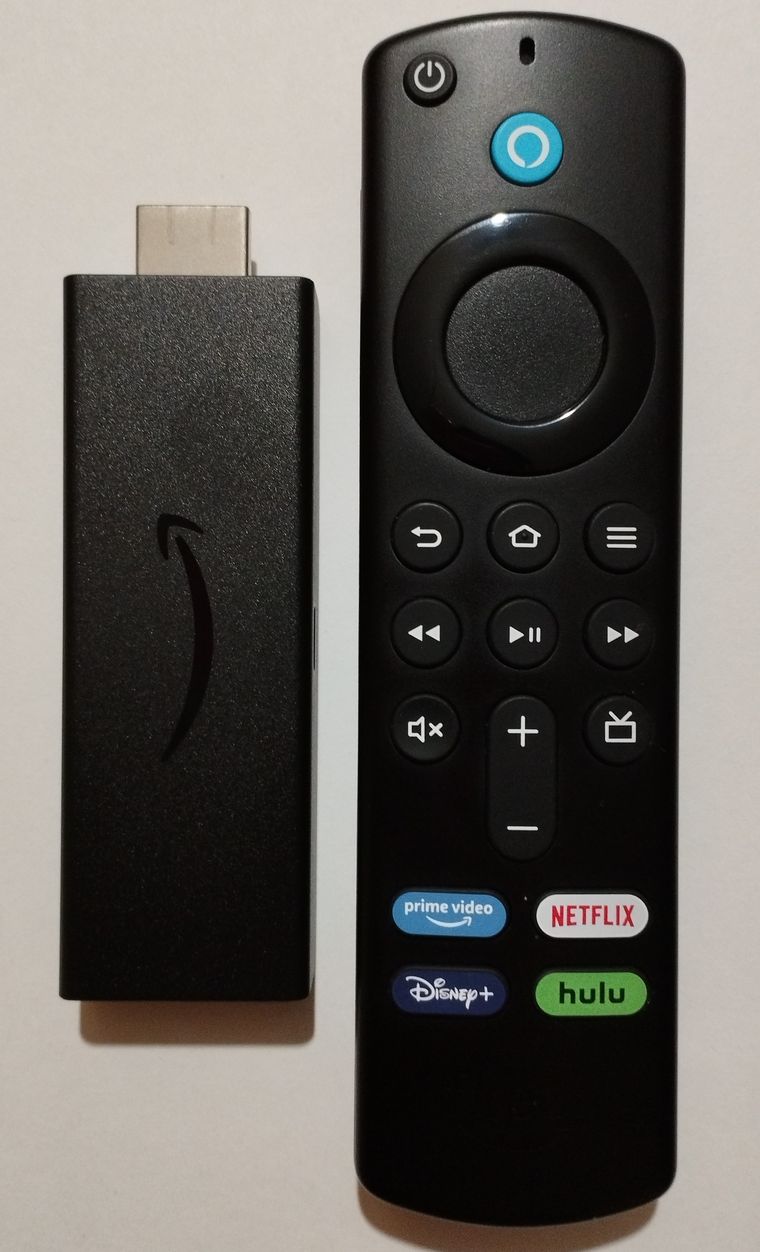
If a clean re-pair didn’t do it, you move up to a full reset — and here’s where the generation of your remote decides everything. There is no one-size reset. Amazon’s own Fire TV remote support pages list different combos for different remotes, and running the wrong one is the single most common reason people think a working remote is dead. Match your remote to the right block below.
Reset a Standard or Newer Alexa Voice Remote With Three Buttons
This is the modern combo, and it covers most remotes shipping in recent years, including the Alexa Voice Remote Pro. Hold Left + Menu + Back together for about 12 seconds, then let go and wait roughly 5 seconds. For a stubborn case, do the full sequence: unplug the Fire TV from power for a solid 60 seconds first, then while it’s powering back up, pull the remote’s batteries, reinsert them, and press Home. That power-cycle-plus-reset order clears the box’s Bluetooth state and the remote’s at the same time, which is why it catches cases a plain reset misses.
Caveat: The Menu button is the one with the three horizontal lines (the “hamburger”), not the settings gear. People grab the gear, hold the combo, get nothing, and blame the remote. Confirm you’re holding the three-lines button before you conclude the reset failed.
Reset a 1st-Gen Alexa Voice Remote With Only Two Buttons
This is the trap that fills up forums. The original, 1st-generation Alexa Voice Remote does not have a Back button in the reset combo. You hold Left + Menu only, for about 12 seconds — two buttons, not three. If you run the modern three-button combo on a 1st-gen remote, nothing happens, and thousands of people take that “nothing” as proof the remote died. It didn’t. It’s just a different remote with a different reset. If your remote looks older and plainer, with no dedicated volume or power buttons down the bottom, assume it’s the two-button combo first.
Tip: Not sure which generation you’re holding? Look for the volume, mute, and power buttons near the base. If they’re there, you have a newer remote and the three-button reset. If the remote ends at the playback controls with no TV-control buttons, it’s an older generation — reach for Left + Menu only.
Recognize When No Light Does Not Mean a Dead Remote
“There’s no light, so it must be dead” is the most confidently wrong conclusion in this whole topic. Here’s the truth: not every Fire TV remote generation even has an LED. Older and simpler remotes have no status light at all, so the absence of a blink tells you exactly nothing about whether it’s alive or paired. On remotes that do have an LED, a light that flashes rapidly and won’t settle usually means it’s trying and failing to pair — which points you back to the re-pair and reset steps, not to a hardware failure. So a Fire TV remote no light situation is a shrug, not a death certificate.
Note: If your remote has an LED and it’s completely dark even on a button press with known-good batteries, that’s a more meaningful signal — it points at battery contact (check for corrosion or a bent spring in the compartment) or, rarely, genuine hardware failure. A missing light on a remote that never had a light means nothing at all.
Why Volume and Power Buttons Fail Even When Navigation Works
This is the insight most troubleshooting articles completely miss, and it’ll save you an hour of pointless resetting. If you can navigate menus fine but the volume and power buttons do nothing, do not re-pair and do not reset — you’d be fixing the wrong system entirely. Here’s why: the navigation pad and select button run over Bluetooth, but the volume, power, and input buttons run over a totally separate channel — HDMI-CEC or IR equipment control that has to be programmed to your specific TV or soundbar. They were never part of the Bluetooth pairing, so re-pairing the remote will never, ever fix them.
The fix lives in Settings, not in a button combo. Go to Settings > Equipment Control (sometimes labeled Manage Equipment) and set up or re-run the TV/soundbar control, telling the Fire TV which brand of equipment it’s talking to. That’s the entire fix for a fire tv remote not controlling volume, and it’s the same fix for a fire tv remote not controlling tv power. Once you understand these are two independent subsystems, the “half my remote works” mystery evaporates.
Tip: If Equipment Control set-up doesn’t stick, check that HDMI-CEC is actually enabled on the TV itself. Every brand hides it under a different name — Samsung calls it Anynet+, LG calls it SimpLink, Sony calls it BRAVIA Sync, Vizio calls it CEC. If that setting is off on the TV, the Fire TV’s volume and power buttons have nothing to talk to.
The Bluetooth Device Cap That Silently Blocks New Remotes
Here’s a failure mode almost nobody knows about, and it explains a specific frustrating case: you buy a replacement or second remote, run the pairing, and it just… never connects. No error, no light, nothing. The reason is a hard limit built into every Fire TV.
Caveat: A Fire TV supports a maximum of 7 paired Bluetooth devices, and that ceiling is shared across everything — every extra remote, every game controller, every set of Bluetooth headphones, every keyboard. Fill the 7 slots and a new remote has nowhere to go, so it silently fails to pair with no explanation.
If you’ve accumulated gear over the years — an old game controller you forgot about, headphones you paired once (if those are acting up too, here is how to reset Bluetooth headphones properly), a spare remote — you may simply be out of slots. The fix is quick: go to Settings > Controllers & Bluetooth Devices, remove something you don’t actually use, and then pair the new remote. This is worth checking any time a brand-new remote refuses to pair while your existing setup works fine, because “the new remote is defective” is almost never the real answer.
Unpair a Dead Remote to Free a Slot
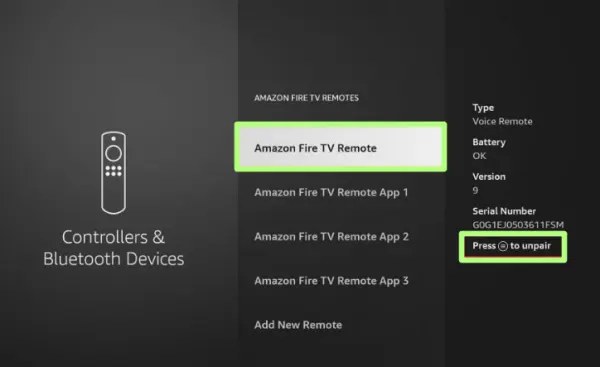
Here’s the exact path, because Amazon doesn’t exactly signpost it: go to Settings > Controllers & Bluetooth Devices > Amazon Fire TV Remotes, highlight the remote you want gone, and press the Menu button (three lines) — the screen literally tells you “Press ☰ to unpair” in the right-hand pane — then confirm. You’ll obviously need something working to drive the menu: a second paired remote or the Fire TV phone app both do the job. This same screen is where the 7-slot ceiling gets audited — every zombie entry you remove here is a slot a new remote can actually take.
Give the Remote’s Bluetooth Signal a Clear Path
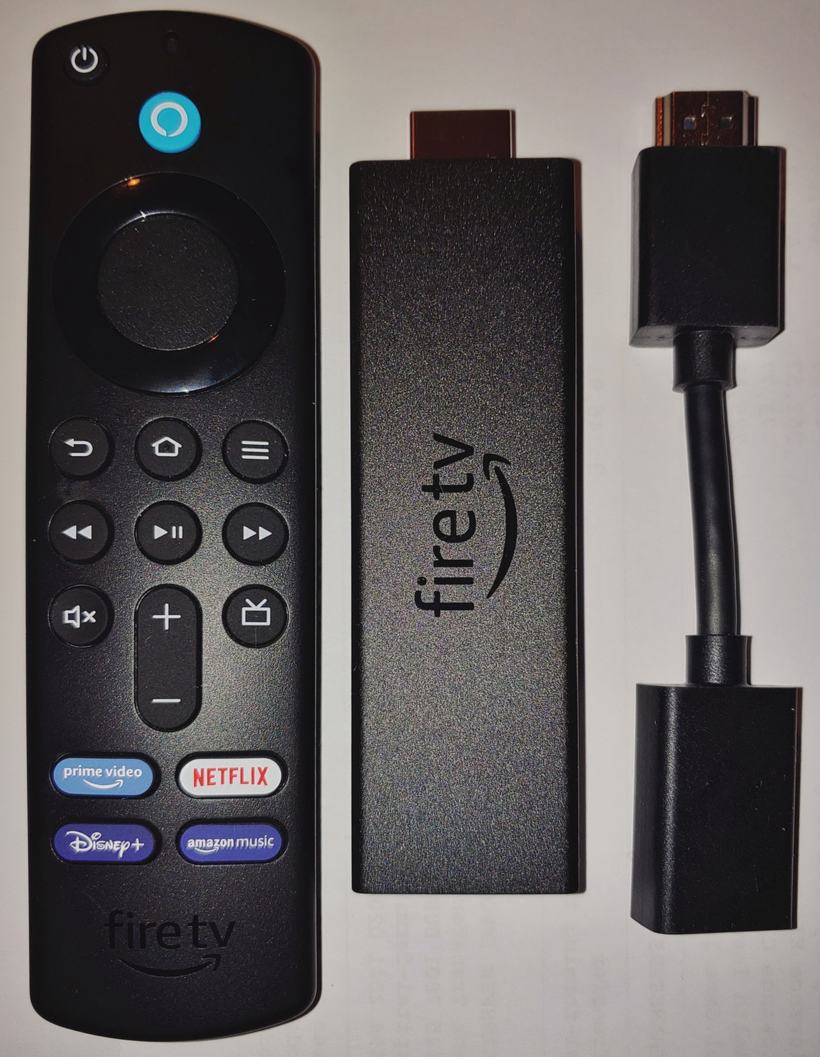
Distance and interference are the causes everyone skips because they’re invisible. Bluetooth of the class these remotes use is good for roughly 30 feet (about 10 meters) in open air — but “open air” is doing heavy lifting in that sentence, and Amazon itself tells you to get within 10 feet (3 m) of the device when pairing. Every wall, cabinet door, and slab of furniture between your couch and the box eats into the real-world number, which is how a remote that worked fine on the old TV stand “dies” the day you rearrange the living room.
The sneakier problem is the neighborhood the signal lives in. Bluetooth shares the crowded 2.4 GHz band, and Intel’s interference documentation reads like a tour of your living room: a running microwave oven (which operates at 2.45 GHz and leaks), wireless speaker systems that camp on the band continuously, and poorly shielded coaxial cable or connectors — the kind satellite-dish runs are famous for — can all stomp on the remote’s channel. If your remote gets flaky at suspiciously specific times — while popcorn spins in the microwave, or when the party speakers come on — that isn’t coincidence. That’s the band getting jammed, and no reset combo on earth fixes radio congestion.
Wall-mounted TV owners get the worst deal of all: the Fire TV Stick ends up sandwiched between the wall and a metal-backed panel, which is about the best Bluetooth-killing enclosure you could design on purpose. The fix ships in the box — use the HDMI extender cable to hang the stick below or beside the TV instead of directly behind it. Amazon includes that extender precisely because of this, and it routinely improves Wi-Fi streaming quality along with remote response. Before you buy anything or reset anything else, give the signal an actual path to travel.
What New Batteries and Still Nothing Actually Tells You
People treat “I put in fresh batteries and it still doesn’t work” as the end of the road. It’s the opposite — it’s one of the most useful diagnostic signals you have. Fresh cells that change nothing rule out power as the cause, and that rules-out is what points you at the real culprit. A fire tv remote with new batteries that still won’t respond is telling you the problem is one of three things: (a) you’re running the wrong-generation reset combo, (b) the Bluetooth pairing has dropped and needs the Home-for-10 re-pair, or (c) you’re at the 7-device cap or looking at genuine hardware failure.
There’s a nuance worth knowing: genuinely weak, old, or leaked-contact batteries absolutely can cause flaky, intermittent behavior, and some Fire TV remotes are famously picky about very cheap no-name cells. So a battery swap is always a legitimate first move. But once you’ve done a fresh swap and a correct re-pair and it still fails, stop swapping batteries — the answer is not “even fresher batteries.” You’ve proven it’s not a power problem; move on to pairing and generation.
Keep in mind: If the remote works right after a battery swap but keeps dying, that’s a contact problem, not a pairing one. Clean the battery terminals, make sure the little metal spring isn’t crushed flat, and use decent alkaline or lithium cells rather than the cheapest bulk batteries you can find.
Your Escape Hatch When the Hardware Remote Is Truly Dead
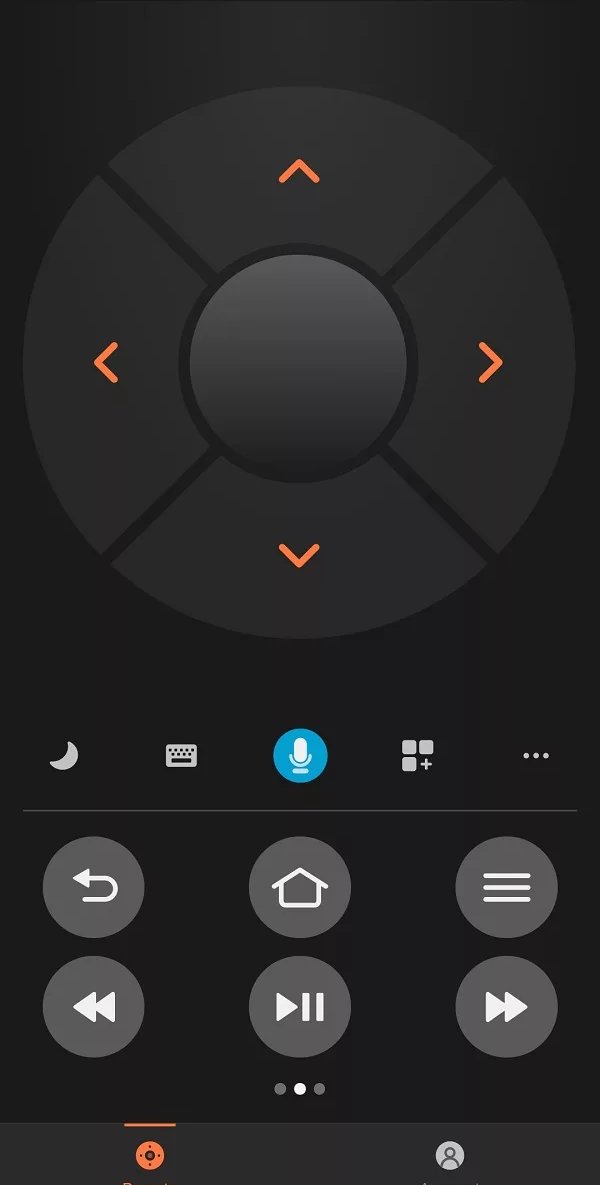
Now the thing that means you are genuinely never stuck. The free Amazon Fire TV app on your phone (iOS and Android) is a full backup remote. As long as your phone is on the same Wi-Fi network as the Fire TV, it drives the box completely — navigation, keyboard, the works — over Wi-Fi. No physical remote required.
One compatibility check before you stake your evening on it: per Amazon’s Fire TV app compatibility page, the current app needs iOS 14.0 or newer or Android 7.0 or newer (8th-generation-and-later Fire tablets work too). That covers nearly every phone from the last several years — but if your backup plan is a dusty tablet in a drawer, confirm it clears that bar before you need it to.
This matters for two reasons. First, it’s an instant stopgap the moment your remote dies, so you’re not locked out of your own TV. Second — and this is the part people miss — the app is the tool you use to fix or replace the physical remote. You can navigate into Settings from your phone, run the pairing flow for a new remote, or drive the box to set up a replacement, all without a working clicker in your hand. If you’re deep into a smart-home setup, the same principle of a phone app as universal fallback shows up everywhere; our guide on how to set up a smart home for beginners leans on exactly this pattern.
Tip: Download the Fire TV app before your remote dies, not after. Setting it up requires signing into the same Amazon account and confirming a code on-screen — which is a lot easier to do while you still have a working remote to confirm it. A two-minute setup today saves you a scramble later.
How to Read the Failure Order and Know When to Give Up
Put it all together and there’s a clear order of likelihood, which tells you when to keep trying and when to stop. Fresh batteries plus the Home-for-10 re-pair resolves the majority of dead-remote cases — that’s your first and highest-odds move. If that fails, a correct, generation-matched reset catches most of the rest. Only after a correct reset also fails are you actually looking at something deeper: a Bluetooth conflict from the 7-device cap, or genuine remote hardware failure.
That ordering is the whole point. If you’ve done a real re-pair and a correctly-matched reset and it’s still dead, you’ve earned the right to stop troubleshooting. At that point the move is a cheap replacement remote — genuine Amazon or a reputable third-party one — or just living on the phone app, which costs nothing. What you should not do is keep buying fresh batteries and re-running the wrong combo, which is the loop most people get stuck in. The remote isn’t haunted. You’ve just exhausted the fixes it responds to.
Buy the Right Replacement Remote for Your Exact Model
When you do reach the buy-a-replacement stage, know this before you spend a cent: Fire TV remote compatibility is per-model, not universal. The Alexa Voice Remote Pro, the 3rd Gen, the Enhanced, and the older generations each pair with a specific list of sticks, Cubes, and Fire TV Editions — and a “replacement” that was never compatible with your box behaves exactly like a defective one: it just silently refuses to pair. Amazon keeps the authoritative per-model matrix on its Fire TV remote compatibility page; check your device’s exact name first under Settings > My Fire TV > About, then buy against that list. Thirty seconds of checking beats a week of return shipping — and if the new remote checks out compatible and still won’t pair, you already know the next suspect: the 7-device Bluetooth cap above.
Frequently Asked Questions
Why is my Fire TV remote not pairing no matter what I try?
Nine times out of ten it’s one of two things. Either you’re not forcing the pairing correctly — hold Home for a full 10 seconds while sitting within a few feet of the actual Fire TV device — or you’ve hit the 7-device Bluetooth cap. Every Fire TV maxes out at 7 paired Bluetooth gadgets total, shared across remotes, controllers, and headphones. If you’ve paired a lot of gear over the years, head to Settings > Controllers & Bluetooth Devices, delete something you don’t use, and try pairing again. A fire tv remote not pairing is almost always a slot or a signal problem, not a broken remote.
My Fire TV remote has no light, so is it dead?
Probably not, and here’s the reassuring part: not every Fire TV remote generation even has an LED. If yours never had a status light, its absence means nothing. On remotes that do have one, a rapid flash that won’t settle means it’s trying to pair and failing — go run the re-pair and reset. A completely dark LED on a remote that normally lights up is the only “no light” that actually points at batteries or hardware. So a fire tv remote no light is a shrug, not a diagnosis.
Why does my Fire TV remote navigate fine but not control the volume?
Because those are two separate systems. Navigation runs over Bluetooth; volume, power, and input run over HDMI-CEC or IR equipment control that has to be programmed to your specific TV. Re-pairing will never fix volume — you’d be resetting the wrong thing. Go to Settings > Equipment Control (or Manage Equipment), set up your TV/soundbar, and make sure HDMI-CEC is turned on in the TV’s own menu (Samsung’s Anynet+, LG’s SimpLink, Sony’s BRAVIA Sync, Vizio’s CEC). That’s the real fix for a fire tv remote not controlling volume.
My Fire TV remote won’t control my TV power or input — same fix?
Yes, exactly the same. Power and input buttons live in the equipment-control subsystem, not the Bluetooth one, so a fire tv remote not controlling tv power gets fixed in Settings > Equipment Control, never with a re-pair. Set up the TV again there, confirm the brand is right, and enable CEC on the TV. If it still won’t stick, the TV’s CEC feature is likely disabled or your TV brand simply isn’t fully supported for control, in which case the phone app or a universal remote is your workaround.
I put in new batteries and my Fire TV remote still won’t respond — now what?
Good news: you’ve just ruled out power, which narrows things down fast. A fire tv remote not responding after fresh batteries means it’s a pairing or generation issue, not a dead battery. Do the Home-for-10 re-pair first. If that fails, run the reset that matches your remote’s generation — three buttons (Left + Menu + Back) for newer remotes, two buttons (Left + Menu only) for a 1st-gen. Stop buying more batteries; the problem has already told you it isn’t power.
What’s the difference between the 1st-gen reset and the newer one?
The number of buttons, and it matters enormously. A newer or standard Alexa Voice Remote resets with Left + Menu + Back held for ~12 seconds. The original 1st-gen remote resets with Left + Menu only — no Back button. This is the single most common reason a fire tv remote not working gets misdiagnosed: people run the three-button combo on an old remote, nothing happens, and they assume it’s broken. If your remote is older and has no dedicated volume or power buttons, use the two-button combo first.
Why won’t the Fire TV app work as a remote on hotel Wi-Fi?
Because hotel networks are deliberately built to keep guests’ devices from seeing each other. Most use client isolation, so your phone and your travel Fire TV Stick can sit on the very same network and still be invisible to one another — and the app needs direct device-to-device contact to act as a remote. The workaround seasoned travelers use is a phone hotspot: set your hotspot’s name and password to exactly match your home Wi-Fi and the stick connects itself automatically, thinking it’s home. Then run the Fire TV app from a second phone joined to that hotspot — or usually from the hosting phone itself, since a hotspot host can talk to its own clients. Set the hotspot names up before the trip: you can’t type a Wi-Fi password into a TV you can’t control.