Someone is standing in your kitchen holding a phone, waiting. Your network name is right there in their list, and the only thing between them and your internet is a string of characters you last typed the week the router was installed. You check the drawer. You check the sticky note. Nothing.
Then you go looking for help and every answer is written for somebody else’s equipment. Apple explains it for Macs. Your ISP explains it for the box it rents you. An app in the Play Store swears it can do it, if you would just install it. Nobody answers the actual question: a copy of that password already exists, in readable form, on hardware you own — so the real problem behind how to find your WiFi password is not technical at all. It is inventory. Which device holding a copy can you still get into?
One boundary before the steps. This guide is about reading a password that already exists. If you have decided you would rather set a new one instead, that is a different job with different consequences for every device in the house, and it is covered end to end in our guide to changing your WiFi password.
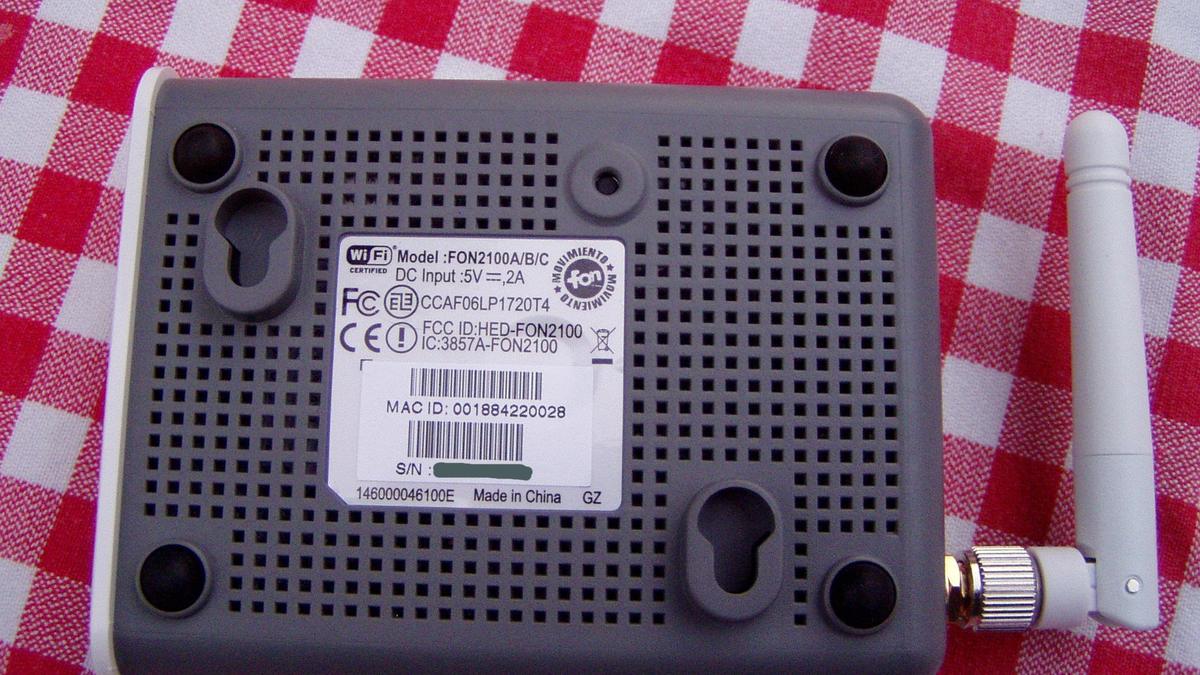
Photo: Didier Misson, CC BY-SA 2.5.
- A computer that has ever joined the network is your best source. It will surrender passwords for networks it has not seen in years, not just the one it is on right now.
- On Windows the whole job is one command. On a Mac, System Settings gets you there in under a minute; Keychain Access is the older fallback.
- An iPhone shows you the characters. Android usually hands you a QR code instead. Same result, two very different design philosophies.
- The sticker on the router is the least reliable source in the house. It prints a factory default, so if the network name on it does not match the one you actually see, treat the password beside it as fiction.
- A factory reset is not a recovery tool. It is a demolition that takes your port forwards, your guest network and your smart-home pairings with it.
Your WiFi Password Was Never Actually Lost
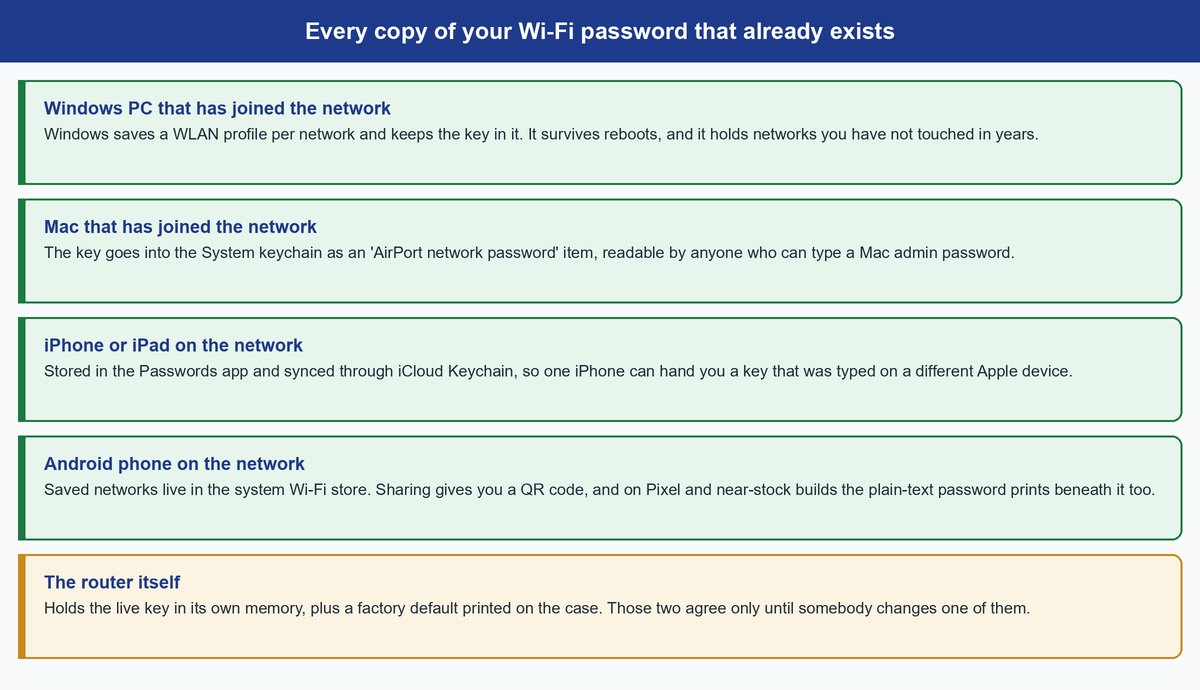
Here is the part that reframes the whole task. WPA2 and WPA3 home networks use a pre-shared key, which means every device has to prove it knows the password on every single reconnect — after a reboot, after a power cut, after you carry the laptop back from the coffee shop. A device cannot do that if it forgets. So it does not forget. It stores the passphrase, or a value derived directly from it, and it keeps it there permanently.
That is not a security hole. It is the design working as intended. But it has a consequence most people never think about: your household is quietly running five or six independent backups of a password you believe is lost.
Keep in mind: The number is usually bigger than you expect. A laptop that has been in service a few years typically holds a dozen or more saved network profiles — every hotel, office and relative’s house it has ever connected to, each with its key still attached.
Which means the security model of your home network is not really the password. It is the lock screen on every device that knows the password: anyone who can log into your laptop already has your Wi-Fi credentials, whether they realize it or not. That is also why every method below makes you authenticate first.
Pick the Retrieval Route Before You Start Clicking
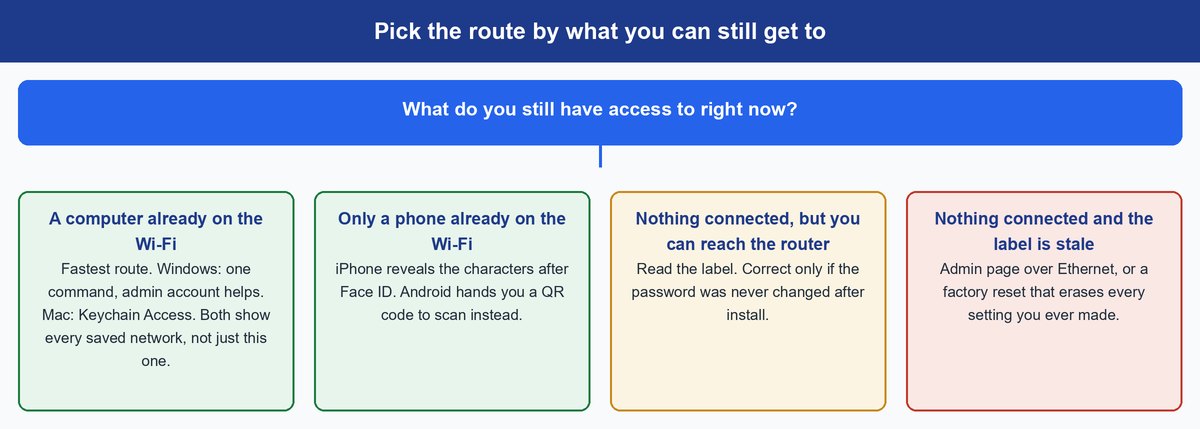
Most guides organize this by operating system, which is useless in the moment. Your problem is not “I have a Mac.” It is “the only thing still connected is my phone, and my laptop is at the office.” Sort by access, not by platform, and the decision takes five seconds.
One rule outranks the rest: prefer a computer over a phone, because a Windows PC or a Mac will list every network it has ever saved, while phones are built around the one you are standing next to. If you need the password for the office network from your sofa, only a computer is going to help you.
How to Read the Saved Password Off Each Device
Every route below assumes the device actually joined the network at some point. None work on a network it has never seen.
On a Windows PC That Is Connected Right Now
Press Win + R, type ncpa.cpl and press Enter. Right-click your Wi-Fi adapter, choose Status, then Wireless Properties, then the Security tab, and tick the Show characters box. The password appears in the Network security key field.
Quick, and no typing. But it has a hard limit: it only ever shows the network you are connected to right now. For anything else, use the command below.
On Windows, for Any Network the PC Remembers
This is the strongest route available on any consumer device, and the one most guides skip. Open Command Prompt or Windows Terminal and run:
netsh wlan show profiles
You get a list of every saved network under the heading “User profiles”. Pick the one you want and run:
netsh wlan show profile name="Your Network Name" key=clear
Scroll to the Security settings block and read the line marked Key Content. That is your password, in plain text, for a network you may not have touched in three years. The quotation marks matter whenever the network name contains a space. The netsh utility itself is Microsoft’s long-standing network shell for Windows, so nothing needs installing.
The catch: Microsoft’s own built-in help states that the key is shown in plain text only “if the caller is local administrator.” In our testing on Windows 11 build 26200, the key printed fine from an ordinary non-elevated prompt because the signed-in account was itself an administrator. On a standard user account the Key Content line comes back empty — that is Windows enforcing the rule above, not a broken command. Reopen the terminal as administrator and run it again to get the actual key.
On a Mac Running macOS Ventura (13) or Later
Skip Keychain Access if you can. From the Apple menu choose System Settings, click Network in the sidebar, then Wi-Fi on the right, and scroll down to click Advanced. That opens the list of known networks. Click the More button next to the one you want and choose Copy Password, then paste it anywhere with Command-V.
On an Older Mac, Using Keychain Access
Before Ventura, or as a fallback that still works on every release, Wi-Fi passwords are filed in the System keychain as an item type called “AirPort network password.”
Press Cmd + Space, type Keychain Access and open it. Select the System keychain in the sidebar, then the Passwords category, find your network name in the list, and double-click it. Tick the Show password box, and macOS asks for an administrator account name and password for the Mac itself — not the Wi-Fi password — before the characters appear.
macOS Sequoia added a dedicated Passwords app with its own Wi-Fi section, but that is a convenience, not the shortcut: the Copy Password route above has worked since Ventura, two years earlier.
On an iPhone Running iOS 16 or an iPad Running iPadOS 16.1
Before those versions, Apple simply would not show you this, which is why so many old forum answers tell you to go and find a Mac. That changed. Open Settings, tap Wi-Fi, then tap the blue info button beside the network you are connected to. Tap the hidden Password field, authenticate with Face ID, Touch ID or your passcode, and the real characters replace the dots, with a Copy button beside them.
For a network you are not currently on, tap Edit at the top of the Wi-Fi screen to see your known networks and use the same info button. On iOS 18 and later the Passwords app collects all of this in one place; Apple documents the flow in its own guide to finding and sharing your Wi-Fi password.
On an Android Phone, Through the Share Screen
Android takes the opposite approach. Google documents the path as Settings, then Network & internet, then Internet, then tapping your Wi-Fi network and choosing Share. Authenticate with your fingerprint or PIN and you get a QR code. For a network you are not connected to, look under Saved networks first.
On Pixel phones and most builds close to stock Android, the password is also printed as plain text directly beneath that QR code. On some manufacturer skins you get the code and nothing else — in which case the code is still the answer. Point the other phone’s camera at it and it joins without anyone reading a password out loud.
What the Label on the Router Actually Tells You
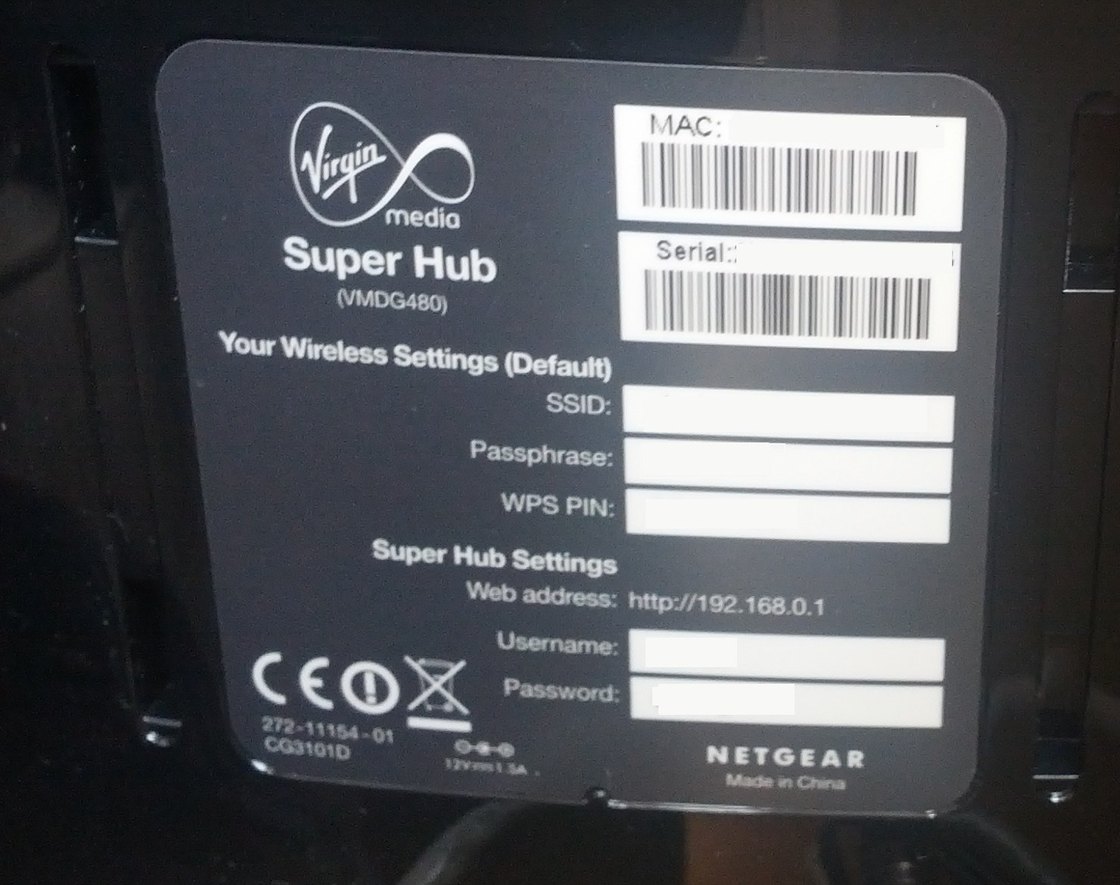
If nothing in the house is connected, the router itself is the next stop — and the label is worth learning to read properly, because it usually carries two completely different passwords and people mix them up constantly.
A typical ISP label prints the default network name (SSID), the default passphrase, a WPS PIN, and then a separate block for the router’s own admin page: a local address like http://192.168.0.1 with its own username and password. The passphrase gets you onto the Wi-Fi. The admin credentials get you into the router’s settings. They are not interchangeable, and typing one where the other belongs is the single most common dead end in this whole process.
Tip: That admin block is the underrated part of the label. Even when the Wi-Fi passphrase has been changed, the admin password often has not — so plugging a laptop into the router with an Ethernet cable and signing in to that address will show you the current wireless key without touching a reset button.
Why the Sticker Password Stops Working
The word “Default” printed on that label is doing a lot of work. Everything under it describes the router as it left the factory, and a router in service for years is rarely still in that state.
Three things overwrite it, and none of them update the sticker. You changed the password at some point and forgot. An installer changed it during setup, sometimes to a house standard the technician uses on every job. Or your ISP’s app pushed new settings down to the router remotely, which is now normal on managed gear and happens without anyone in the house doing anything.
There is a fast way to tell. Compare the network name printed on the label against the network name you actually see in your device list. If they do not match, somebody has been into the settings, and the passphrase beside it went stale at exactly the same moment. Do not spend twenty minutes retyping a key that stopped being real in 2022.
Caveat: A mismatch is not always a changed password. Many routers ship with the 2.4 GHz and 5 GHz bands under slightly different names, and mesh systems replace the ISP router’s network with their own entirely. Check for a name that is close but suffixed before concluding the whole label is out of date.
When a Factory Reset Is Genuinely Your Last Move
If the label is stale, nothing is connected, and the admin page will not let you in either, a factory reset is the only remaining door. It works. It is also the most expensive option on this list, and it deserves a moment of hesitation rather than a paperclip.
A reset does not just clear the Wi-Fi password. It clears everything anyone ever configured: your custom network name, port forwards for a game server or a security camera, static DHCP reservations, the guest network, parental controls and schedules, custom DNS, and on a mesh system the pairing between the main unit and every satellite node, which then have to be re-adopted one at a time.
Then comes the part people underestimate. Every device has to rejoin using the factory password, and the smart ones are the problem — a printer, a thermostat, a robot vacuum and a set of bulbs each need re-onboarding through their own app, and some insist on a factory reset of their own first. An afternoon is a realistic estimate for a well-equipped home.
Note: Before you reach for the reset pin, try the cheap door one more time. Any laptop that ever joined the network is still holding the key, even if it is switched off in a cupboard.
Frequently Asked Questions
Can I find my WiFi password without being connected to the network?
Yes, and that is exactly what the Windows command route is for. netsh wlan show profile name="X" key=clear reads the saved profile off the PC’s own storage, so it works for any network that PC has joined before, from anywhere in the world. A Mac’s System keychain behaves the same way. Phones are the weak link here, since they are built around the network in front of you.
Does Windows really show passwords for networks I joined years ago?
It does, as long as the profile has not been deleted and the PC has not been reinstalled since. Run netsh wlan show profiles first and read the User profiles list — if the network name is there, its key is there too.
Is the password on the router sticker the same as the router admin password?
No, and this trips up more people than any other single detail. The sticker usually carries both: a wireless passphrase for joining the network, and a separate admin username and password for signing in to the router’s settings page at an address like 192.168.0.1. Using the admin password as your Wi-Fi key will simply fail to connect.
What if my Android phone only gives me a QR code?
Then use the QR code as the password. Have the other device point its camera at the screen and it will join without anyone reading characters aloud. If you genuinely need the text — to type it into a printer or a smart TV that has no camera — screenshot the code and scan it with a QR reader on another phone, which decodes it into a string that includes the passphrase.
Do I need administrator rights to run the Windows command?
Microsoft’s documentation says the plain-text key is shown to a local administrator. In practice, on a normal home PC where your own account is the administrator, an ordinary Command Prompt usually works. If Key Content comes back empty, close it and reopen Command Prompt or Terminal as administrator, then run the command again.
Why can my iPhone see the password when my Windows PC cannot?
Because they are looking at different lists. Your iPhone is showing you a network stored in iCloud Keychain, which syncs across every Apple device signed into your account, so a password typed on an iPad years ago is available on a new phone. Windows stores its profiles locally on that one machine, so a PC that never joined the network has nothing to show.
The Bottom Line on Getting Back Onto Your Own Network
The instinct when a Wi-Fi password goes missing is to reach for the router, because that feels like where passwords live. It is almost always the wrong first move. The router holds a factory default that may have been overwritten years ago, while the laptop on your desk holds the password that actually works right now, and gives it up in one command.
So work the list in order of what you can still reach: a computer that has joined the network, then a phone that has joined it, then the label, then the admin page over a cable. Reach for the reset pin only when all four have failed — and when you do get the password back, put it somewhere that is not a sticky note. A password manager entry takes ten seconds and means you never run this exercise again.