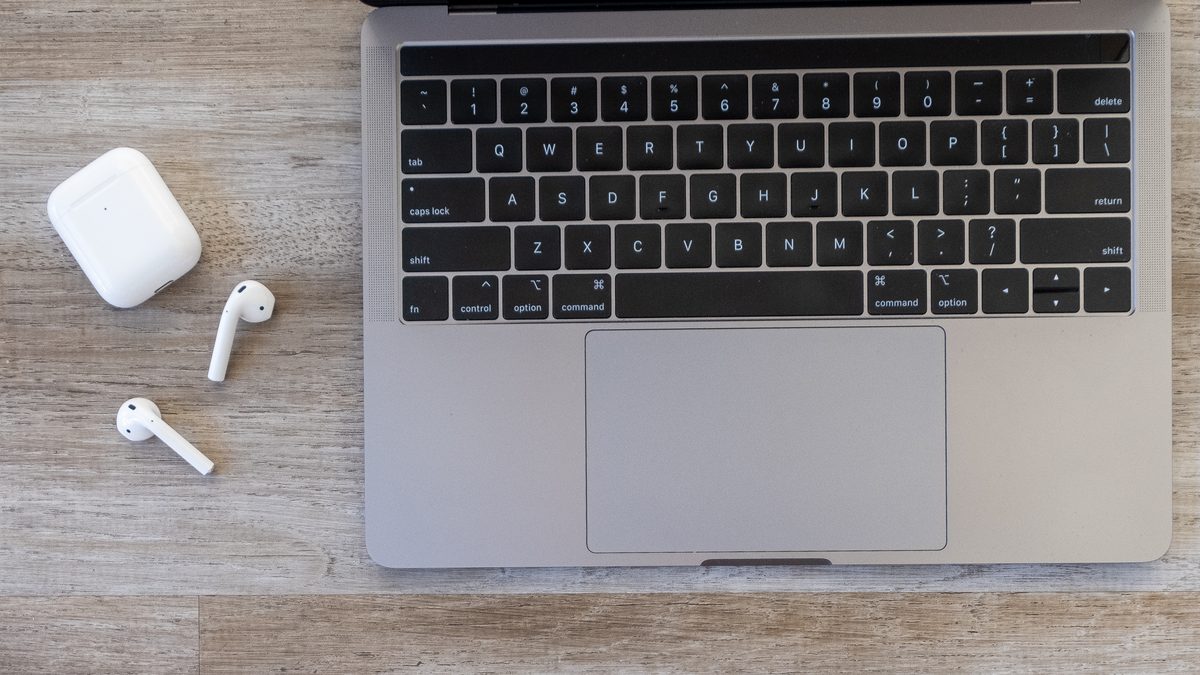
Nobody warns you about this before you pair. To a laptop, your AirPods are not AirPods. They are a generic pair of Bluetooth earbuds in a very nice shell. The pairing itself is easy, and anyone showing you how to connect AirPods to a laptop can get you through it in four clicks. What almost nobody explains is what stops working the second you leave Apple’s hardware, and why your voice suddenly sounds like it is coming from a drive-through window. Both of those trace back to the same fact, and once you see it, every weird AirPods-on-a-PC symptom stops being mysterious.
- Off an Apple device, AirPods drop to plain Bluetooth. Automatic switching, Siri and reliable ear detection all go away, because there is no Apple software on the other end to answer them.
- The case has to be forced into pairing mode by hand, and the gesture depends on which AirPods you own. Older models want a held button on the back; the newest want a double-tap on the front.
- Windows 11 and Windows 10 keep the pairing screen in completely different menus, which is why half the guides you find do not match your PC.
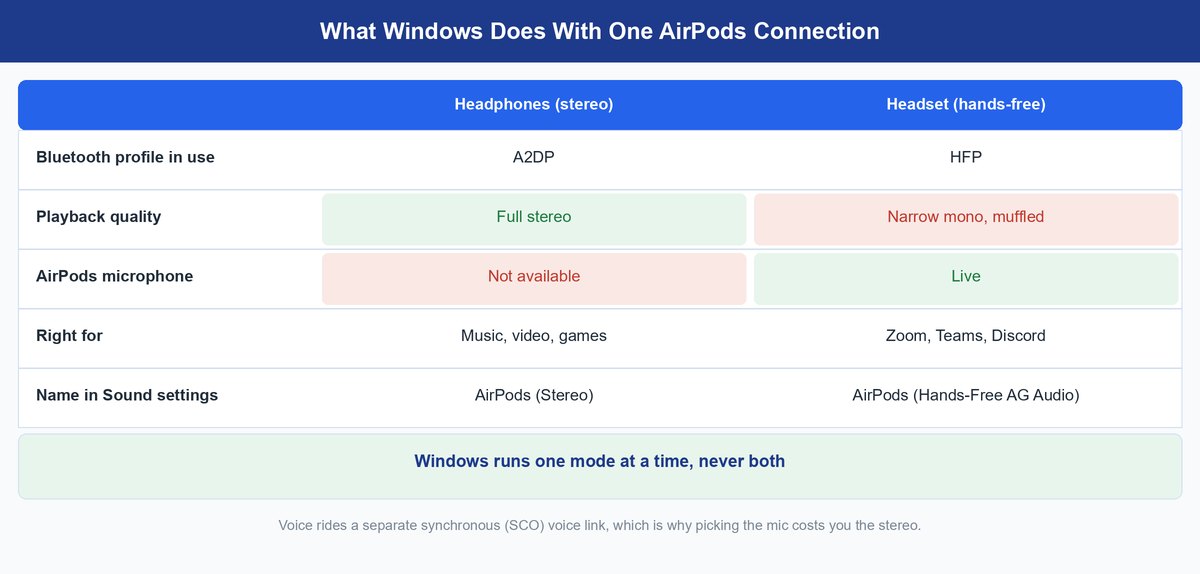
- On Windows, you get good stereo or you get the AirPods microphone. Not both at once. That single trade-off explains most complaints about AirPods sounding terrible on a laptop.
- The best-sounding setup for meetings is unglamorous: AirPods for output, the laptop’s own microphone for input.
Some links below go to Amazon. TechDaily may earn a small commission if you buy through them, at no extra cost to you.
What You Give Up the Moment AirPods Leave an Apple Device
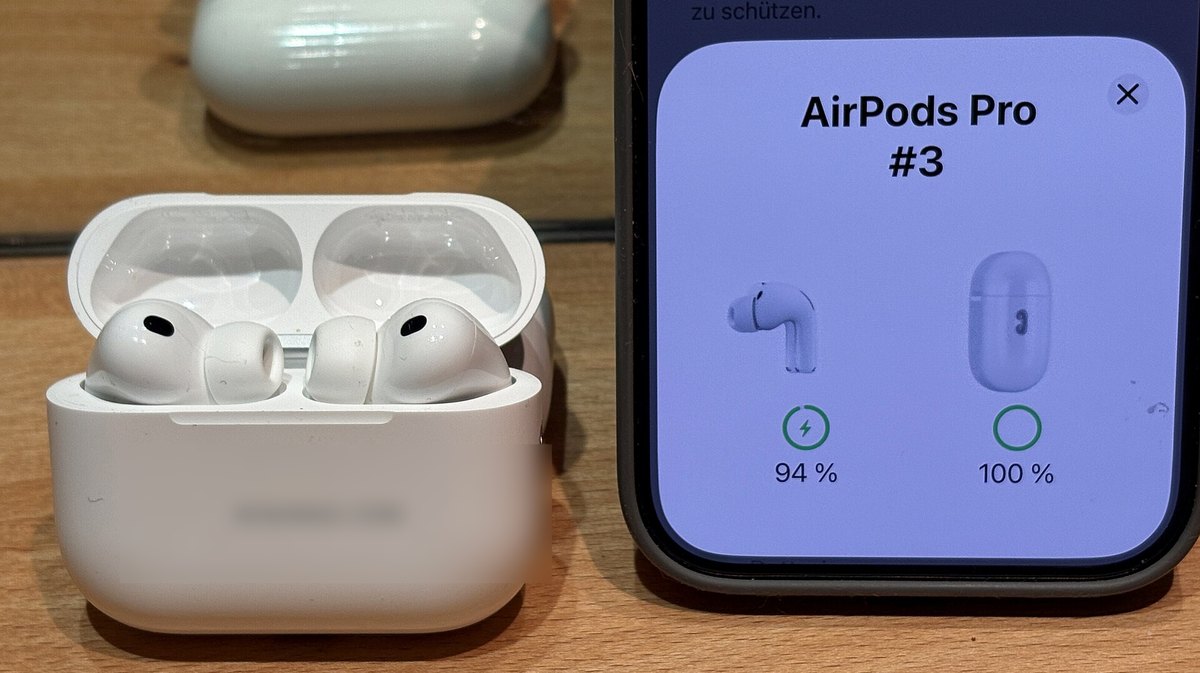
Every AirPods party trick you have ever seen runs on a conversation between the chip in the buds and the operating system on the other side. Apple owns both ends, so it can invent shortcuts that are not in the Bluetooth standard at all. A laptop that is not running Apple software has none of that. It sees a headset. It connects to a headset. Everything Apple layered on top is silently gone, and Apple is fairly open about it.
Automatic Switching Stops at the Apple Account Line
Apple’s own documentation ties seamless handoff to identity, not proximity: your AirPods follow you between devices when you are “signed in to the same Apple Account” across gear running iOS 26, iPadOS 26, macOS Tahoe 26 or later. A Windows PC has no Apple Account to sign into, so there is nothing for the buds to switch to. In practice that means a manual handover every single time: pick the AirPods on the laptop, then pick them again on your phone when you walk away.
Siri Goes Quiet, and the Voice Shortcuts Go With It
Apple’s guide for pairing with non-Apple hardware puts it in one blunt line: “You can’t use Siri, but you can listen and talk.” Anything you had mapped to a voice command is now a laptop keystroke. Adjust your habits before a call, not during one — the volume keys on your keyboard become your only fast control.
Ear Detection Becomes Something You Cannot Rely On
Pull a bud out on an iPhone and the music stops. On a laptop, that behaviour ranges from inconsistent to absent, because the pause is a decision the Apple operating system makes, not something the buds do on their own. Treat playback as always-on and you will never be surprised by it.
Keep in mind: Windows has no idea whether the buds are in your ears. It will happily keep a meeting microphone live after you have dropped the AirPods back in the case. Leave the call on the laptop, not by stowing the earbuds.
How to Connect AirPods to a Windows Laptop
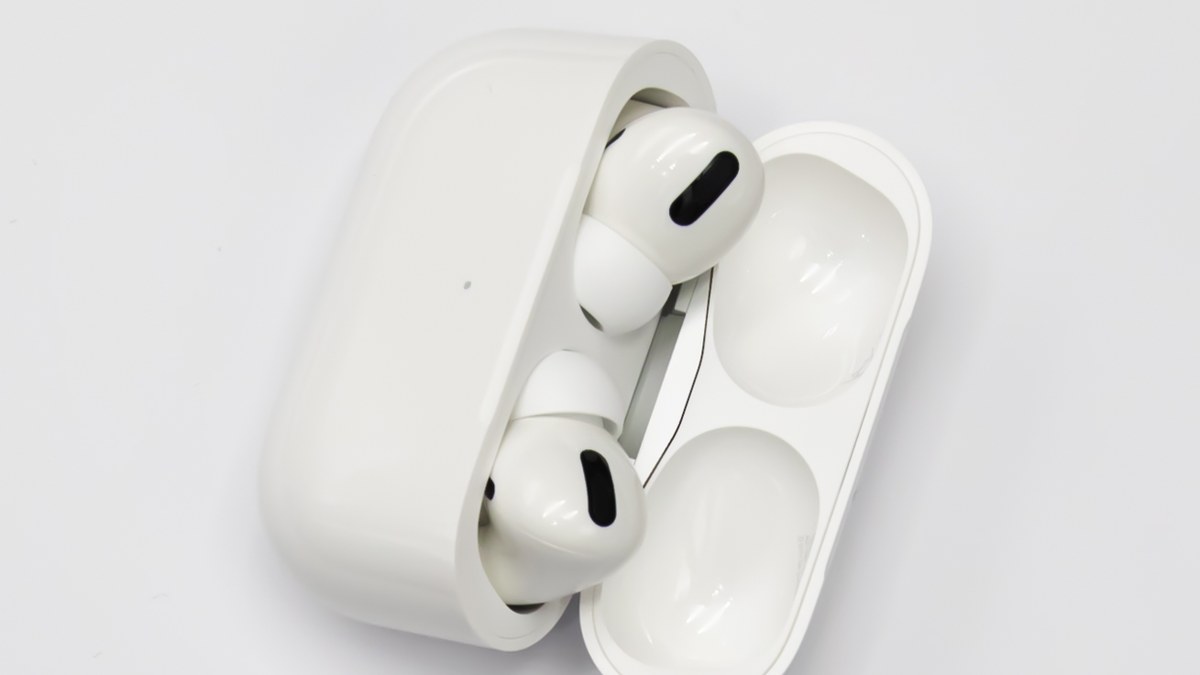
Here is the step people skip, and it is the reason so many pairing attempts fail before they start. On an iPhone, flipping the lid open is enough, because the phone is constantly listening for that specific low-energy announcement. Windows is not listening for anything Apple-flavoured. You have to shove the case into ordinary, standards-compliant discoverable mode yourself, and the gesture is not the same on every model.
Apple lists the exact moves. Put the buds in the case, open the lid, keep it open, then:
- AirPods 1, 2, 3, Pro 1 or Pro 2: press and hold the setup button on the back of the case for about five seconds, until the status light flashes white.
- AirPods 4 or AirPods Pro 3: double-tap the front of the case so the status light flashes white.
- AirPods Max: press and hold the listening mode button for about five seconds, until the status light flashes white.
Flashing white is the whole signal. If you get amber, green or nothing, the case is not broadcasting and no amount of clicking in Windows will find it. Not sure which generation is sitting on your desk? Our AirPods Pro 3 and AirPods 4 comparison covers how to tell the current models apart.
Pairing on Windows 11 From the Taskbar
Microsoft’s documented shortcut skips Settings entirely. Select the Network, Sound or Battery icon on the taskbar, choose the chevron on the Bluetooth tile marked Manage Bluetooth devices, then pick your AirPods under New devices and select Done. If Bluetooth is switched off, the same taskbar flyout has the tile to turn it on, or you can go to Settings, then Bluetooth & devices and flip the Bluetooth toggle to On.
Windows 10 Keeps the Same Switch in a Different Menu
Windows 10 has no Bluetooth tile chevron, which is why copying a Windows 11 walkthrough leaves people hunting. Go to Start, then Settings, then Devices, then Bluetooth & other devices. Select Add Bluetooth or other device, choose Bluetooth in the dialogue that appears, pick your AirPods from the list, and select Done. Same result, three menus deeper.
How to Connect AirPods to a Mac That Is Not Signed In as You
A Mac splits into two completely different situations, and mixing them up is why “just open Bluetooth settings” advice fails people on work machines.
If the Mac shares your Apple Account, there is nothing to do. The AirPods are already listed, already paired, and switching is automatic under the rules above. Click them in the volume menu and they arrive.
If the Mac is signed out, owned by your employer, shared with a household, or signed into somebody else’s account, it behaves exactly like the Windows machine. Force the case into pairing mode with the same button gesture, then go to the Apple menu, System Settings, and click Bluetooth in the sidebar, find the AirPods in the list and click Connect. You get audio and a microphone. You do not get automatic switching, because that follows the account, not the hardware.
Note: pairing to a second machine does not unpair the AirPods from your iPhone. They hold several pairings at once and simply obey whoever grabbed them last. To get sound back on the phone, open its Bluetooth list and tap the AirPods — you do not need to redo anything.
Why Your Microphone Turns to Mud on a Windows Laptop
This is the part no page on the first result page of Google actually explains, and it is the single most useful thing to understand about AirPods on a PC.
Bluetooth audio is not one pipe. Music travels over A2DP, a one-way stereo stream with enough bandwidth to sound like music. Voice travels over a completely separate route: the Hands-Free Profile, which the Bluetooth SIG defines around “a Mobile Phone… used in conjunction with a Hands-Free device” — a telephony feature, built for speech, never for stereo. Underneath it sits a synchronous link that Microsoft’s own driver documentation describes as “defined primarily to support time-bounded information like voice”. Narrow, low-latency, and nothing like a music channel.
So the moment Windows needs your AirPods microphone, it abandons the stereo stream and moves everything onto the voice channel. Your podcast, your game, your call audio, all of it, suddenly running through a pipe designed for a car speakerphone in 2004. That is not your AirPods failing. That is Bluetooth doing exactly what it was specified to do.
Windows makes this visible if you know where to look: one pair of AirPods shows up in Sound settings as two separate devices, usually named something like AirPods (Stereo) and AirPods (Hands-Free AG Audio). Those are the two modes, and you can only stand in one of them.
How to Choose Which Mode You Get
Open Settings, then System, then Sound. Set your output device to the AirPods entry that does not say hands-free — that is your good-sounding stereo channel. Then go into your meeting app’s own audio settings and set its microphone to your laptop’s built-in mic rather than the AirPods. Your laptop’s array microphone is genuinely better than a Bluetooth voice channel, it costs nothing, and it leaves the AirPods free to stay in stereo for the whole call. Ugly on paper, dramatically better in your ears.
The catch: the switch is per-connection, not per-app. One browser tab that grabs microphone permission is enough to drag the whole system into hands-free mode, which is why your music thins out the instant a video-call tab finishes loading.
How to Cut the Audio Delay in Video Calls and Games
Bluetooth buys its reliability with buffering, and buffering is delay. On a laptop you are usually watching two buffers stack up: the one Bluetooth needs to survive a noisy 2.4 GHz room, and the one your app adds on top for jitter. For video that is harmless, because players sync the picture to the sound. For anything interactive it is not — competitive gaming and live music monitoring are not what these buds are for, and no setting fixes that.
What you can do is stop the two buffers from compounding. Close the other Bluetooth devices fighting for the same radio, especially a wireless mouse. Move the laptop so your body is not between it and the buds, since 2.4 GHz does not like being blocked by a person. And in video players, use the audio-delay offset most of them expose rather than trying to fix the lag at the Bluetooth layer, where you have no controls at all.
Tip: delay in a call is additive, so isolate the layer before you change anything. Switch the call to your laptop speakers for ten seconds. If the lag disappears, it is Bluetooth and worth chasing. If it does not, it is the network, and no audio setting will help.
What to Do When Your Laptop Sees the AirPods but Will Not Connect
The name appears, you click it, and nothing happens. Nine times out of ten this is a stale pairing record: the laptop remembers a session the AirPods have moved on from, and it keeps trying to resume a conversation the buds are not having. Work through these in order.
Remove the Saved Device and Pair It Again
Go to Start, then Settings, then Bluetooth & devices, then Devices. Select More options on the AirPods entry, choose Remove device, confirm, and start the pairing over from scratch. Microsoft lists exactly this as the first move for a device that will not connect. Crucially, put the case back into flashing-white mode before you retry — Windows cannot rediscover a case that has stopped broadcasting.
Update the Bluetooth Driver Before You Blame the Hardware
Microsoft is direct about the cause here: “An outdated or incompatible driver is one of the most common causes of Bluetooth connection problems.” Open Device Manager, expand Bluetooth, right-click your adapter and choose Update driver, then Search automatically for updated driver software. If your laptop maker ships its own Bluetooth package, take that one over the generic Windows version — it is usually months ahead.
Add a Modern Radio to an Older Laptop
If the machine is five or more years old, the built-in radio may simply be too old to hold a stable link with modern earbuds. A USB Bluetooth 5.3 adapter is the cheapest fix in this entire article. Disable the internal radio in Device Manager first, or Windows will keep handing the connection back to the old one.
Note: if the AirPods misbehave on every device rather than just this laptop, the laptop is innocent. That is a buds problem, and the cure is a full AirPods reset. And if the case status light never lights at all, start with why the case is not charging before touching any Bluetooth settings.
The Bottom Line on Using AirPods With a Laptop
AirPods on a laptop are a good pair of wireless headphones with an average Bluetooth microphone bolted on. Once you accept that framing, the whole experience gets better, because you stop fighting the parts that were never going to work and start configuring around them. Force the case into pairing mode by hand. Learn where your version of Windows hides the pairing screen. Above all, leave the AirPods on the stereo channel and let your laptop’s own microphone do the talking. That one decision does more for your call quality than any driver update, dongle or firmware release ever will.
Frequently Asked Questions
Do AirPods work with a Windows laptop?
Yes, and they work well for listening. Windows treats them as a standard Bluetooth headset, so playback, pause and volume all behave normally. What you lose is the Apple-only layer: automatic switching, Siri, and dependable ear detection.
Why does my AirPods microphone sound so bad on my laptop?
Because the microphone lives on a different Bluetooth profile than music does. Voice runs over the Hands-Free Profile, a narrow speech channel, and Windows cannot run that alongside the stereo channel. The fix is to use your laptop’s built-in microphone and keep the AirPods on stereo output.
Can I connect AirPods to a laptop that has no Bluetooth?
Yes, with a USB Bluetooth adapter. Plug it in, let Windows install its driver, disable the old internal radio if there is one, then pair normally. For AirPods 1 through 4 and every AirPods Pro, there is no cable route, so a dongle is the only way in. AirPods Max are the exception: they take audio over a cable, using the USB-C cable in the box or Apple’s USB-C to 3.5 mm Audio Cable.
Why do my AirPods keep disconnecting from my laptop?
The usual suspects are a stale pairing record, an outdated Bluetooth driver, and radio congestion from other 2.4 GHz devices. Remove and re-pair first, update the driver second, and move any wireless dongles to a different USB port third.
Do my AirPods pause when I take one out on a laptop?
Often not. Automatic ear detection is handled by Apple’s software, and a Windows PC has no equivalent. If only one bud is producing sound in the first place, that is a separate fault — see our guide to AirPods playing in one ear only.
Does connecting AirPods to a laptop unpair them from my iPhone?
No. AirPods keep multiple pairings and connect to whichever device claimed them most recently. Open your iPhone’s Bluetooth list and tap the AirPods to pull them back — there is no need to pair again.