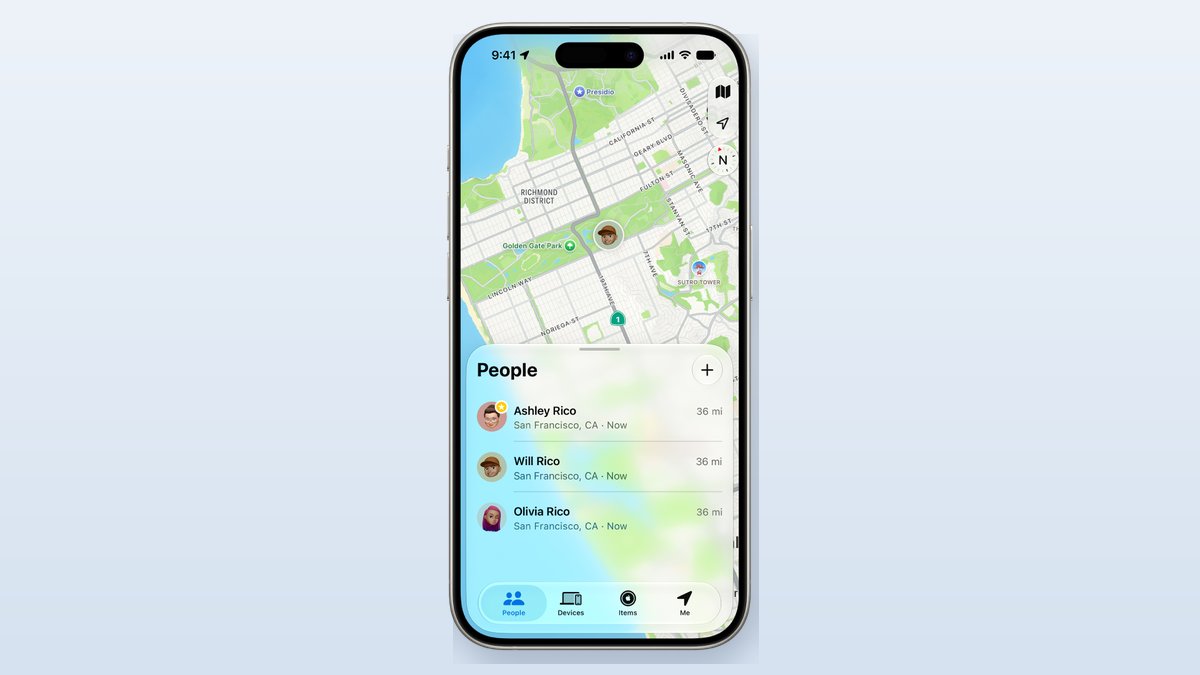
Open Find My, tap the People tab, tap the plus button, then tap Share My Location. Pick a contact, pick how long, and you’re done. That’s how to share location on iPhone in about ten seconds. The taps are the easy part. The screen that matters is the one that asks how long. Tap “Indefinitely” by habit and the share keeps running long after the road trip or the concert is over. This guide covers the three ways to share, how to stop without fuss, how to reach a friend on Android, and what to do if you think someone is watching you.
- Find My is the best way to share with another iPhone. Use Messages for a quick live share inside a chat, or drop a pin for one fixed spot.
- The duration screen is the real decision. One hour or end of day covers almost every plan. Save “Indefinitely” for people you would hand a house key.
- Stopping a share in Find My sends no alert. But you vanish from their list, so a person who checks will notice.
- Find My and live Messages sharing don’t reach Android. Google Maps on your iPhone is the easiest free way to share a live dot with an Android phone.
- Worried someone is tracking you? Safety Check in Settings shows everyone you share with and can cut them all off at once.
Pick the Right Way to Share Your Location on iPhone
Each kind of sharing answers a different question. A live share says “keep watching my dot.” A pin says “here is one spot.” An ETA says “I’ll be there at 6:40.” Match the method to what the other person needs, and you share less without trying.
| Method | What they see | How long it lasts | Reaches Android? |
|---|---|---|---|
| Find My | Your live spot on a map | 1 hour, end of day, custom, or indefinitely | No |
| Live location in Messages | Your live spot inside the chat | 1 hour, end of day, custom, or indefinitely | No |
| Dropped pin in Messages | One fixed spot | Frozen at the moment you send it | Yes, as a map link |
| Share ETA in Apple Maps | Your arrival time while you navigate | Until you arrive | Best with iPhone users |
| Google Maps location sharing | Your live spot in Google Maps | 1 hour up to until you turn it off | Yes |
Apple lists all of these on its own Share your location with iPhone page, published October 5, 2026. One rule from that page matters before you start. Live Location needs iOS 15 or later on both phones, and some newer options need iOS 17.
How to Share Your Location in Find My
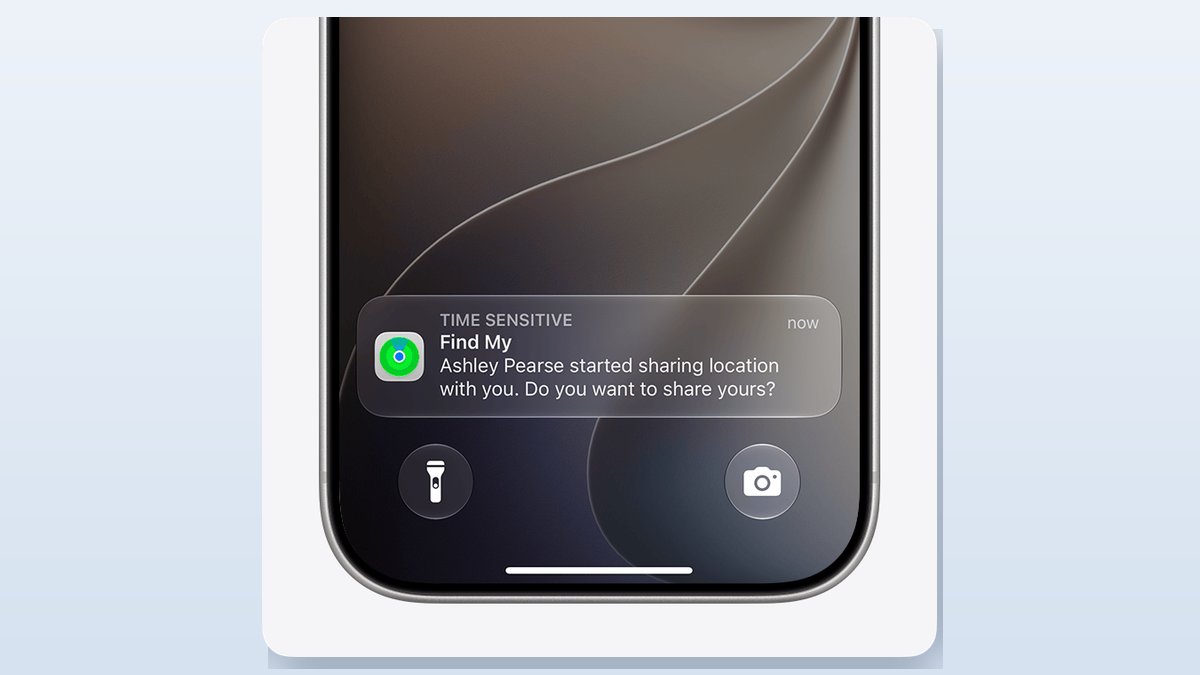
Find My is the best tool when the other person also has an iPhone. Your spot shows up in their Find My, Maps, Contacts and Messages apps, so they never have to hunt for it.
- Turn on sharing first. Open Find My, tap the Me tab, and switch on Share My Location. If this is off, nothing else works.
- Tap the People tab. Then tap the plus button.
- Tap Share My Location. Type the name or number of the person you want.
- Tap Send. You are almost done.
- Choose how long. Apple offers one hour, until the end of the day, indefinitely, or a custom time.
The other person gets a notice like the one above. It also asks them if they want to share back. That’s how most families end up sharing both ways.
Keep in mind: if you use Family Sharing, your family shows up in the People tab on its own. Apple says sharing still doesn’t start until you each share with the other. Seeing a name in the list is not the same as being shared with.
No phone to share from? A young kid’s backpack or a pet’s collar can’t run Find My. The next link is an affiliate link, so we may earn a small commission if you buy, at no extra cost to you. An Apple AirTag clips onto either one and shows up in the Items tab of the same app. It runs on a coin cell, and swapping it is easy if you buy the right one. Our AirTag battery replacement guide covers that.
How to Share Location on iPhone Through Text in Messages
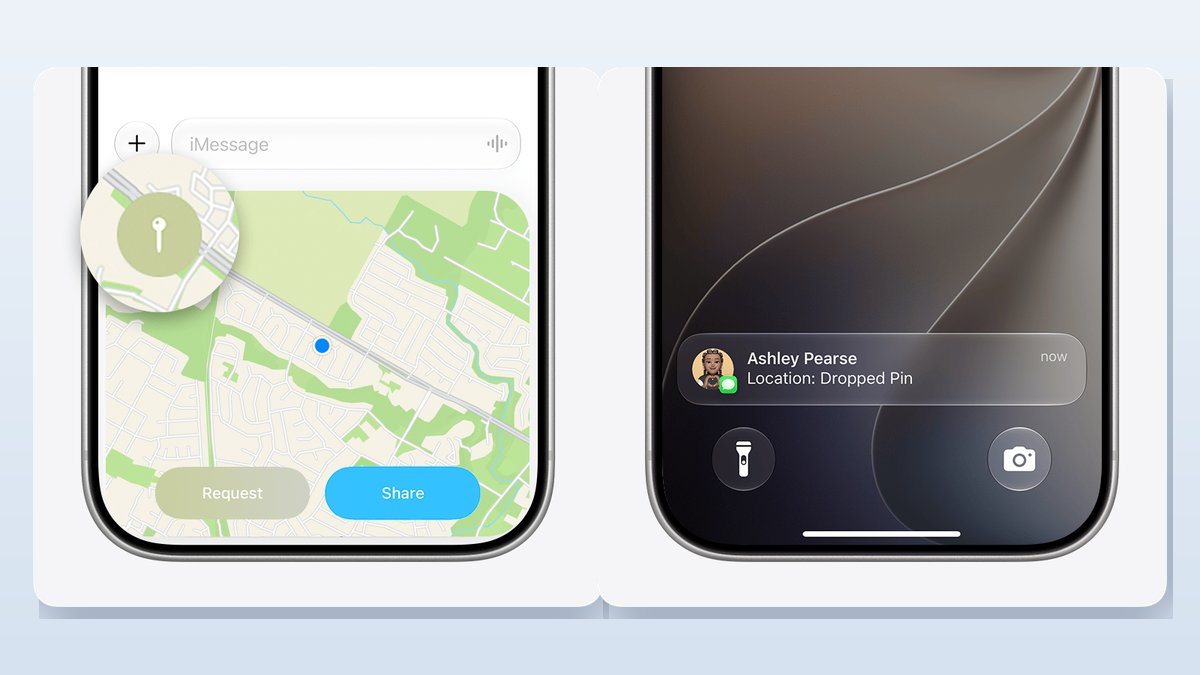
Messages is faster when you’re already in a chat, and the location sits right where the plan is being made. You have two choices here, and they behave very differently.
Send a Dropped Pin for One Fixed Spot
A pin is a snapshot. It shows one place and never moves again. Use it for “meet me at this gate” or “the car is parked here.”
- Open the chat and tap the plus button.
- Scroll down and tap Location.
- Tap the Map Pin button in the corner and set the pin where you want it.
- Tap Send Pin, then send your message.
The pin is the safest thing you can share. It can’t follow you home later.
Share Your Live Location Inside a Chat
A live share keeps moving as you move. Use it for “I’m walking home, watch my dot.”
- Open the chat and tap the plus button.
- Scroll down and tap Location.
- Tap Share and pick how long. The same four choices appear: an hour, end of day, indefinitely or custom.
On iOS 17 and later, people you share with also see your rough spot at the top of the Messages thread. That’s handy. It also means your location sits in the chat every time they open it.
Tip: on the same map screen you’ll see a Request button next to Share. Tap it to ask the other person for their location instead of sending yours. They still have to say yes.
How to Stop Sharing Location on iPhone Without Sending an Alert
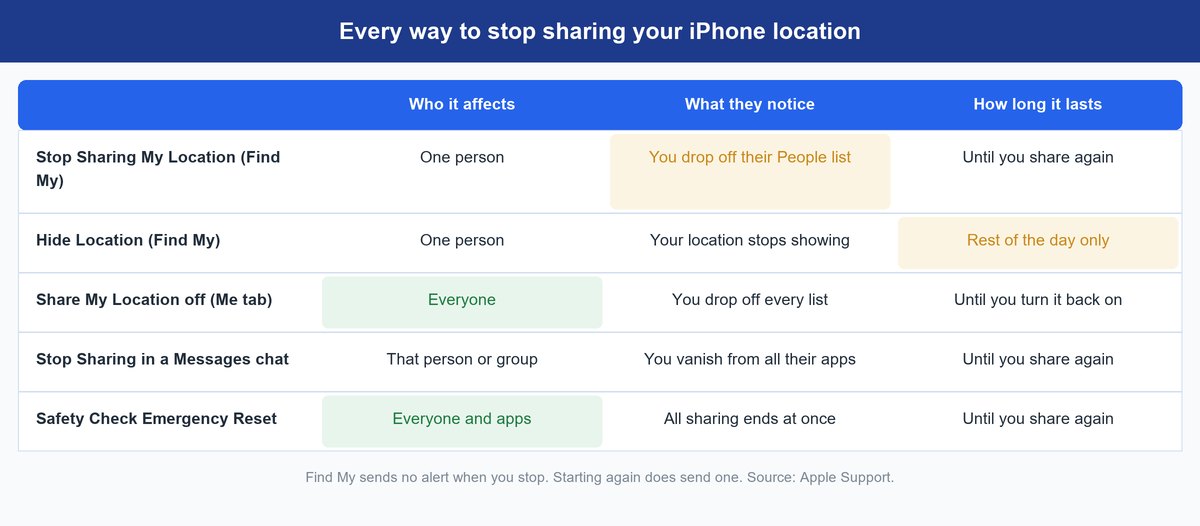
Here is the honest answer most people want. Apple’s location checklist says that when you stop sharing in Find My, the person isn’t notified. Start sharing again, and they do get a notice. So stopping is quiet and restarting is loud.
Quiet is not invisible, though. Apple’s personal safety guide says your location disappears from their Find My, Maps, Contacts and Messages apps. It adds that people may notice you’ve stopped. On older software, they may even get a note in Messages. If you need nobody to notice, a share can’t be ended in secret. Plan for that conversation, or use Safety Check below if your safety is at stake.
Stop Sharing With One Person in Find My
Open Find My and tap the People tab. Tap the person’s name, scroll down, and tap Stop Sharing My Location. Confirm it. This is the clean, permanent fix for one person.
Hide Your Location for the Rest of the Day
Same path, but tap Hide Location instead. Your spot stops showing for the rest of the day. Sharing then turns back on by itself the next day. It’s a pause button, not an off switch.
Stop Sharing With Everyone at Once
Open Find My, tap the Me tab, and turn off Share My Location. Everyone loses you at the same moment. Turn it back on later and your old shares return.
Stop a Share You Started in Messages
Open the chat and tap the person’s or group’s name at the top. Then tap Stop Sharing My Location. You can also open their contact card and stop from there.
Watch out: deleting the whole conversation also ends a share that started in Messages. Apple lists swipe-left-and-delete as a stop method. Clear out old chats and you may end a share you meant to keep.
How to Share Location From iPhone to Android
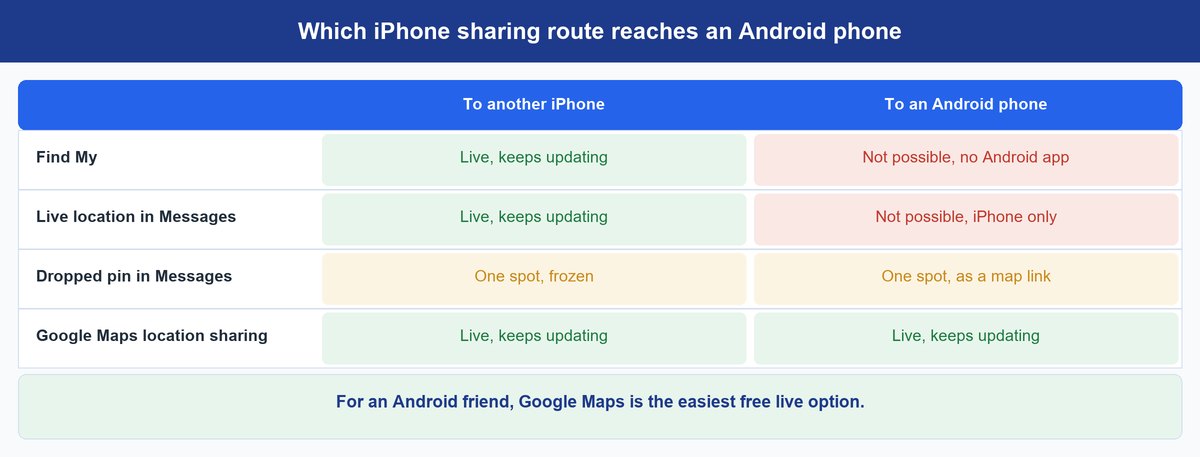
Find My has no Android app. Apple’s Live Location also needs an iPhone on both ends. That leaves two simple options for an Android friend. One is a dropped pin, which arrives as a one-time map link. The other is Google Maps, which runs on your iPhone and shares a live dot that any phone can see. If you both already use WhatsApp, its Live Location works across the two phones too.
Share Live Location With Google Maps on Your iPhone
- Install Google Maps from the App Store and sign in with a Google Account.
- Tap your profile picture at the top right, then tap Location sharing, then New share.
- Tap Add people and pick how long. The choices run from one hour up to until you turn it off.
- Tap your Android friend and then Share. They need a Gmail account for an ongoing share. No Google Account? Send a link through Messages or another app instead, but a link stops working after 24 hours.
For the dot to keep moving while Google Maps is closed, set its location access to Always in Settings, then Privacy & Security, then Location Services, then Google Maps. Button names shift a little between updates, but the profile picture is always the way in.
Worth knowing: a Google Maps share is tied to your Google Account, not your iPhone. Turning off Find My does nothing to it. To end it, open Location sharing in Google Maps, or use the Location Sharing settings in your Google Account. People who juggle both apps forget this second list all the time.
Our iPhone vs Android guide covers what else changes when your household runs both.
Why Location Sharing Is Not Working on iPhone
When a friend says “your dot isn’t moving,” check these settings in order. The first two cause most of the trouble.
Location Services Is Turned Off
Go to Settings, then Privacy & Security, then Location Services. If this switch is off, no app can see your spot, Find My included. Apple notes that no one is told when you turn it off. Your shares simply stop updating.
Share My Location Is Off on the Me Tab
Open Find My and tap Me. Share My Location must be on. A new phone or a restore from backup can leave it off.
The Wrong Device Is Set as Your Location
If you own an iPad or a second iPhone, Find My may be using that device as your location. On the Me tab, look for the option to use this iPhone as your location and tap it. Otherwise your friend sees the iPad on your desk at home.
You Are Using Different Apple Accounts
Sharing follows your Apple Account, not your phone number. If your partner set up their phone with an old email, your share may be going to an account they no longer use. Open their contact card and make sure it holds the email or number tied to their current Apple Account.
The Phone Has No Signal or Is Saving Power
Airplane Mode or a dead zone leaves people looking at your last known spot. Low Power Mode cuts back on background work, so updates can lag. Some users also report that toggling Location Services off and on, then restarting the phone, fixes a stuck share after an update. That one comes from user reports, not from Apple.
Use Safety Check If You Think Someone Is Tracking You
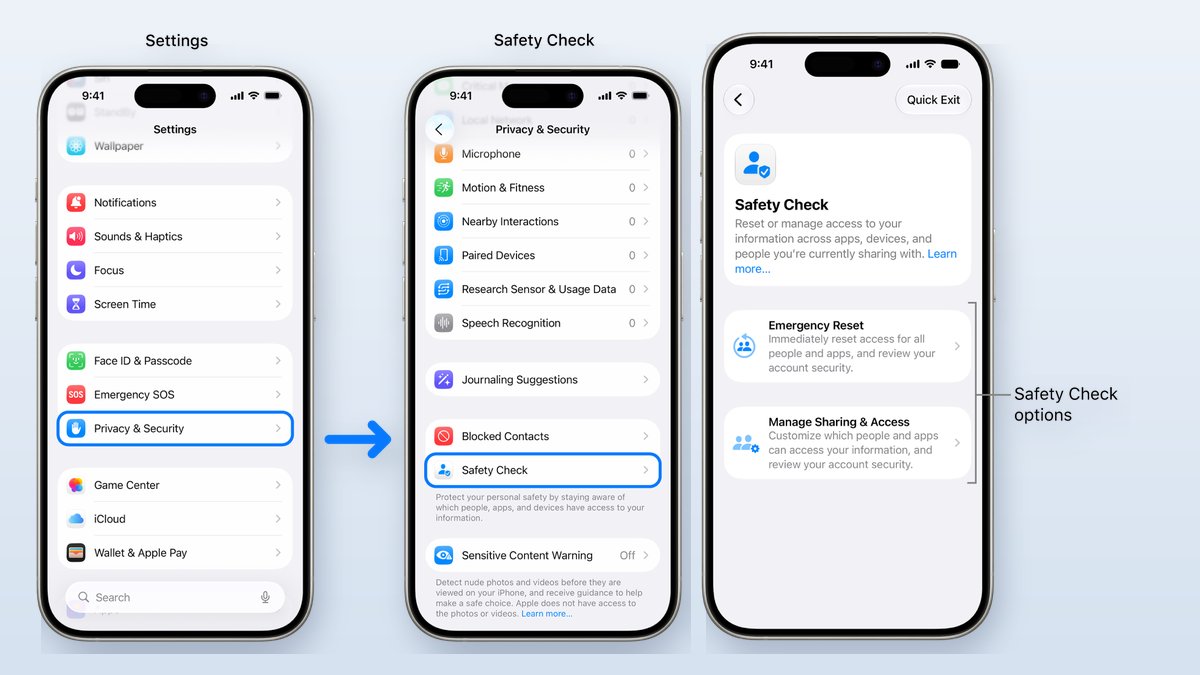
Sometimes the real question is “who can see me right now?” Think of an ex who still has your location, or a share you forgot years ago. iPhones on iOS 16 or later have a tool built for exactly this.
Go to Settings, then Privacy & Security, then Safety Check. Apple’s Safety Check guide describes two paths.
Emergency Reset Cuts Everything at Once
This one stops sharing with every person and app in one move. It also walks you through your account security. Use it when you feel unsafe and want everything off now.
Manage Sharing and Access Lets You Review Person by Person
This path shows who and which apps can see your data, one at a time. You keep the shares you want and drop the rest. It’s a good yearly cleanup even if nothing feels wrong.
One warning: every Safety Check screen has a Quick Exit button at the top right. It closes the tool right away if someone walks up and grabs for your phone. Know where it is before you need it.
Frequently Asked Questions
Does the other person get notified when I stop sharing my location on iPhone?
No push alert goes out when you stop in Find My. Apple confirms the person isn’t notified. But your name drops off their list, so anyone who checks will see you’re gone. If you share again later, they do get a notice.
How do I share my location on iPhone permanently?
Pick “Indefinitely” on the duration screen in Find My or Messages. The share then runs until you stop it. Just keep a short list of who has it, and look at your People tab every few months.
How do I see someone’s location on my iPhone?
Open Find My and tap the People tab, then tap their name. You can only see people who have shared with you. To ask, use the Request button on the Messages location screen, and they choose whether to say yes.
Why can’t I see my wife’s location on my iPhone?
The usual cause is on her phone. Location Services may be off, Share My Location may be off on her Me tab, or Find My may be using her iPad as her location. Also check that she shared with your current Apple Account, not an old email.
Can I share my location from iPhone to Android without an app?
Only as a one-time pin. Send it from Messages and your friend gets a map link to that spot. For a live dot that moves, the easiest free route is Google Maps on your iPhone.
Does turning off Location Services stop location sharing, and will anyone know?
Yes, it stops every app from using your location, so your shares stop updating. Apple says no one is notified when you turn it off. People who check will just see your last known spot.
Set a Time Limit Every Time You Share
Location sharing is how you find a friend at a festival or know a teenager got home. The risk isn’t the feature. It’s the share you started for one weekend and never ended. So pick one hour or end of day unless you have a clear reason not to, and glance at your People tab now and then. If anything there surprises you, Safety Check cleans it up in a minute. And if you’re also giving up an iPhone for good, our guide on how to turn off Find My iPhone covers the steps before you hand it over.