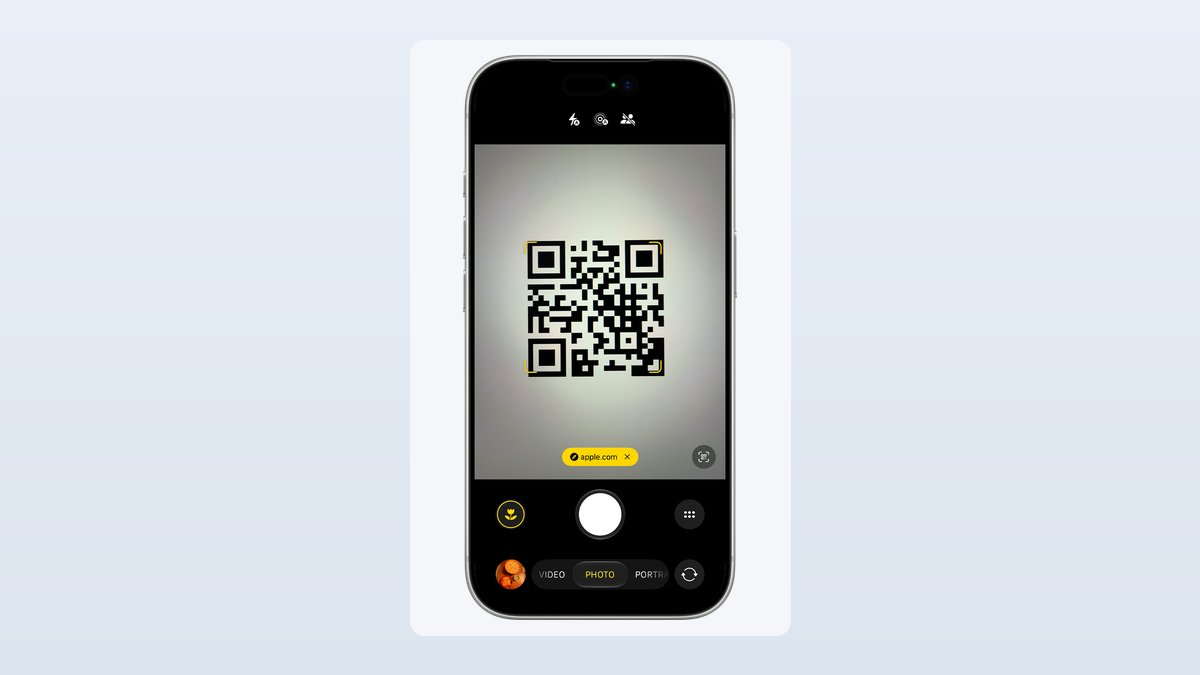
Open the Camera app, point it at the code, and tap the yellow tag that pops up. That’s how to scan a QR code on iPhone, and you don’t need an app for it. The scan is the easy part. Two things trip people up. The code is sometimes on your own screen, where you can’t point a camera at it. And you can’t see where a code goes until you look. Your iPhone handles both. This guide covers the four built-in ways to scan, the fix for codes in photos and screenshots, and a two-second habit that catches fake links.
- Point the Camera at the code and tap the yellow tag. No app, no shutter press. Skip QR scanner apps from the App Store, which is exactly what the FBI advises.
- The yellow tag shows the website’s name before you open it. Reading it takes two seconds and is the best scam check you have.
- Code Scanner in Control Center is a one-swipe shortcut with its own flashlight. Add it once and you’ll use it more than the Camera.
- Code on your own screen? Take a screenshot, open it in Photos, and touch and hold the code. This works on iPhone XS or XR and newer with iOS 15 or later.
- QR codes in emails are a growing scam trick because they slip past email link checks. Never use one to log in or pay.
Pick the Right Way to Scan for Where the QR Code Is
Where the code sits decides the method. A sticker on a table is a camera job. A code in an email on the same iPhone is not, because your camera can’t see its own screen.
| Where the code is | Best method | What you do | What you need |
|---|---|---|---|
| Printed on paper, a sign or a screen | Camera app | Point, then tap the yellow tag | Any recent iPhone |
| Same, but you scan often or the light is low | Code Scanner in Control Center | Swipe down, tap Scan Code | Add the control once |
| Same, and your phone has the button | Camera Control | Press it, then point | iPhone 16 or newer models with the button |
| In a photo, screenshot, email or web page on your iPhone | Live Text in Photos | Screenshot, open in Photos, touch and hold the code | iPhone XS or XR or later, iOS 15 or later |
The steps here match iOS 27, the version Apple’s own QR code support page shows. They work the same way on iOS 26.
How to Scan a QR Code With the iPhone Camera
Apple quietly added QR reading to the Camera app with iOS 11 in 2017, so the tool is already on your phone.
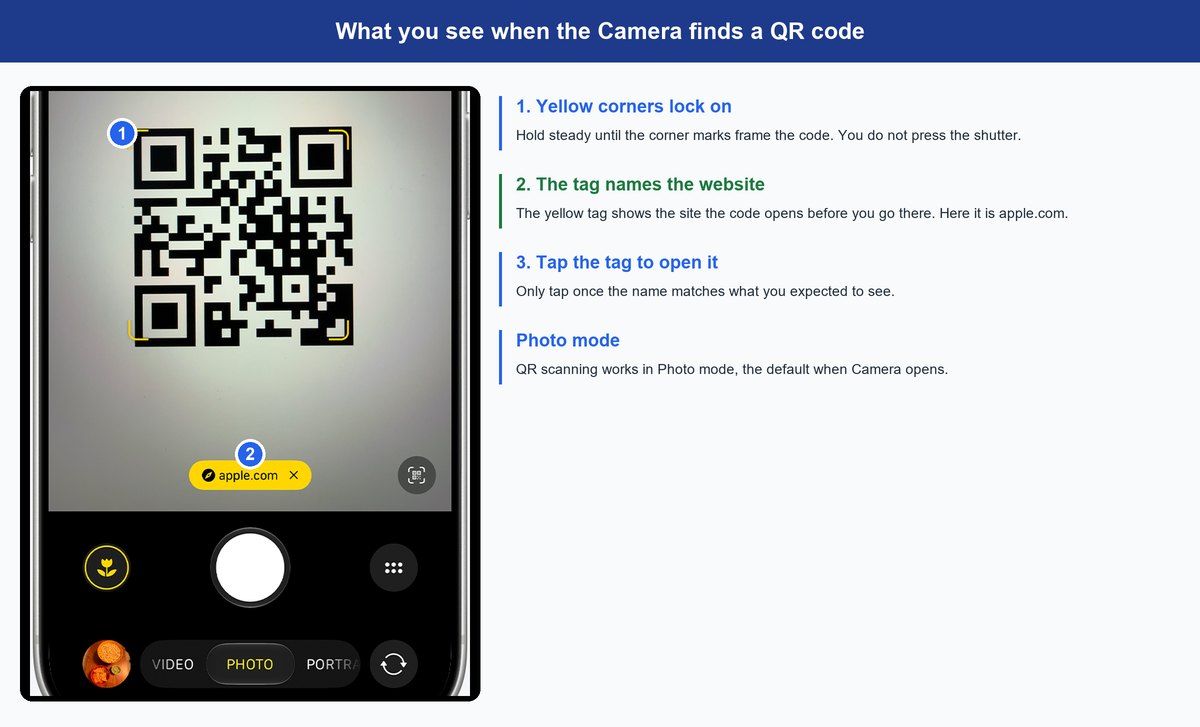
- Open Camera. Use the Home Screen icon, swipe left on the Lock Screen, or tap the camera button in Control Center.
- Stay in Photo mode. That’s the default when Camera opens. Apple’s iPhone User Guide says to scan in Photo mode.
- Point at the code. Hold the phone so the whole code shows on screen. Yellow corner marks lock onto it. You don’t press the shutter.
- Read the yellow tag, then tap it. The tag shows the website’s name. Tap it and the page opens.
Don’t rush step four. That little tag tells you the destination before you commit, which matters a lot once you reach the scam section below.
Faster Ways to Open the iPhone Code Scanner
Your iPhone has two shortcuts that skip the hunt for the Camera app.
Use the Scan Code Control in Control Center
Swipe down from the top-right corner to open Control Center (swipe up from the bottom on an iPhone with a Home button), then tap Scan Code. It opens a scanner that only does codes, so there’s no mode to get wrong. It also has a flashlight button you can tap for more light. That makes it the better pick in dim restaurants and parking garages.
Add Scan Code to Control Center If It Isn’t There
On newer iOS versions, Scan Code may not be in Control Center until you add it. Apple’s steps are short. Open Control Center, touch and hold an empty part of the background, tap Add a Control, then tap Scan Code. You only do this once.
Press the Camera Control Button on Supported Models
If your iPhone has the Camera Control button on its side, press it to jump into Camera, then point at the code. Apple’s guide confirms the Camera Control can scan QR codes on supported models.
How to Scan a QR Code From a Photo, Screenshot or Email on iPhone
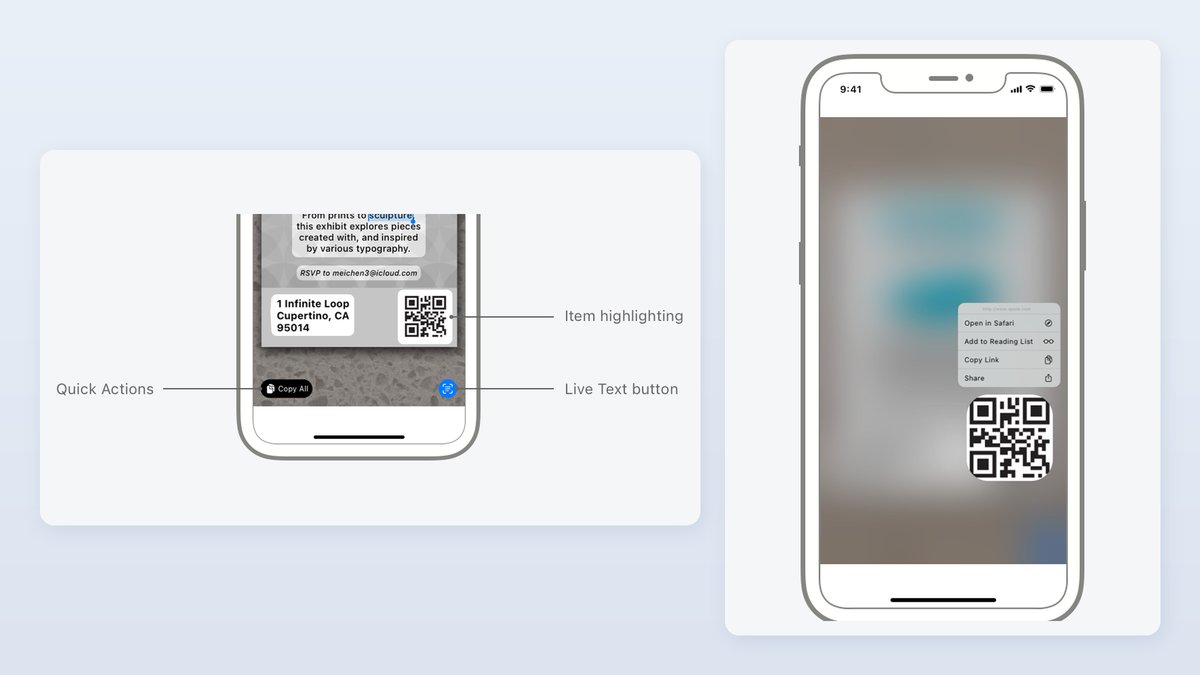
This is the problem that sends people to Reddit. The code is in an email, a text or a web page on the phone you’re holding. The fix is Live Text, which reads text and codes inside images.
- Take a screenshot. On iPhones with Face ID, press the side button and volume up together. On iPhones with a Home button, press the side button and the Home button together. Skip this step if the code is already a saved photo.
- Open the screenshot in Photos.
- Touch and hold the QR code. A menu appears with the web address at the top and options like Open in Safari and Copy Link.
- Read the address, then choose Open in Safari.
Apple’s developer documentation for Live Text in images describes this exact touch-and-hold on a QR code. It also shows the Live Text button in the lower-right corner. Tap it and your iPhone highlights everything it can read, codes included.
Keep in mind: Apple’s Live Text support page lists iPhone XS or XR or later on iOS 15 or later. An iPhone X or 8 can’t read codes in photos at all. Owners of those need a second phone or a computer screen to point the camera at.
If you’re trying to digitize paper rather than read a code, that’s a different tool. See our guide on how to scan a document with iPhone.
Check Where a QR Code Goes Before You Tap
A printed QR code can’t hide its real web address from your iPhone. A scammer can print a slick logo and a friendly “Scan to pay” sign. They can’t make the yellow tag say your city’s parking site if the code points somewhere else. That’s why reading the tag is the most useful habit in this guide.
Why Scammers Put Links Inside QR Codes
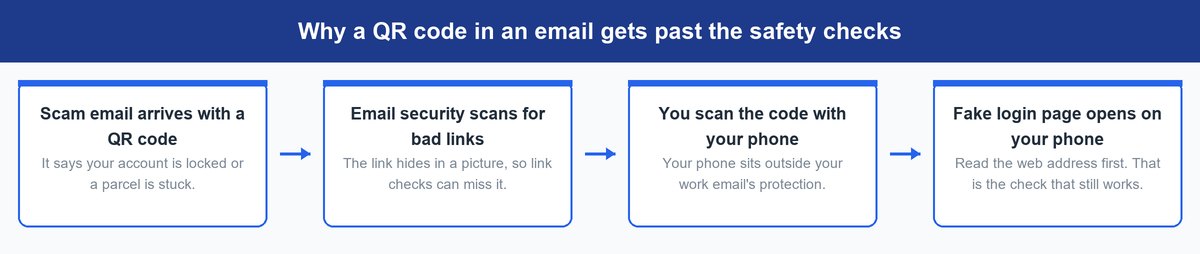
Security folks call this quishing, short for QR phishing. Phishing means a fake message built to steal your login or card details. The FBI’s January 2026 FLASH alert explains the trick in plain terms. A QR code moves the victim from a computer to a phone. That gets around the email security that checks links, because the link is hidden inside a picture. Your work email may scan every link. Your phone camera doesn’t.
It isn’t rare, either. ESET’s H1 2026 Threat Report found that about 11% of the phishing emails it detected from December 2025 to May 2026 used QR codes. The United States had the largest share of those detections, at 19%. That’s one security company’s data, but it shows the trick is common.
Where Fake QR Codes Show Up
The FTC’s consumer alert on QR code scams names the usual spots. Scammers stick their own code over the real one on parking meters. They also send codes by text and email with fake urgency, like a parcel that couldn’t be delivered or an account problem you must fix today. The rush is the tell.
The Two-Second Check Before You Open Any Code
- Read the name in the yellow tag. Does it match the business on the sign? A parking code should name the city or its parking company, not a random string of words.
- Look for one-letter tricks. The FBI’s QR code warning notes that a fake web address can look almost like the real one, with a typo or a misplaced letter.
- Treat a short link as a blank. If the tag shows a link shortener such as bit.ly instead of a business name, it can’t tell you where you’ll land. The FBI’s FLASH alert describes scams that pass victims through redirect links before the fake page loads. Don’t log in or pay through one.
- Feel the sticker. On meters and posters, a code stuck on top of another code is a red flag.
- On the photo method, read the top of the menu. The long-press menu doesn’t show a yellow tag. The address sits in small grey text above Open in Safari. Read it before you tap.
- Never log in or pay through a code you didn’t expect. Type the company’s web address yourself, or open its app.
Watch out: If a QR code asks you to download an app, stop. The FBI says to get apps only from your phone’s app store and to skip QR scanner apps entirely, since the scanner in your camera already does the job.
Why Your iPhone Camera Is Not Scanning a QR Code
Most failed scans come down to light, distance or a setting. Work down this list in order.
Switch Back to Photo Mode
If Camera was left in Video, Portrait or Pano, swipe back to Photo. Apple’s guide ties QR scanning to Photo mode, so the other modes are the first suspect.
Add Light With the Code Scanner Flashlight
A dim code is a hard code. Open Scan Code from Control Center and tap its flashlight button. This also helps with codes on dark backgrounds.
Clean the Camera Lens
Pocket lint and fingerprints blur fine detail. On supported models, Apple’s advanced camera settings guide notes that the iPhone can spot a smudged lens and suggest cleaning it. Wipe it with a soft cloth.
Check the Camera Settings Screen
Open Settings, then Camera. Apple’s Live Text camera guide says Show Detected Text controls Live Text in the camera, so make sure it’s on. Some iPhones have also shown a separate Scan QR Codes switch on that screen. If yours does, make sure it’s on too. Apple notes Live Text isn’t available in every region or language.
Try Scan Code Instead of the Camera App
Apple Community users report that Scan Code in Control Center can still read a code when the Camera app won’t.
Change the Distance or the Angle
Tiny codes need you closer, and big poster codes need you farther back. If glare washes out the squares, tilt the phone a little until it moves off the code.
Frequently Asked Questions
Do I need an app to scan QR codes on my iPhone?
No. The scanner is built into the Camera app and the Scan Code control. The FBI actually advises against downloading QR scanner apps, since your phone’s camera already reads codes.
How do I scan a QR code that’s on my own iPhone screen?
Take a screenshot, open it in Photos, and touch and hold the code. A menu opens with the link on top and an Open in Safari option. This needs an iPhone XS or XR or later running iOS 15 or later.
Can I screenshot a QR code and send it to someone?
Yes. A screenshot of a QR code still works, and the other person can scan it from their own Photos app or point another phone at their screen. Be careful with tickets and boarding passes, though. Anyone holding the screenshot may be able to use it.
Where is the code scanner on my iPhone?
It lives in Control Center as Scan Code. Swipe down from the top-right corner to find it. If it’s missing, touch and hold the Control Center background, tap Add a Control, then tap Scan Code.
How do I scan someone else’s QR code?
Ask them to hold their screen up, turn their brightness up, and point your Camera at it. Wi-Fi codes work this way too. Android phones can share a Wi-Fi password as a QR code, and our guide to finding your Wi-Fi password shows where that code lives. Carriers also hand out eSIM setup as a QR code, which we cover in eSIM vs physical SIM.
Is it safe to scan QR codes on my iPhone?
Scanning a code is safe. Opening the link is the risky part. Read the website name in the yellow tag first, skip codes that arrive by surprise in texts or emails, and never log in or pay through one. The FTC also advises keeping your phone updated and protecting accounts with multi-factor authentication, a second login step like a code sent to your phone.
Bottom Line on Scanning QR Codes With Your iPhone
You already own the best QR scanner for your iPhone, and it’s free. Use the Camera or Scan Code for printed codes and Live Text for codes on your own screen. Then build one habit. Read the name in the yellow tag before you tap, every time. It takes two seconds, and it’s the one check a fake sticker can’t fool. The same rule of sharing only what you mean to share applies to your whereabouts, and our guide to sharing your location on iPhone shows how to put a time limit on it.